Mailbox warm-up runs in Warmforge, not in Salesforge. Every mailbox you connect to Salesforge is connected to Warmforge too, whatever its provider. You can also connect mailboxes directly to Warmforge: in that case it supports Mailforge, Infraforge, Google Workspace and Microsoft 365 mailboxes. Warmforge is where you check warm-up stats, run health checks, change warm-up settings and get your warmup codes. To learn why warm-up moved, read Why we moved warmups from Salesforge to Warmforge.
Warm-up emails are separate from your campaigns. They do not count toward the emails your sequences send.
Open Mailboxes & Warming in Warmforge. At the top you see how many mailboxes you have in total, how many are Warm and how many are in Error. The table lists each mailbox with its Heat score, today's warm-up results (Reached Inbox, Replied, Unspammed, Failed) and its SPF and DKIM status. Use the search box to find a mailbox, Reconnect all to reconnect mailboxes, and Select all to select every mailbox. The top right has the Warmup codes and Add mailbox buttons.
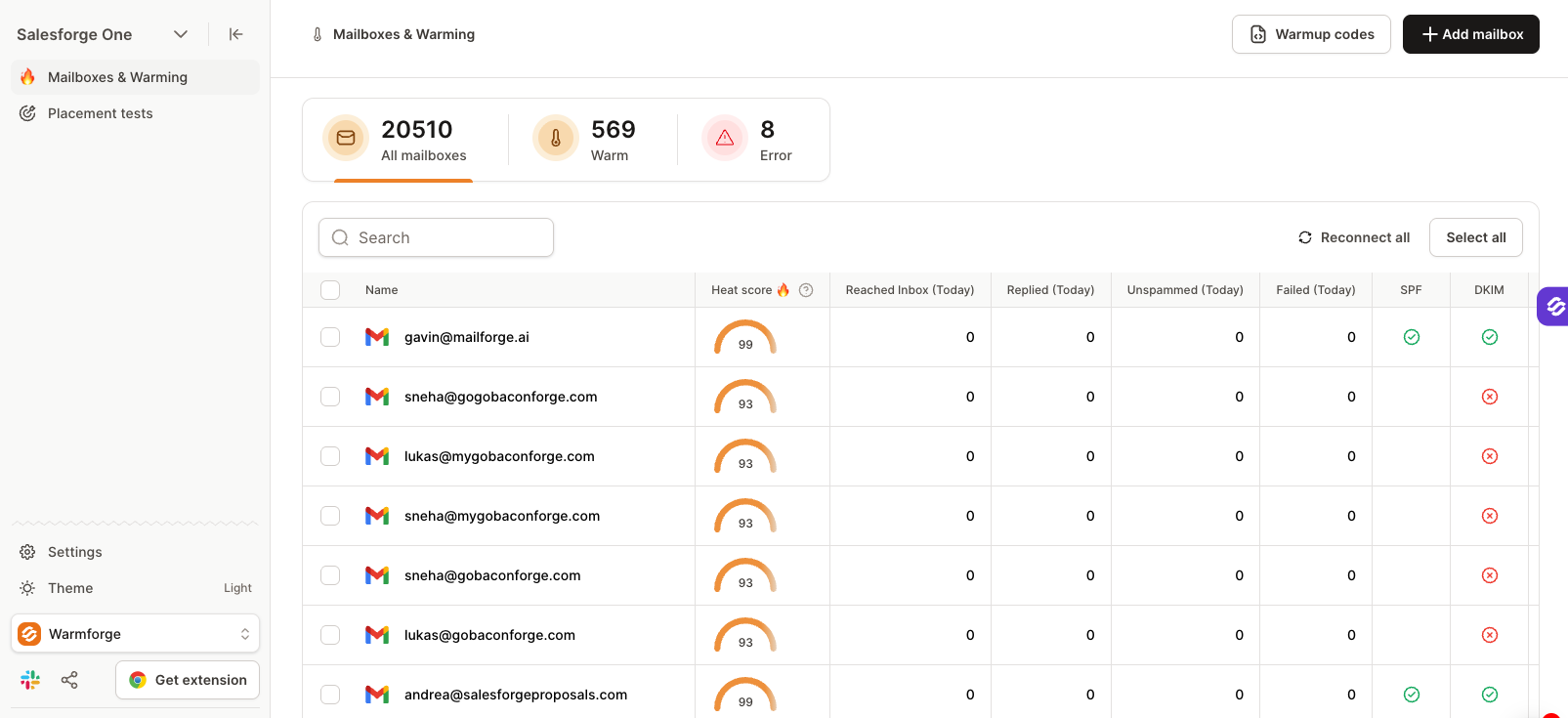
In Warmforge, go to Mailboxes & Warming.
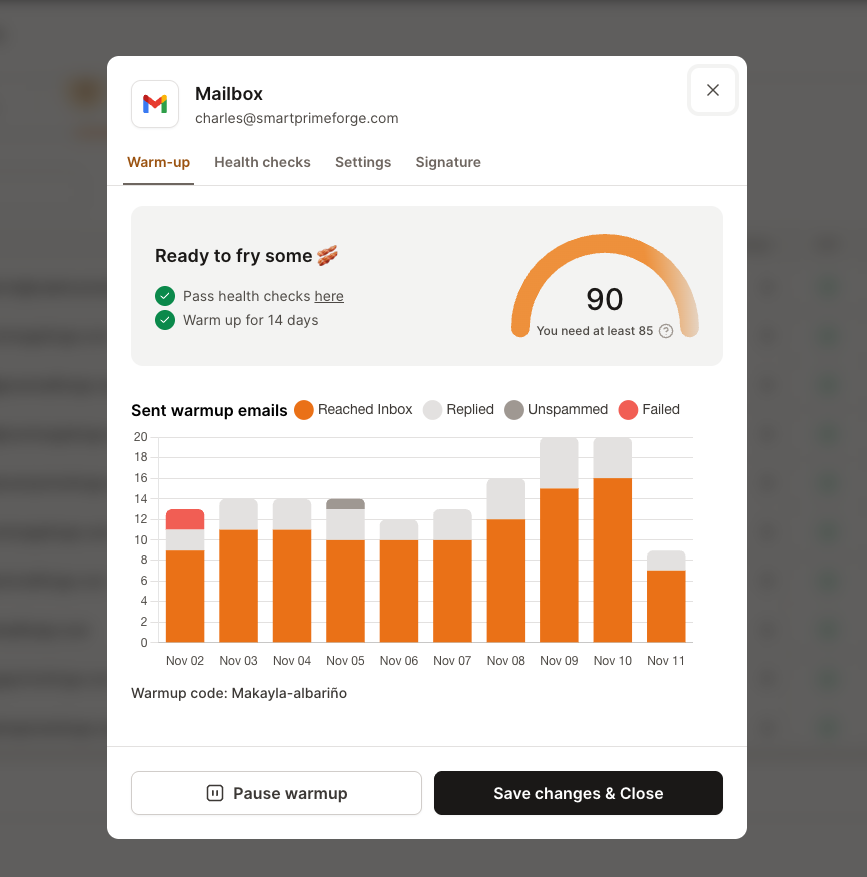
Click the mailbox you want to check.
Stay on the Warm-up tab.
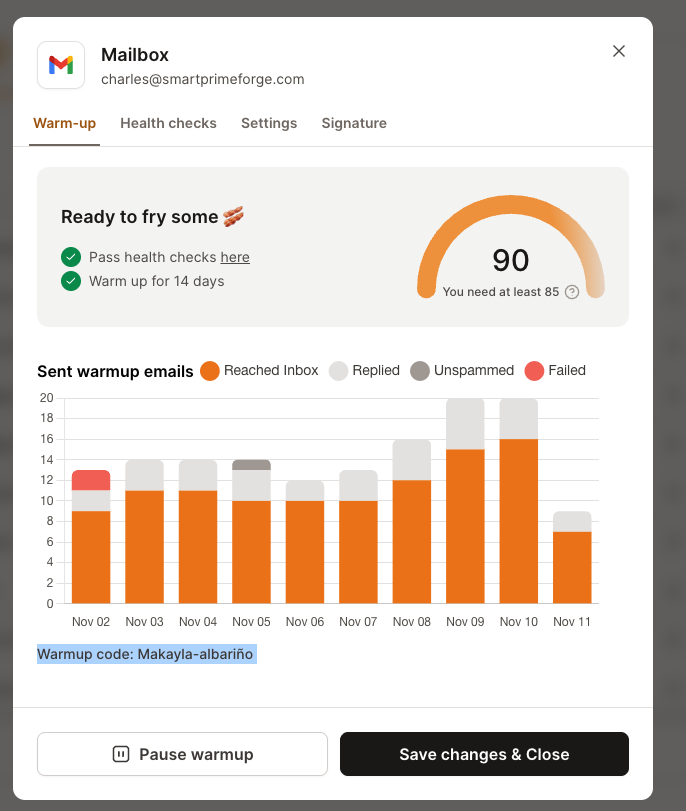
The top card shows your Heat score and whether the mailbox passes the health checks and has warmed up for 14 days. You need a Heat score of at least 85 before you send campaigns. See Understanding the Warmforge Heat Score for what affects it.
Below it, the Sent warmup emails chart shows each day's warm-up emails by result: Reached Inbox, Replied, Unspammed (found in spam and moved to the inbox) and Failed. The mailbox's warmup code is shown at the bottom. To stop warm-up for this mailbox, click Pause warmup. We recommend keeping warm-up running all the time.
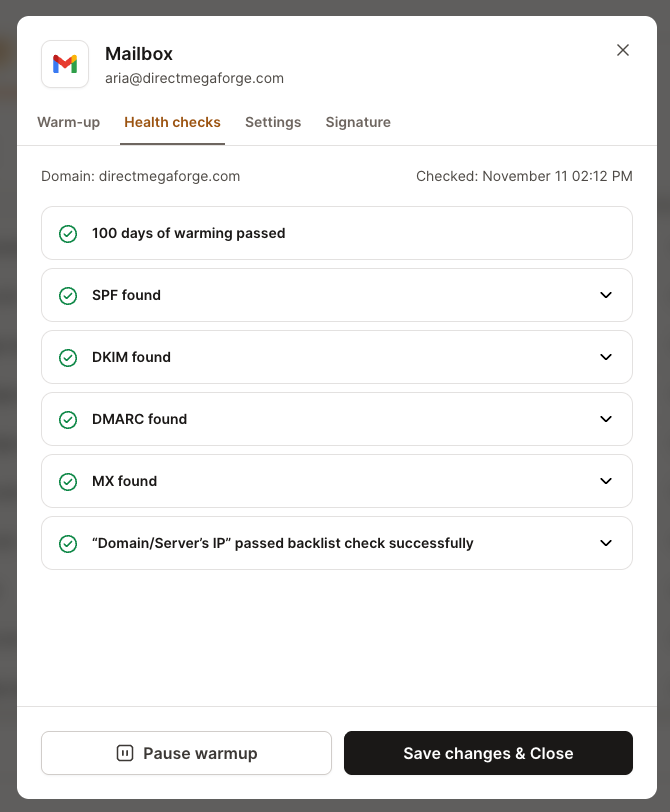
Open the Health checks tab to see the mailbox's domain, when it was last checked, and the result of each check: days of warming passed, SPF, DKIM, DMARC, MX and the backlist check for the domain and server IP. Click a check to see its details.
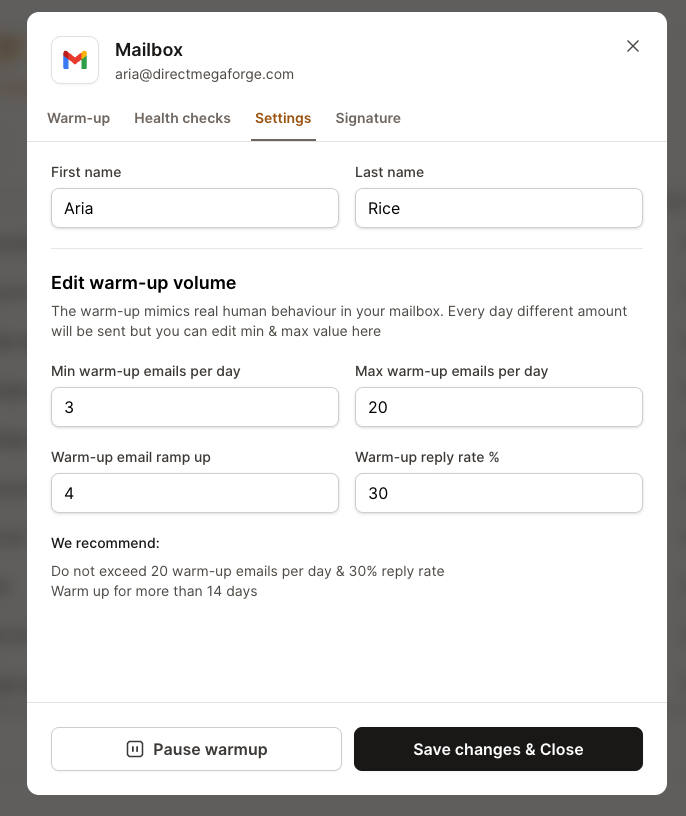
Open the Settings tab to edit the sender's first and last name and the warm-up volume:
Min warm-up emails per day and Max warm-up emails per day: Warmforge mimics real human behaviour, so a different amount is sent every day within this range.
Warm-up email ramp up and Warm-up reply rate %.
The settings start on the recommended numbers. We recommend you do not exceed 20 warm-up emails per day and a 30% reply rate, and that you warm up for more than 14 days. Click Save changes & Close to apply your changes.
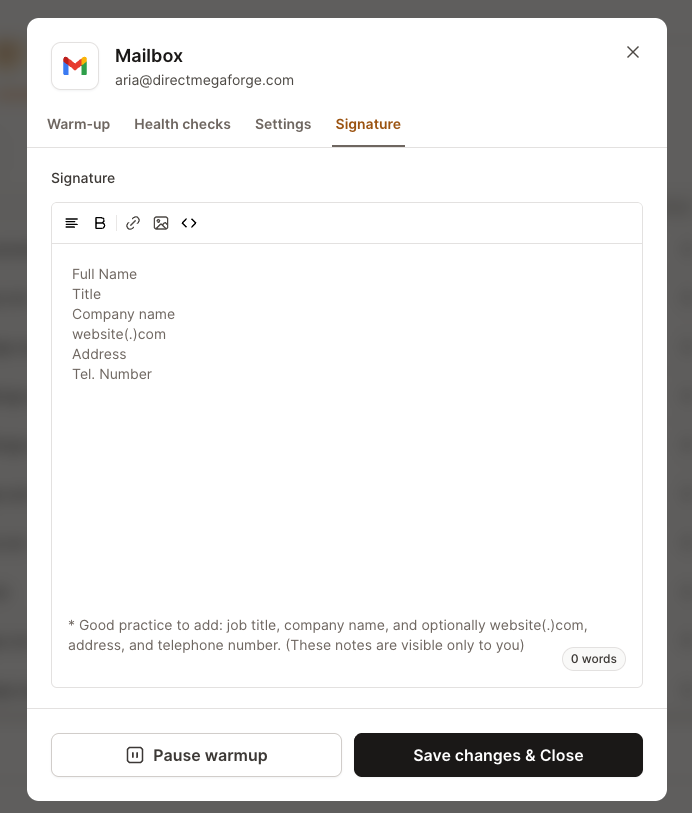
Open the Signature tab, write the signature in the editor and click Save changes & Close. A good signature has the sender's full name, job title, company name and, optionally, website, address and phone number.
Warmup codes are unique codes that appear in the body of warm-up emails. Use them to build a filter or rule in your inbox so warm-up emails skip your primary inbox. You can get the codes for all your mailboxes at once, or the code of a single mailbox.
In Warmforge, go to Mailboxes & Warming.
Click Warmup codes at the top right.
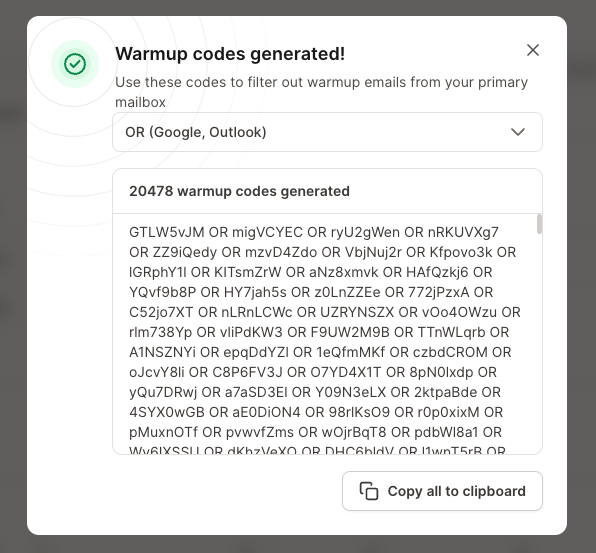
The Warmup codes generated! window opens and shows how many codes were generated.
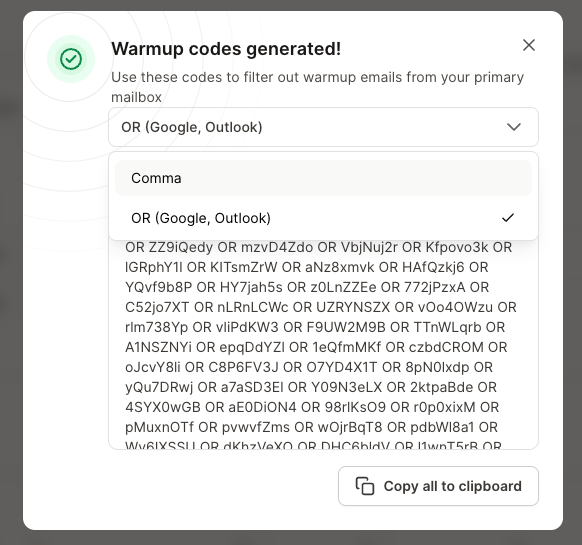
Choose a format in the dropdown: OR (Google, Outlook) puts OR between the codes, and Comma separates them with commas.
Click Copy all to clipboard.
In Warmforge, go to Mailboxes & Warming and click the mailbox.
On the Warm-up tab, find Warmup code below the chart.
Select the code and copy it.
Paste the codes into a filter in your inbox, then choose what happens to matching emails, for example apply a label or skip the inbox. For the full steps in Gmail, see How to create filters in Gmail for Warmforge warmup emails.
The warm-up settings above only control warm-up emails. The number of campaign emails a mailbox sends per day is set in Salesforge. See How to change sending limits in Salesforge. For safe daily volumes and the recommended timeline, see Cold email warm-up best practices.
If a mailbox shows an error or was suspended, see Why Warmforge suspends mailboxes.