How to Change Sending Limits in Salesforge
Sending limits control how many actions (emails or LinkedIn actions) each mailbox or LinkedIn account can perform per day. Keeping these limits appropriate helps protect your sender reputation and avoid account restrictions. This article covers how to update sending limits for both mailboxes and LinkedIn accounts.
Updating Mailbox Sending Limits
There are two ways to update the daily sending limit for a mailbox.
Method 1: Via Mailboxes tab
Go to your Salesforge account.
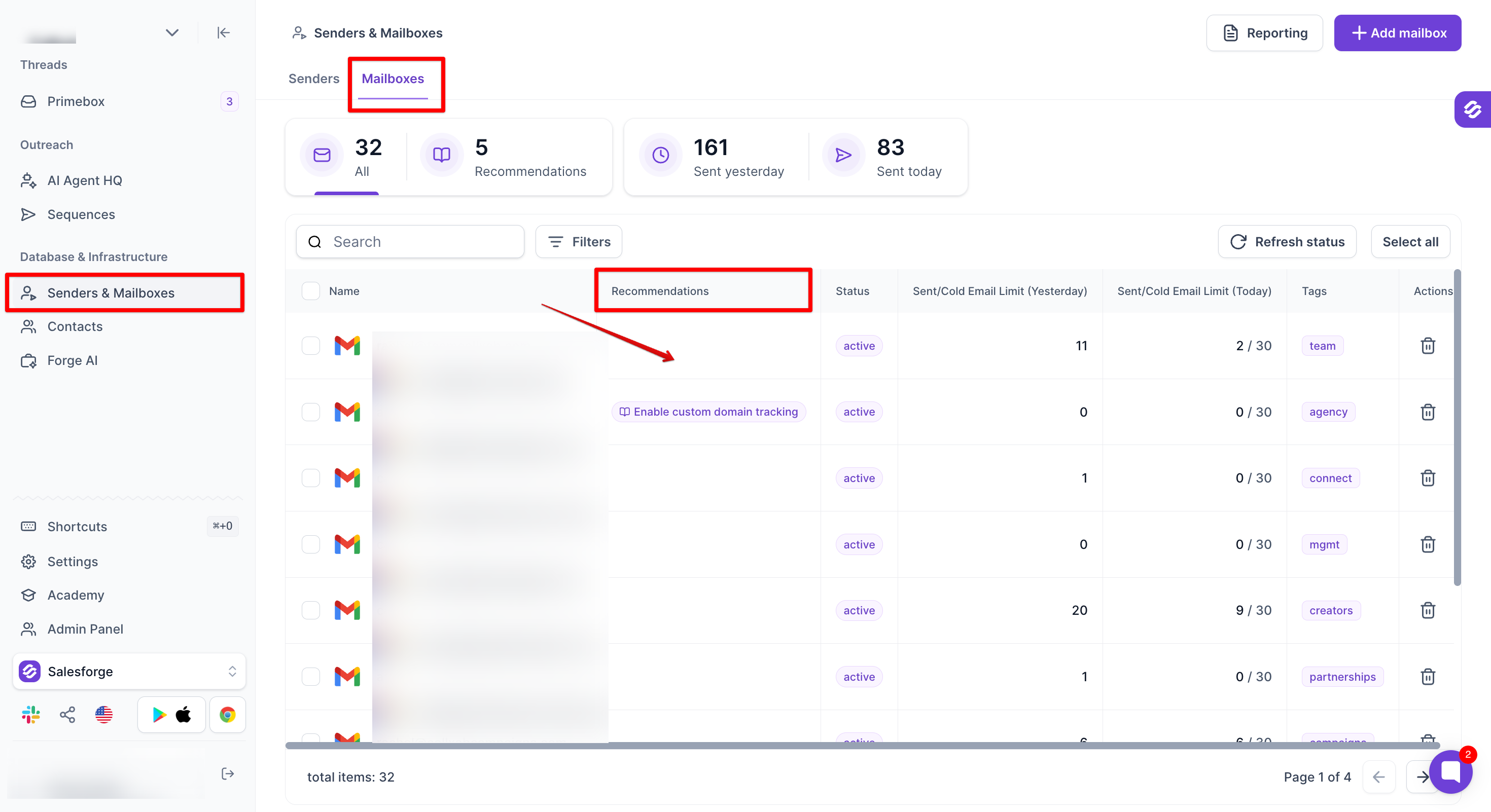
Navigate to "Senders & Mailboxes," then click the "Mailboxes" tab.
Click on the "Recommendations" column for the mailbox you want to update. A pop up will appear.
In the pop up, update the "Daily (24 Hour) sending limit" field and click "Update."
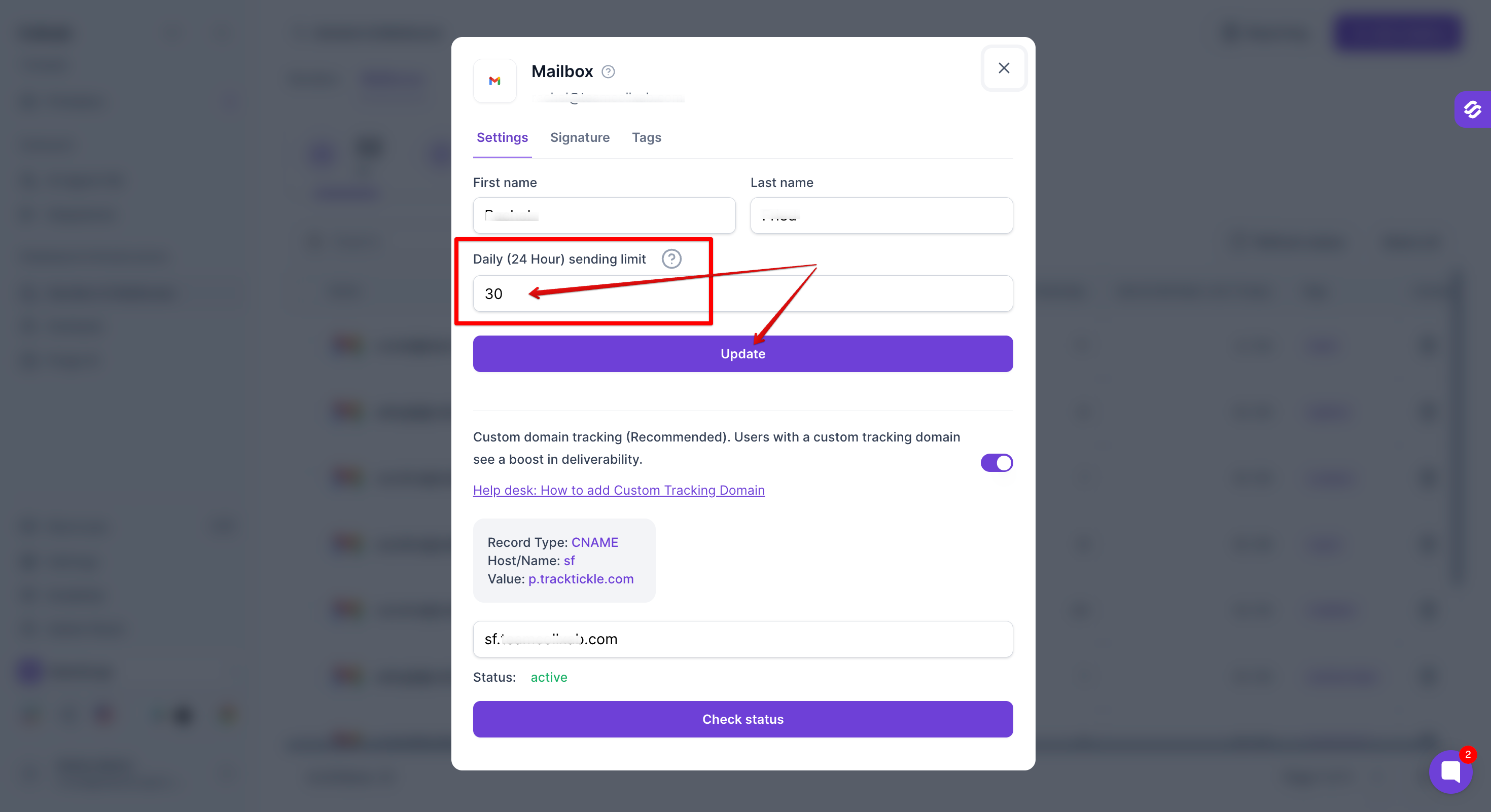
Note: this change applies from the next scheduled send, not instantly.
Method 2: Via Sender Profile
Go to "Senders & Mailboxes," then click the "Senders" tab.
Click on the sender profile you want to update.
Click on "Email accounts."
Click on the space under "Recommendations" across the mailbox for which the limit needs to be updated.
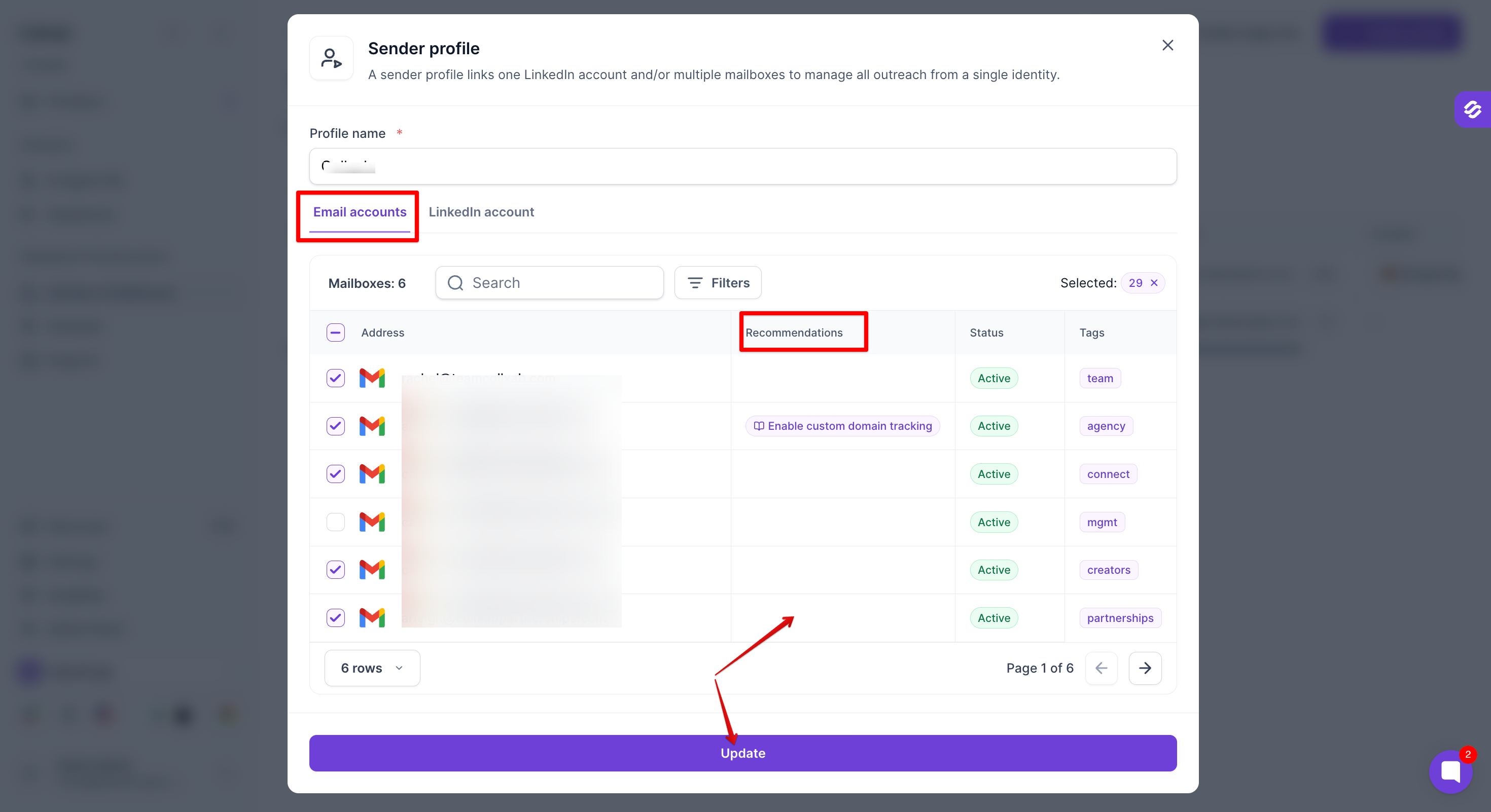
This will open the mailbox pop up, update the daily sending limit and click "Update".
Note: this change also applies from the next scheduled send, not instantly.
Updating LinkedIn Sending Limits
Go to "Senders & Mailboxes," then click the "Senders" tab.
Click on the sender profile.
Click on the "LinkedIn account" tab.
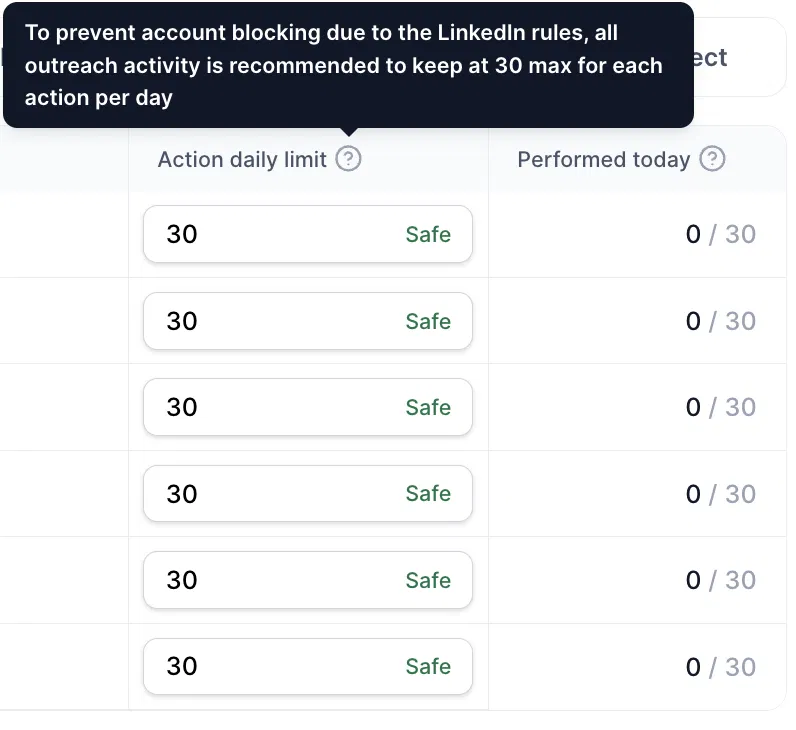
Under "Action daily limit," update the numbers for each action (View profile, Request connection, Send message, InMail message, Follow contact, Like latest post).
Click "Update."
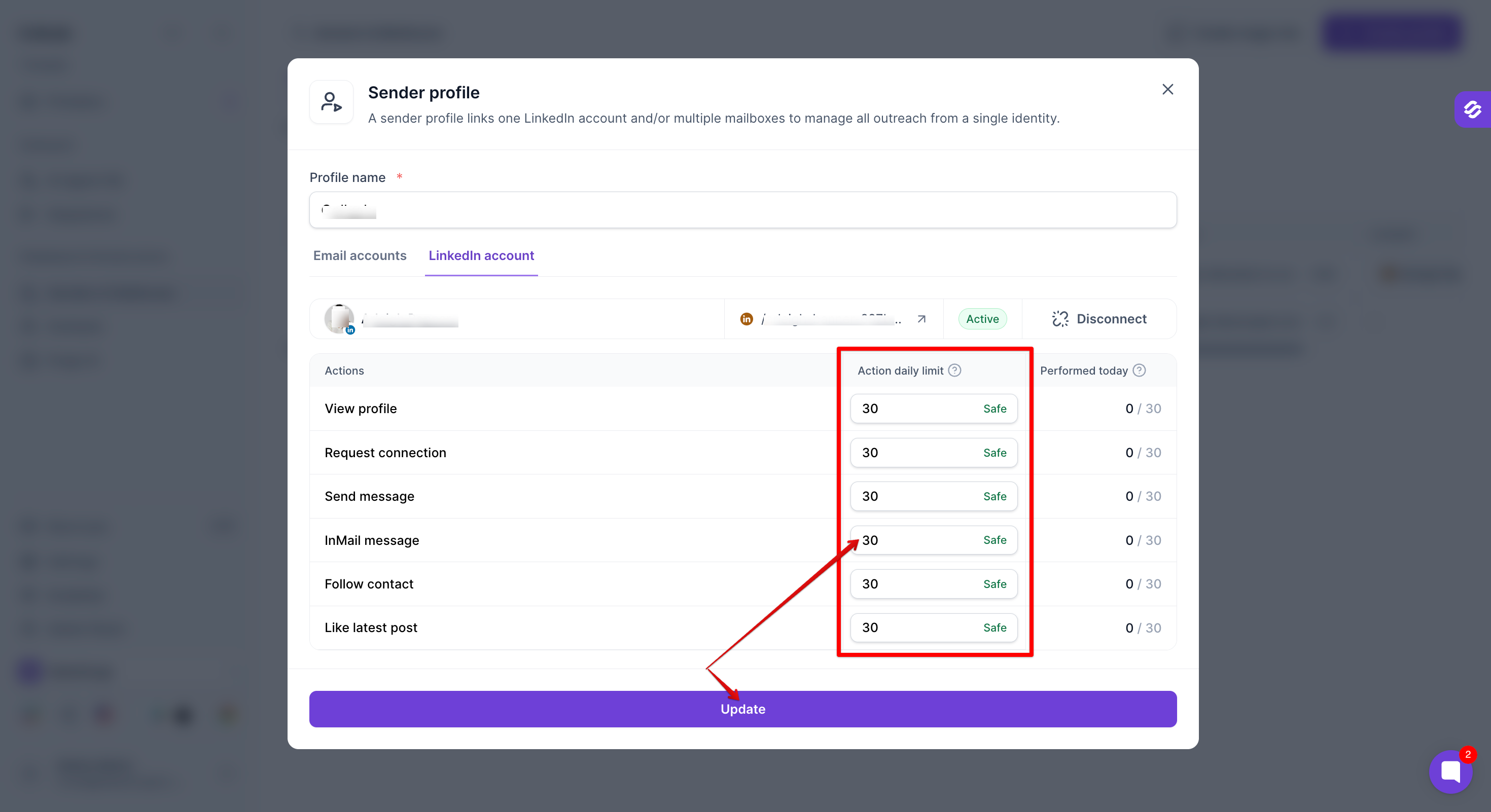
To prevent account blocking due to LinkedIn's rules, all outreach activity is recommended to be kept at 30 max for each action per day.