Infraforge gives you dedicated IPs that only you use. Every workspace uses one IP, and all domains in that workspace share it. There are two ways to see which IP is used: per workspace in Settings, or in the DNS records of your domains. For background, see How dedicated IPs work in Infraforge.
Log in to your Infraforge account at infraforge.ai.
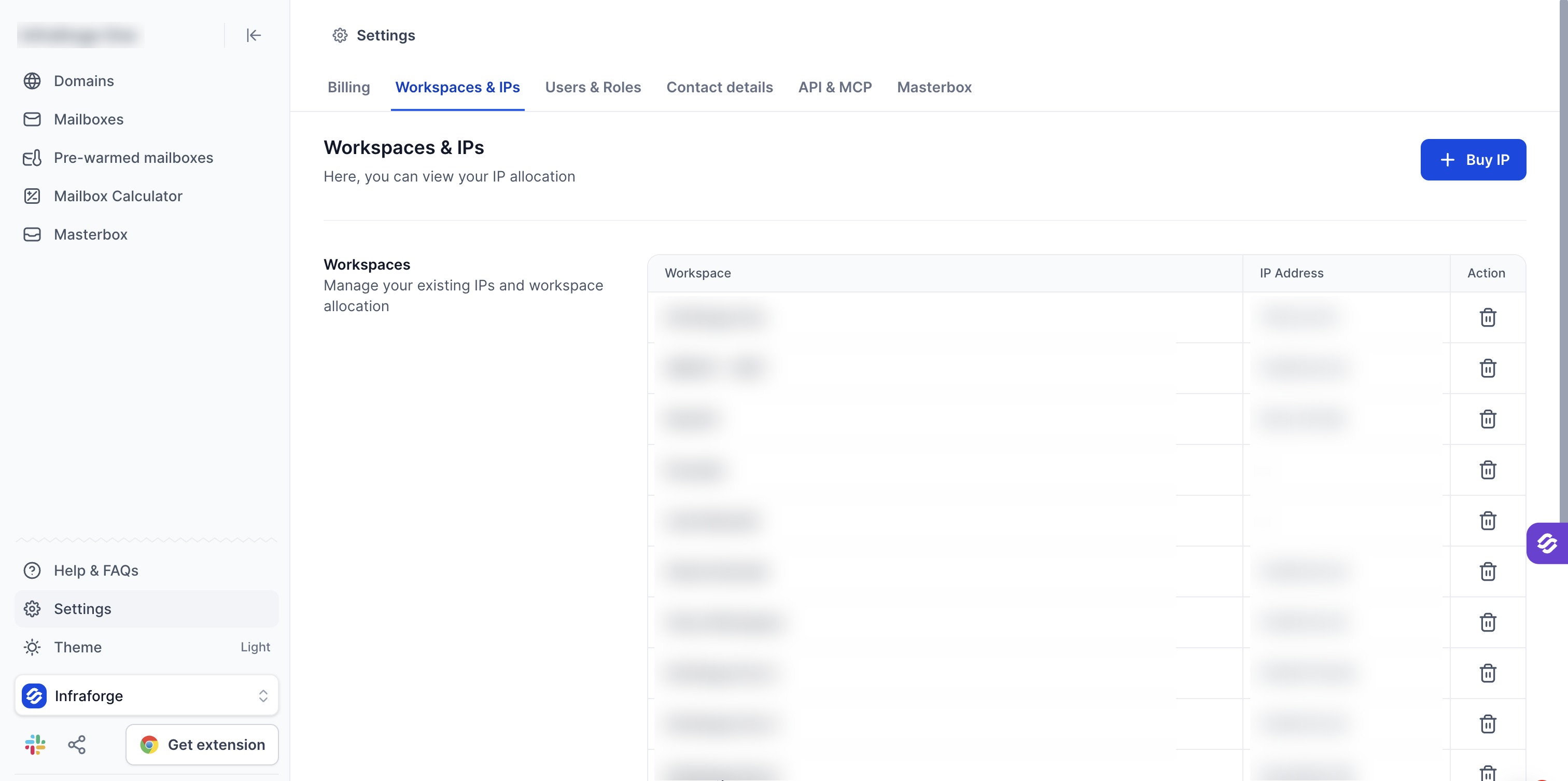
Go to Settings > Workspaces & IPs.
Here you can see your workspaces and the IP assigned to each one. All domains in a workspace use that workspace's IP.
The IP addresses list shows each IP together with its core domain. If you have many IPs, the list is paginated.
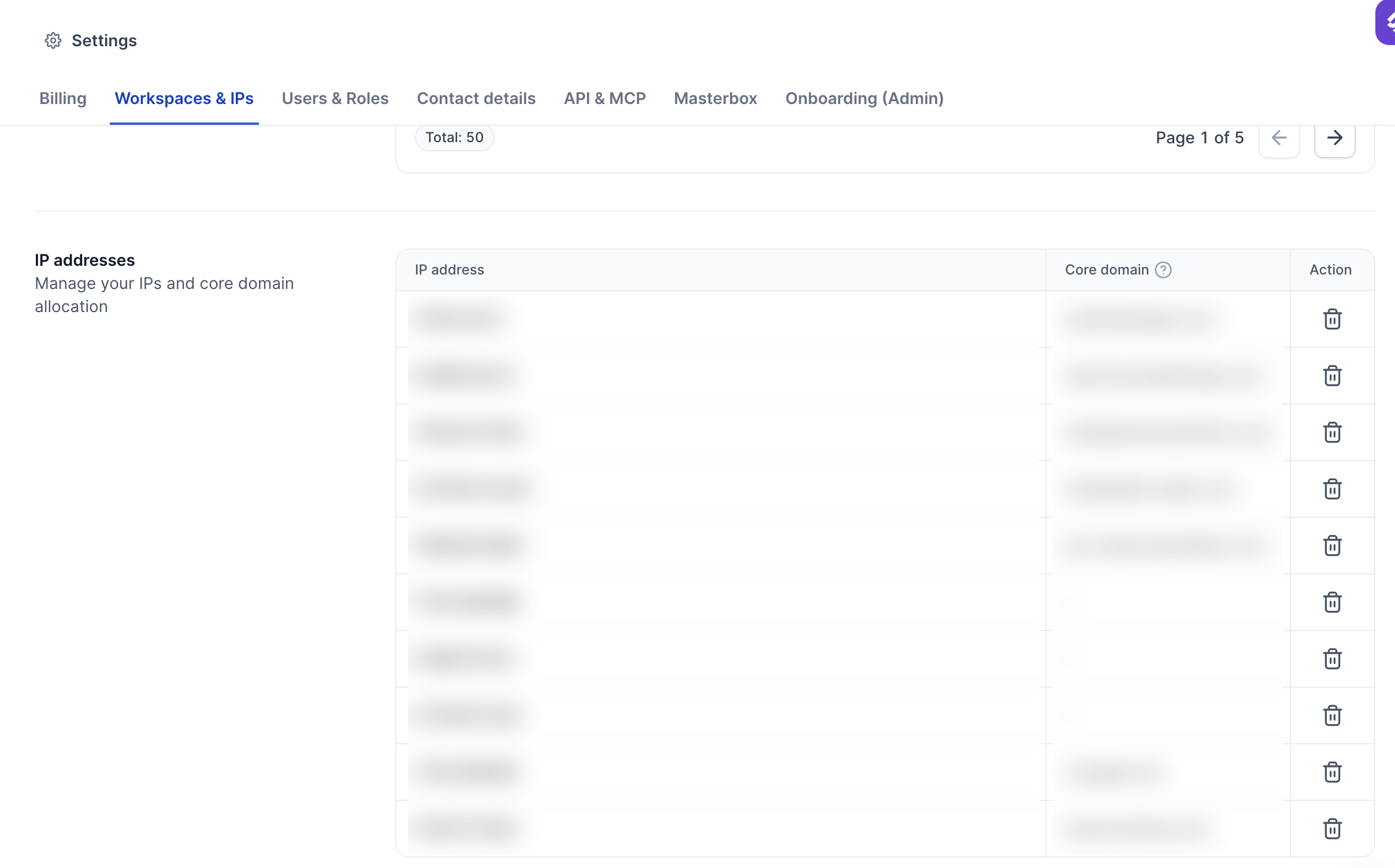
Each IP is hosted on one core domain. The IP is stored there as an A record. All other domains that use the same IP reference that core domain and also include the IP in their SPF record. So where you look depends on the domain:
For the core domain: check the A record.
For any other domain: check the SPF record.
Log in to your Infraforge account at infraforge.ai and open the Domains tab.
Find the core domain of the IP (Method 1 shows which domain it is) and click the globe icon in the DNS column.

The DNS management window opens with the host records of the domain.

Look for the record with Record Type A. Its address is the dedicated IP.

Domains that are not the core domain do not hold the IP themselves. Open their DNS management window the same way (Domains tab, globe icon in the DNS column) and look for the TXT record that starts with v=spf1. The IP is listed there after ip4:, as in the example row below.
Domains in the same workspace show the same IP.
You can buy an additional IP for a specific workspace. See How to buy an additional IP in Infraforge.