Mailforge and Infraforge mailboxes are standard SMTP/IMAP mailboxes, so you can connect them to any sending platform or your own sending software that supports SMTP and IMAP. SMTP/IMAP is the way these mailboxes connect, including to Salesforge. This article covers the settings you need, platforms such as Apollo or Snov.io that connect mailboxes one by one, and what to expect when you log in from your own servers.
Setting | Value |
|---|---|
Email address and password | From the exported CSV file |
SMTP host | From the exported CSV file |
SMTP port | 465 (SSL) or 587 |
IMAP host | From the exported CSV file |
IMAP port | 993 |
SMTP on port 465 and IMAP on port 993 are supported for all Mailforge and Infraforge mailboxes, and this support will remain. If your servers cannot use port 587, use 465.
Always use the SMTP and IMAP hosts from your exported CSV file. Mailboxes are spread across many servers, so the host differs from mailbox to mailbox, and there is no single hostname that works for all of them. Hostnames you may see in examples, such as core.thecentralunity.com, are only examples. The email address, username and password stay the same. If a Mailforge mailbox was migrated to a new server (marked Server V2), only the host changes. See Mailforge New Server.
Some sending platforms, such as Apollo and Snov.io, need mailboxes to be connected one at a time and do not support bulk import. Export the credentials first:
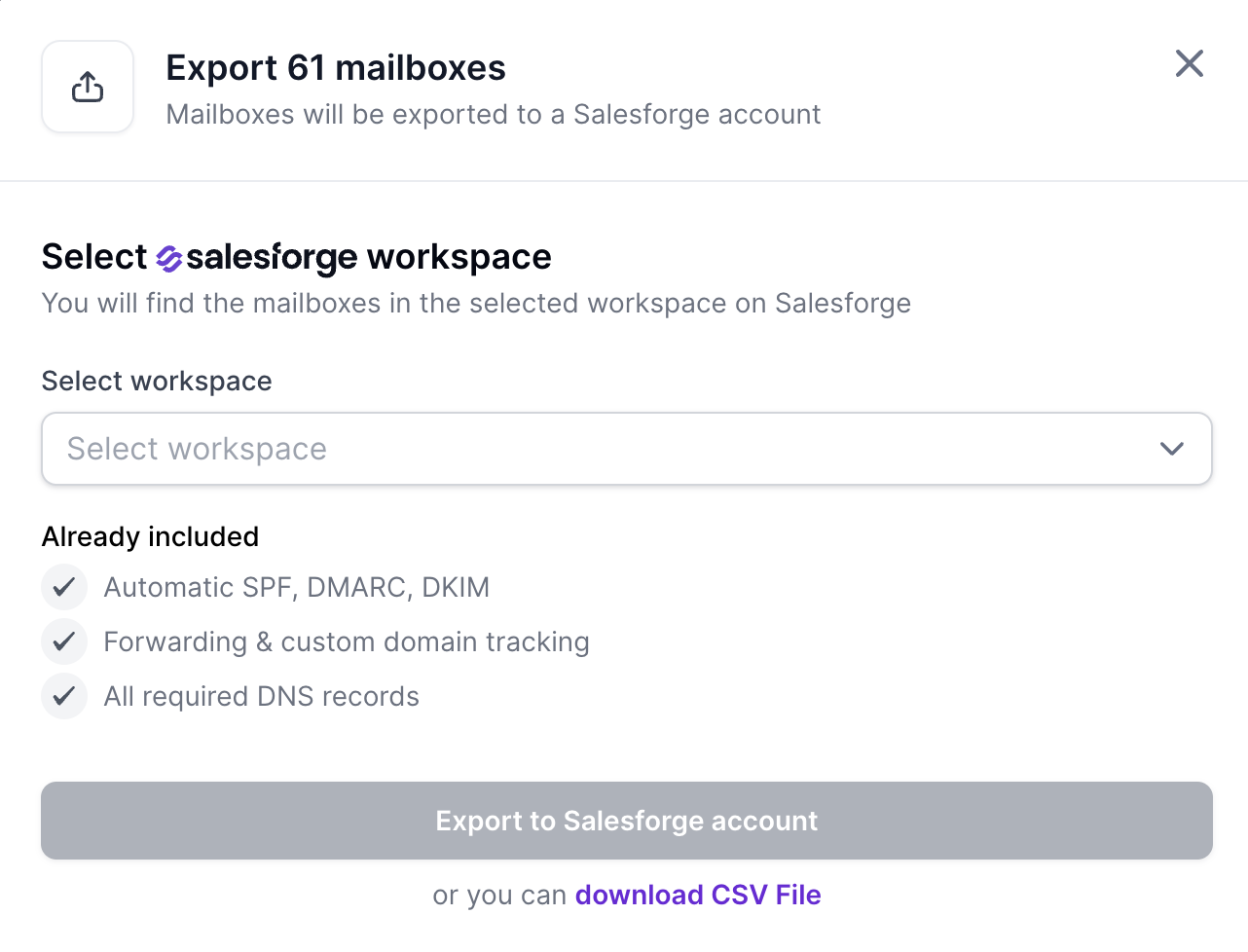
1. In Mailforge or Infraforge, go to the Mailboxes tab. Near the top of the screen, click the export button and select Export to Salesforge.

2. A dialog opens with two options: export to a Salesforge workspace, or download a CSV file. Choose Download CSV file. The file contains the login details for your mailboxes, including the email address, password, hosts and ports.
Infraforge also has an API endpoint for retrieving the SMTP and IMAP credentials of mailboxes. See the Infraforge API documentation.
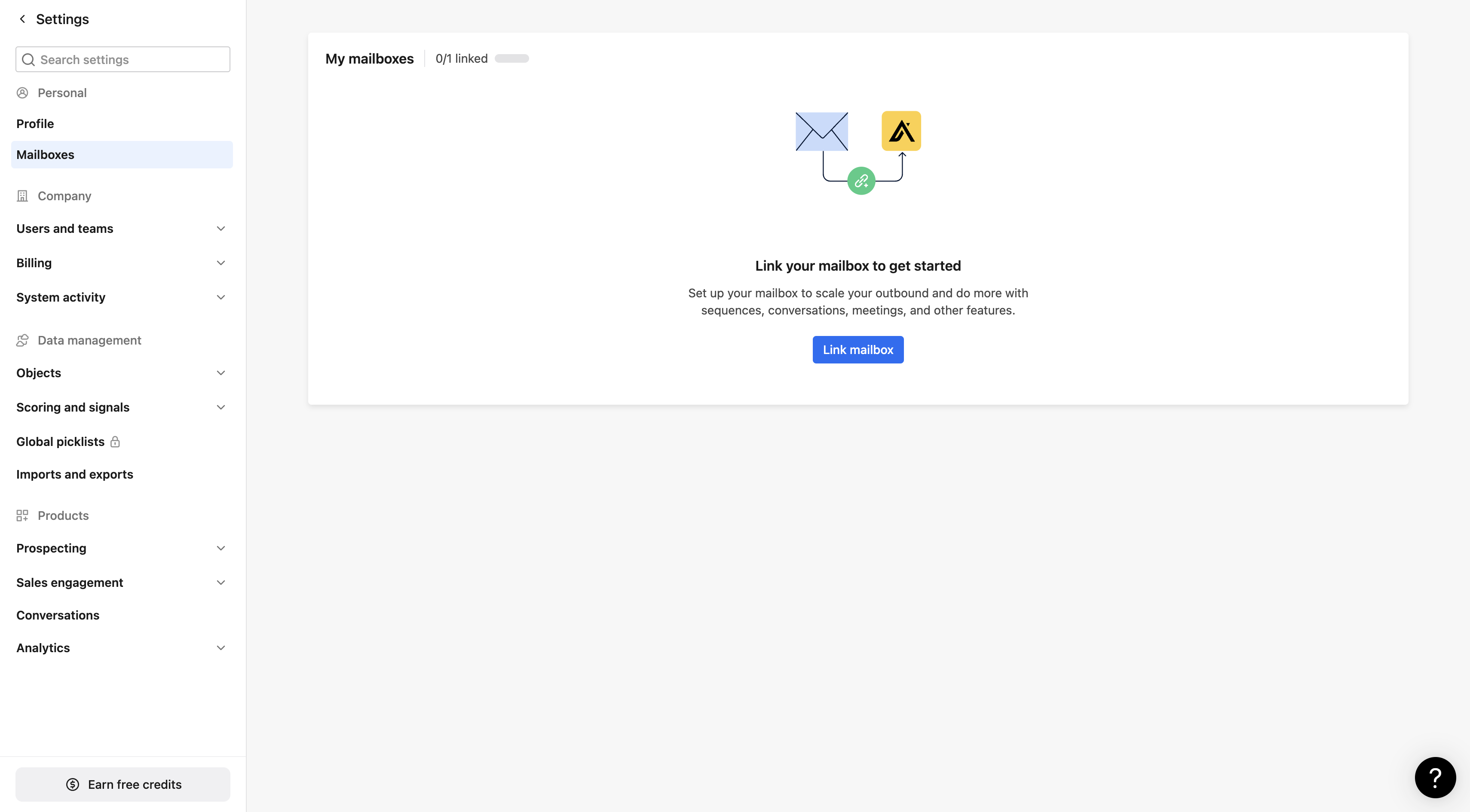
3. Go to your sending platform and find the option to link a mailbox.
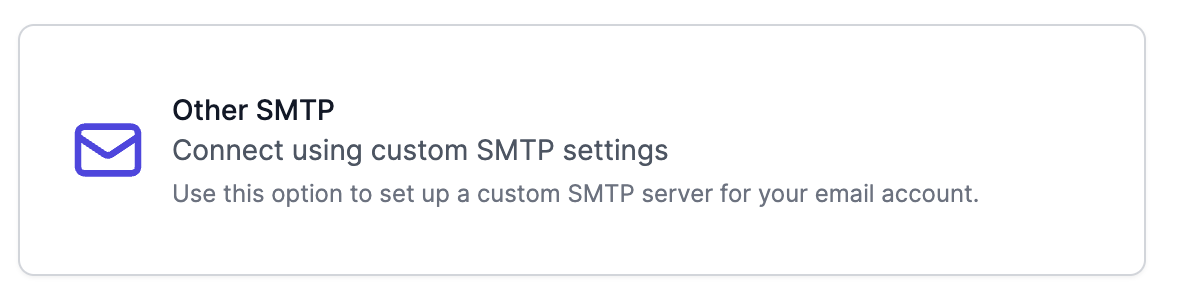
4. Choose Other. Depending on the platform, it can say Other, Other SMTP, Other SMTP/IMAP, and so on.
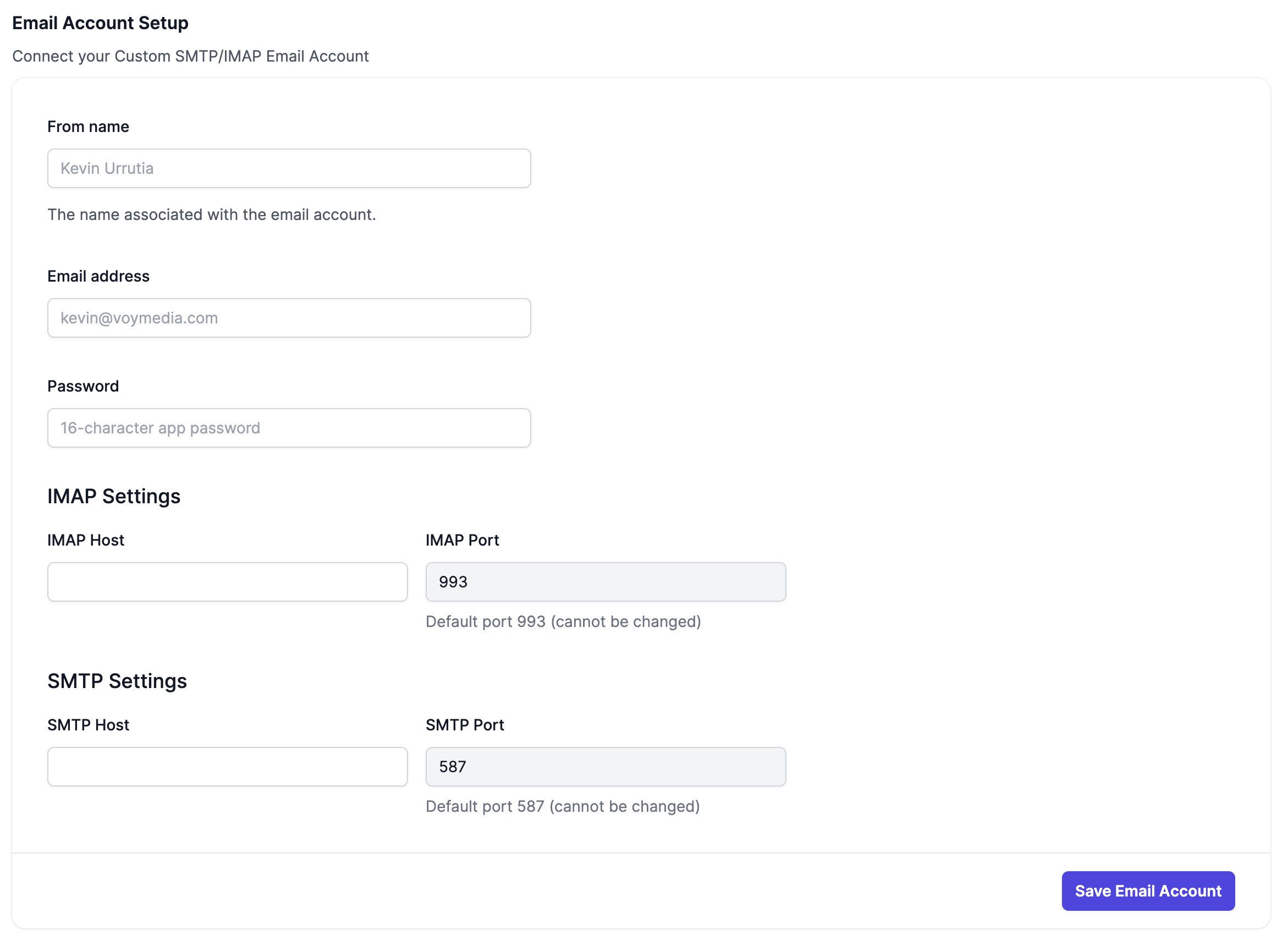
5. A configuration screen opens. Enter the email address, password, hosts and ports from the CSV file, using the ports in the table above, and connect. The hosts in the screenshot are only an example. Use the hosts listed for your mailbox in the CSV file.
Changing IP addresses: you can log in from your own sending software, including from cloud servers whose IP addresses change. There is no IP allowlist, and logging in from a new IP is not blocked or flagged.
Login and inbox-check frequency: there is no limit on how often you log in or on how often you check an inbox over IMAP. Successful logins are not limited.
Failed logins: the mail servers protect against repeated wrong passwords. By default, 10 failed logins from the same IP address within 10 minutes block that IP for 30 minutes. The block doubles on each repeat, up to about 2 hours 45 minutes. If your software keeps retrying with a wrong or outdated password, it can lock itself out, and every server sharing that IP is blocked with it. Fix the credentials, stop the retries and wait for the block to expire.
Simultaneous connections: opening many connections at once can cause timeouts and disconnections. If you see them, see Why am I getting a Connection Timed Out error?.
Primeforge mailboxes are real Google Workspace or Microsoft 365 mailboxes, so Google and Microsoft's own rules and limits apply. How you can connect them depends on the provider:
Google mailboxes: Google allows SMTP and IMAP login with an app password, and Primeforge provisions app passwords for all Google mailboxes by default. Choose App Passwords (SMTP/IMAP) or Both when you download the CSV. There is no limit on app password use from our side. Any limits come from Google. If your platform supports OAuth, OAuth is more stable and is the preferred option, but app passwords remain available. See Google App Passwords in Primeforge.
Microsoft 365 mailboxes: Microsoft 365 has no app passwords, so OAuth is the only way to connect them.