Salesforge can email you when something needs your attention, so you don't have to keep the app open. You choose exactly which emails you receive.
This article covers email notifications in Settings. If you want alerts in Slack, Discord, Telegram or your own system, see our Integrations guides instead (for example, Slack Integration).
Go to Settings > Notifications. Under Product Emails, each notification has its own On/Off toggle.
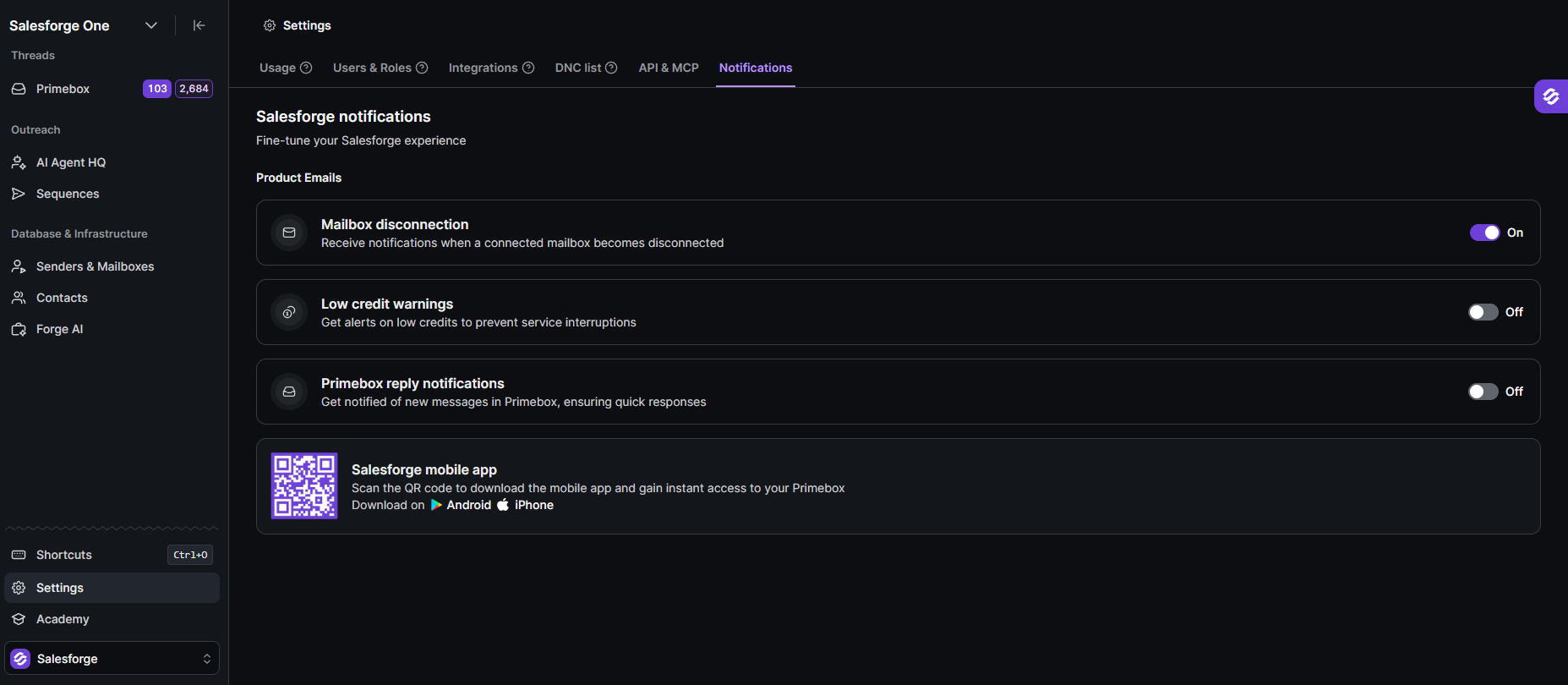
You'll receive an email when a connected mailbox becomes disconnected. Disconnected mailboxes can't send or receive, so this helps you notice and reconnect quickly.
You'll get an alert when your credits are running low, so your campaigns and features don't stop unexpectedly. To learn more about credits and how to top them up, see Understanding Salesforge Credits and How to purchase credit add-ons.
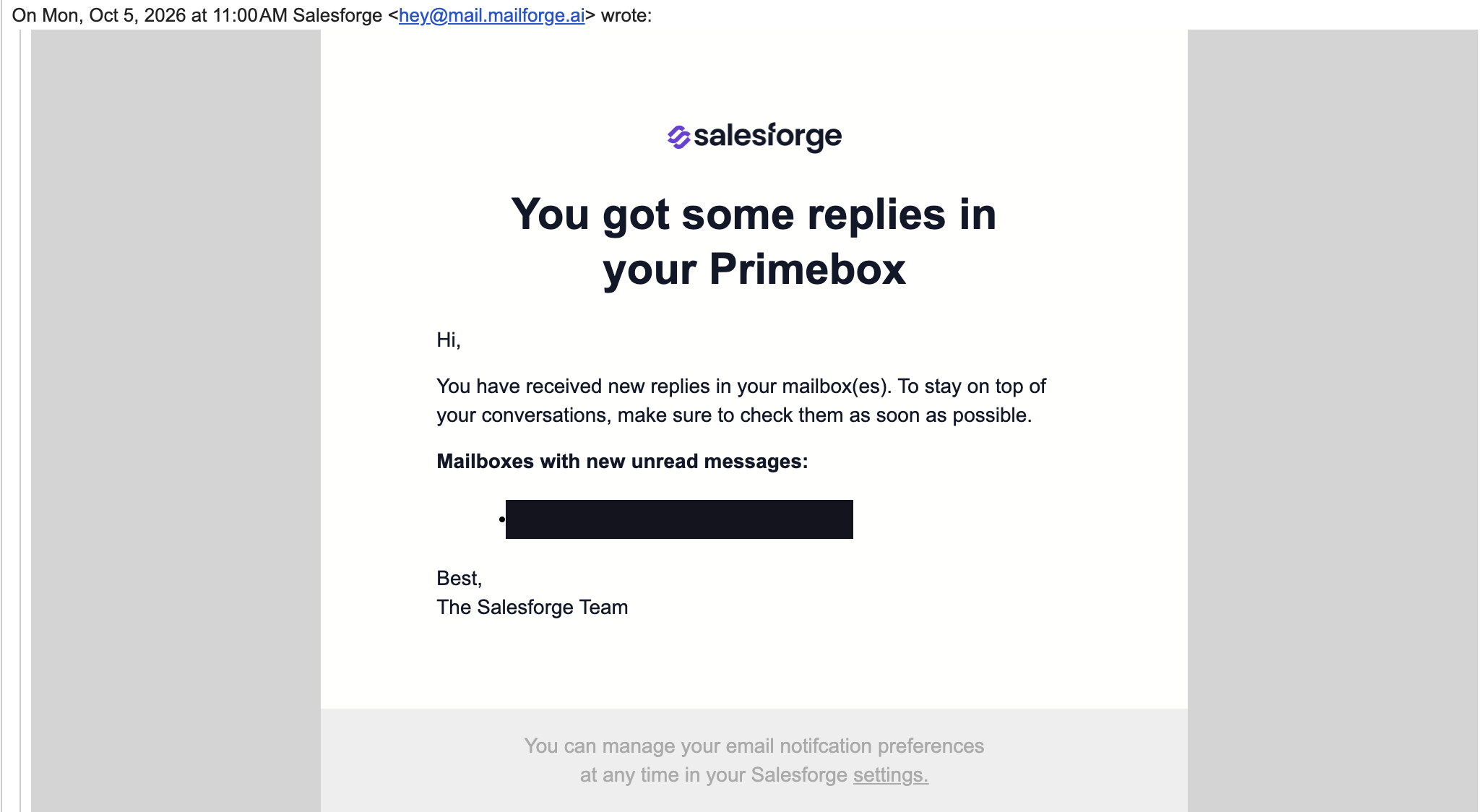
You'll receive an email when there are new messages in Primebox, so you can respond quickly. The email lists the mailboxes that have new unread messages. It doesn't include the reply itself, so open Primebox to read and answer.
On the same page you'll find a QR code for the Salesforge mobile app. Scan it to download the app for Android or iPhone and access your Primebox on the go.
Go to Settings > Notifications.
Switch the toggle next to a notification On or Off.