A sender profile links one LinkedIn account and/or multiple mailboxes so you can manage all your outreach from a single identity. When you build a sequence, you choose which sender profiles send it.
Log in to your Salesforge account.
Go to Senders & Mailboxes.
Open the Senders tab.
Click Create profile.
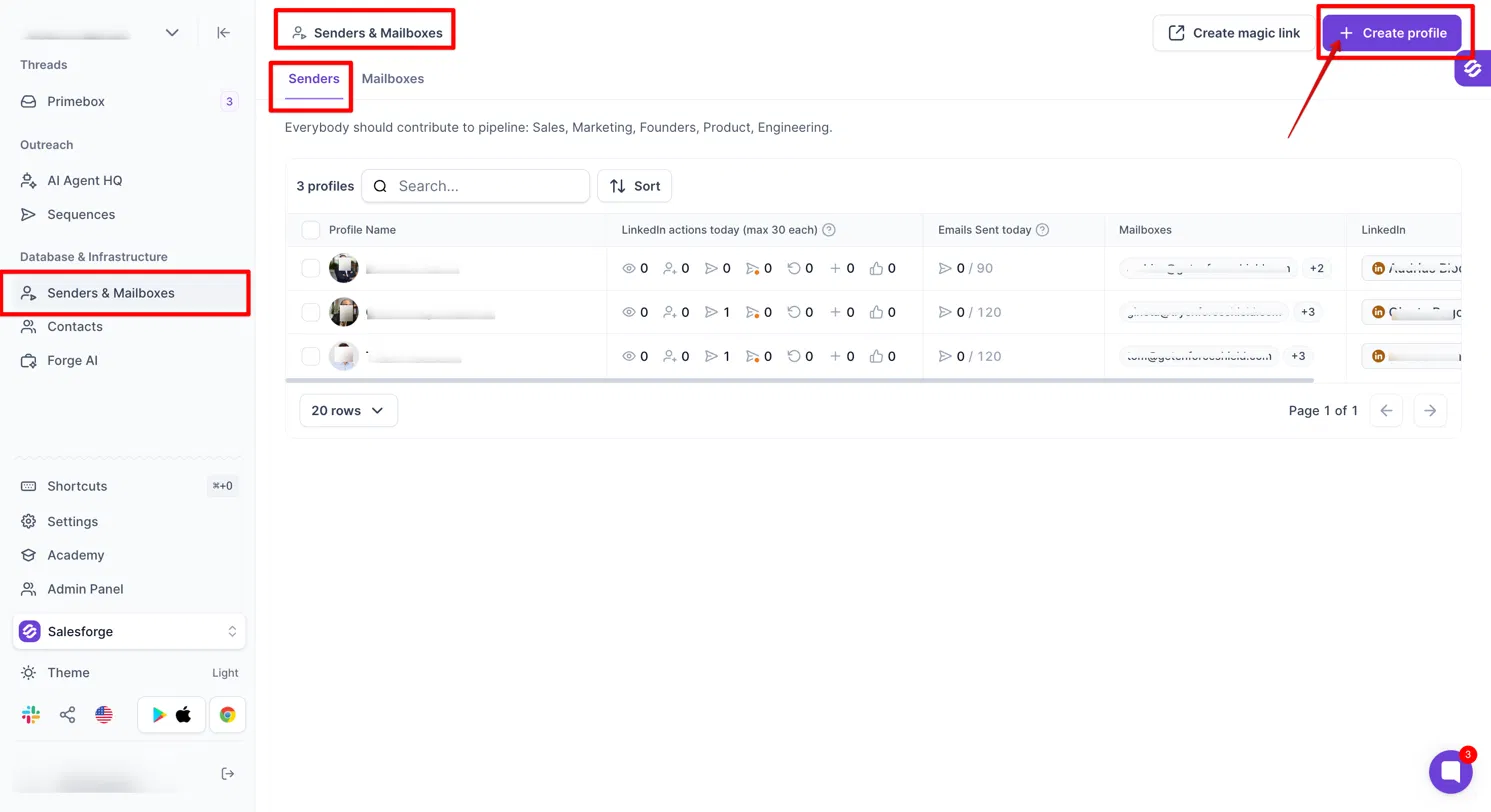
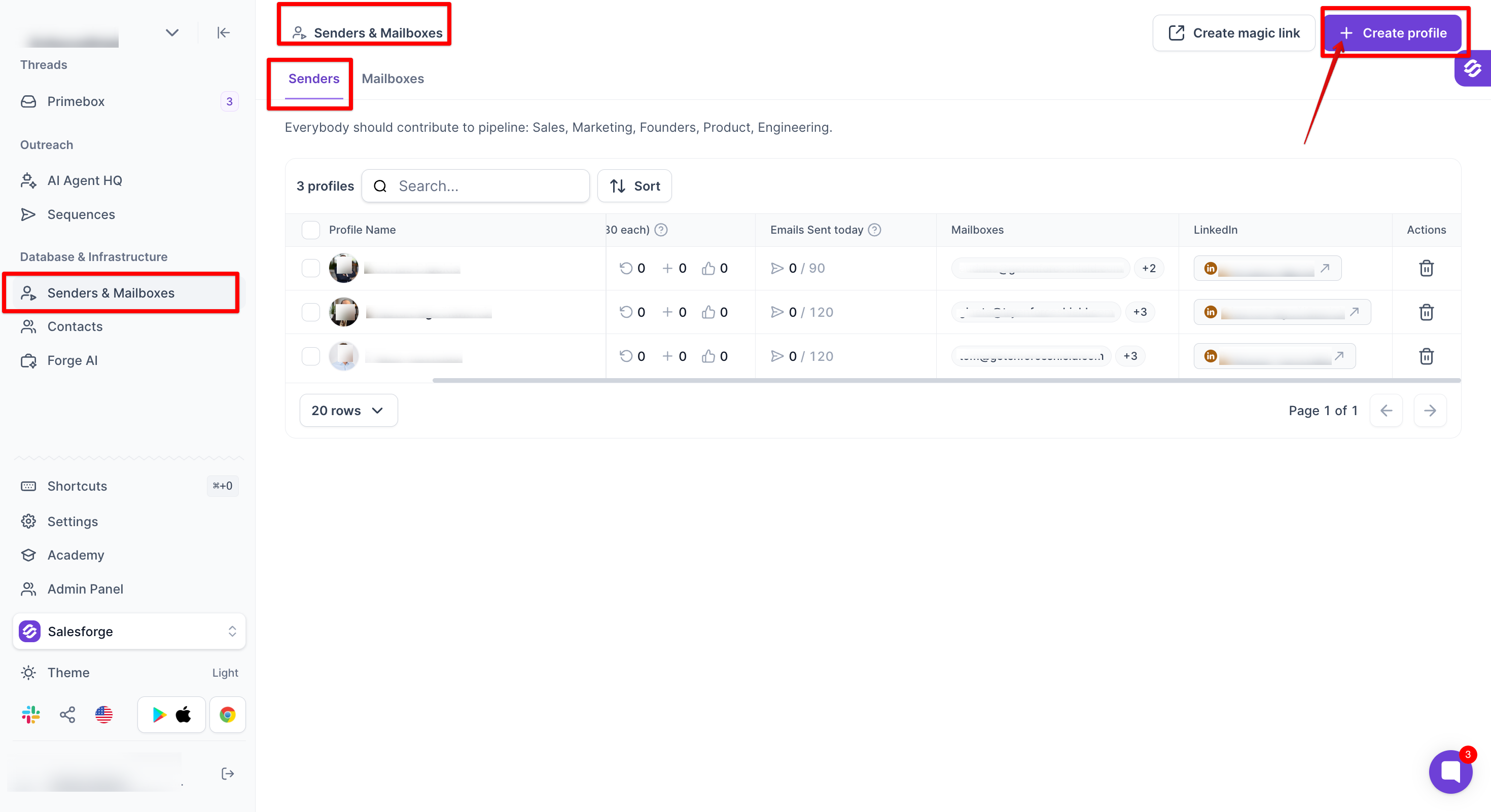
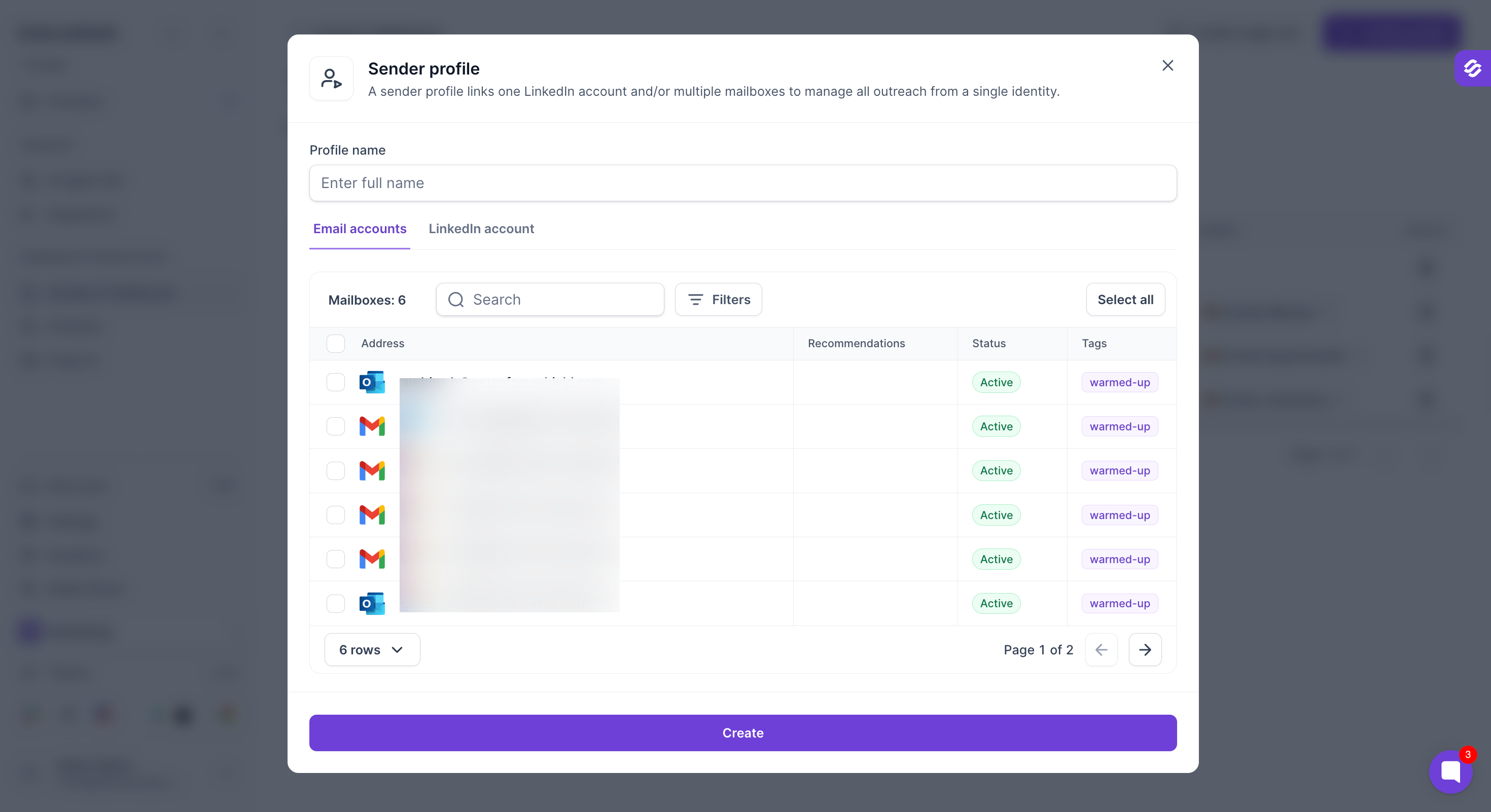
This opens the Sender profile pop-up. Enter the Profile name (the full name of the sender), then add email accounts, a LinkedIn account, or both.
In the pop-up, open the Email accounts tab.
Tick the checkbox next to each mailbox you want to add. Each page shows 6 mailboxes, so use the arrows at the bottom to move between pages. You can also search or filter the list, or click Select all.
Click Create.
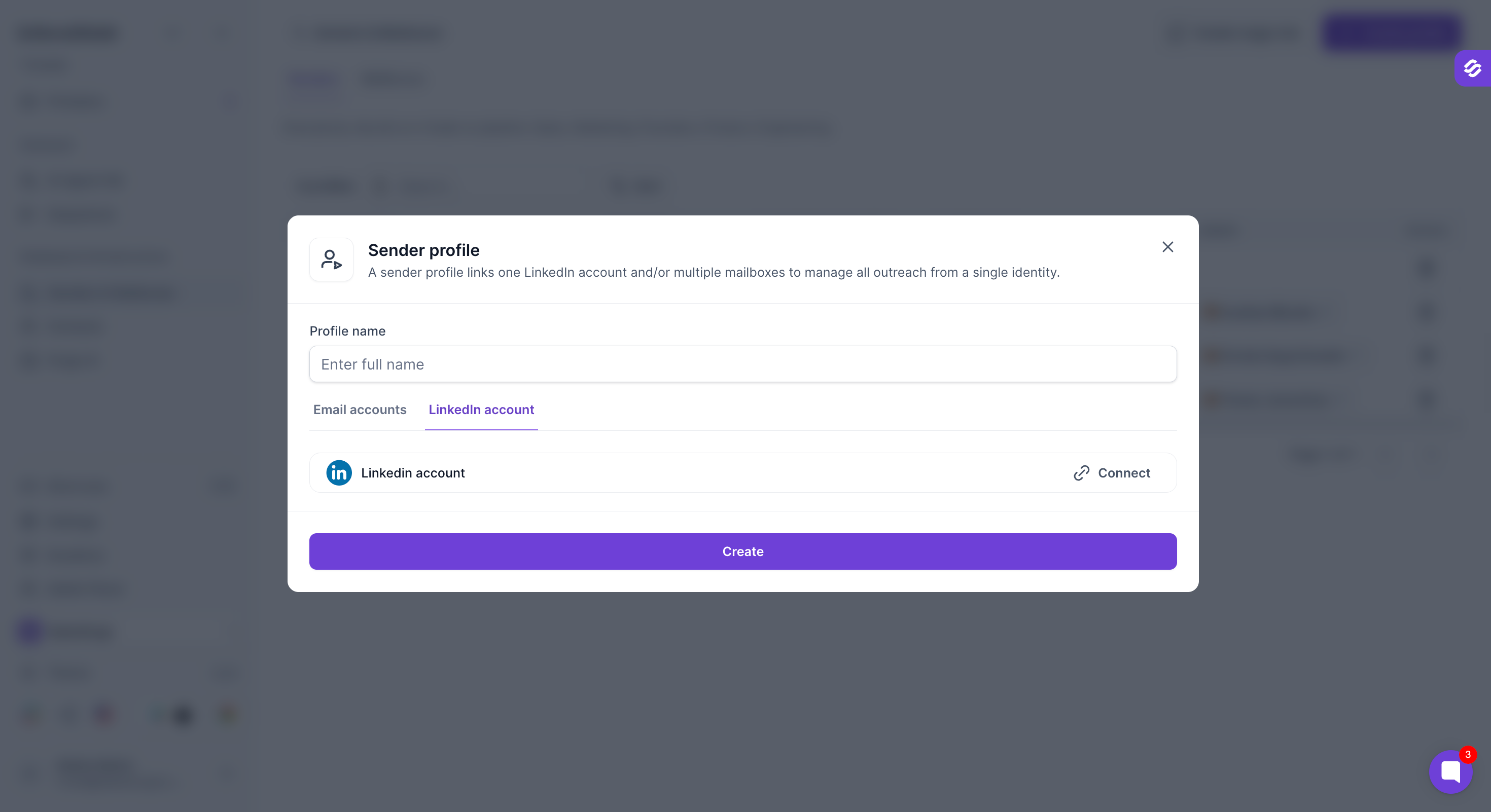
In the pop-up, open the LinkedIn account tab.
Click Connect and follow the steps to connect your LinkedIn account.
Click Create.
If the LinkedIn account belongs to someone else, you can connect it with a magic link instead. Read more in LinkedIn account connection via magic link.
You can add multiple mailboxes to one sender profile.
You can connect only one LinkedIn account to one sender profile.
The same LinkedIn account cannot be used in more than one sender profile.
The same mailbox can be used in more than one sender profile.
Because mailboxes can be shared, you can create sender profiles with different sets of mailboxes and assign them to specific sequences. This lets you control which sender profile sends each sequence.
To change how many emails a mailbox sends per day or what limit each linkedin action should follow, read How to change sending limits in Salesforge.
Open your sequence and click Add sender. This shows all the sender profiles you have created.
Select the sender profiles you want to send from.
If you need a new one, click Create new sender in the sequence. It takes you to step 1 of creating a sender profile, so you can set it up without leaving your sequence flow.
In multichannel sequences, Salesforge rebalances leads automatically when you add, remove, or lose a sender. Leads don’t get stuck on a sender that can’t send, and new senders get work straight away.
When a sender stops working
If a sender profile is deleted, or its LinkedIn account or only mailbox is disconnected, the leads it hasn’t contacted yet are spread evenly across the other senders in the sequence.
Deletions take effect right away. For disconnections, Salesforge waits 24 hours first, so if you reconnect within that time, nothing changes.
If a sender loses one mailbox but still has another working one, its leads stay with that sender and the next email goes out from the other mailbox.
When you add a sender
A new sender takes a fair share of not-yet-contacted leads from the busiest senders, not just new enrollments.
The same happens when you add a mailbox to a sender profile, or reconnect an account after its leads were moved.
What stays the same
Leads who have already received an email, connection request, message, or InMail always stay with their original sender, so conversations are never split.
Moved leads follow the new sender’s daily limits, ESP matching, and cooldowns.
Leads in subsequences never move.
If you run into any issue while setting up your sender profiles, reach out to our support team through the chat widget and we will be happy to help.