You can view and edit most DNS records of your domains yourself in Mailforge, Infraforge and Primeforge. Some records such as MX, SPF, and DKIM are locked and you need to reach out to support team to get help with them.
⚠ Important: edit DNS records with care. Mailforge, Infraforge and Primeforge manage the MX, SPF and DKIM records of your domains, and these records are locked. You can’t edit them yourself, either on a single domain or with Bulk DNS update. To change a locked record, contact our support team. You can edit other records and add your own. A wrong or deleted record can stop email delivery, send your emails to spam, or break your tracking domain. Only change a record if you know what it does.
Locked: MX, SPF and DKIM records. They have no edit option. To change one, contact our support team.
Editable: DMARC record and Domain forwarding records. You can also add your own records with Add new record.
This is the same in Mailforge, Infraforge and Primeforge.
When you save a change, it shows in your account right away. It can then take some time to spread across the internet (propagate), so don’t expect every mail server to see the new value immediately. Before you save, copy the original value, so you can restore it if something goes wrong.
Go to the Domains page. In the Acquired domains table, the DNS column has a globe icon for each domain. Click it to open the DNS records of that domain.
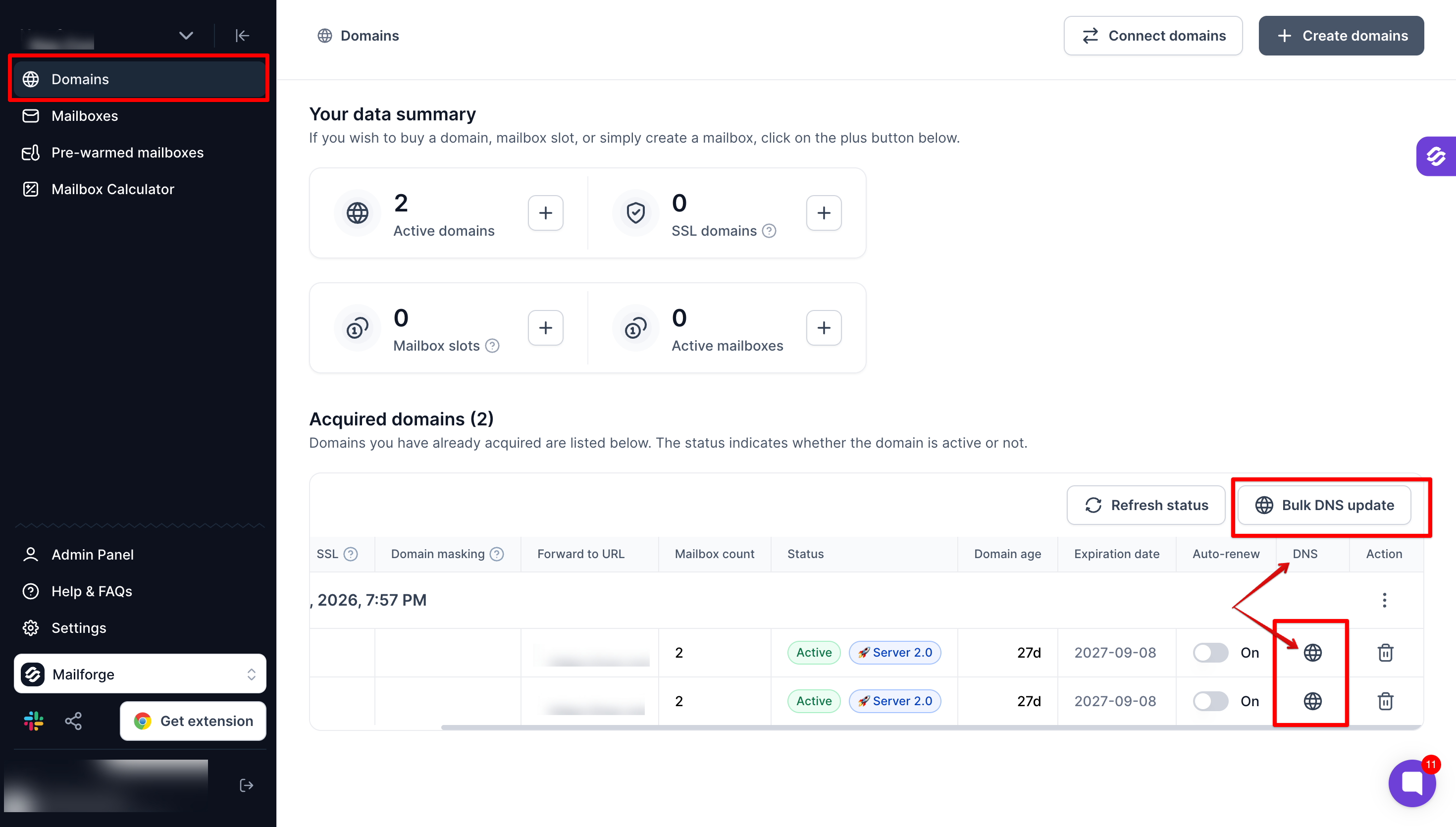
Go to Domains and click the globe icon in the DNS column of the domain.
In the Edit Host Records window, find the record you want to change.
Click the edit icon on the right of that record.
Update the value and save.
After you save, the change shows in your account right away. It can take some time to propagate. See What happens when you save.
You can also use Add new record to create a new record.
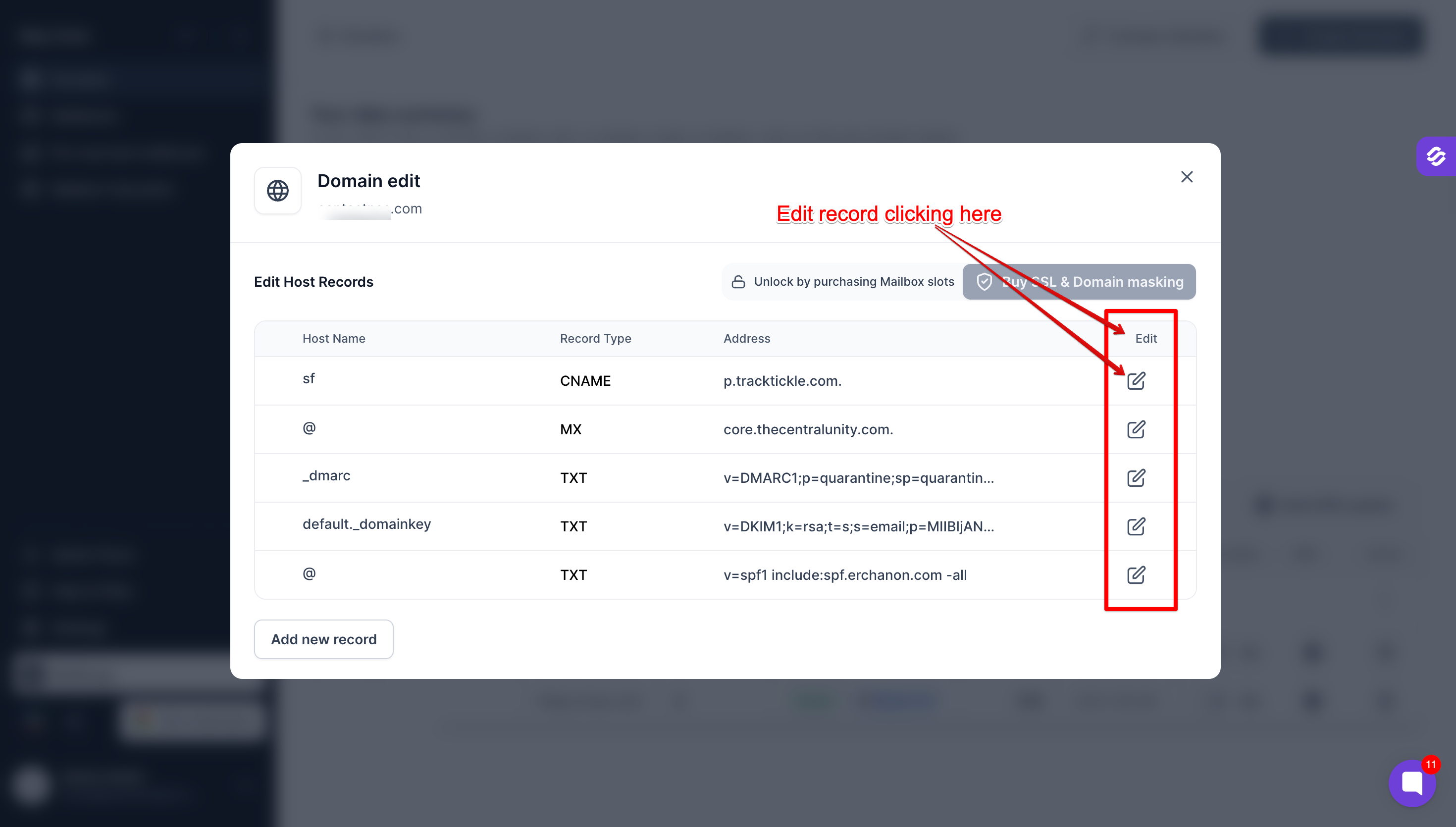
See the Bulk DNS update section below.
You can also manage DNS records through the Mailforge API. See the Mailforge API documentation.
Go to the Domains page. In the Acquired domains table, click the globe icon in the DNS column of the domain.
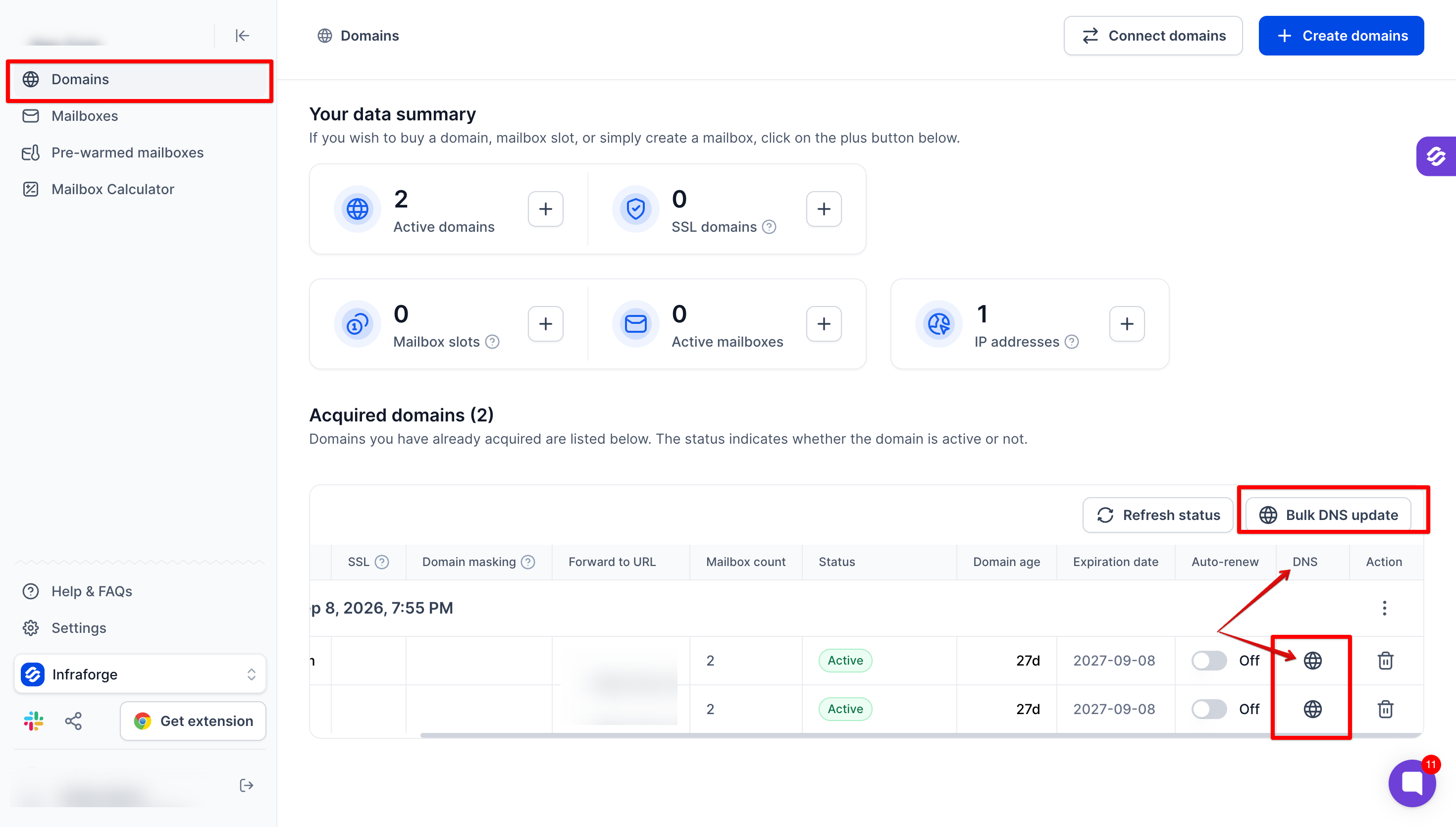
Go to Domains and click the globe icon in the DNS column of the domain.
In the Edit Host Records window, find the record you want to change.
Click the edit icon in the Edit column.
Update the value and save.
After you save, the change shows in your account right away. It can take some time to propagate. See What happens when you save.
You can also use Add new record to create a new record.
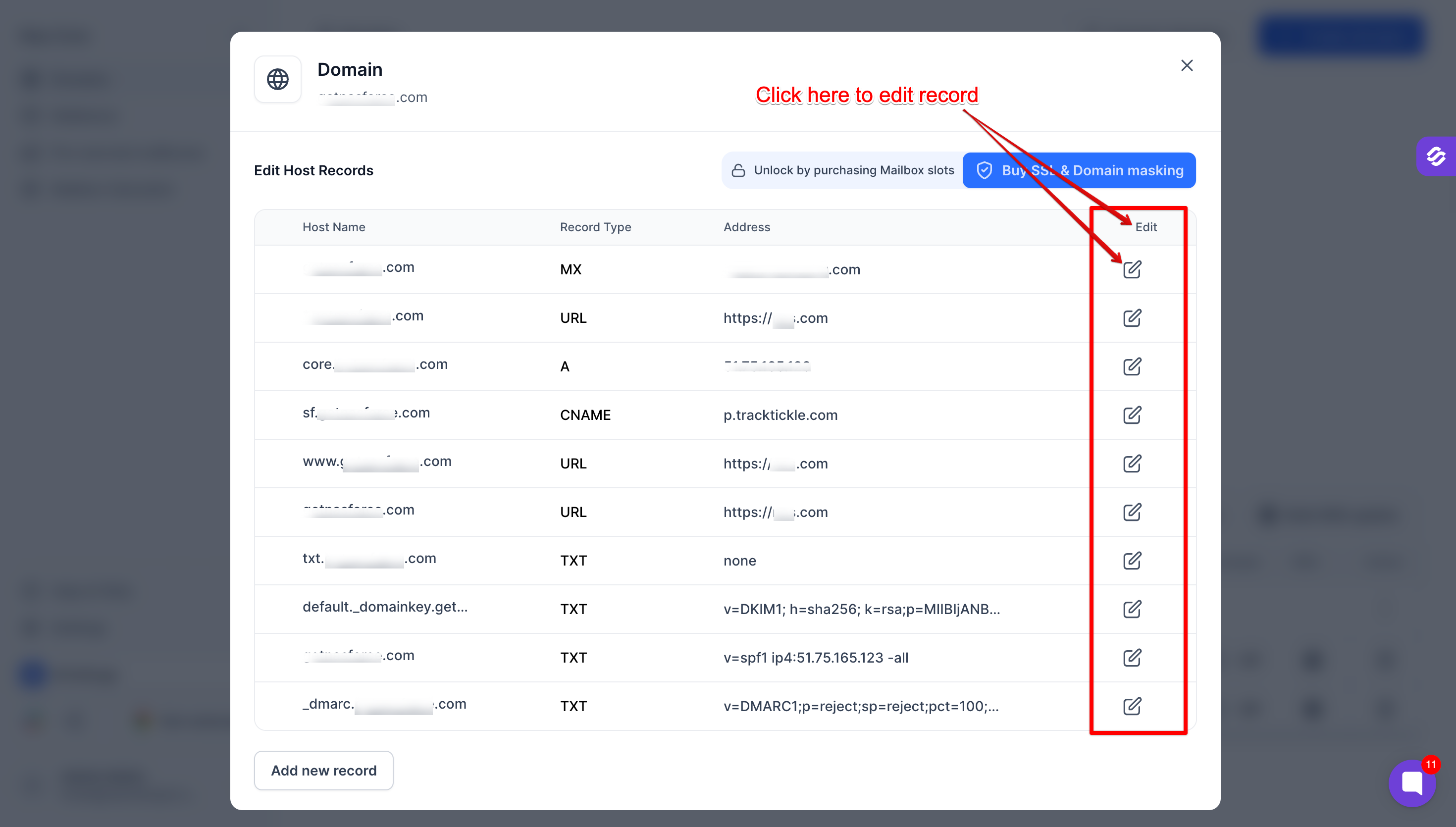
See the Bulk DNS update section below.
You can also manage DNS records through the Infraforge API. See the Infraforge API documentation.
Go to the Domains page. In the Your domains table, click on the domain name area (the space in the Domain column) to open the DNS records page of that domain.
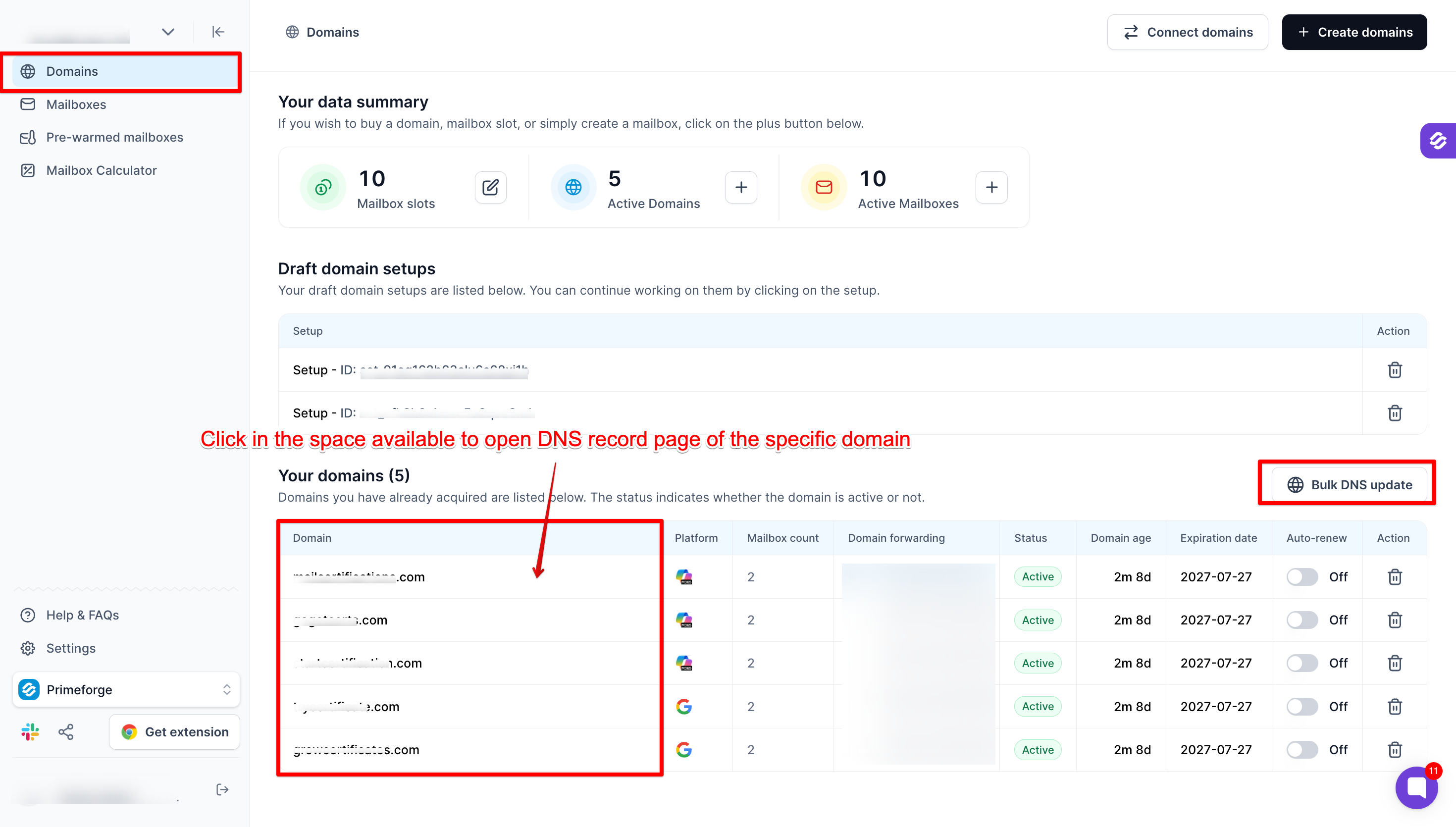
Go to Domains and click the domain whose records you want to change.
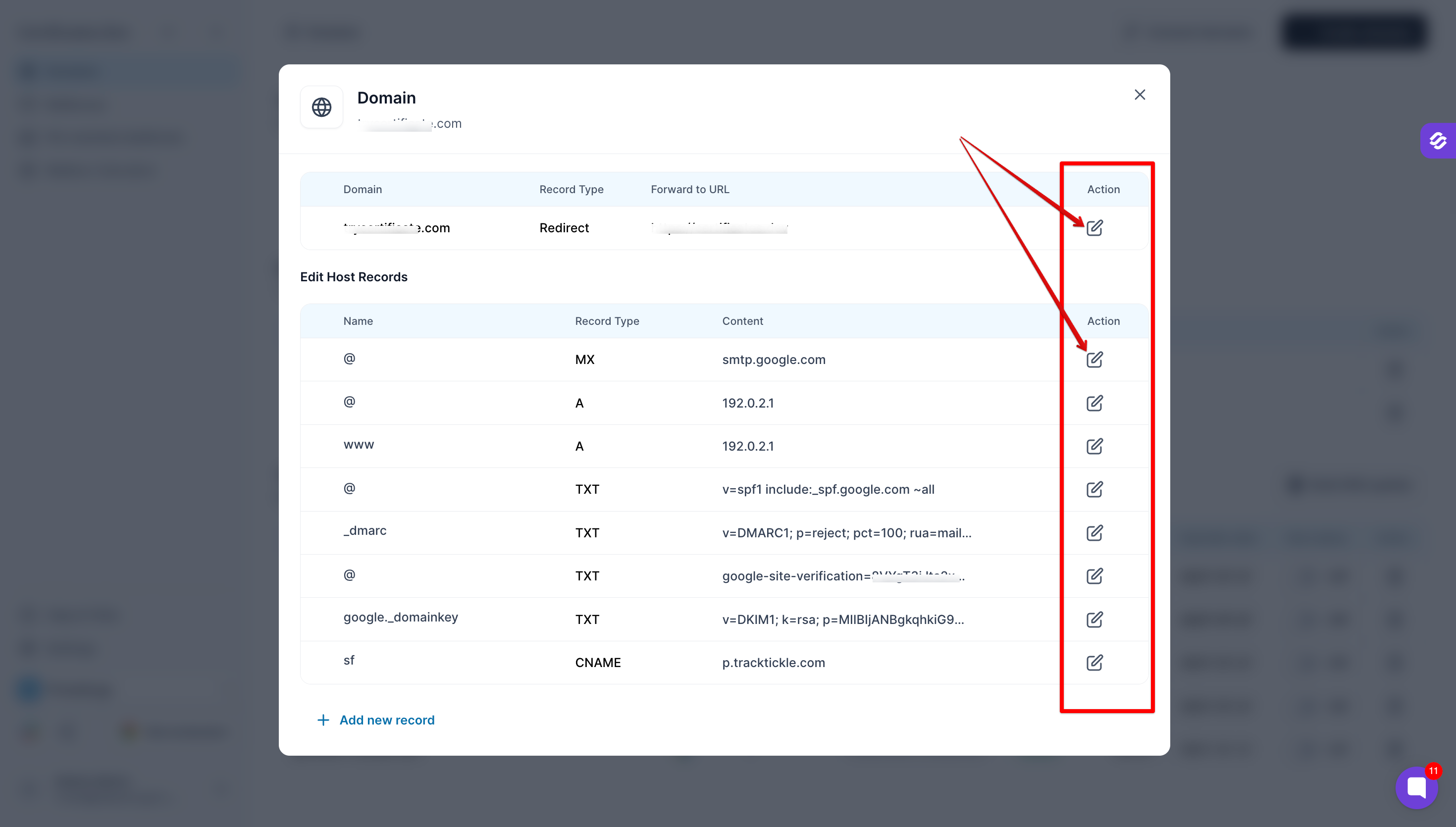
In the window that opens, you will see the domain forwarding row at the top and the Edit Host Records list below it.
Click the edit icon in the Action column of the record you want to change.
Update the value and save.
After you save, the change shows in your account right away. It can take some time to propagate. See What happens when you save.
You can also use Add new record to create a new record.
See the Bulk DNS update section below.
You can also manage DNS records through the Primeforge API. See the Primeforge API documentation.
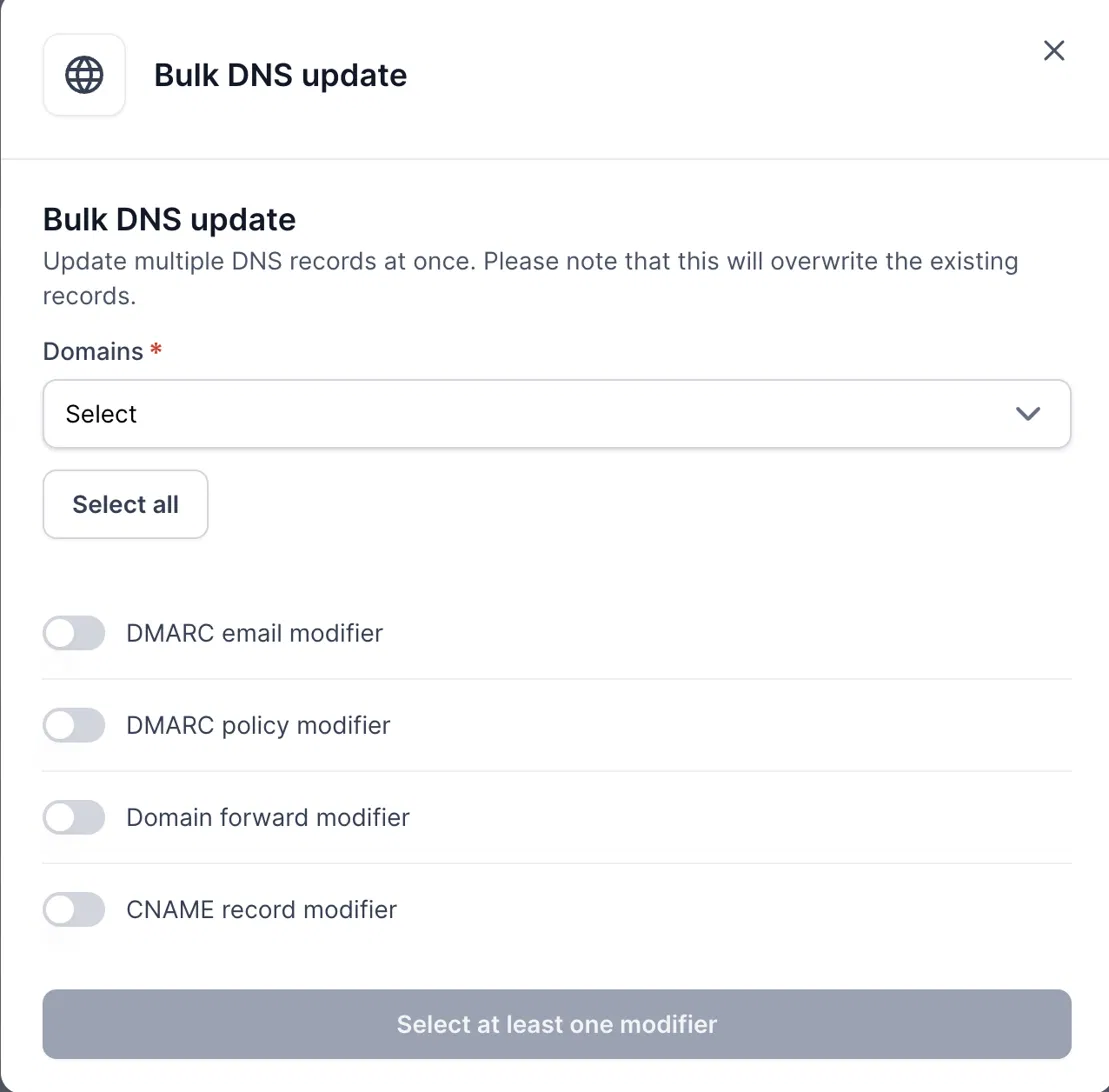
Bulk DNS update lets you change a few records on several domains at once. It is available in Mailforge, Infraforge and Primeforge.
Important: bulk update changes the records on every domain you select. For DMARC and domain forward, the existing value is overwritten with the value you enter. A CNAME is added as a new record. Check your selection and values before you update, and note down the existing values first.
Setting | What it does |
|---|---|
DMARC email | The address where DMARC reports are sent. Leave it empty to remove the DMARC email. |
DMARC policy | Choose None, Quarantine or Reject. |
Domain forward | Redirects visitors of the domain to the URL you enter in Forward to URL. Leave it empty to remove the forward. 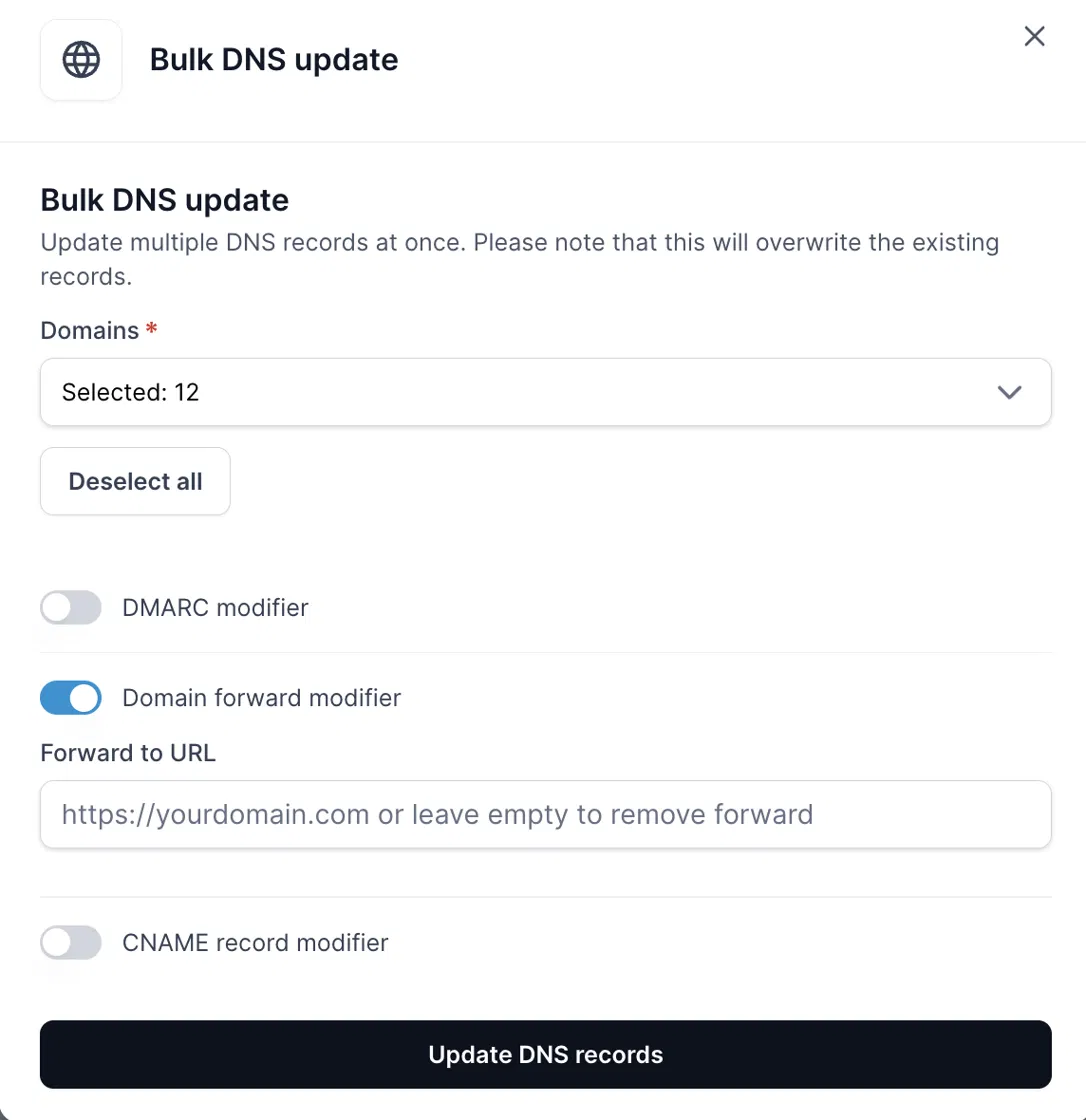 |
CNAME record | Creates a CNAME record. Enter a Hostname and an Address. Both are required. 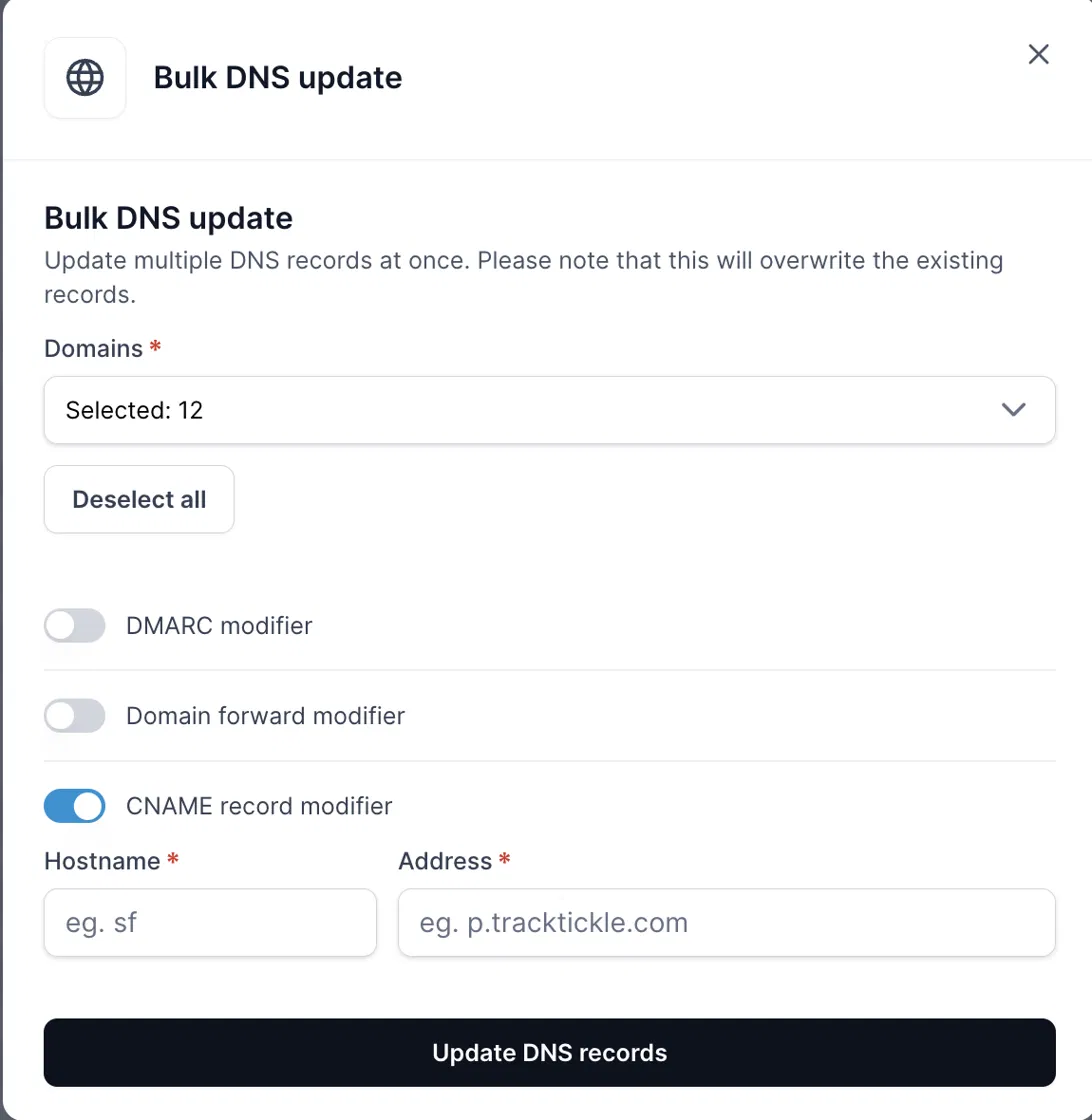 |
SPF, DKIM and MX records are locked. You can’t change them with Bulk DNS update.
Primeforge: DMARC email and DMARC policy are in one switch, DMARC modifier. The policy is required. The email is optional. If you leave it empty, the DMARC record will have no report email.
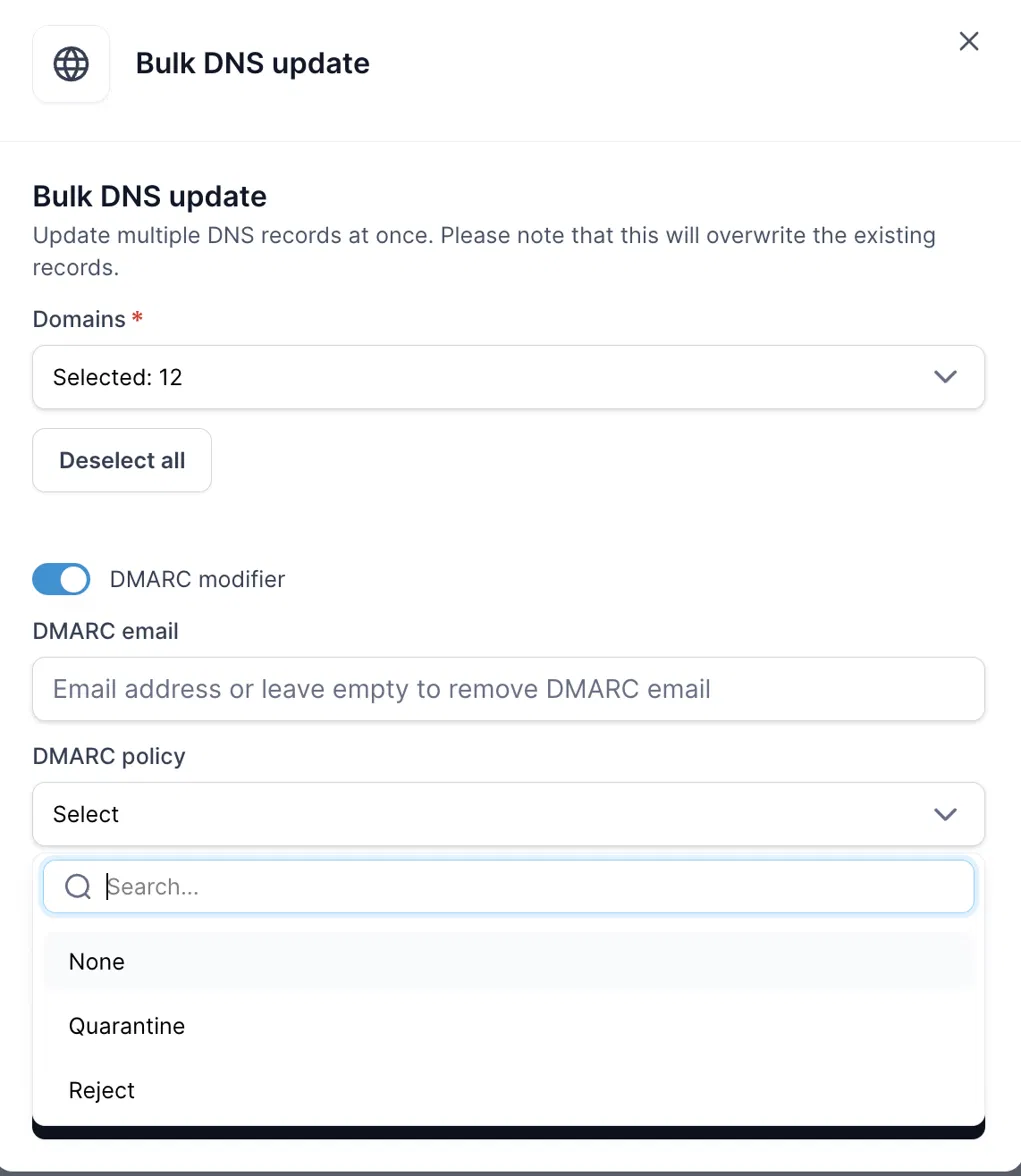
Mailforge and Infraforge: there are two separate switches, DMARC email modifier and DMARC policy modifier. You can change one without the other.
Go to the Domains page and click Bulk DNS update above the table.
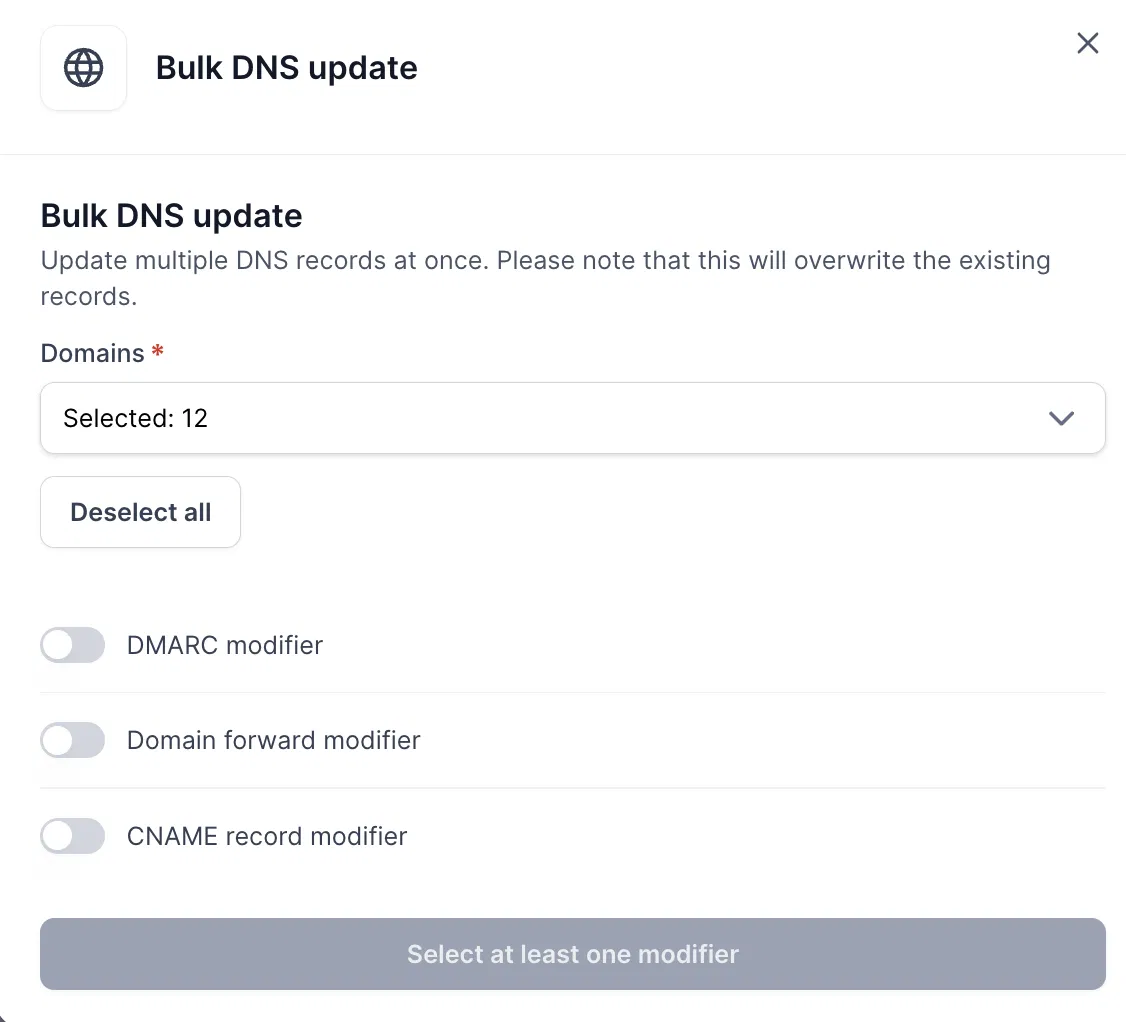
Under Domains, select the domains you want to update, or click Select all. The field shows how many domains are selected.
Switch on the modifier you want to use. The button reads “Select at least one modifier” until you do.
Fill in the fields that appear.
Primeforge:
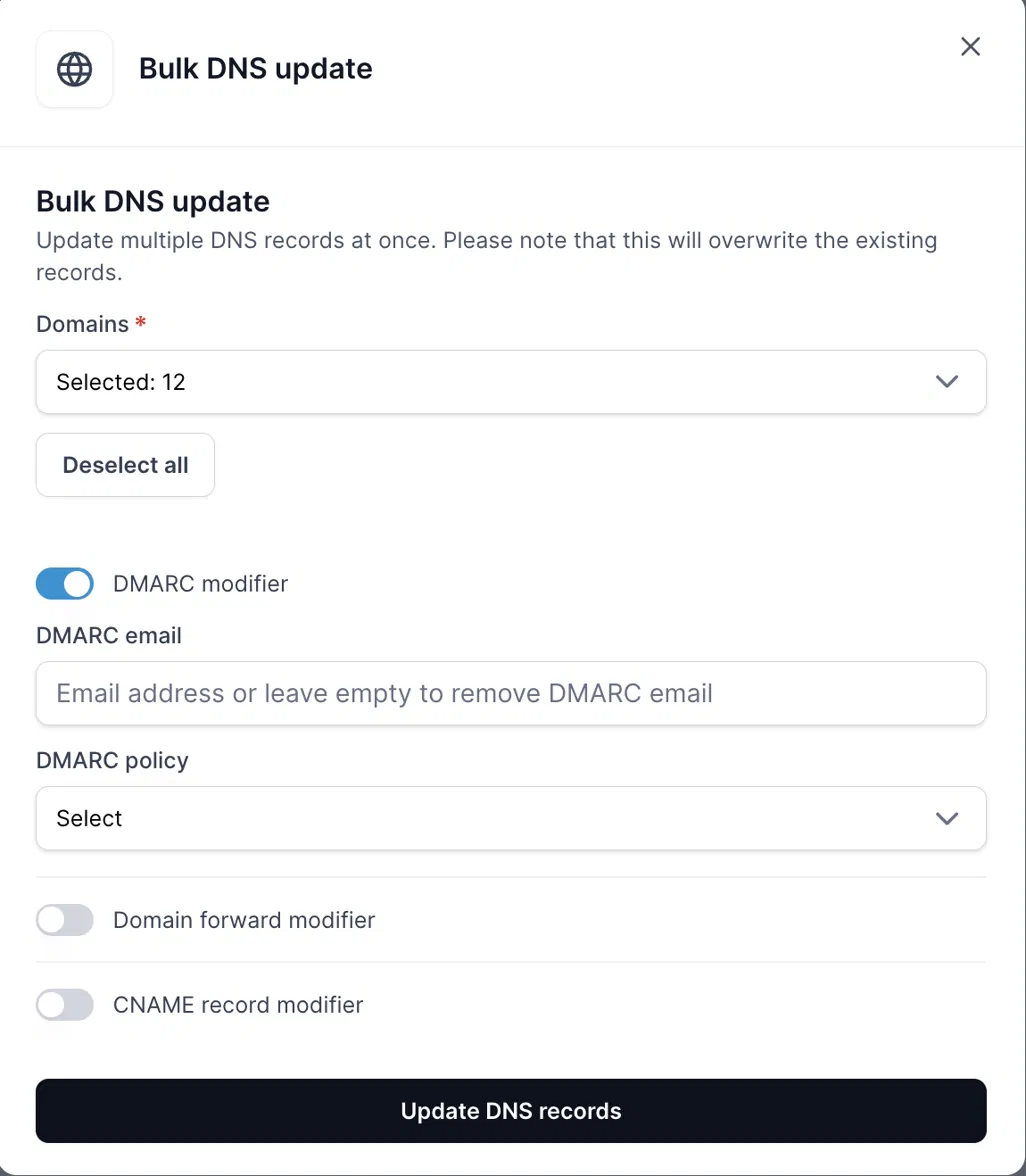
Infraforge:
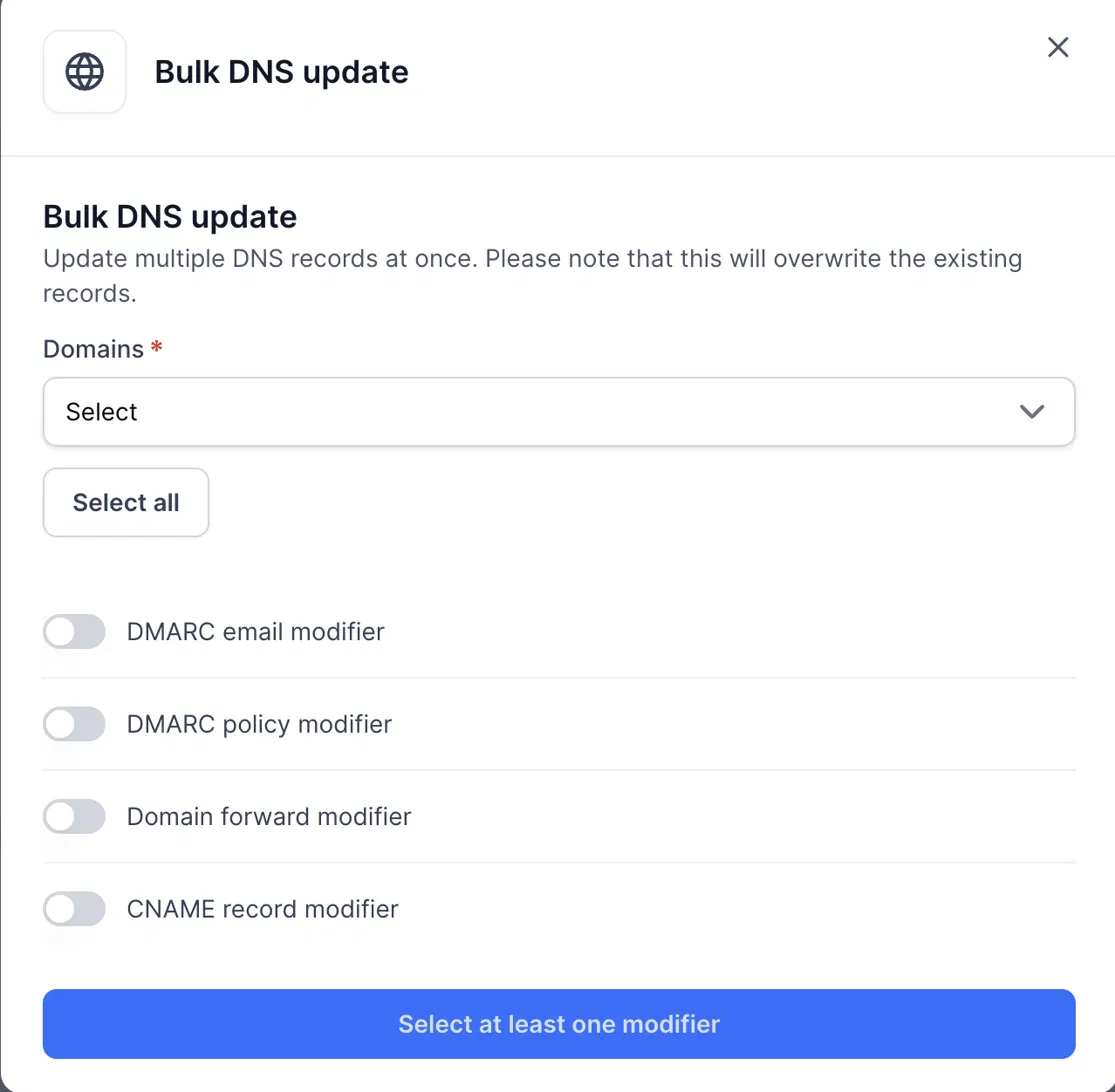
Mailforge:
Click Update DNS records.
After you click Update DNS records, the change shows in your account/UI immediately. It can take some time to propagate.