
Overview
You can export mailboxes from Primeforge to multiple destinations including Salesforge, Warmforge, and other third-party platforms. Here's how.
Step 1: Select your mailboxes
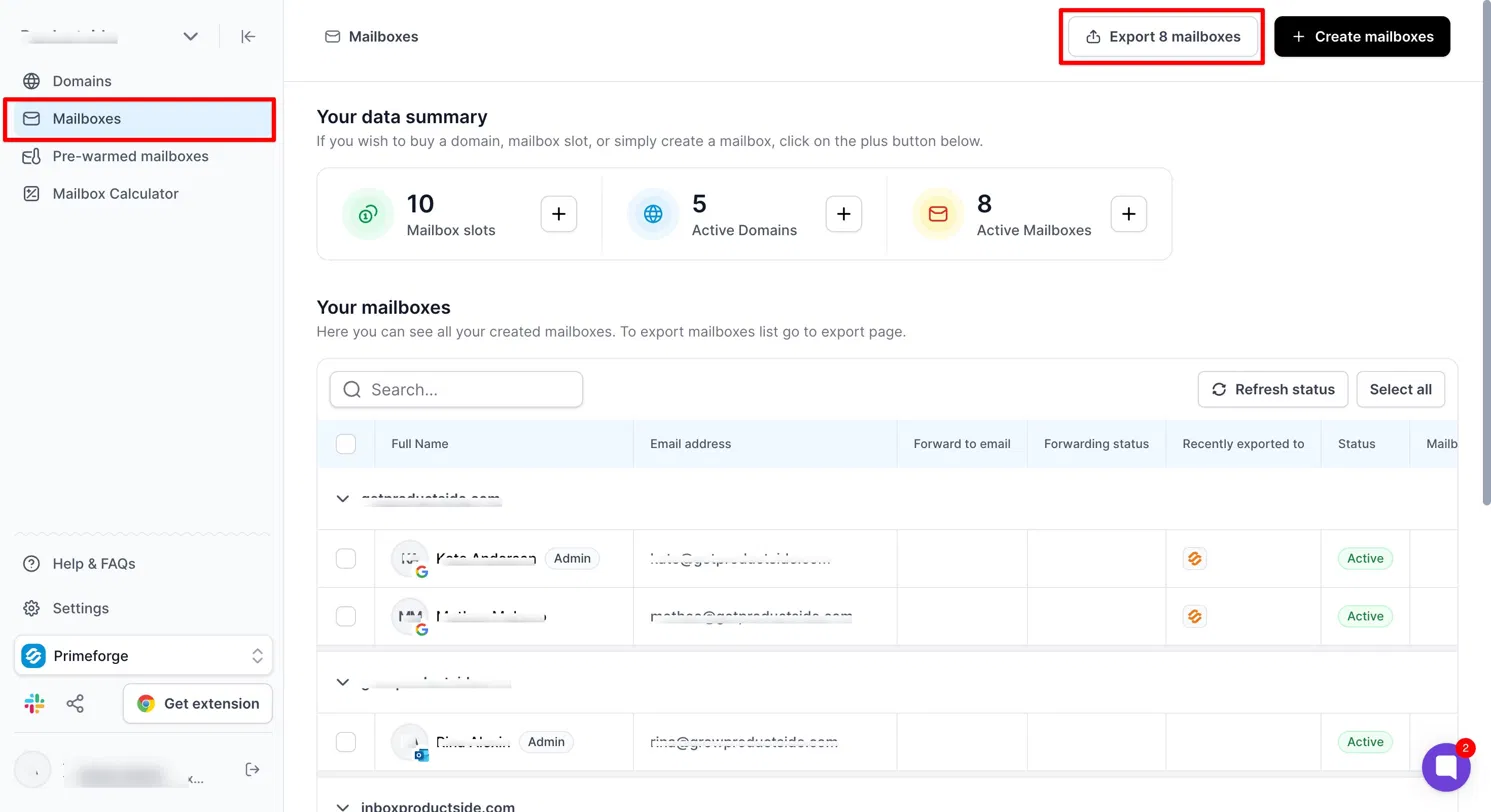
Go to your Primeforge account and navigate to the Mailboxes page. Select the mailboxes you want to export and click "Export mailboxes" in the top right corner.
Step 2: Choose your destination
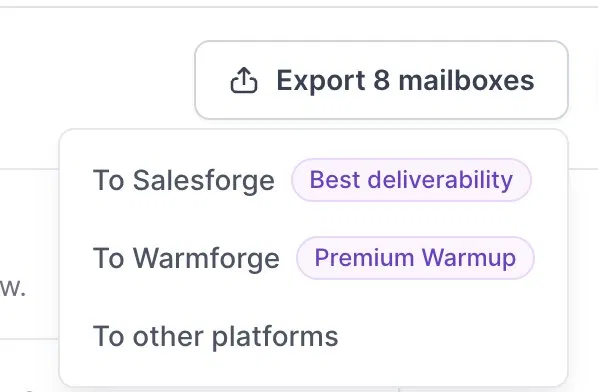
You will see three options: To Salesforge, To Warmforge, or To other platforms.
Exporting to Salesforge or Warmforge
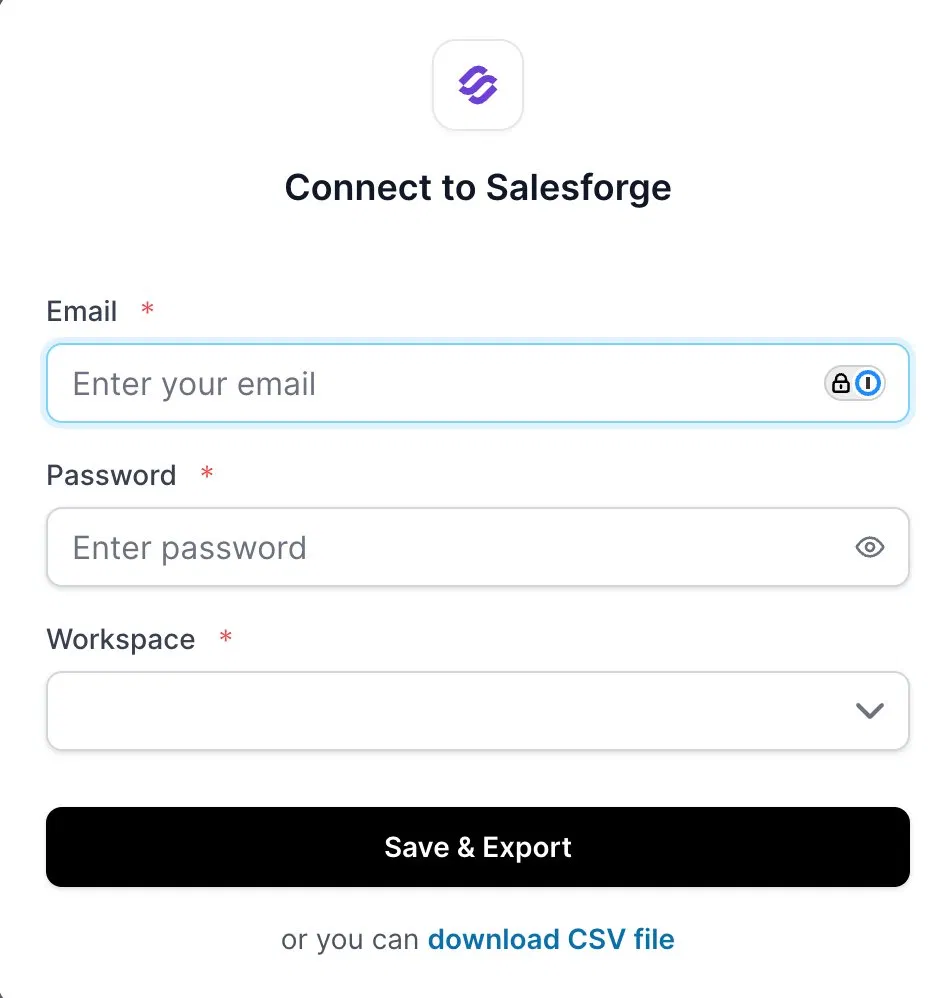
Select "To Salesforge" or "To Warmforge" and enter your login credentials (email, password, and workspace name), then click "Save & Export." The export takes up to 15 minutes and mailboxes will appear one by one.
Exporting to other platforms
1. Native export
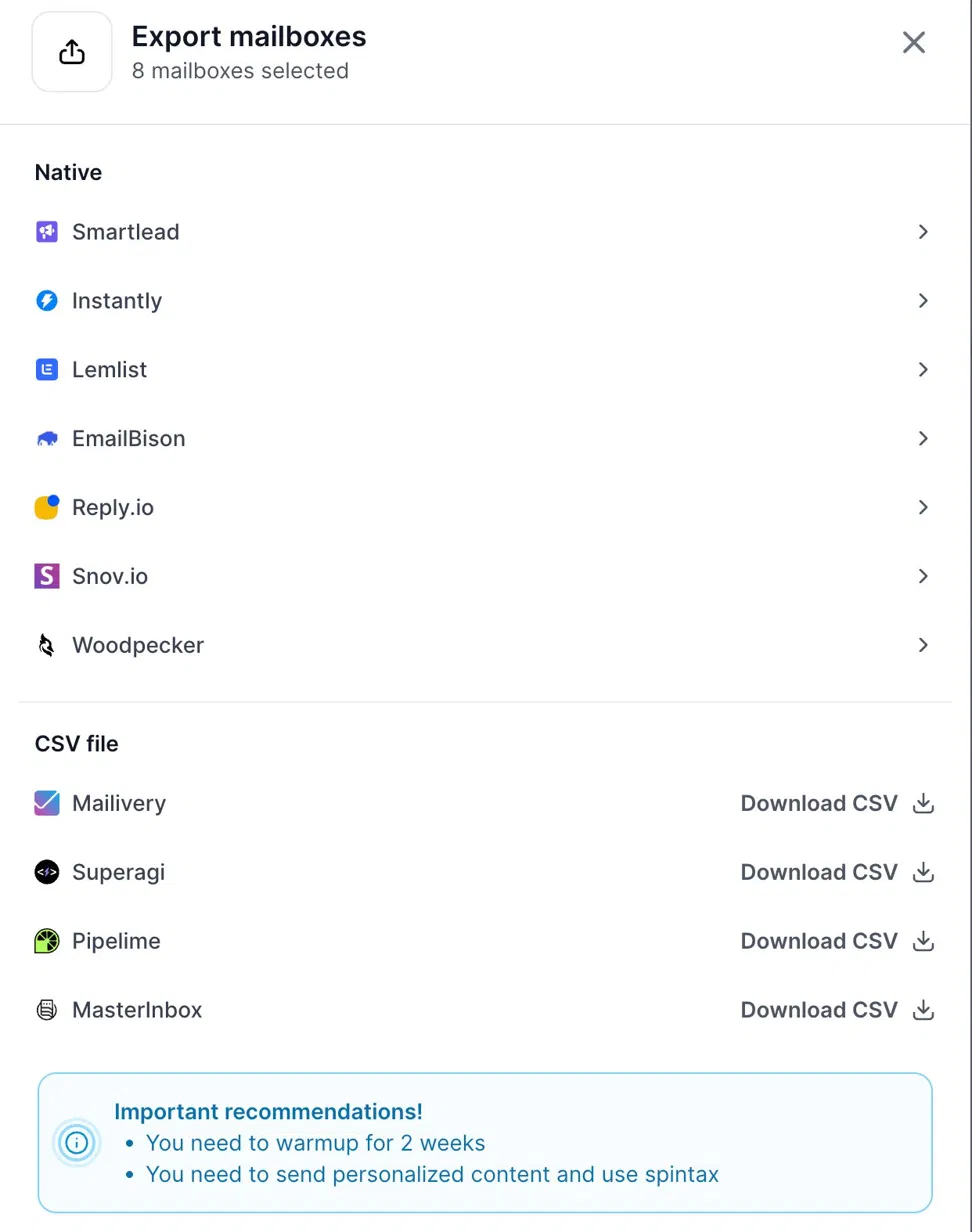
Native integration is available for Smartlead, Instantly, Lemlist, EmailBison, Reply.io, Snov.io, and Woodpecker. Select "To other platforms," choose your platform, enter your login credentials and click "Save & Export."
2. CSV download
You can download a CSV file with mailbox credentials and SMTP-IMAP details by clicking "Download CSV file." Please note that mailboxes must be connected via OAuth only. SMTP-IMAP connection is not supported even though the CSV includes those details.