Primeforge creates mailboxes on Google Workspace or Microsoft 365. There is no separate Primeforge login portal for mailboxes — you log in directly through Google or Microsoft using the credentials tied to your mailbox.
Google mailboxes: mail.google.com
Microsoft mailboxes: microsoft.com/outlook
Important: Primeforge mailboxes are connected via OAuth only. They cannot be connected via SMTP/IMAP.
There are two ways to retrieve your mailbox credentials from Primeforge.
Go to your Mailboxes page in Primeforge.
Select the mailboxes you want to export using the checkbox on the top left to select all, or check individual mailboxes.
Click "Export Mailboxes" in the top right corner.
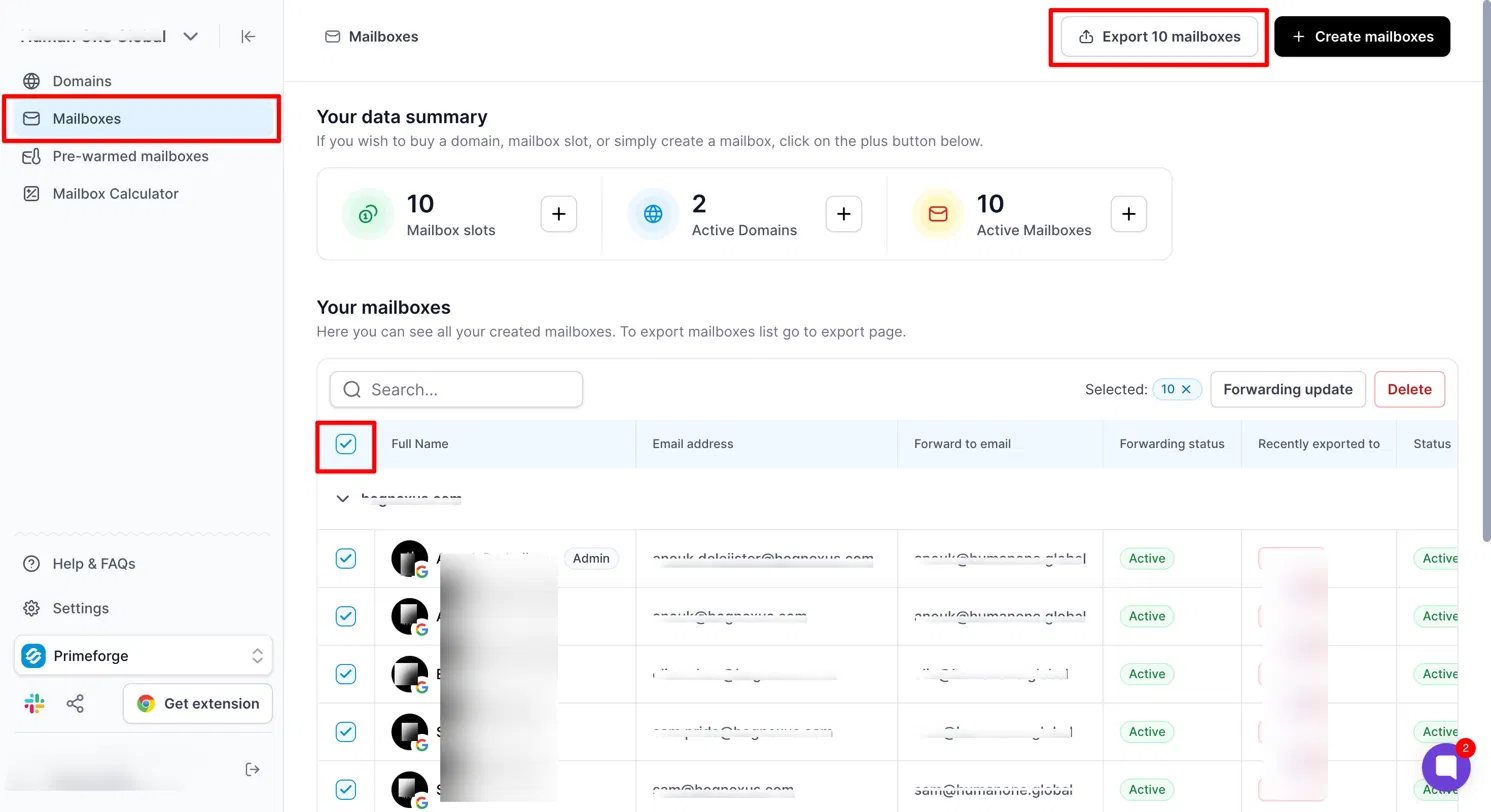
Click "To Salesforge" — a pop-up will appear.
Click "Download CSV file" to download the credentials.
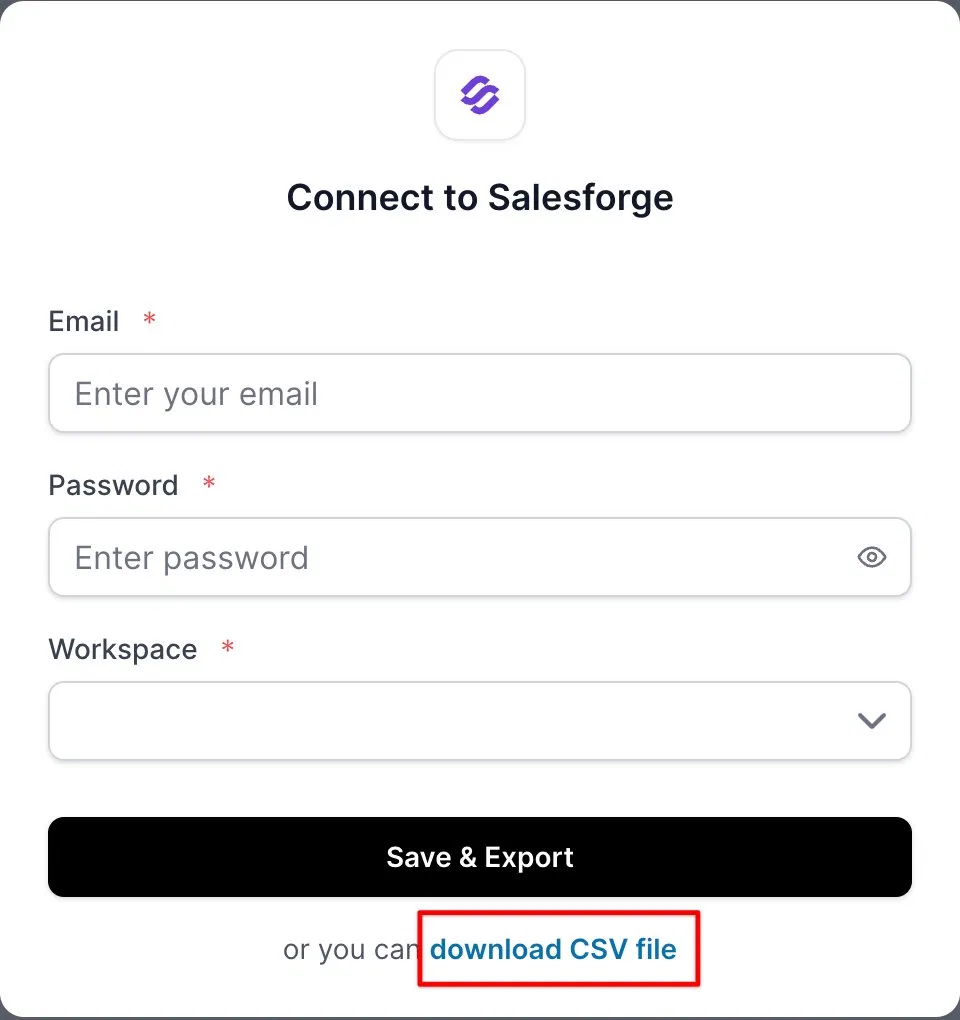
The CSV file includes the following fields:

address, firstName, lastName, imapHost, imapUsername, imapPassword, imapPort, smtpHost, smtpUsername, smtpPassword, smtpPort, Signature, trackingDomain
Note: The SMTP/IMAP credentials in this CSV cannot be used to add these mailboxes. Since these are OAuth-based mailboxes, they must be connected via OAuth only.
Go to your Mailboxes page in Primeforge.
Click on the mailbox you want credentials for.
In the mailbox panel, go to the "Credentials" tab.
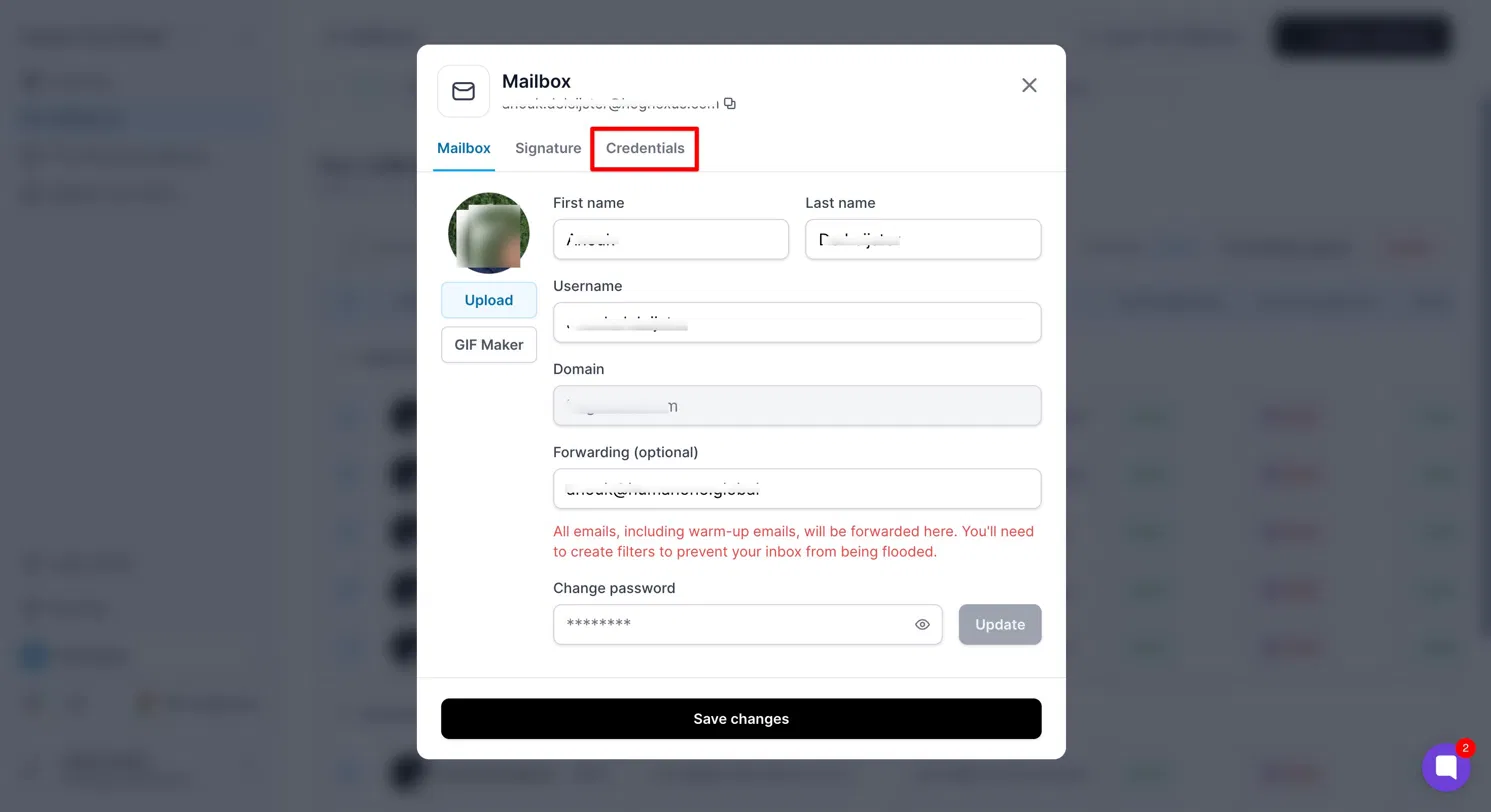
Copy the login email and password from here.
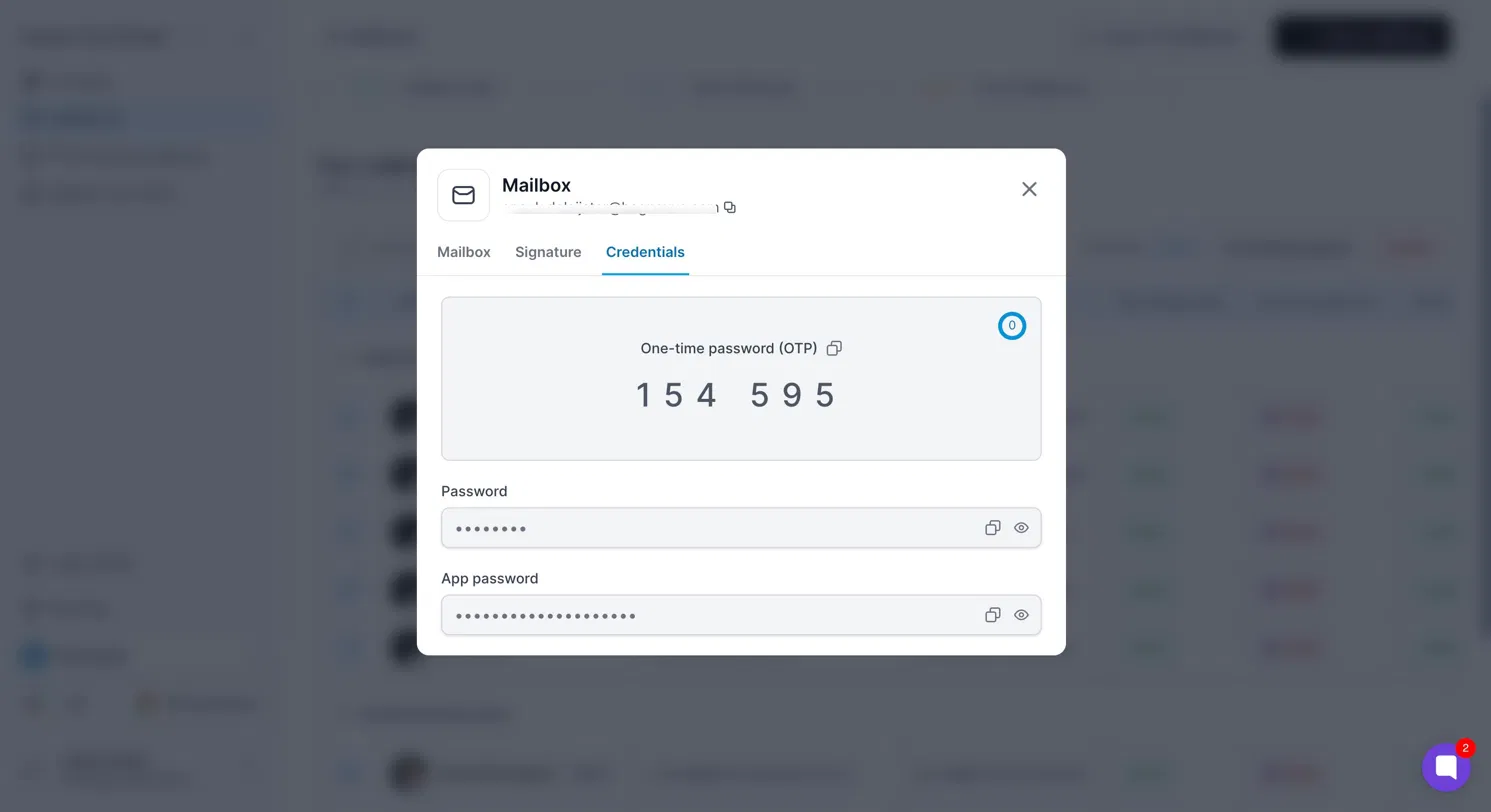
Logins require an OTP in addition to the email and password. The OTP refreshes every 30 seconds and must be fetched fresh each time you log in.
To get the OTP: go to Mailboxes → click the mailbox → open the Credentials tab → copy the current OTP.