Salesforge supports connecting Google Workspace mailboxes through two methods, depending on whether you're connecting a mailbox on your primary business domain or a secondary domain dedicated to cold outreach.
You can also connect mailboxes directly to Warmforge for email warmup.
When adding a Google mailbox to Salesforge, choose the connection option that matches your domain.
You can now connect Gmail mailboxes hosted on your primary domain directly through Google login. No Google Admin console configuration is required.
This option is designed for your main business inboxes, which you want to use in Salesforge without automatically adding them to warmup.
How to connect:
Log in to your Salesforge account.
Navigate to the mailbox connection section.
Select the option to add a Google mailbox.
Choose Google Workspace / Gmail (Primary domain).
Sign in with your Google account.
Review and allow the requested permissions.
Complete the authorization process to connect your mailbox.
Your mailbox will then be connected to Salesforge.
Important:
No Google Admin console setup is required. The connection uses a Google-verified app.
The mailbox is not automatically added to Warmforge.
Your primary business inbox is not used for warmup through this connection.
For mailboxes hosted on secondary domains dedicated to cold outreach, the existing connection flow remains unchanged. This option includes the Google Admin console configuration steps and connects the mailbox to Warmforge for warmup.
How to connect:
Sign in to the Google Admin console.
Make sure you're using a Super Admin account, as this level of access is required to manage app permissions.
In the Admin console, open the menu in the top-left corner.
Select Security. If it isn't visible, click Show more.
Navigate to API Controls.
Select Manage Third-Party App Access.
Click Configure New App.
Enter the appropriate Client ID in the search field:
Salesforge: 95780610930-nhmeqigqge0ae5cjhhs5cbccb8nda47e.apps.googleusercontent.com
Warmforge: 907602608953-b7b981p7m859n9bfql3jb4sldma69sqa.apps.googleusercontent.com
Click Search.
Select the corresponding application from the results.
Choose Trusted to grant the required access.
Click Configure to apply the changes.
Return to Salesforge and complete the Google Workspace mailbox connection flow.
Once connected, the mailbox can be used in Salesforge and is added to Warmforge for warmup.
This option is recommended for dedicated cold outreach domains rather than your primary business inbox.
Warmforge allows you to warm up eligible mailboxes to help establish and maintain sender reputation.
If you're connecting a mailbox directly to Warmforge, use the connection method available in your Warmforge account.
Log in to Warmforge.
Navigate to the mailbox connection section.
Choose the option to connect a Google Workspace mailbox.
Complete the Google authorization flow and grant the requested permissions.
Follow any additional setup instructions shown in the application.
If your Google Workspace configuration requires administrator approval, a Super Admin may need to authorize the application through the Google Admin console using the Warmforge Client ID:
907602608953-b7b981p7m859n9bfql3jb4sldma69sqa.apps.googleusercontent.com
In the Google Admin console, go to Security → API Controls → Manage Third-Party App Access → Configure New App, search for the Client ID, select Warmforge, choose Trusted, and click Configure.
Note: The primary-domain Google login option in Salesforge does not automatically add the mailbox to Warmforge. If you want to warm up a mailbox, connect it to Warmforge separately using the available connection flow.
Both Google Workspace connection options work fully within Salesforge. Depending on your configuration, connected mailboxes support:
Sending emails from sequences.
Managing replies in Primebox.
Open and click tracking.
Sentiment labeling.
Out-of-office (OOO) detection.
Bounce protection.
The main difference is whether the mailbox is automatically added to Warmforge for warmup.
Feature | Primary domain | Secondary domain |
|---|---|---|
Google login | Yes | Yes, through the existing flow |
Google Admin console setup | Not required | Required when applicable |
Automatically added to Warmforge | No | Yes |
Suitable for main business inboxes | Yes | Not the primary use case |
Suitable for dedicated cold outreach domains | Possible, but not the intended warmup flow | Yes |
403 access_denied when connecting to Warmforge or SalesforgeYou may encounter a Google OAuth 403 access_denied error when attempting to connect a mailbox directly to Warmforge or Salesforge.
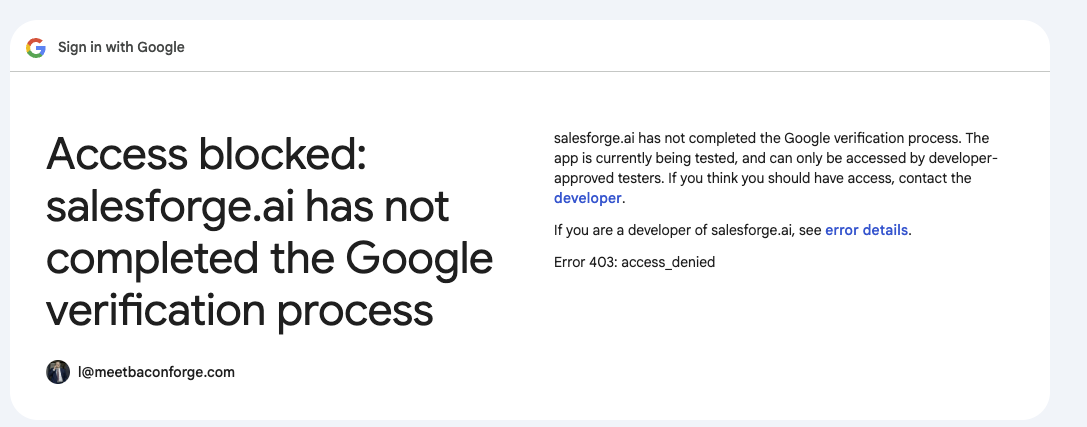
This error does not necessarily mean that your Salesforge or Warmforge subscription plan is preventing the connection. It may indicate that the Google OAuth application is in testing mode and your Google account has not been authorized as a test user, or that the application's production and verification configuration needs to be reviewed.
What to do:
Confirm that you're signing in with the intended Google Workspace account.
If your organization manages third-party app access, ask your Google Workspace Super Admin to review the relevant API controls.
If the error persists, contact support and provide the affected Google account and a screenshot of the error.
The support team may need to verify the Warmforge Google OAuth consent screen configuration and confirm whether the application is in testing mode or has completed the required production verification.
If the application is in testing mode, an authorized administrator may need to add your account as a test user. If the application is already in production, the OAuth configuration and authorization settings should be investigated further.
Important: This is a potential OAuth configuration issue, not a confirmed subscription or trial restriction. Do not assume that upgrading your plan will resolve it.
For more information about managing third-party app access in Google Workspace, see Google's official documentation:
Control which third-party and internal apps access Google Workspace data
If you're still unable to connect your mailbox, contact support with the affected Google account, the connection method you selected, and the full error message.