The Intelligence tab is where you teach Agent Frank how to write for your business and see what it has learned. You rate the messages it sends, it turns your feedback into Memories, and it tells you which documents it is missing so you can fill the gaps. This article covers every part of the tab, plus Contact Intelligence and Human Review, which are related but live in other places.
Open it from AI Agent HQ, open your agent, then click the Intelligence tab. The tab has four sections on the left: Recap, Knowledge base gaps, Memories and Review queue.
The Recap is a summary of how well the agent is learning. It shows three numbers, a Strengths list and a Growth areas list.
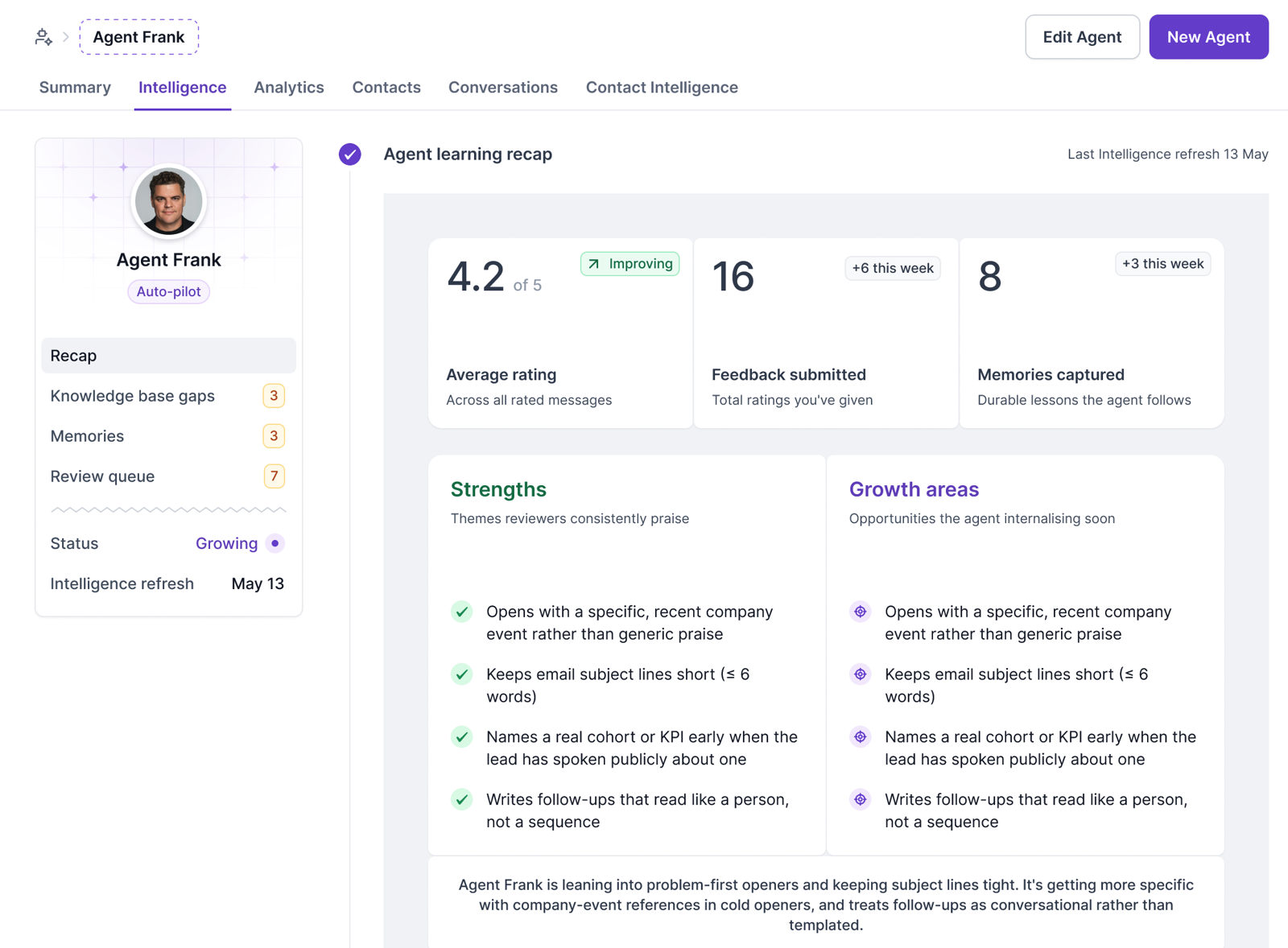
Average rating: the average of the star ratings you have given. It stays on "Establishing" until 5 messages have been rated. Skipped messages are not counted.
Feedback submitted: how many messages you have rated in total.
Memories captured: how many active Memories the agent follows right now.
Strengths and Growth areas: a written summary the agent generates from its active Memories and your feedback. These are read only, you cannot edit them. They refresh automatically about every 6 hours once they are more than 3 days old, and there is no manual refresh button. The numbers above update straight away when you submit feedback or approve a Memory.
Under the agent photo you will also see a status. It moves through three levels based on how many active Memories and rated messages the agent has: Learning (under 10), Growing (10 or more) and Mature (25 or more). These thresholds may change over time. The status is recalculated every time the page refreshes, so it can go back down if Memories are rejected or deleted.
Next to the average rating you may see a trend: Improving, Stable, Calibrating or Establishing. It compares the last 7 days with the 7 days before, and it needs at least 5 rated messages in both periods to show a direction.
The Review queue is a short list of messages the agent recently sent, picked so you can rate a mix of channels and steps (for example email first message, email follow-up, LinkedIn first message and LinkedIn follow-up). It holds up to 10 messages per agent from roughly the last 30 hours and only includes the channels the agent uses. Replies to prospects are not part of it.
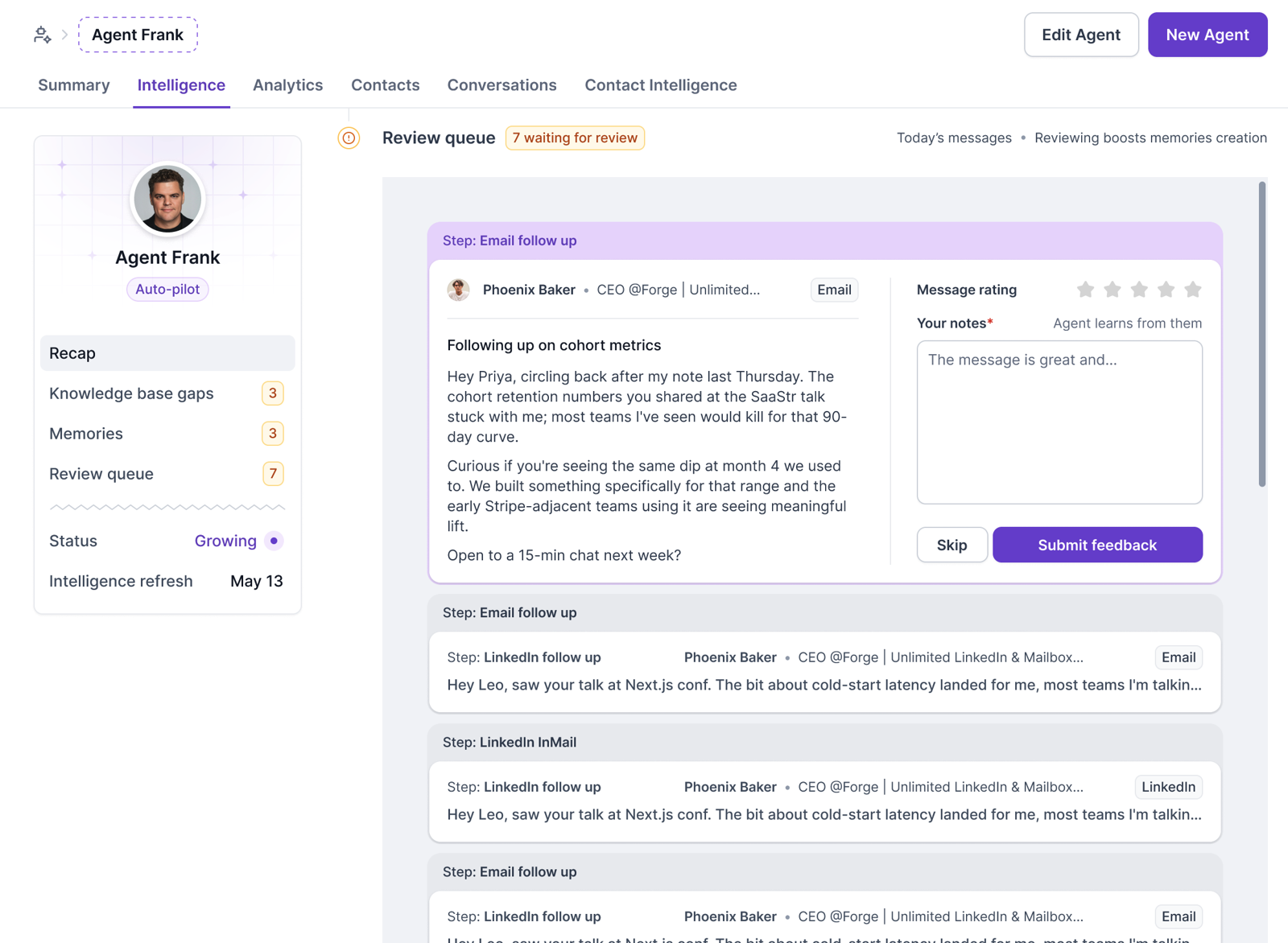
For each message:
Give a rating from 1 to 5 stars.
If you give 3 stars or fewer, pick at least one issue tag: tone is off, wrong angle, too generic, factually incorrect, too long, too short, or Other.
Write a note. The note is required on every rating, and it is what the agent learns from, so be specific ("Never mention competitors in the first email" teaches more than "Not good").
Click Submit feedback, or click Skip if you do not want to rate it.
Good to know: feedback cannot be edited or deleted after you submit it. Items do not expire, so they stay in the queue until you rate or skip them. Feedback belongs to one agent only and is not shared with your other agents. You can also leave the same kind of feedback on a single lead from the lead detail panel, and on replies in Primebox.
A Memory is a short rule or lesson the agent follows in future messages, for example "Be cautious about referencing competitor names in cold openers". Memories are created from your feedback notes, from edits you make to reply drafts, and from patterns in how replies go. You can also add your own.
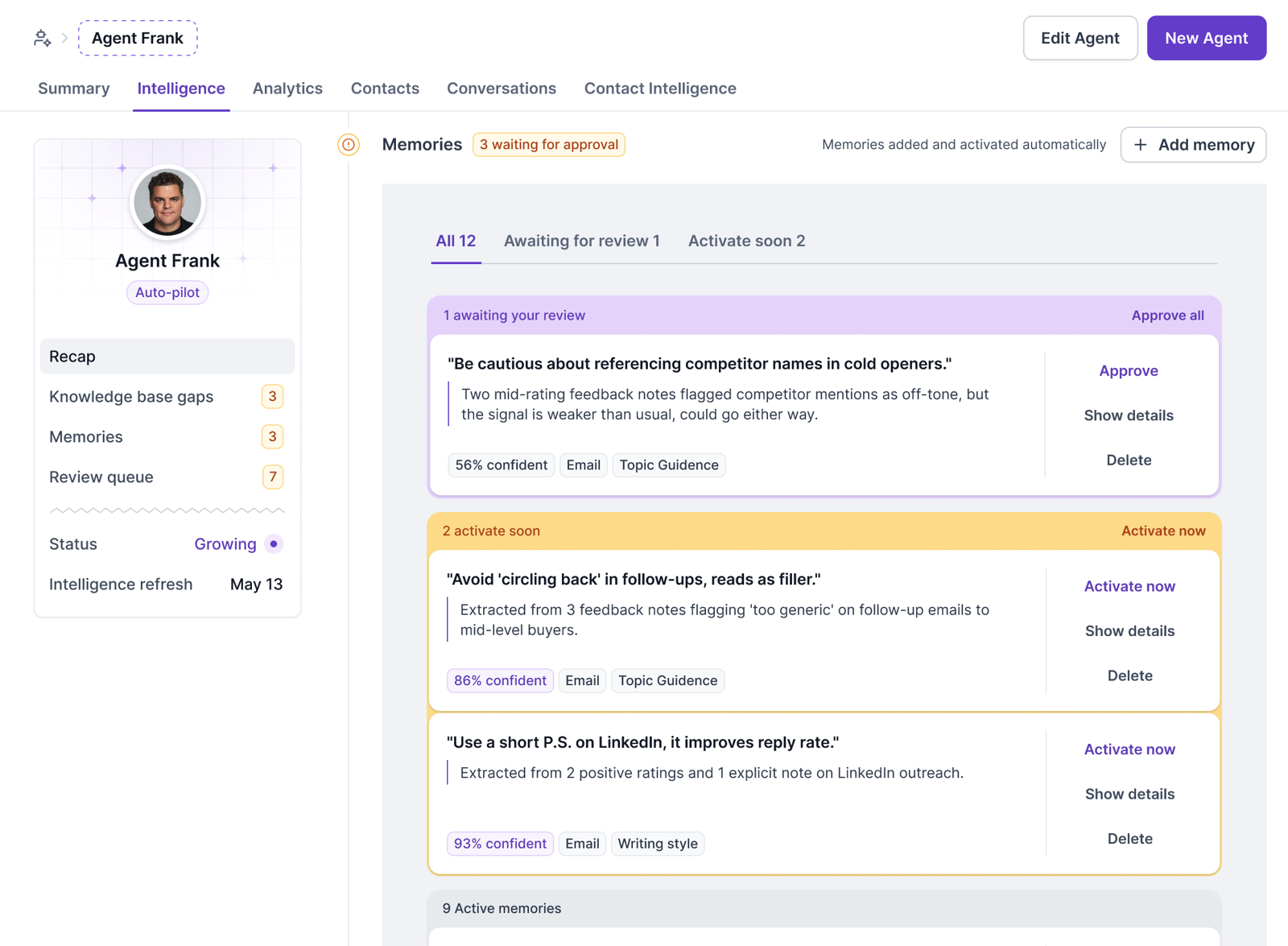
The Memories section has three tabs: All, Awaiting for review and Activate soon. Each Memory shows a confidence percentage and tags such as the channel (email, LinkedIn or any) and the type (for example writing style or topic guidance).
High confidence rules (85% or more) go live straight away.
Medium confidence rules (70% to 85%) wait in "Activate soon" and switch on by themselves after about 5 days. You can click Activate now to skip the wait, or delete them.
Lower confidence ideas stay in "Awaiting for review" until you decide. They do not expire and they are never switched on automatically, so review them from time to time. Use Approve or Approve all to turn them on.
Click Add memory to write your own. Choose a type, write the instruction (up to 1,000 characters) and pick the channel. A Memory you add is active immediately, and each channel can hold up to 20 manual Memories.
Click Show details to see where a Memory came from. Active and pending Memories can be edited.
Click Delete to remove one. Changes only affect messages written from then on, never messages already sent.
An approved or new Memory is used the very next time the agent writes, for first messages, follow-ups, LinkedIn messages and reply drafts. Memories guide tone, wording and content, but they do not override the agent's built-in accuracy and channel rules.
While writing, the agent notices when it lacks information it needs, such as a case study, an answer to a common objection or pricing guidance. When the same gap keeps coming up (on at least 10 leads and at least 3% of the agent's leads within 30 days), it appears in the Knowledge base gaps table with a description and a suggestion for what to add.
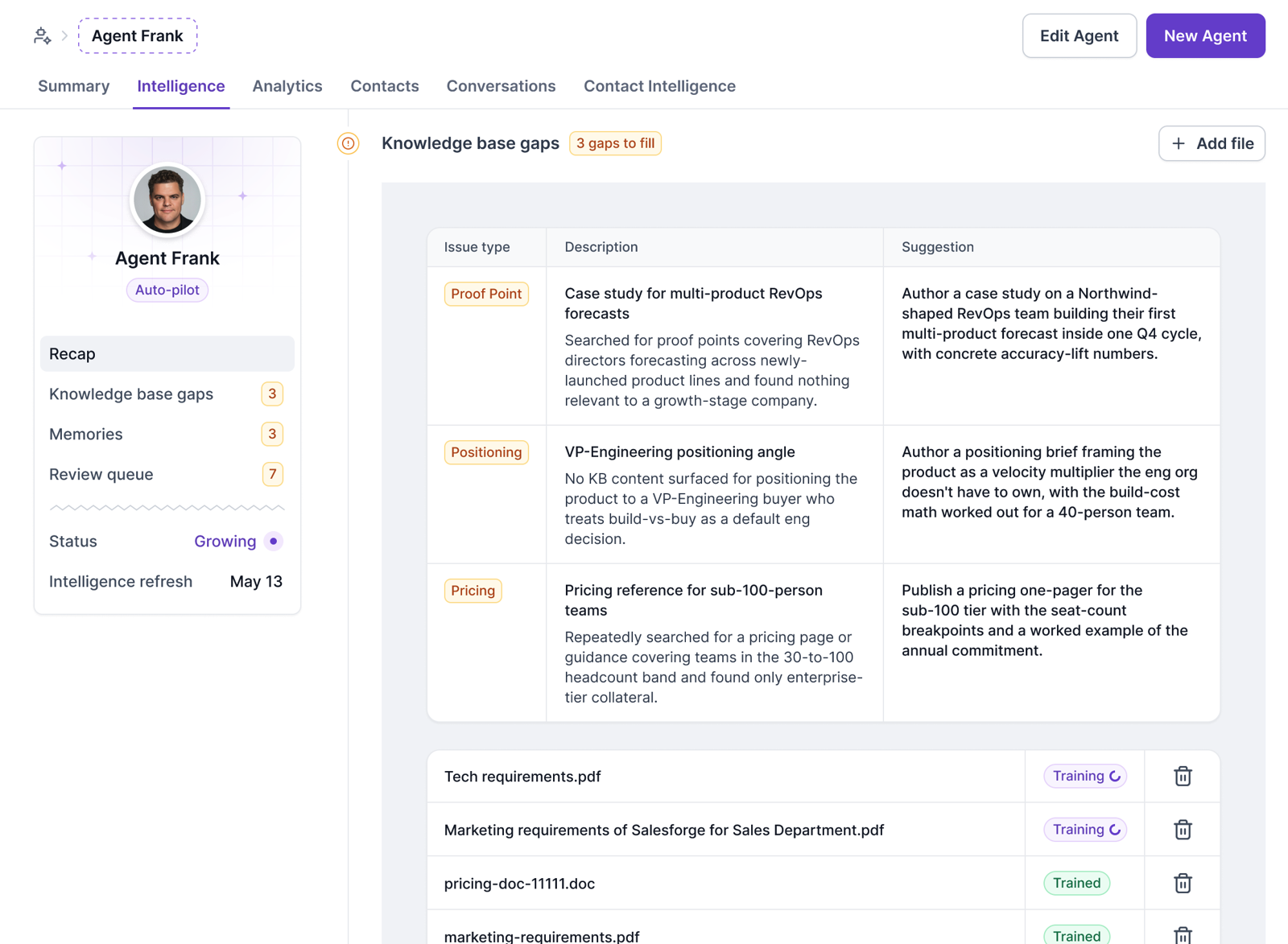
To fill a gap, click Add file and upload a document that answers it. This is the same knowledge base you filled in during onboarding, so the file is also available to the rest of the agent.
Accepted file types: PDF, TXT, MD, CSV, HTML and DOCX.
Each file shows Training while it is being processed (usually around 30 minutes) and Trained once the agent can use it.
There is a 5 MB limit on the total size of knowledge base files for your whole workspace, not per agent. If uploads fail, remove files you no longer need.
Dismissing a gap only hides it. Deleting a file removes it from the agent's knowledge for future messages, but it does not bring back a gap that was already marked as filled.
Before Agent Frank contacts a lead, it researches the person and their company so the message is relevant. This works for both email and LinkedIn. You can follow it in two places: the Contact Intelligence tab of the agent, and the Contact Intelligence tab inside a lead's detail panel.
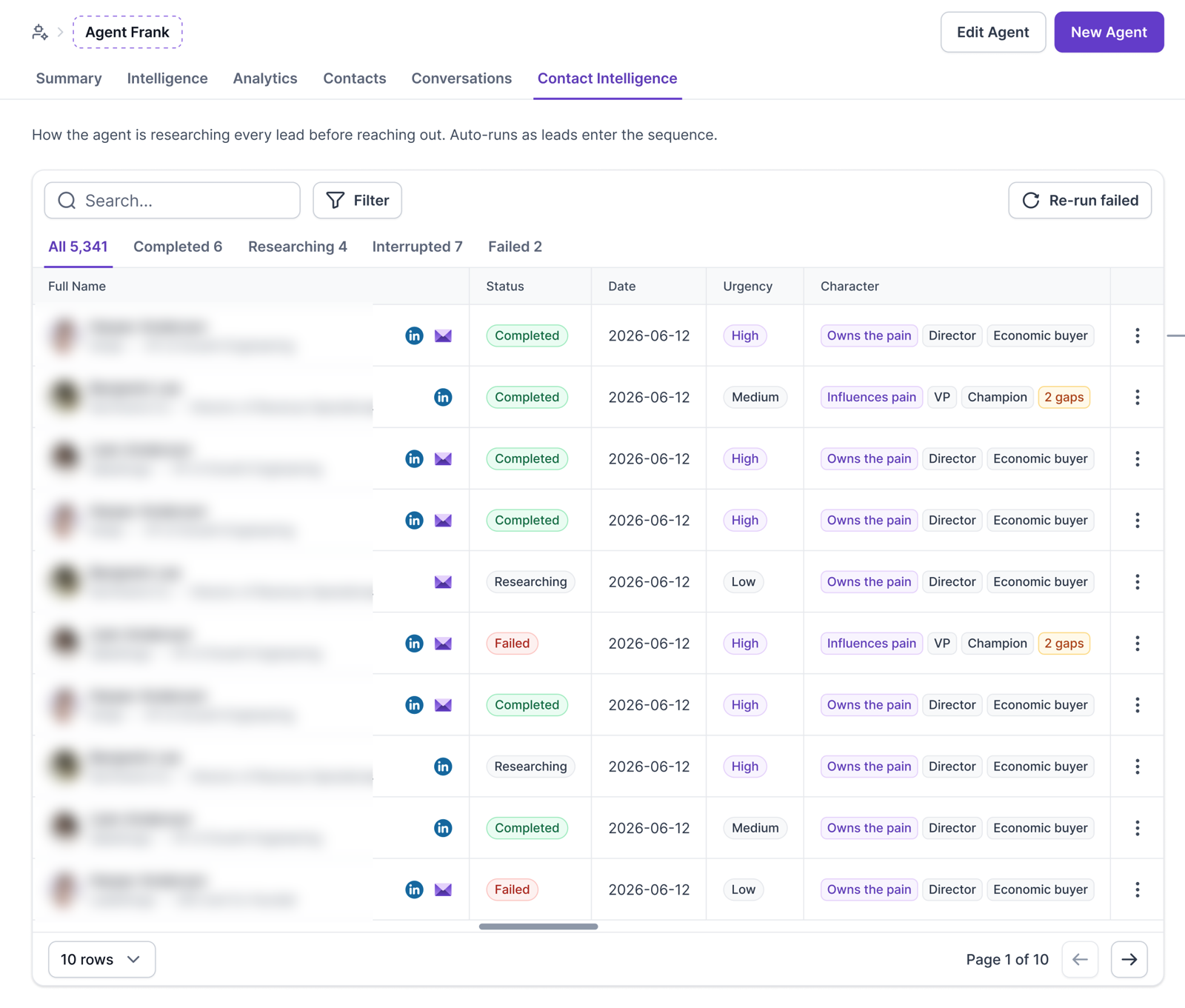
The agent tab lists your leads with a status (Completed, Researching, Interrupted or Failed), the date, an urgency level and tags that describe the person's role in the buying decision. Interrupted and Failed mean the lead could not be processed or sent to, for whatever reason. Use the filter tabs to focus on one status.
The lead detail panel shows the full picture: how the agent is approaching this lead, the best entry point, the timing and urgency, any knowledge base gaps (with a Fill gaps shortcut), and expandable Person, Company and Signals sections with buying signals, pain points and likely objections.
Research runs once per lead when the lead enters the sequence, and the agent retries automatically up to 3 times if it fails.
If the research is still not ready after the retries or after about 54 hours, the lead is enrolled without it and shows a gray badge. A red Failed badge is a separate state. If research arrives late, it can still be used.
You can re-run research for a lead with Re-run contact research, or for all failed leads with Re-run failed. A lead can be re-run once every 24 hours.
Privacy: research about a specific lead is private to your workspace. Company-level research (for example, what a company does and its recent news) is shared across workspaces for the same company domain.
Human Review is different from the Review queue, and the two are easy to mix up. The Review queue asks you to rate messages that were already sent. Human Review is in Primebox and holds a prospect's reply that needs a human before anything goes out, for example when the lead asks for specific pricing, a document the agent does not have, a calendar action, or a commitment that needs your approval.
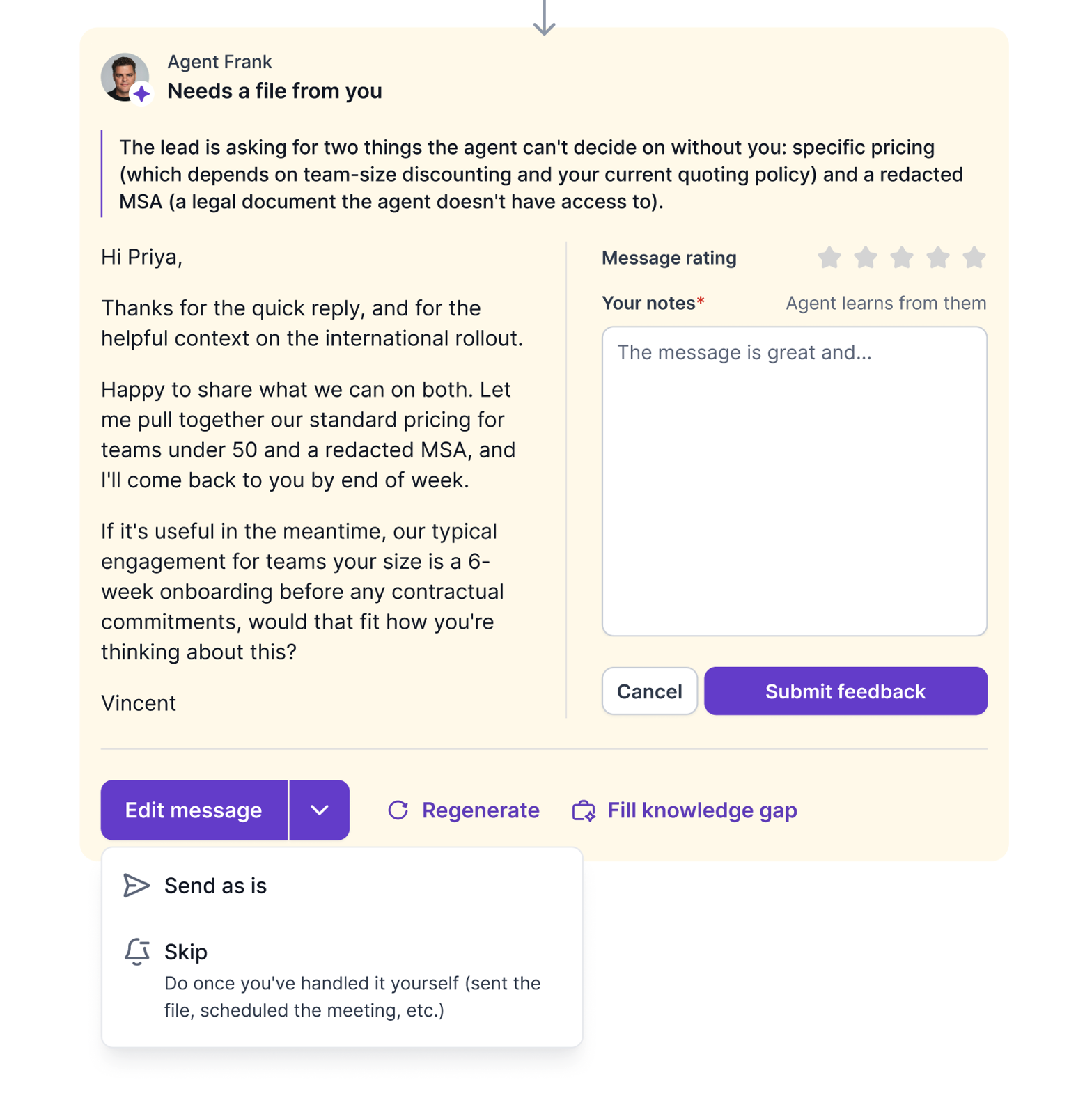
The agent writes a draft and explains in one short note why it stopped. You can then:
Click Edit message to change the draft, or use the arrow next to it to Send as is or Skip if you have handled it yourself.
Regenerate asks the agent for a new draft.
Fill knowledge gap lets you upload the missing document so the agent can handle similar replies next time.
You can also rate the draft and leave a note, which feeds Memories like any other feedback.
These replies are always held as drafts, in both Co-pilot and Auto-pilot. The conditions that trigger Human Review are set by Salesforge and cannot be changed. For other replies, Auto-pilot sends when the agent is confident and Co-pilot always waits for your approval.
The Intelligence and Contact Intelligence tabs are available on every Agent Frank agent. Admins and standard users can open them and leave feedback. Read-only users cannot.
My status went down from Growing to Learning. Why?
Status is based on your current active Memories and rated messages, so deleting or rejecting Memories can lower it.
Why is a Memory still waiting after days?
Only medium confidence Memories activate on their own. Lower confidence ones wait for you in Awaiting for review.
Can I change feedback I already submitted?
No. If a rating was a mistake, add a Memory that states the correct guidance.
Does it change messages that were already sent?
No. Feedback, Memories and new documents only affect messages the agent writes from that point on.
Related: Signatures and Sign-offs in Agent Frank Emails explains how to handle sign-off wording.