You can now add GIFs directly to your emails and LinkedIn messages in Salesforge. This feature lets you make your outreach more engaging, add personality to your conversations, and make your follow-ups stand out.
GIFs are available in the sequence editor, subsequences, and the Primebox reply editor.
Adding a GIF is straightforward:
Open the sequence editor or a subsequence, or navigate to Primebox to reply to an existing conversation.
Open the GIF picker in the message editor.
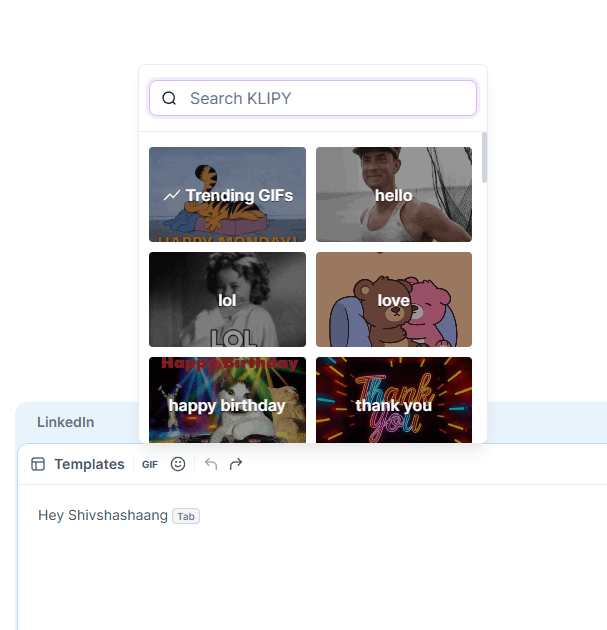
Search for a GIF by name or category.
Select the GIF you want to include.
Add your text alongside the GIF, if needed.
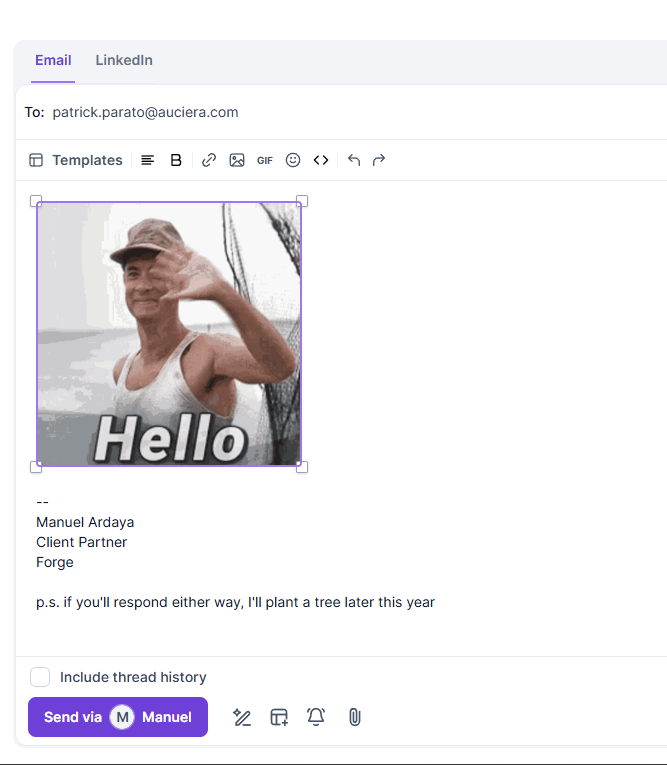
Save your message or sequence.
You can add multiple GIFs to a single message. Each GIF appears on its own line, keeping it separate from your written content.
GIFs are supported across several Salesforge outreach channels and message types.
Initial emails
Follow-up emails
Forwarded emails
LinkedIn messages
InMails
You can also use GIFs in message templates and auto-spintax. If you save a GIF as part of a template, it will be included when you use that template in your outreach.
Additionally, the sequence details page displays GIFs sent as part of each step under contact progress, making it easier to review your outreach activity.
There is one important difference when sending GIFs through LinkedIn.
LinkedIn handles GIFs as separate messages. This means that if you send a message containing both text and a GIF, the recipient will see two separate messages in the conversation:
One message containing your text.
A second message containing the GIF.
However, both messages count as just one message toward your daily LinkedIn sending limit in Salesforge.
No. GIFs are not supported in LinkedIn connection request notes.
This is because LinkedIn only allows one note per connection request, and GIFs cannot be included in that note.
You can, however, use GIFs in LinkedIn messages and InMails after the connection has been established or where the relevant messaging functionality is available.
Can I add multiple GIFs to one message?
Yes. You can include multiple GIFs in a single email or LinkedIn message. Each GIF is placed on its own line.
Can I combine text and GIFs?
Yes. You can combine written content with one or more GIFs in the same message. On LinkedIn, the text and GIF will be delivered as separate messages, but they count as one toward your daily sending limit.
Can I use GIFs in templates?
Yes. GIFs are supported in templates and auto-spintax. GIFs saved in a template are retained when you use that template.
Can I use GIFs in connection request notes?
No. LinkedIn connection request notes do not support GIFs.
Where can I see which GIF was sent?
You can review sent GIFs under contact progress on the sequence details page.
GIFs can help make your outreach more engaging, but they should complement your message rather than replace meaningful communication.
A few recommendations:
Keep GIFs relevant to the conversation and your audience.
Avoid adding too many GIFs to a single message.
Make sure your written message still communicates the main point.
Test your messages before launching a sequence to ensure the content appears as expected.
As with other email content, consider the potential impact of adding images or animated content to your emails. The effect can depend on the recipient's email provider, filtering systems, and message composition.