A workspace keeps one client’s or brand’s work separate from the rest of your account. Create a separate workspace for each client or brand so their campaigns, domains and mailboxes stay apart. This works the same way in every Forge product.
Any user on your account can create a new workspace.
Only an account admin who is a member of the workspace can rename or delete it.
Open the product you want to use.
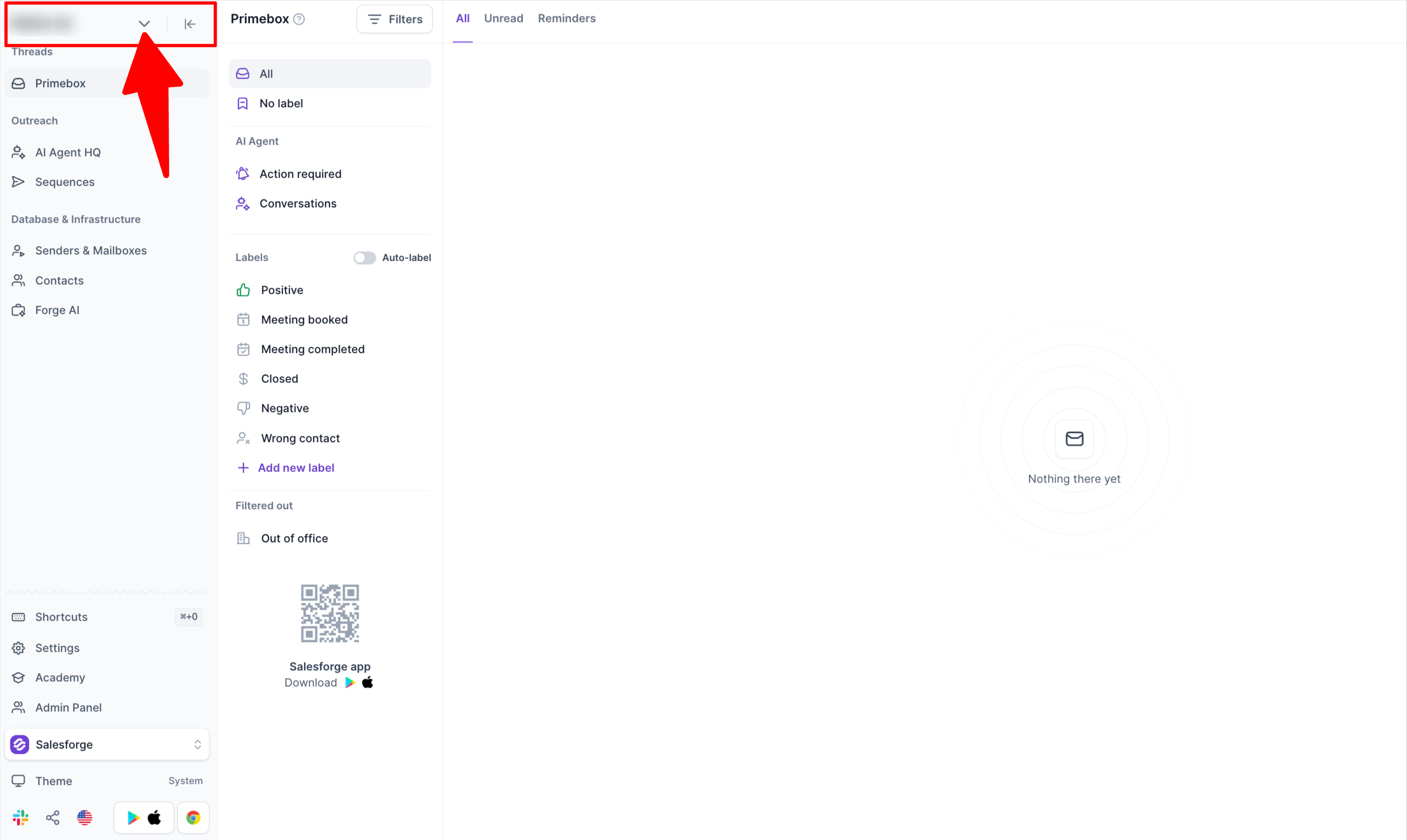
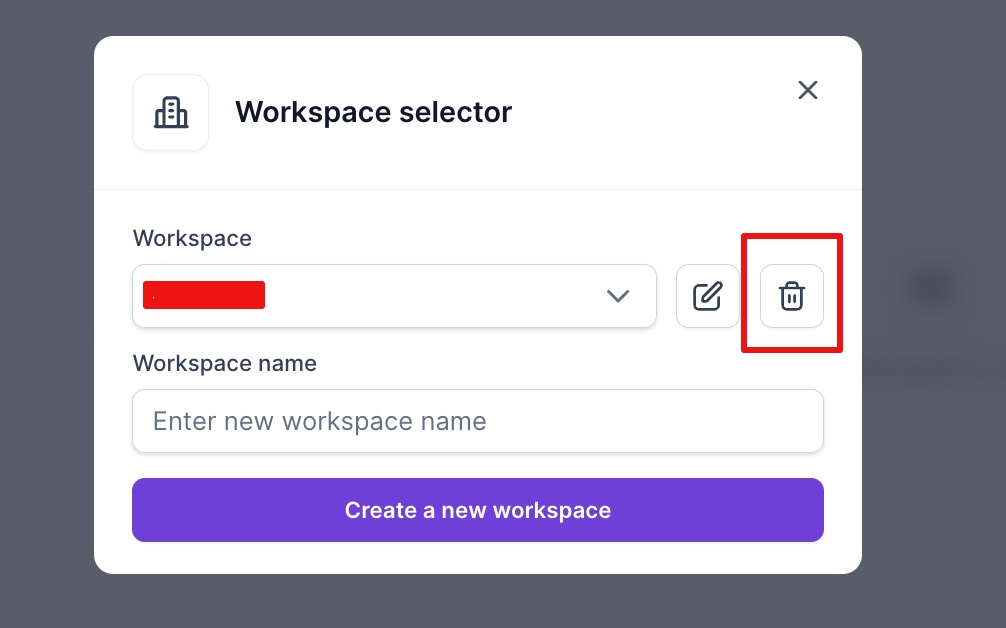
At the top of the left sidebar, click your current workspace name. The Workspace selector window opens.
In Enter new workspace name, type a name.
Click Create a new workspace.
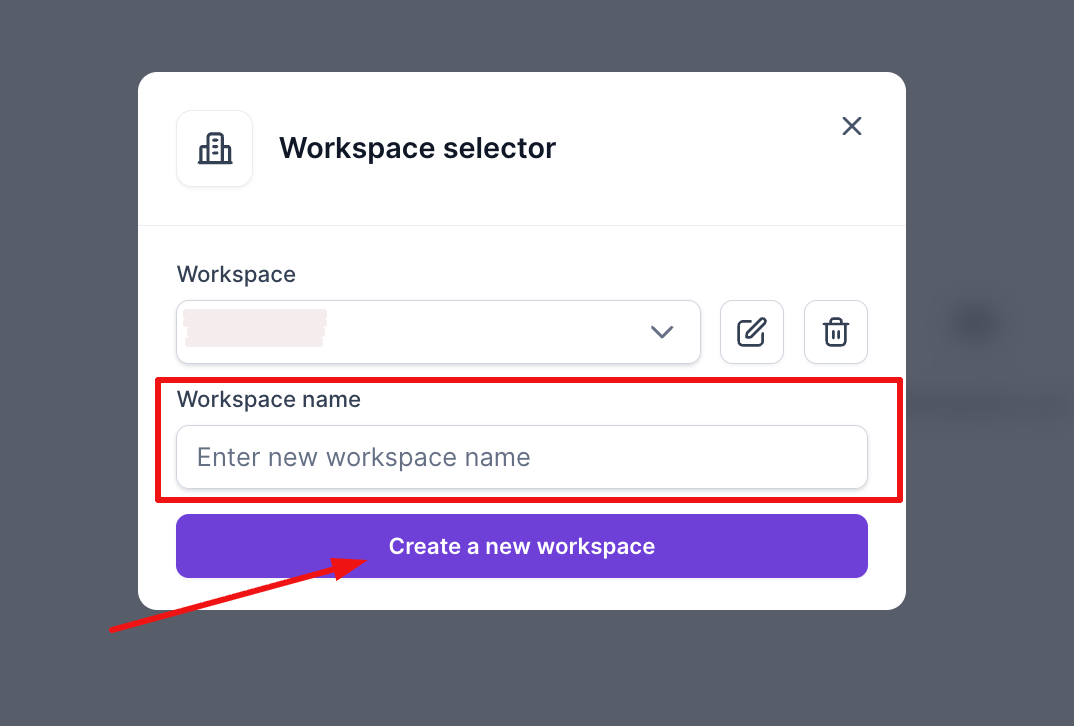
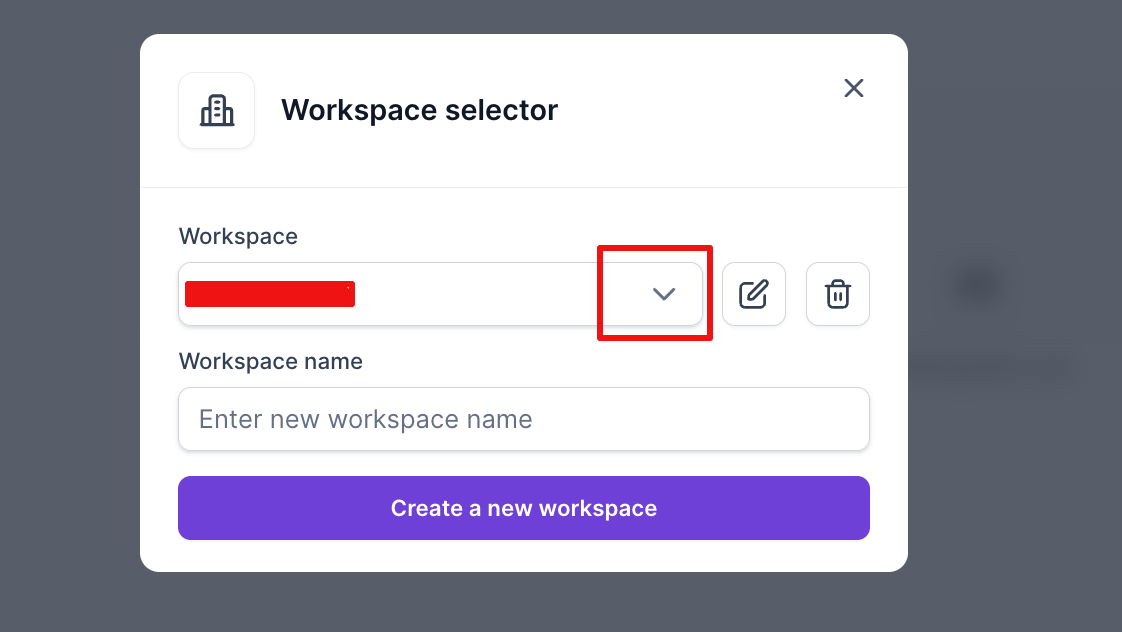
Your new workspace opens, and it’s empty. To switch between workspaces, use the Workspace dropdown in the same window.
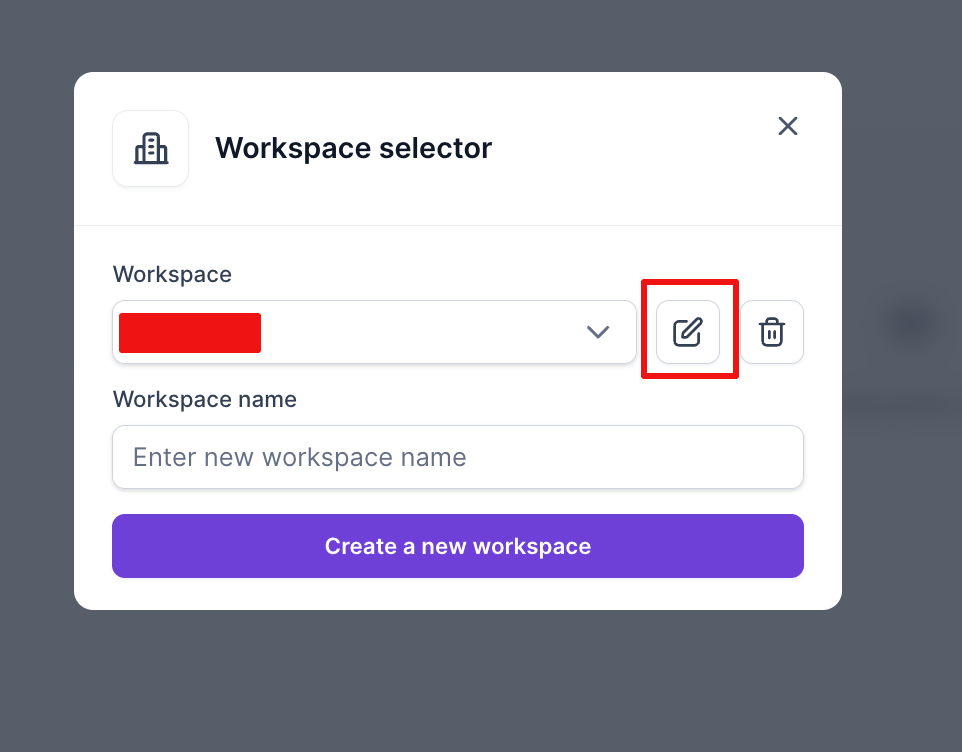
Click the pencil icon next to the dropdown, enter a new name and save.
Click the trash icon next to the dropdown. You’ll be asked to confirm, and deleting can’t be undone from the app. Before you delete, make sure you no longer need the workspace’s mailboxes, sequences and contacts. If you deleted one by mistake, contact support.
Creating a workspace doesn’t change your billing. Mailbox slots belong to your account and are shared across all your workspaces.
Salesforge: your Do Not Contact list works across the whole workspace. Admins can turn on Merge all DNC lists in the DNC settings to share it across all your workspaces. Turning it on updates the DNC status of contacts already enrolled in sequences, and you’re asked to confirm.
Move a domain to another workspace: Mailforge and Infraforge let you move a domain and its mailboxes yourself. For a single mailbox without its domain, or in any other Forge product, contact our support team through live chat.
Developers can create a workspace with POST /workspaces using an account-level API key. A workspace-level key is rejected. See: developer.salesforge.ai/api-reference/workspaces/create-workspace