When a lead replies with an out-of-office message containing a return date, Salesforge detects the date and schedules the lead to resume automatically.
The process works as follows:
Enable Auto-resume after OOO in your sequence settings.
Set a buffer period (in days) to allow the lead some time to settle back into work.
When Salesforge detects an OOO reply with a valid return date, it calculates the scheduled resumption date.
The lead automatically returns to Active status on the scheduled date and continues from the next pending sequence step.
The default buffer is 3 days.
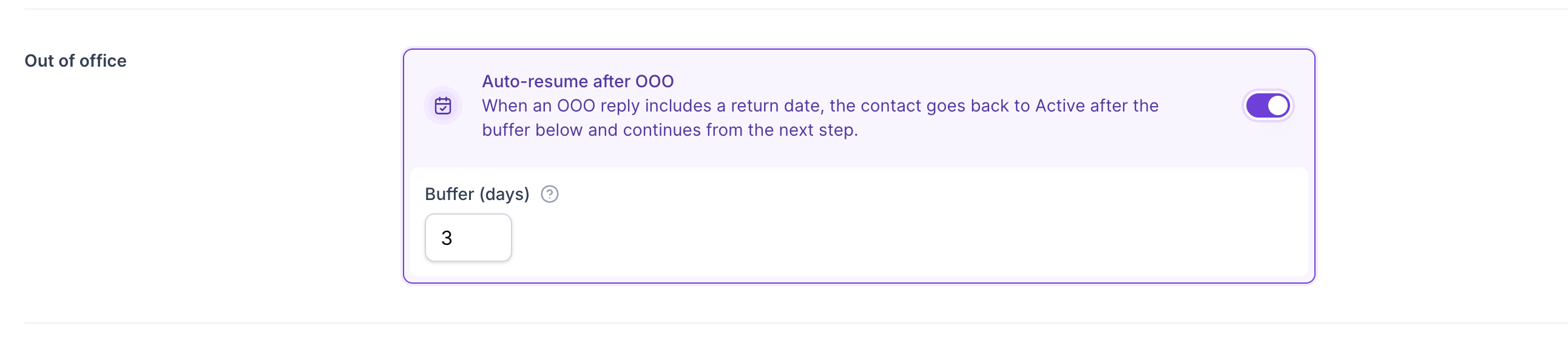
Follow these steps to configure the feature:
Open Outreach from the Salesforge sidebar.
Select Multichannel and open the sequence you want to configure.
Open the sequence's Settings.
Locate the Out of office section.
Toggle on Auto-resume after OOO.
Enter your preferred number of days in the Buffer (days) field.
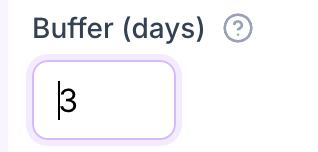
The buffer determines how many additional days Salesforge waits after the return date before resuming outreach.
Example:
Lead's expected return date: November 15
Configured buffer: 2 days
Scheduled resumption: November 17
The lead will automatically return to Active status on November 17.
You can view upcoming resumptions from the Contacts page inside your sequence.
For leads with a scheduled resumption, Salesforge displays:
Expected return date: The date identified in the OOO reply.
Scheduled resume date: The date when the lead will return to the sequence.
This makes it easier to track upcoming resumptions without manually monitoring OOO replies.
You can override automatic resumption for individual leads directly from the sequence's Contacts page.
If you don't want a lead to resume automatically:
Open Outreach → Multichannel.
Select the relevant sequence.
Open its Contacts page.
Find the lead with a scheduled resumption.
Select Cancel auto-resume.
The lead remains in OOO status until you manually resume them.
To bring a lead back before their scheduled date:
Open the sequence's Contacts page.
Find the relevant OOO lead.
Select Resume now.
The lead immediately returns to the sequence, and their scheduled auto-resume is cleared.
Salesforge automatically handles several scenarios to prevent leads from resuming at inappropriate times.
Scenario | What happens |
|---|---|
No return date detected | The lead remains in OOO status and must be resumed manually. |
Return date is unclear or already in the past | No automatic resumption is scheduled. |
Lead sends a regular reply before resumption | The scheduled auto-resume is automatically cancelled. |
Lead's status is changed manually | The scheduled auto-resume is cancelled. |
Another OOO reply arrives | The return date and scheduled resumption are recalculated using the latest message. |
Lead was already in OOO status before enabling the feature | No automatic resumption is scheduled. The lead must be resumed manually. |
When a lead resumes, they continue from the next pending sequence step. Their existing step wait times are preserved rather than restarted.
Your configured sending windows also remain in effect, so outreach continues according to your sequence schedule.
Salesforge records automatic resumption events in each lead's activity log.
The activity log captures:
When a lead was automatically resumed.
When a scheduled auto-resumption was cancelled.
This provides visibility into status changes and helps you understand how a lead progressed through the sequence.
Important: Auto-resume after OOO only applies to new OOO replies received after the setting has been enabled. Leads already in OOO status must be resumed manually.