Voice notes let you send a spoken message to a lead on LinkedIn as part of a Multichannel sequence, or directly from Primebox. You can send one recording that every lead hears, or let AI turn a script into a personalised voice note for each lead, spoken in the sender's own voice.
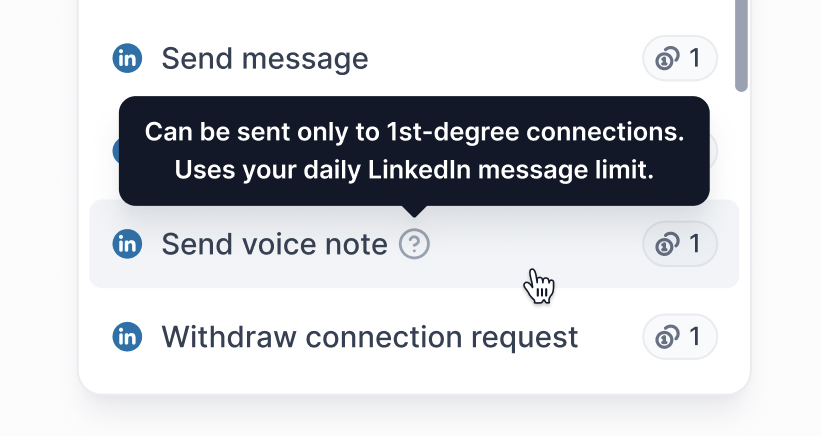
The Send voice note step works for 1st-degree connections only, the same as a normal LinkedIn message, and it uses the sender's daily LinkedIn message limit. Place it after a Request connection step, or use it with leads you are already connected to. You will find it under LinkedIn > Actions when you add a step in the Multichannel builder.
Each voice note step has a Generate with AI toggle in the top right. Leave it off for a recorded note, or turn it on for an AI-generated one.
Option | Recorded | AI-generated |
|---|---|---|
What the lead hears | The same recording, for every lead | A version generated from your script for that lead, in the sender's voice |
How you create it | Record in the browser, or upload an audio file (up to 1:00 minute) | Write a script, using variables and spintax |
Personalization credits | None | 2 per note, only when it is sent |
Voice needed on the sender | No, it plays your recording | Yes, each sender needs a voice (see below) |
If your sequence uses A/Z variants, you can mix recorded and AI-generated notes across variants to test them against each other.
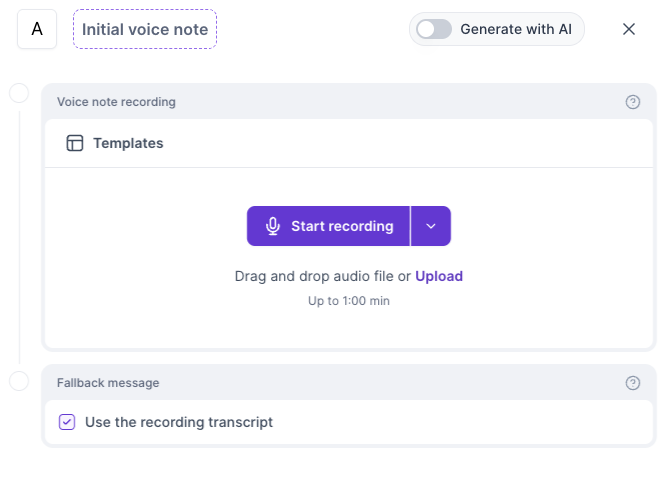
Add a Send voice note step and keep Generate with AI off.
Click Start recording to record in your browser, or drag and drop an audio file or click Upload. Recordings can be up to 1:00 minute. While recording, a timer shows how much time is left.
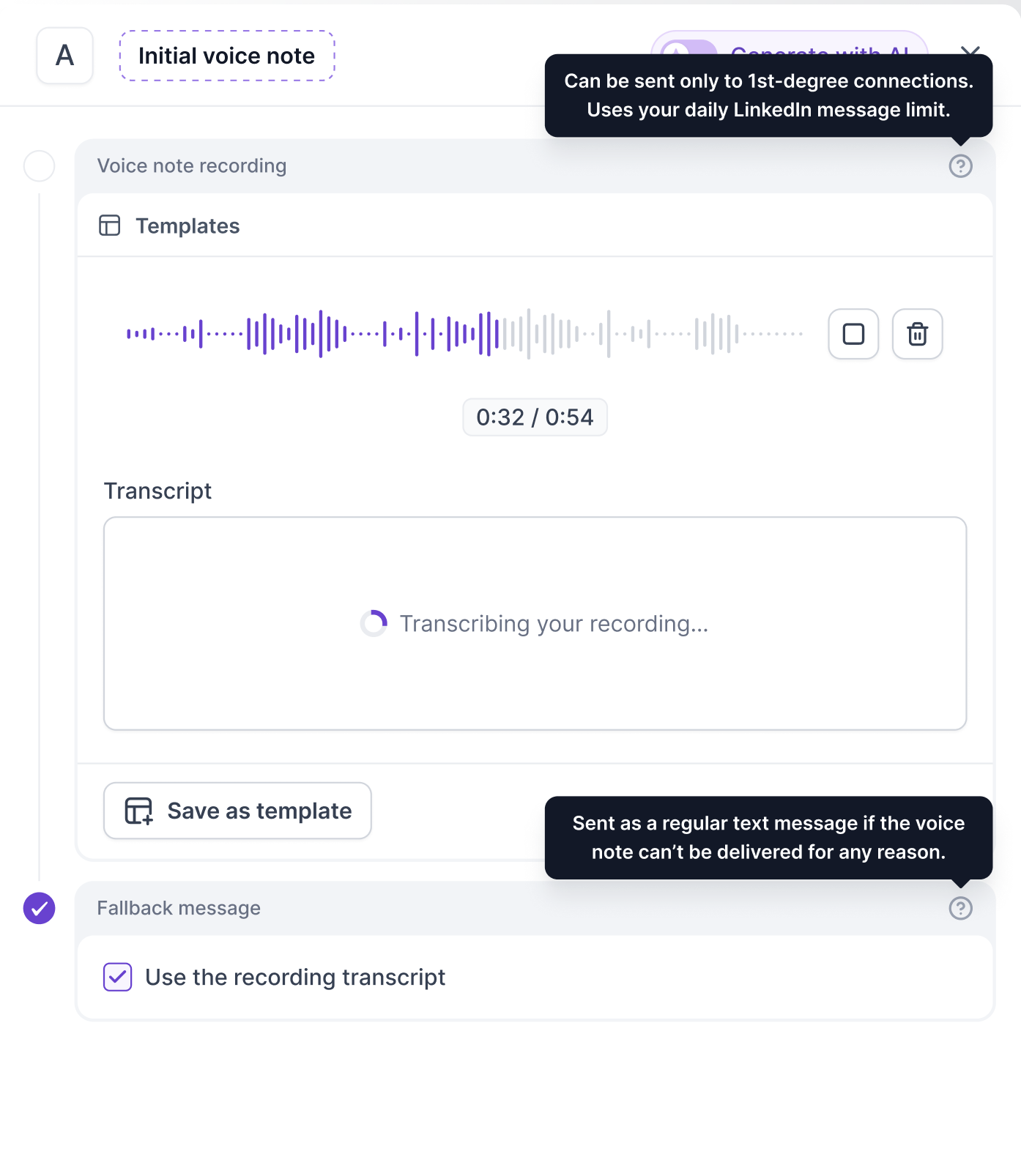
After the recording, Salesforge transcribes the audio and fills in the transcript. You can play the recording back, delete it and record again, or edit the transcript.
Under Fallback message, keep Use the recording transcript ticked to send the transcript as the fallback text, or untick it and write your own.
Optionally click Save as template to reuse the recording in other sequences (see Templates below).
Add a Send voice note step and turn Generate with AI on.
Write your script in the Message for AI to generate box. Use Variables to insert lead data such as first name or company, and spintax to vary the wording. Templates lets you start from a saved script.
Check the counter at the bottom of the box. It shows words, approximate duration and characters, for example 1 / 1,000.
Make sure every sender in the sequence has an AI voice assigned (see the next section).
Optionally use Generate preview to hear how it sounds (see Previews below).
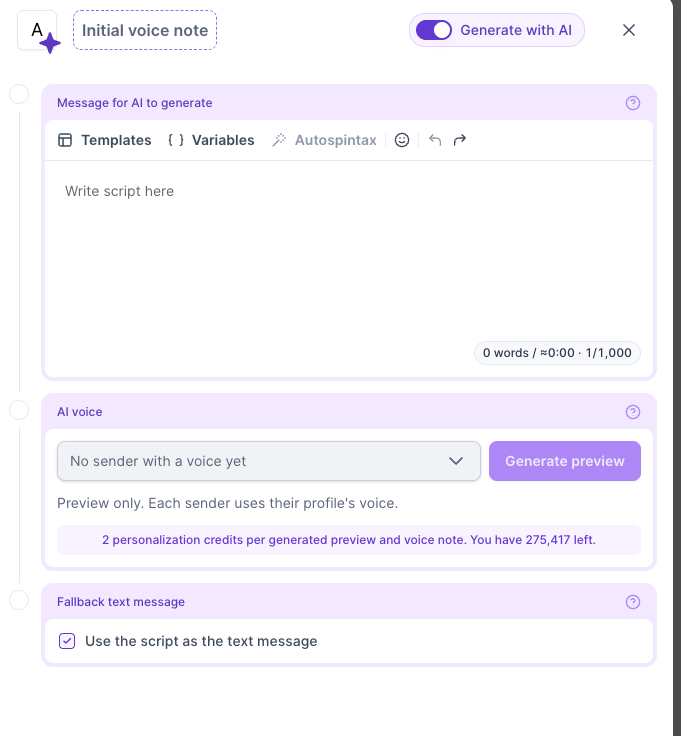
An AI script can be up to 1,000 characters. Every character counts, including spaces and punctuation. For example, "Hello" is 5 characters.
Add {{localized_greeting}} at the start of your script to greet each lead in their own language. Salesforge picks the language from the lead's language field first, then from the language or country on their LinkedIn profile, then by detecting the script of their name, and falls back to English. The greeting supports 24 languages. The rest of your script is spoken in whatever language you write it in, so write the script in the language you want the lead to hear. For more detail see Localized Greeting for Human Path Messages.
Credits: in a sequence, the greeting can cost 1 extra personalization credit per note. This happens only when Salesforge has to look up the lead's language from their LinkedIn profile. If the lead's language field is already filled in, there is no extra charge. So an AI voice note sent from a sequence costs 2 personalization credits, or up to 3 with the greeting lookup. Voice notes and previews sent from Primebox do not add a greeting charge.
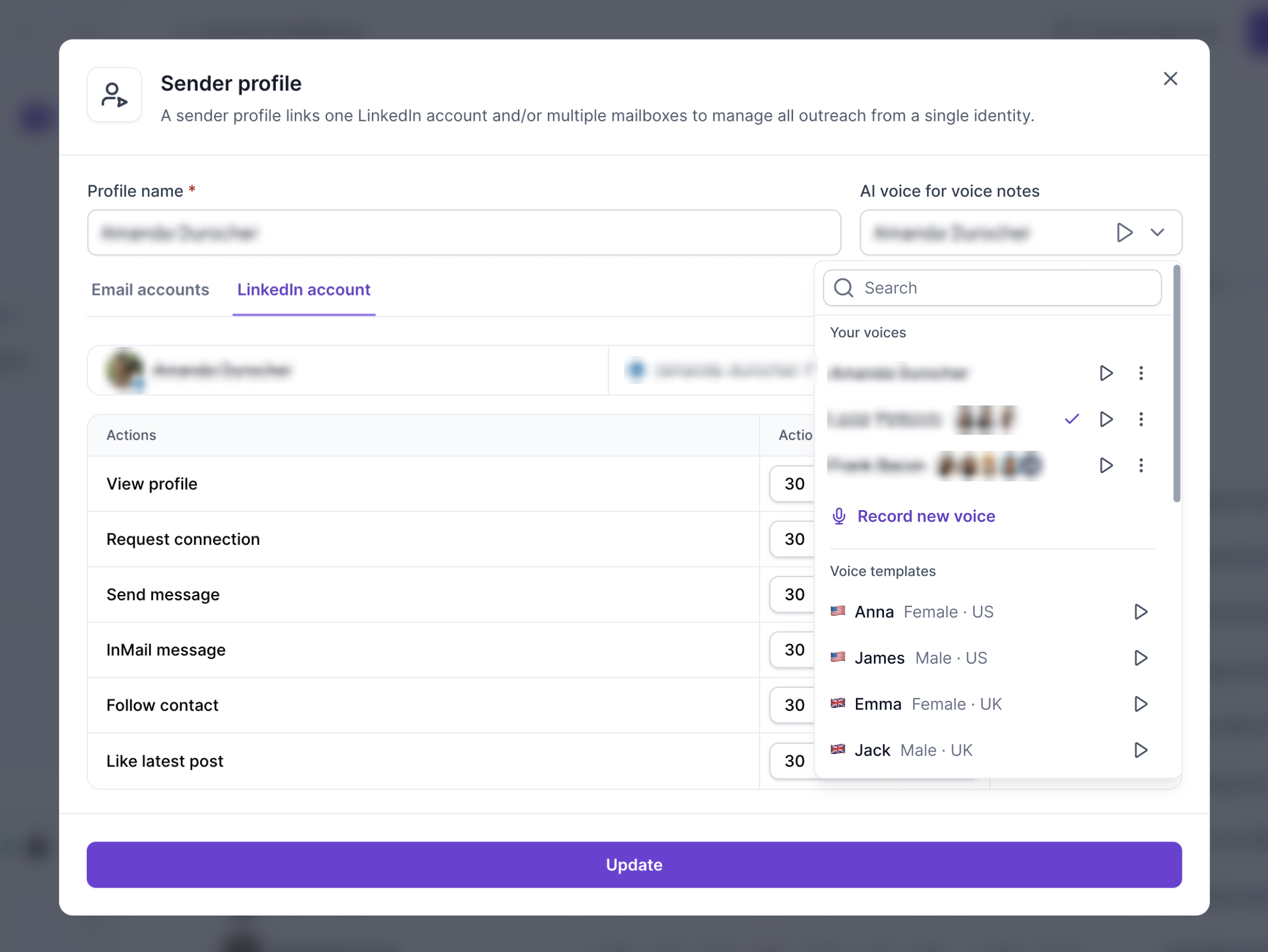
AI voice notes are spoken in the voice set on each sender profile. Open the sender profile and use the AI voice for voice notes dropdown to choose one. The dropdown has two lists:
Your voices: the voices you or your teammates have cloned. A tick marks the voice currently selected, and small avatars show which senders already use it.
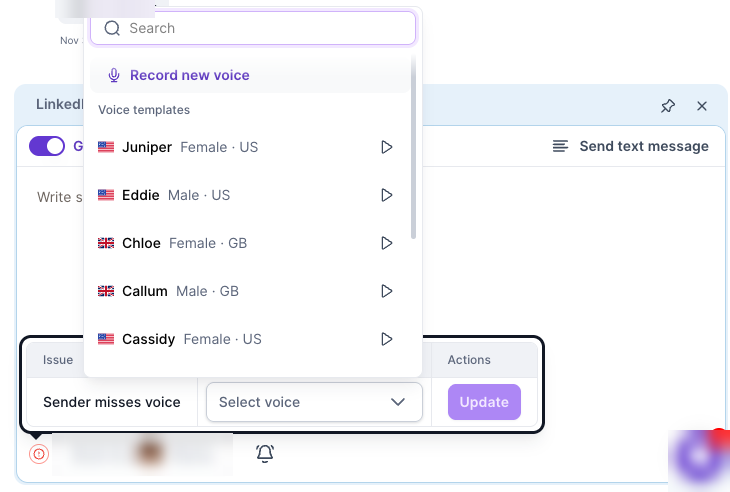
Voice templates: ready-made voices, labelled by gender and country. Search by name and listen to any voice with the play button.
Click Record new voice to clone your own voice.
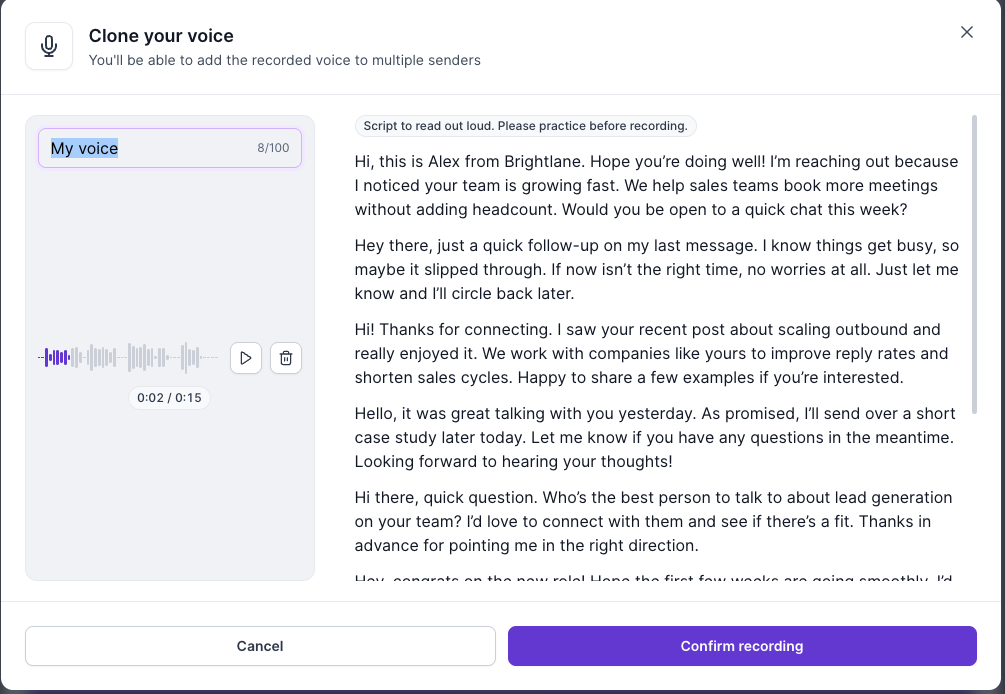
Read the on-screen script out loud, either recording in the browser or uploading an audio file of up to 2:00 minutes, give the voice a name, then click Confirm recording. You can play the recording back or delete it and record again before confirming. Practise first, keep the volume even, speak at a steady pace and use a good microphone. Cloning is free.
Cloned voices belong to the workspace. Any sender can use any cloned voice, and one voice can be assigned to many senders.
Use the three-dot menu next to a voice to Edit (rename it, or re-record it in place so the voice and its senders stay the same) or Delete. A voice cannot be deleted while it is assigned to a sender, so switch those senders to another voice first.
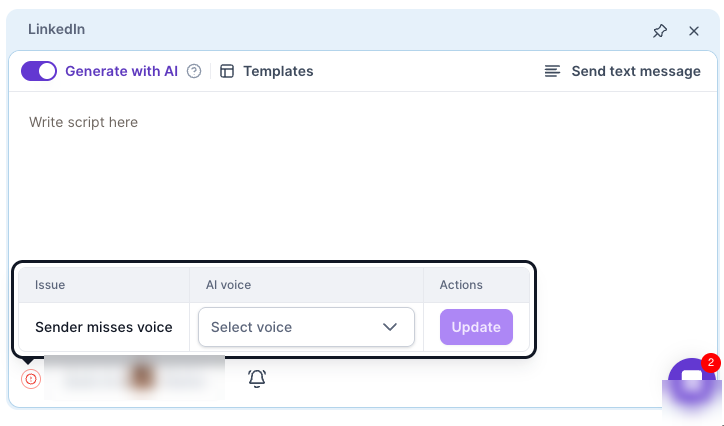
In an AI voice note step, the AI voice section lists any Senders missing voice in the sequence. Pick a voice for each sender in the list and click Update to save it to that sender's profile, without leaving the builder. Senders without a voice send the fallback text message instead.
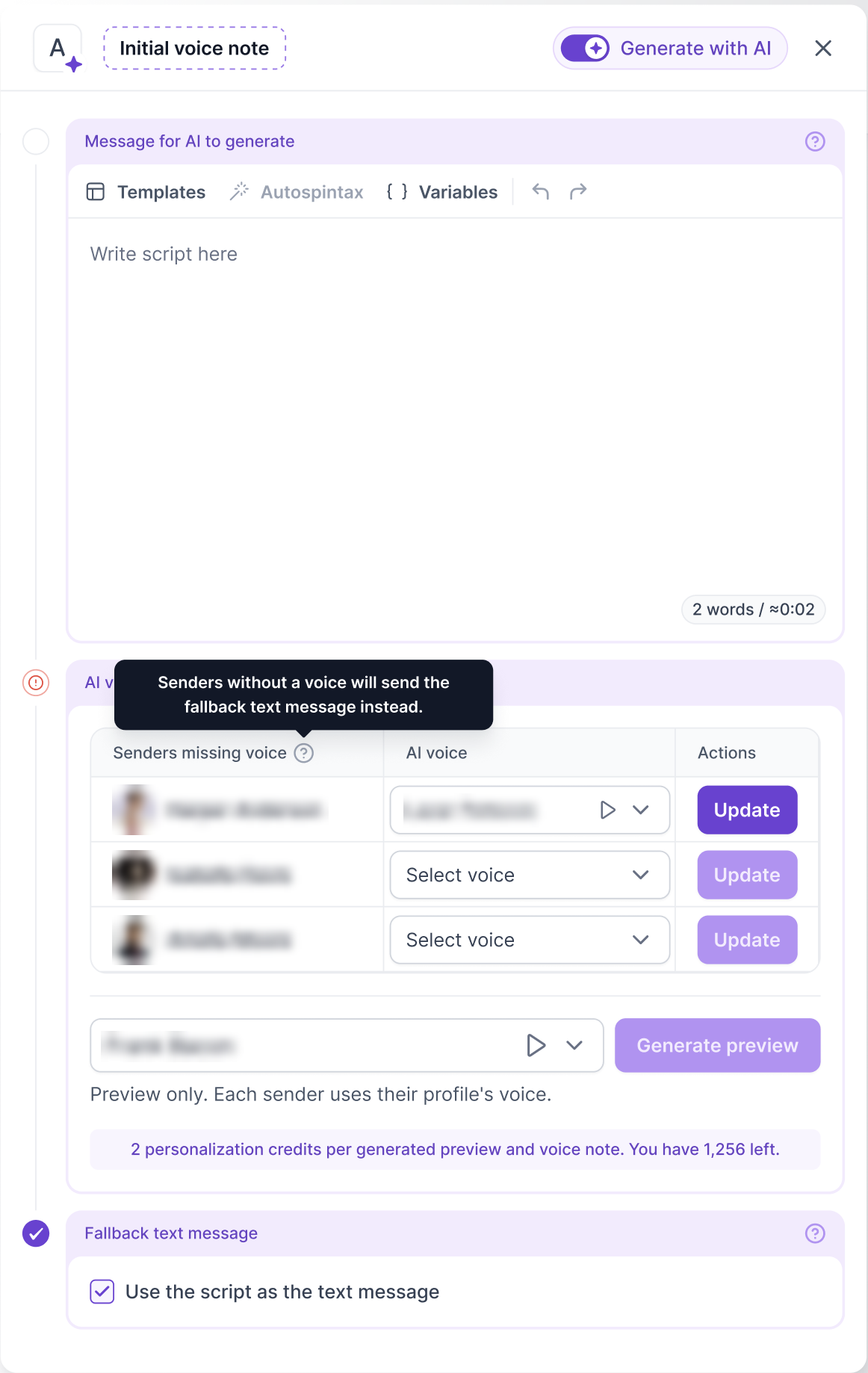
In an AI step, pick any sender's voice from the dropdown next to Generate preview to hear your script before launch. A preview only tests the sound; every sender still uses their own profile voice when the sequence runs. Each preview costs 2 personalization credits, every time you generate one. Previews are not cached, so previewing the same script again is charged again.
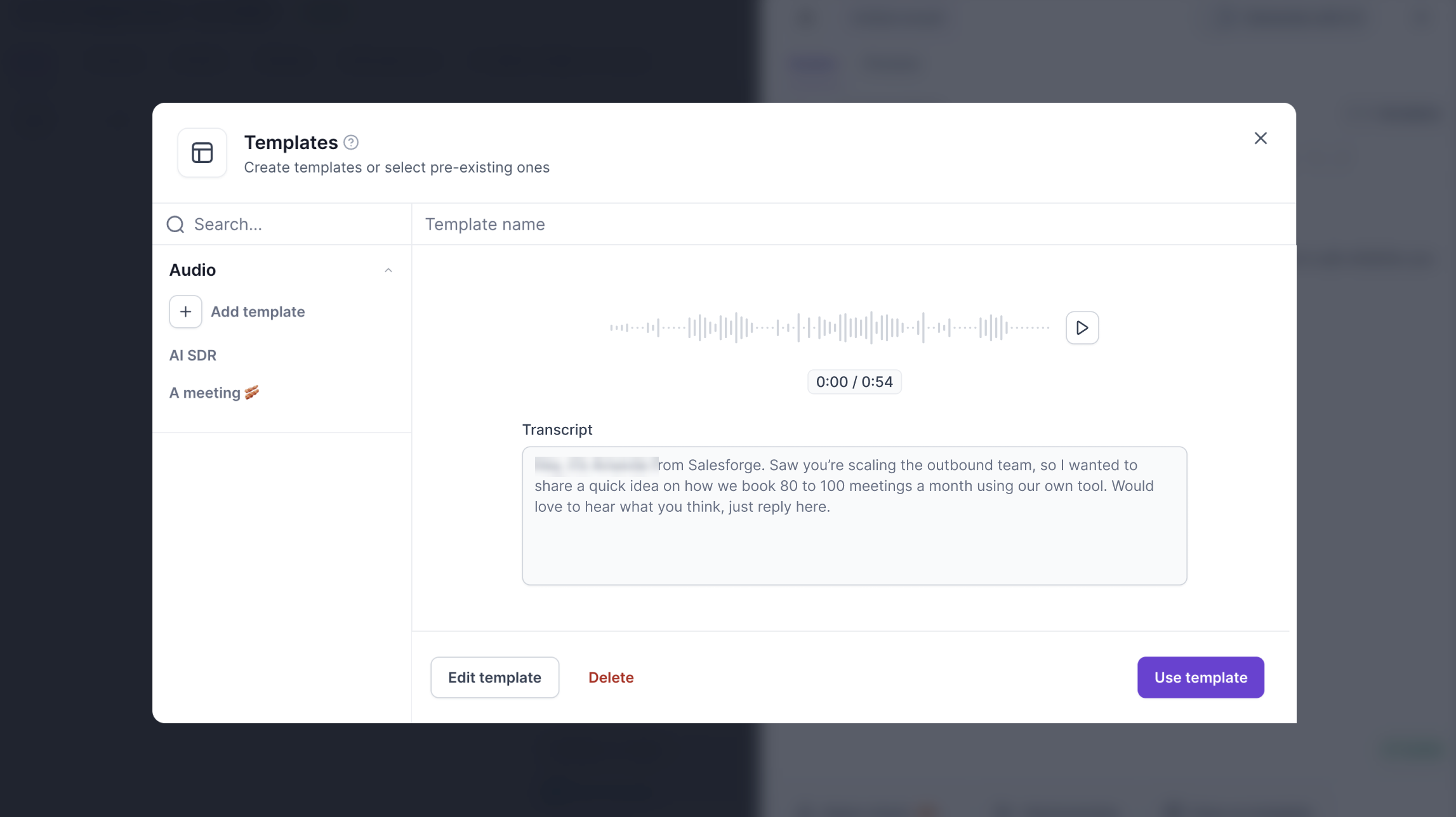
Click Templates at the top of a voice note step to reuse your work. Audio templates hold a saved recording together with its transcript. Pick one from the list, play it back, and click Use template to add it to the step. You can also click Add template to create a new one, Edit template to change it, or Delete to remove it.
Voice notes also work in Primebox LinkedIn conversations. You can send one as a reply, and voice notes your leads send you show up in the thread.
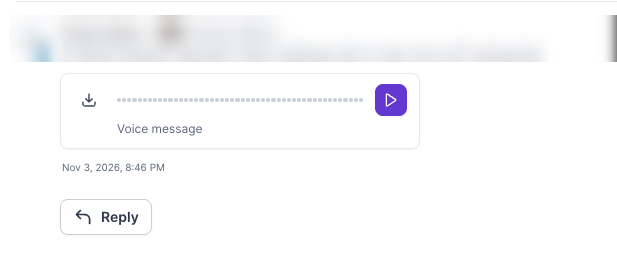
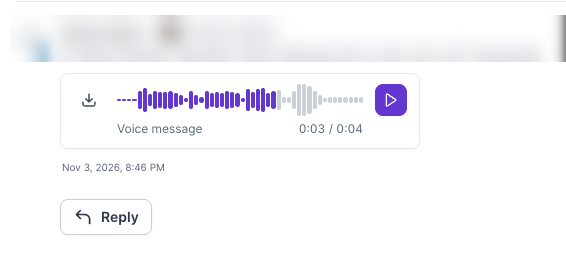
When a lead replies on LinkedIn with a voice note, it appears in the conversation as a Voice message card. Click the purple play button to listen. The waveform fills in as the message plays, and a timer shows how far along you are, for example 0:03 / 0:04. The download button on the left saves the audio file. Click Reply under the message to answer with text or a voice note of your own.
To reply with a voice note, open the LinkedIn thread and click Send voice note at the top right of the reply box.
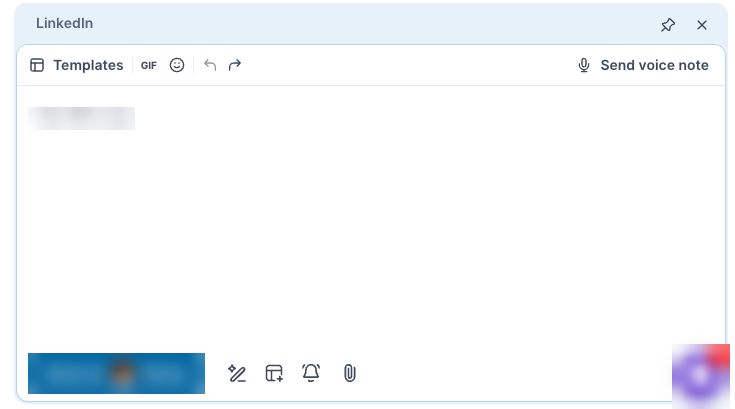
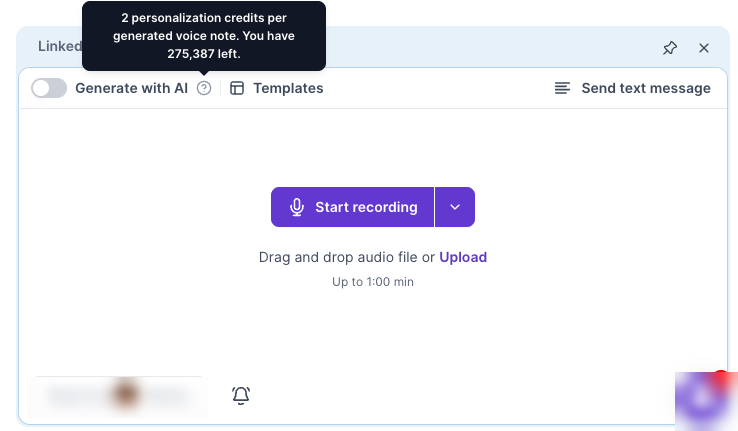
The reply box switches to a voice note composer. Click Send text message at the top right to go back to a normal text reply. Send via at the bottom shows which sender sends the note. You have three ways to create it:
Record: click Start recording to record in your browser.
Upload: drag and drop an audio file or click Upload. Voice notes can be up to 1:00 minute.
Templates: click Templates to reuse a saved voice note.
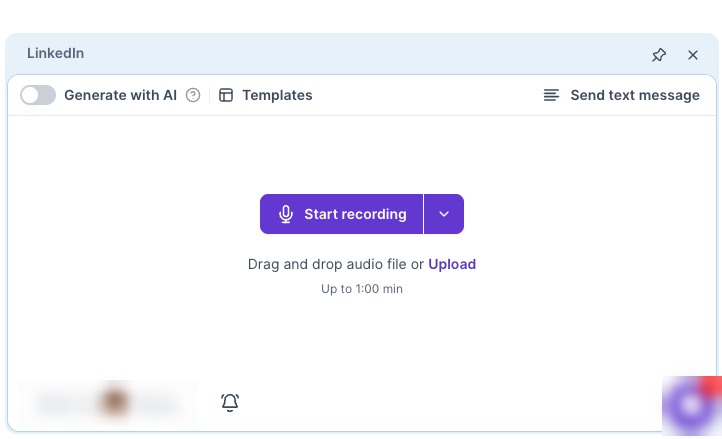
Turn on Generate with AI, write your script in the box and send. Each AI-generated voice note costs 2 personalization credits. Hover over the question mark next to the toggle to see the cost and how many credits you have left.
AI voice notes are spoken in the sender's AI voice. If the sender has none, the composer shows a Sender misses voice issue. Choose a voice in the AI voice dropdown and click Update to save it to the sender's profile. The dropdown lists your cloned voices and the voice templates, and you can click Record new voice to clone your own.
Credits in Primebox: a voice note sent from Primebox does not use a social action credit, the same as a text reply from Primebox. An AI voice note still uses 2 personalization credits.
Every voice note step has a fallback text message. If the voice note cannot be delivered for any reason, Salesforge sends this text as a normal LinkedIn message instead, so the lead still hears from you. For a recorded note the fallback is the transcript by default; for an AI note it is the script by default. You can write a separate fallback message instead, and edit it after launch.
Common reasons the fallback is used:
The sender has no AI voice assigned (these senders are listed as "Senders missing voice" so you can fix them before launch).
You do not have enough personalization credits for the AI voice note.
The recording or voice is unavailable, or the AI voice note could not be generated.
LinkedIn refuses the voice message.
The one exception is a lead who is not a 1st-degree connection. That does not use the fallback: the sequence stops for that lead (see the FAQ below).
The fallback is a text message, so it uses 1 social action credit like any LinkedIn message.
Action | Social action credits | Personalization credits |
|---|---|---|
Recorded voice note sent from a sequence | 1 | 0 |
AI voice note sent from a sequence | 1 | 2 (up to 3 if {{localized_greeting}} has to look up the lead's language) |
Recorded voice note sent from Primebox | 0 | 0 |
AI voice note sent from Primebox | 0 | 2 |
Fallback text sent instead of an AI voice note | 1 | 0 |
Preview of an AI voice note | 0 | 2 per preview |
Cloning a voice | 0 | 0 |
The 2 personalization credits for an AI voice note are set aside before the note is generated, charged only when it is actually sent, and returned if sending fails. In a sequence, the social action credit is used when the note is sent on LinkedIn; voice notes sent from Primebox do not use one. Your remaining personalization credits are shown in the AI voice section of the step.
Voice notes count toward the sender's daily LinkedIn Send message limit. They share it with text messages. If the daily limit is reached, the voice note waits and goes out when the limit allows, the same way a text message does.
Voice notes appear as sent messages in your analytics.
A sent voice note triggers the same LinkedIn message sent webhook as a text message, and its action type, li_send_voice_note, is listed next to the text message action in the API and MCP.
AI voice notes are not limited to higher plans and are available on Pro.
What happens if the lead is not a 1st-degree connection?
The voice note cannot be sent, and the sequence stops for that lead. The fallback text is not used in this case. Make sure a Request connection step comes first, or only enrol leads you are already connected with.
Do I need to record anything for an AI voice note?
Only if you want your own voice. Otherwise pick a voice from the library on the sender profile.
Can different senders in one sequence use different voices?
Yes. The voice is set per sender profile, so each lead hears the voice of the sender they are connected with.
What if I run out of social action credits?
The fallback text does not cover this case, because a text message also needs a social action credit. Top up before launching a sequence with voice note steps.