company logo

Salesforge Helpdesk

Go to Salesforge
Agent FrankLeadsforge - Search Engine For LeadsPrimeforge - Google & MS365Mailforge - Distributed Email InfrastructureInfraforge - Private Email InfrastructureWarmforge - Email Deliverability Center
All collectionsAPI & DevelopersWorkspace-level API keys in Salesforge

Workspace-level API keys in Salesforge

Learn how to create an API key that works in only one workspace, and when to use it instead of an account-wide key.

You can now create API keys that only work in one workspace, right from the Salesforge dashboard. This makes it safer to give API access to a client, a contractor, or a third-party tool, because the key cannot reach anything outside that workspace.

Workspace key vs account-wide key

Workspace key

Account-wide key

Access

Only the workspace it was created in

All workspaces in your account

Other workspaces

Stay out of reach

Accessible

Best for

Clients, contractors, third-party tools

Your own internal use across workspaces

Create a workspace-level API key

  1. Log in to your Salesforge account and switch to the workspace you want the key to work in.

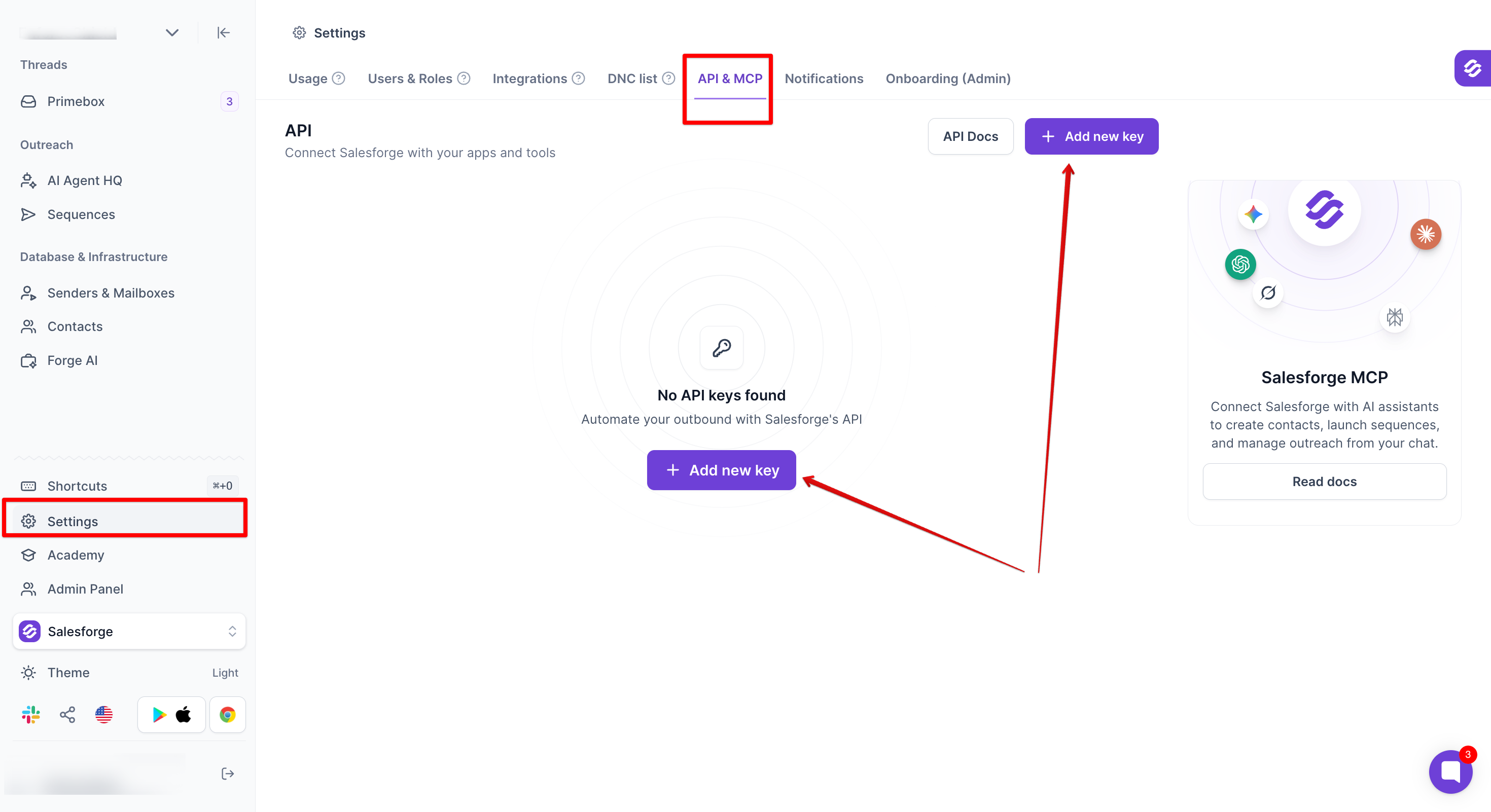
  2. Go to Settings.

  3. Open the API & MCP tab.

  4. Click Add new key.

Settings screen with the API & MCP tab selected; red boxes mark Settings and API & MCP, and arrows point to the Add new key buttons. Visible: Settings, API & MCP, API, Connect Salesforce with your apps and tools, API Docs, Add new key.

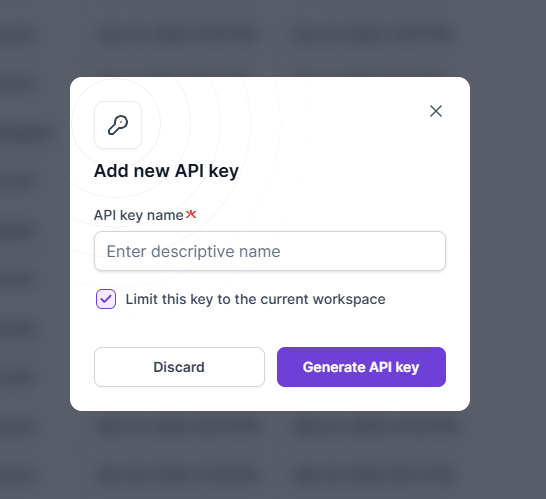
  1. In the Add new API key pop-up, enter a descriptive name in API key name. This field is required.

  2. Keep Limit this key to the current workspace ticked.

  3. Click Generate API key.

The Add new API key dialog shows a name field, a checked workspace limit option, and Discard and Generate API key buttons. Visible: Add new API key, API key name, Enter descriptive name, Limit this key to the current workspace, Discard, Generate API key.

To create a key that works across your whole account, untick Limit this key to the current workspace before you click Generate API key. This works the same way as API keys did before this option was added.

Did this answer your question?
😞
😐
😁