CallCloud is a browser-based dialer for sales teams. Its parallel dialer rings up to five prospects at once and connects you to the first person who answers. It also records calls, writes AI call notes and summaries, and lets managers monitor calls live.
With the CallCloud x Salesforge integration, you can call the leads in any Salesforge sequence from a panel that docks beside Salesforge. After every call, CallCloud sends the result back to the contact in Salesforge as custom variables and tags, so you can use them in your emails and filters.
Note: CallCloud is a separate product from Salesforge, with its own account, pricing and support. This guide covers how the two work together. For CallCloud plans, calling coverage and free trial details, see callcloud.app.
Parallel dial all the leads in a Salesforge sequence, without exporting or importing lists
Open the contact in Salesforge the moment someone picks up
Write the call result, date, call count and your notes back to the contact as custom variables, and add a tag for the outcome
Pause calls automatically when someone replies, books a meeting or opts out, so nobody gets a cold call right after answering your email
Choose what happens to the contact in the sequence after a call (keep, remove, do-not-contact or move)
Keep recordings, transcripts and AI call summaries in CallCloud
A Salesforge account with at least one sequence
A CallCloud account. The workspace owner connects Salesforge once for the whole team. CallCloud approves each new workspace for outbound calling and emails the owner when it is ready to dial.
Google Chrome
A phone number for each contact you want to call, stored in a custom variable (see Step 4)
CallCloud asks you to only call numbers you have consent or another lawful basis to contact, to honor do-not-call requests right away, and to keep your caller ID accurate.
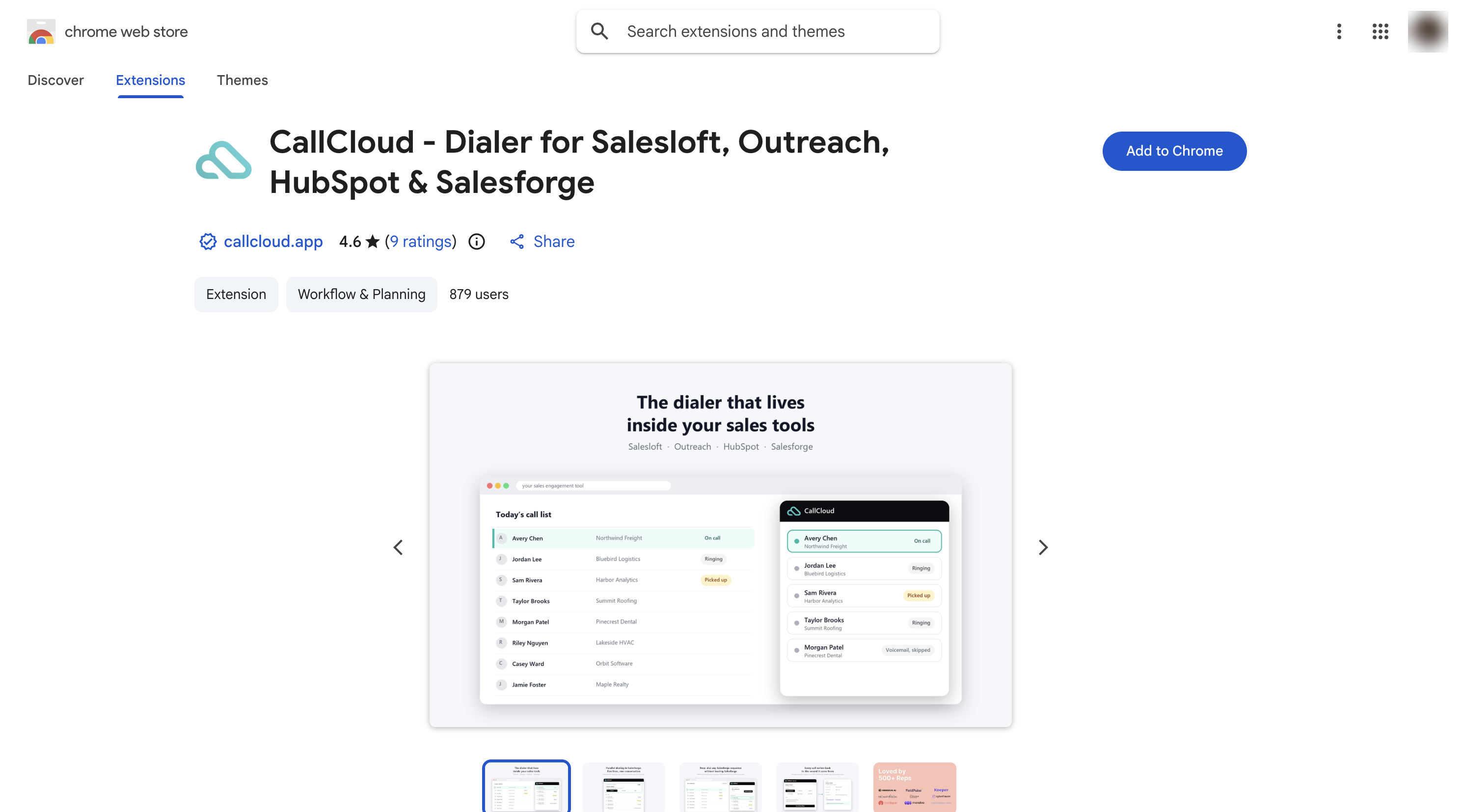
Open the CallCloud extension in the Chrome Web Store and click Add to Chrome.
Open or refresh Salesforge. A CallCloud panel appears.
Sign in to the panel with your CallCloud email and password, or with Google. If the Google window doesn't open, allow pop-ups for app.salesforge.ai.
In Salesforge, go to Settings and open API.
Create a new API key and copy it.
Tip: treat the key like a password and don't share it publicly. CallCloud shows the sequences of every workspace the key can access. If your account has many workspaces and CallCloud is slow to load them, create the key for just the workspace you dial from. Then only that workspace's sequences appear.
In CallCloud, open Settings and go to Integrations (under Connect). Find the Salesforge card and click Connect.
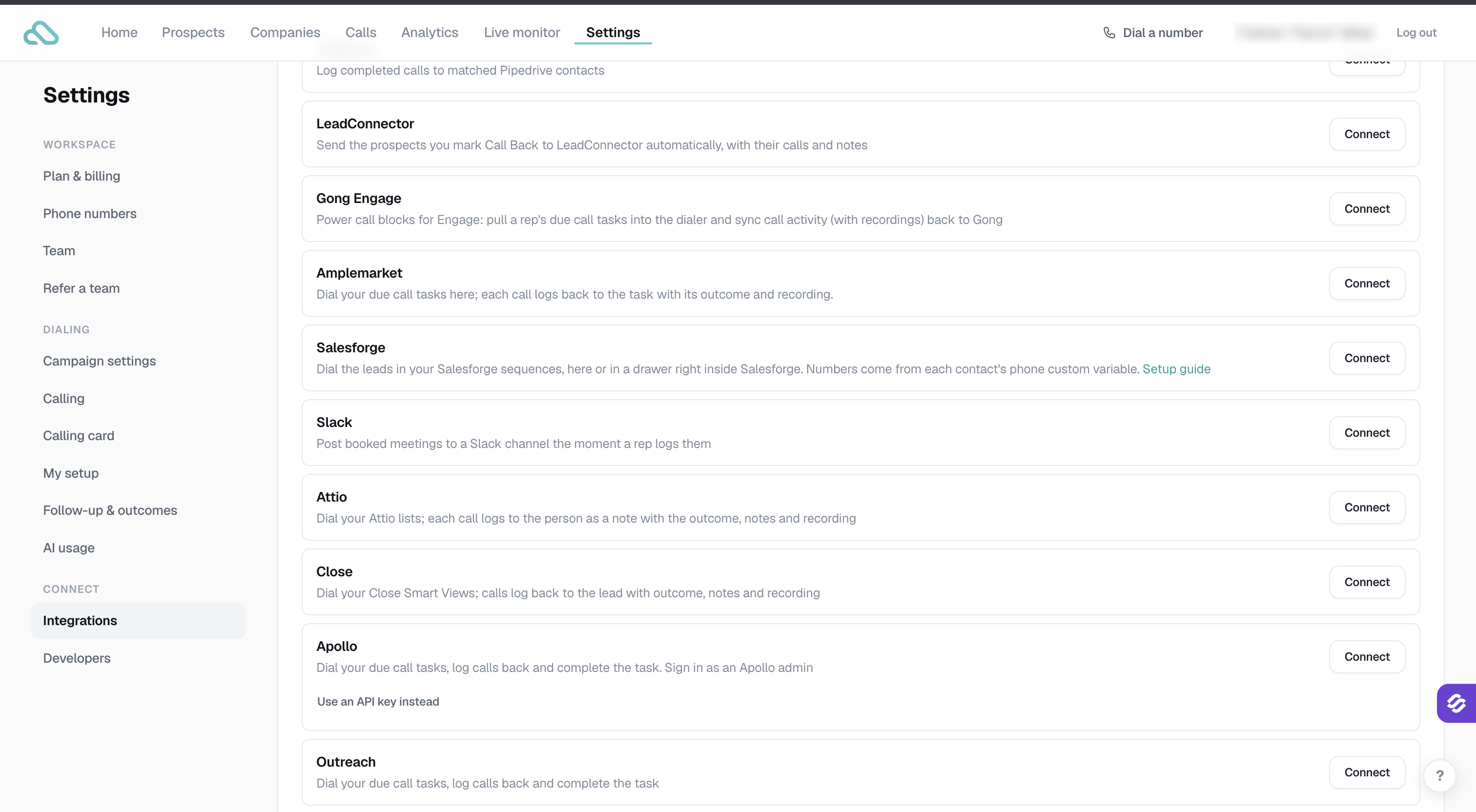
Paste your Salesforge API key into the Salesforge API key field and click Save. CallCloud checks the key with Salesforge before saving it.

The card now shows a green Connected status and the settings for calling rules and call outcomes (covered below). One key serves the whole team and your reps never see it.
Salesforge contacts don't have a dedicated phone field, so CallCloud reads numbers from custom variables.
Store the number in a custom variable named phone. It is dialed first. Variables named mobile, cell, telephone or direct dial are also read.
Use one number per variable. If you need several, separate them with commas.
Include the country code for numbers outside the US and Canada.
Contacts without a number are skipped.
You can add the phone variable when you import contacts to Salesforge, or send it from tools like Airscale or Clay. Make sure the column is mapped to a custom variable called phone.
In Salesforge, open the sequence you want to call. A Parallel dial button appears next to Reporting. On other pages, use the CallCloud tab on the right edge of the screen.
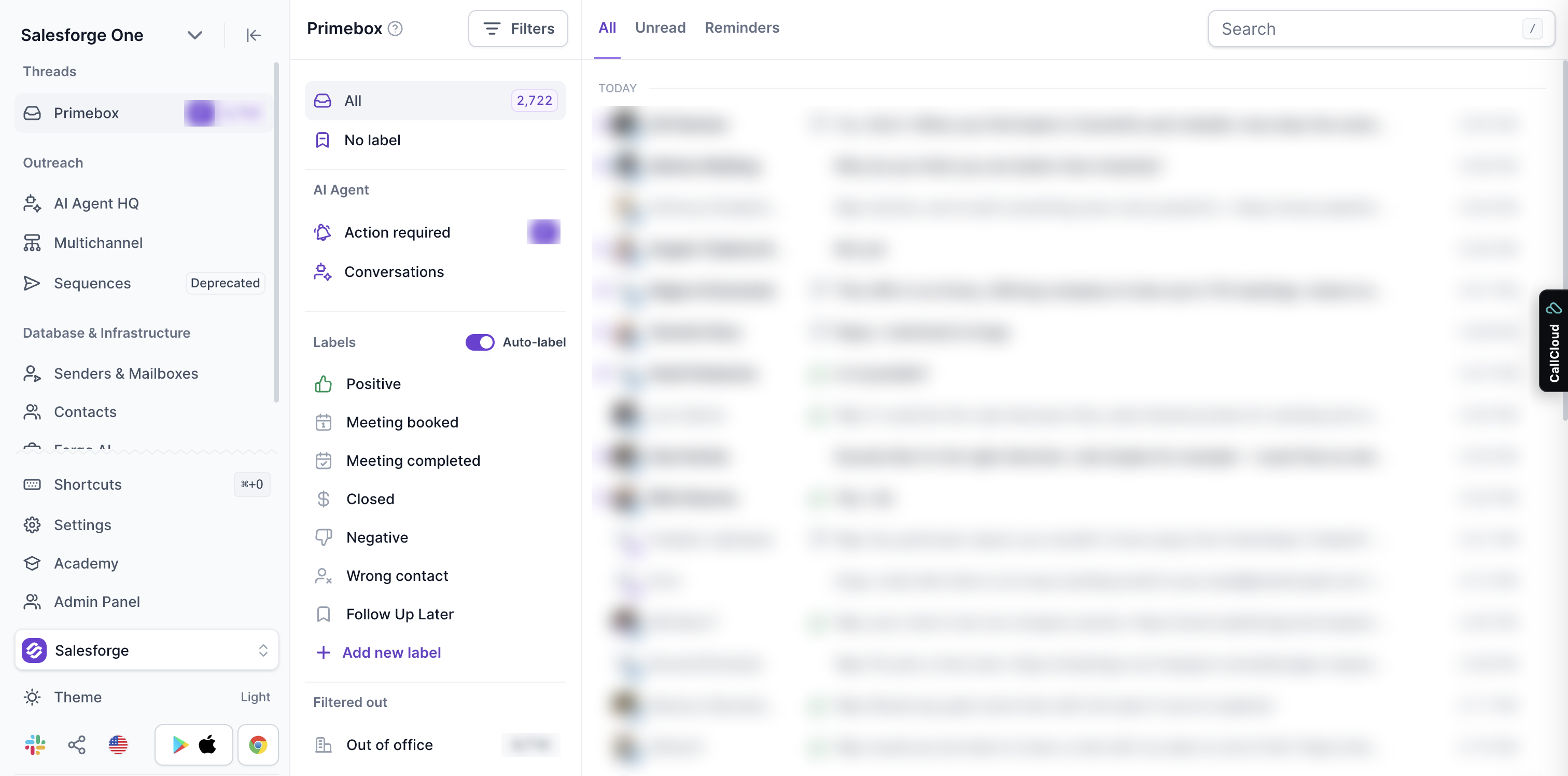
The CallCloud panel docks beside Salesforge. Drag its left edge to resize it, or click Wide.
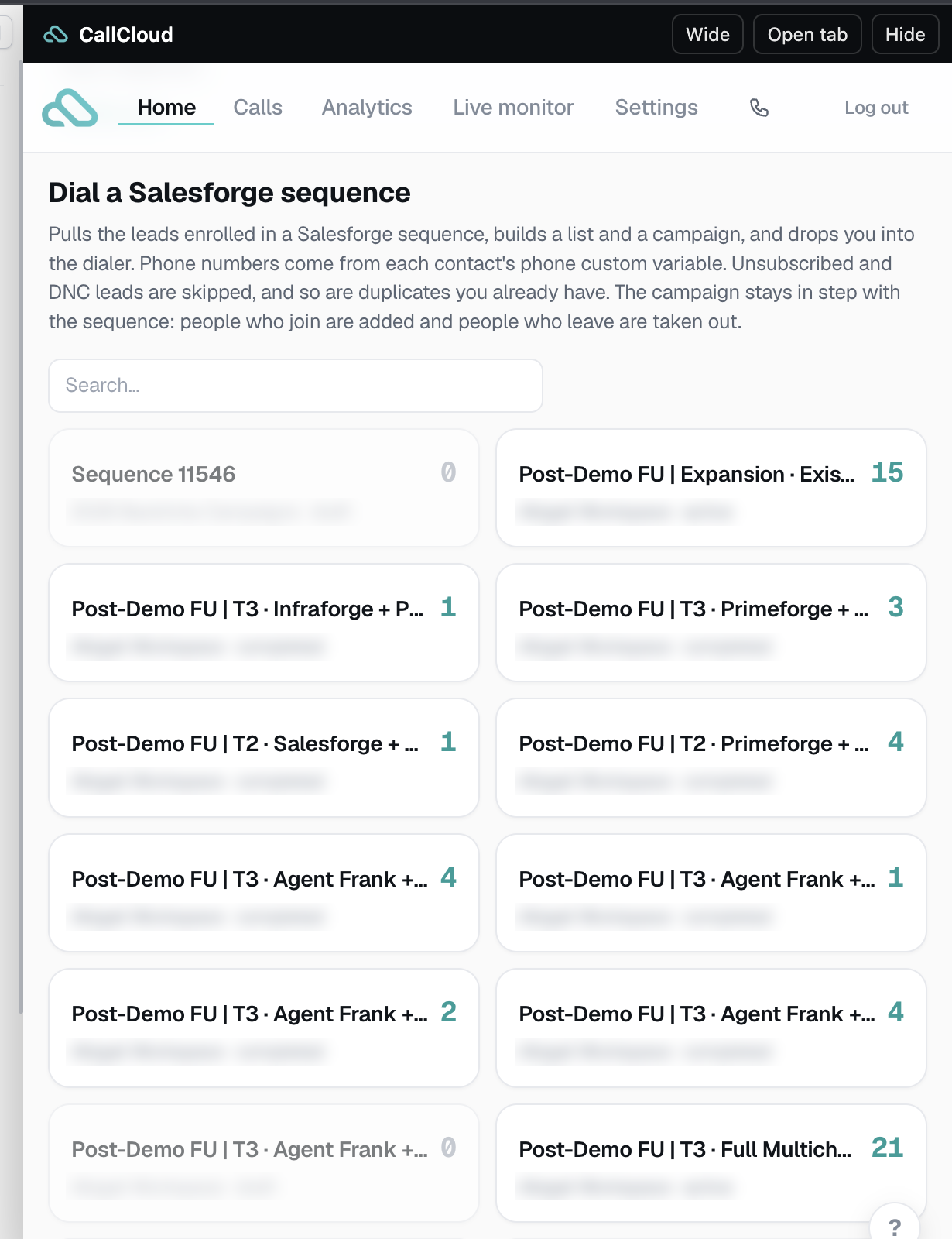
On the Home page of the panel, Dial a Salesforge sequence lists your sequences with the number of leads in each. Choose the sequence, click Dial this sequence, then Start dialing.
What to expect:
Your sequences appear as soon as the key is connected. The leads load when you choose a sequence: CallCloud pulls everyone enrolled into a list and a campaign and takes you to the dialer. You never need to push contacts to CallCloud yourself. Unsubscribed contacts and contacts on your do-not-contact list are skipped, and so are duplicates you already have.
The campaign stays in step with the sequence. Each time you click Start dialing, people who joined the sequence are added and people who left, unsubscribed or were added to do-not-contact are removed.
Dialing the same sequence again reuses its CallCloud campaign, so your settings and call history are kept.
Number of lines, caller ID, calling hours and voicemail settings come from the CallCloud campaign settings.
While calls are in progress, the Salesforge contact table shows who is Ringing, Picked up or On call. When someone answers, their contact opens next to the call and stays open until the next connect.
During a call, the panel shows the person, buttons to Connect, send to Voicemail or Skip, mute, a dial pad, notes and the call outcome. Choose keep dialing to move straight to the next call.
Both multichannel and legacy sequences are supported.
Tip: click Hide to slide the panel away without ending a call, or Open tab to open CallCloud full screen. Reloading the Salesforge tab ends the active call.
When you open a campaign, CallCloud shows the next 10 leads in the order they came over from your sequence. It only lists people who can be called right now, so these leads are held back:
People outside calling hours in their own time zone
People you already called
People who were removed, paused or marked do-not-call
To see every lead in the campaign, click Manage list at the top of the campaign. You can search by name, company or phone number, filter by Queued, Called, Removed, Paused or Do-not-call, and take people out of the campaign or put them back.
After every call, including no answers and voicemails, CallCloud updates the contact in Salesforge. It only changes the variables and tags below. Names, companies, titles and your other variables and tags are left as they are. A contact needs an email address or a LinkedIn URL in Salesforge for CallCloud to update it.
last_call_result: the outcome you chose, or the call result if there was no conversation (No answer, Voicemail, Busy, Bad number)
last_call_date: the date of the latest call
call_count: how many times CallCloud has called this person
last_call_notes: your notes from the call, up to 1,000 characters. Only added when you took notes.
Tags: "Call: Connected" when a conversation happened, plus "Call: <outcome>" for every outcome, for example "Call: Call Back"
You can use these variables in your emails and tags to filter contacts, for example to follow up with everyone tagged "Call: Call Back".
Recordings, transcripts, AI summaries, every call attempt and team analytics stay in CallCloud. Open the Calls page in the panel (or click Open tab to see it full screen) to review them:
Filter calls by result with Answered, Voicemail, AI Screener, No answer or All calls, by period (7 days, 30 days, 90 days or all time), by rep and by campaign. You can also show only calls With recording and search by person, company or phone number.
After each conversation, CallCloud writes a note with an AI summary, suggested next steps, a suggested outcome, and the recording and transcript of the call.
Use Analytics for team results and Live monitor to follow calls as they happen.
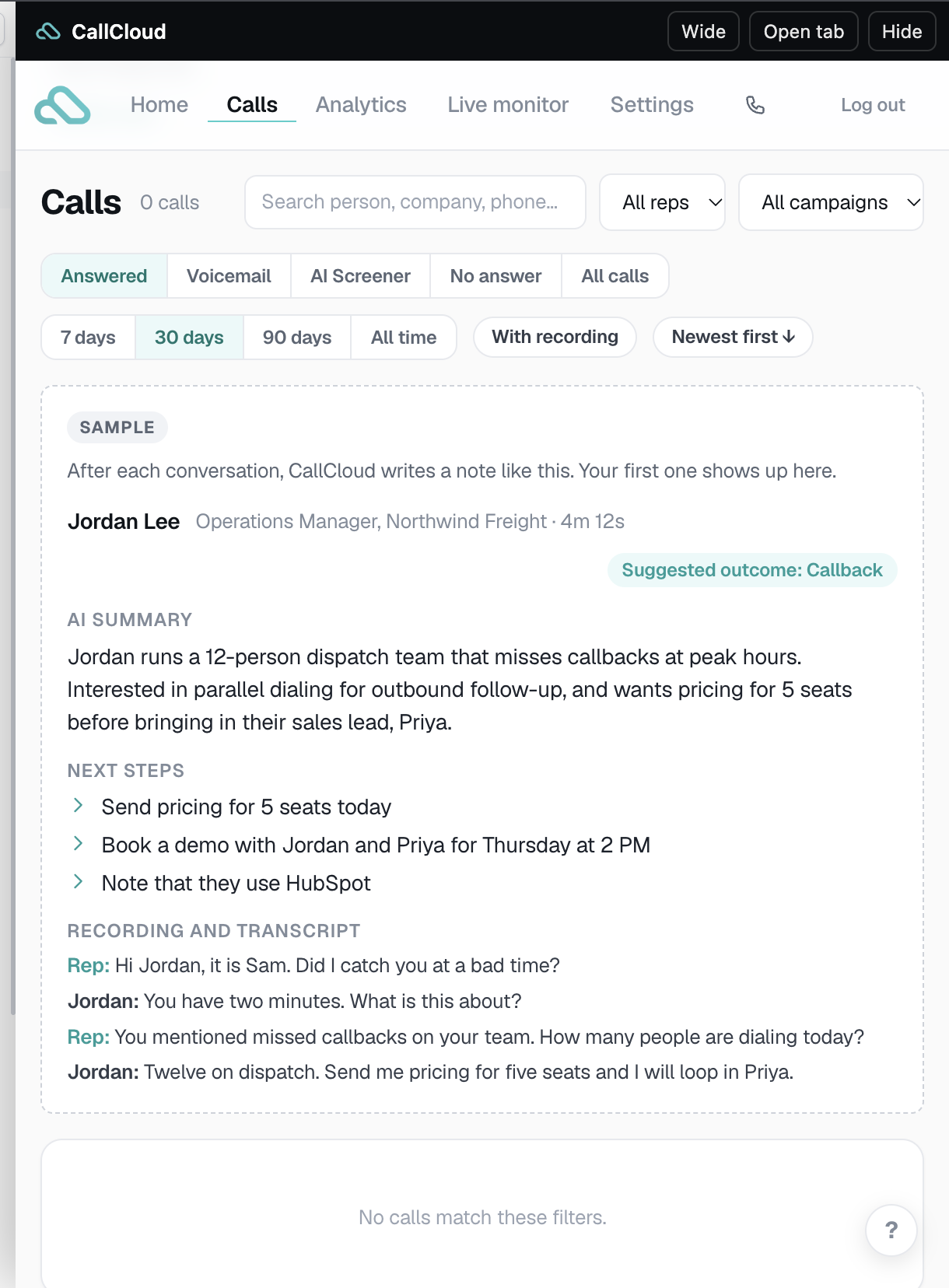
The note in the screenshot is a sample that CallCloud shows until your first real call.
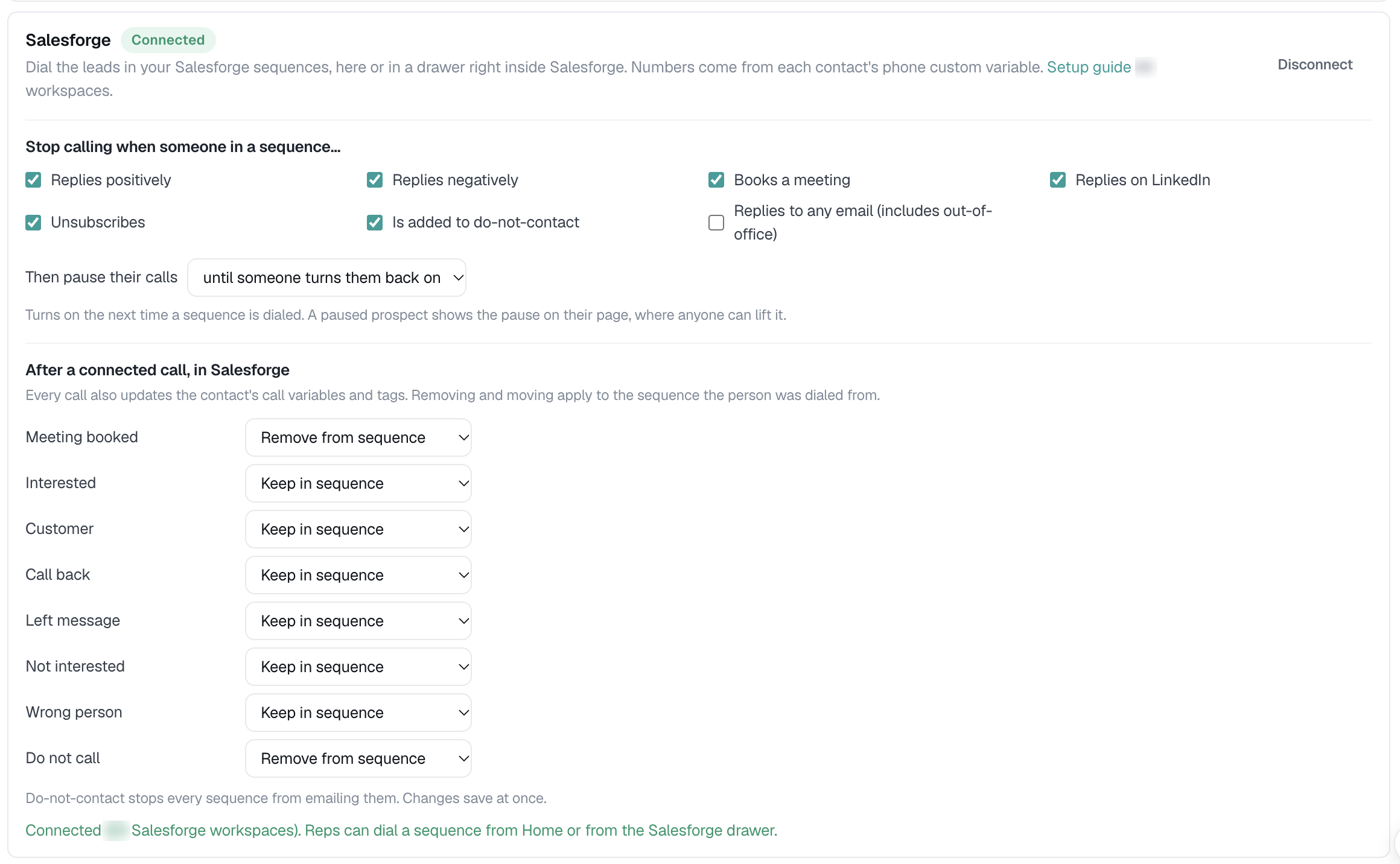
The CallCloud workspace owner decides what happens to a contact in Salesforge after a connected call. Go to Settings > Integrations > Salesforge in CallCloud and use the section After a connected call, in Salesforge. For each outcome (Meeting booked, Interested, Not interested, Call back and so on) you can choose:
Keep in sequence: only the variables and tags are updated. The contact stays in the sequence, so its next automated step still sends.
Remove from sequence: the contact leaves the sequence you dialed from, so its next step doesn't send.
Add to do-not-contact: the contact's email is added to your workspace do-not-contact list and the contact leaves the sequence.
Move to another sequence: the contact joins the sequence you choose, for example a call follow-up sequence, and leaves the one you dialed from. The target sequence must be in the same Salesforge workspace.
By default, Meeting booked and Do not call remove the contact from the sequence, and every other outcome (Interested, Customer, Call back, Left message, Not interested, Wrong person) keeps the contact in it. Calls with no outcome, such as no answer or voicemail, never change who is in the sequence. Changes save immediately.
Important: CallCloud doesn't mark a contact as having replied in Salesforge. If a contact stays in the sequence after a good call, for example they showed interest, the next automated email or LinkedIn step can still go out. For outcomes where a follow-up would feel out of place, choose Remove from sequence or Move to another sequence.
Legacy sequences: for sequences marked legacy, Remove from sequence, Add to do-not-contact and Move to another sequence update the contact (and the do-not-contact list) but don't take the contact out of the legacy sequence, and legacy sequences can't be used as a move target.
Salesforge tells CallCloud when a contact replies, books a meeting or opts out, and CallCloud pauses that person's calls, so nobody gets a cold call an hour after answering your email. You don't need to configure anything in Salesforge. In CallCloud, the owner chooses which events pause calls under Stop calling when someone in a sequence...:
On by default: Replies positively, Replies negatively, Books a meeting, Replies on LinkedIn, Unsubscribes, Is added to do-not-contact
Off by default: Replies to any email (includes out-of-office)
Use Then pause their calls to pause for 3, 7, 14 or 30 days, or until someone turns calls back on. A paused person shows the pause on their CallCloud page, where anyone on the team can lift it. The setting applies the next time a sequence is dialed.
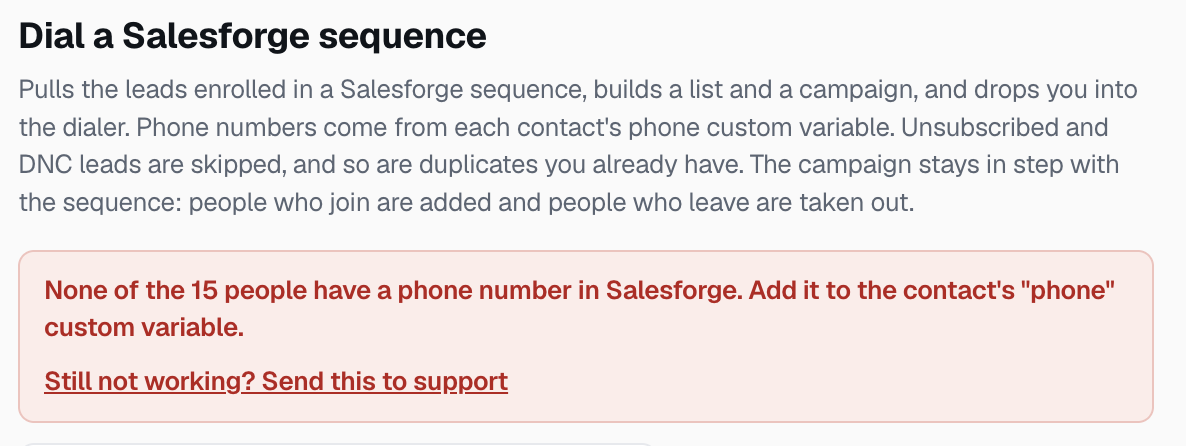
"None of the people have a phone number in Salesforge": add the numbers to a custom variable named phone on your contacts (see Step 4), then dial the sequence again.
Salesforge rejected the API key: copy the key again from Salesforge > Settings > API and paste it without any extra text such as "Bearer".
Sequences are slow to load or don't load: this can happen when the API key can see many workspaces. Create a new key for just the workspace you dial from (see Step 2) and paste it into CallCloud again.
A lead is missing from the campaign list: the list only shows people who can be called right now. Open Manage list to see everyone and why someone is held back (see "Which leads show up" above).
No Parallel dial button: make sure the CallCloud extension is enabled in Chrome, then refresh Salesforge. On pages without the button, use the CallCloud tab on the right edge.
The panel asks you to sign in: sign in with your CallCloud email and password, or click Continue with Google. If nothing opens, allow pop-ups for app.salesforge.ai.
The campaign uses each rep's own number and none is assigned: in CallCloud, go to Settings > Phone numbers and assign a number, or set one caller ID for the campaign.
Something looks off after an update: Chrome updates the extension automatically. Refresh the Salesforge tab once after an update.
CallCloud also has its own guide for this integration at dialer.callcloud.app/docs/salesforge. For help with calling, numbers or the CallCloud panel, contact CallCloud support at [email protected]. For anything on the Salesforge side, such as sequences, contacts, tags and variables, reach out to our support team via the chat.