Primebox is the unified inbox in Salesforge that brings conversations from your email and LinkedIn outreach into one place. It helps you review replies, manage conversations, identify leads that need attention, and respond without switching between channels.
The redesigned Primebox uses a chat-style layout, making it easier to follow conversations across multiple messages and channels. You can open a conversation, review its history, reply from a specific message, choose a sender, forward emails, apply labels, and manage AI agent conversations.
Primebox is designed to help you manage engagement from your outreach activities in one place.
Primebox organizes your conversations into an inbox with several navigation options.
The All view displays your conversations in a unified inbox. Each conversation entry can show the contact's name, profile picture, latest message preview, message channel, labels or status, and the time of the latest activity.
Select a conversation to open its full thread and review the messages exchanged with the lead.
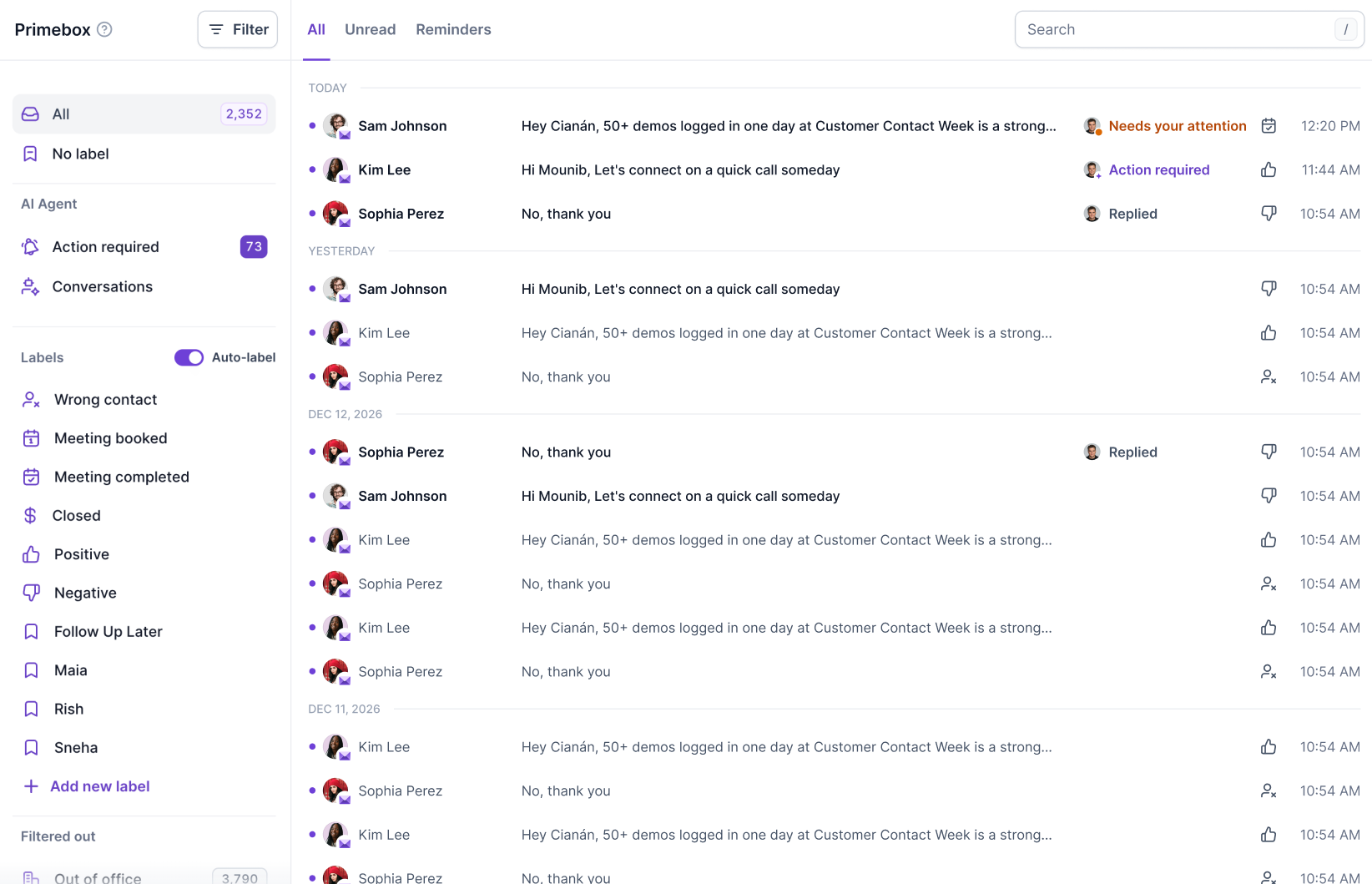
The Unread view helps you find conversations containing unread messages so you can prioritize messages that still need to be reviewed.
Unread indicators also help you distinguish new activity from conversations you have already reviewed.

The Reminders view helps you return to conversations that need follow-up. Use reminders to keep track of conversations you intend to revisit rather than relying on memory alone.
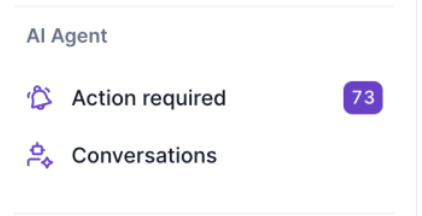
Primebox includes dedicated sections for AI-assisted conversation management:
Action required: Conversations that need your attention or intervention.
Conversations: Access AI agent-managed conversations and review their activity.
These sections help you distinguish conversations requiring manual attention from those managed through your AI agent.
Primebox also separates certain messages from the main inbox, such as out-of-office replies. These can be found under the Filtered out section.
This separation helps keep the main inbox focused on conversations that are more relevant to your outreach.

Open Primebox from your Salesforge workspace.
Select a conversation from the inbox.
Review the conversation in the thread panel.
Scroll through the messages to understand the conversation history.
Use the available actions to reply, forward an email, manage the conversation, or apply a label.
Use Collapse thread to return to the inbox list without losing your place.
Threads open at the latest message, making it easier to review recent activity first. You can switch between conversations and return to the inbox without repeatedly navigating away from your current workflow.
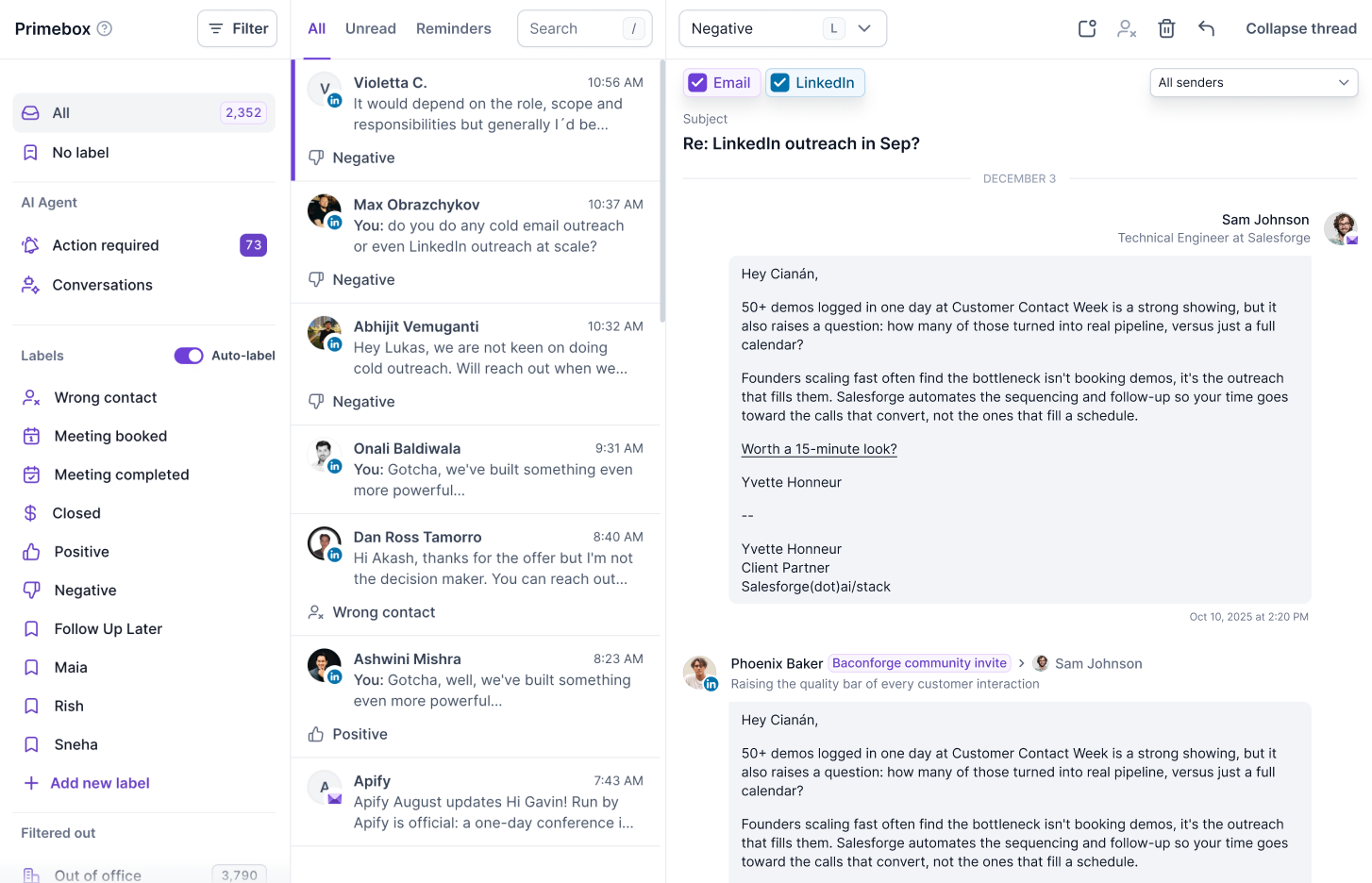
The redesigned Primebox displays messages as conversation bubbles, similar to a chat interface.
This makes it easier to follow the back-and-forth between you and a lead, whether the conversation takes place over email or LinkedIn.
In multichannel conversations, messages from different channels may appear within the same thread. The channel indicator helps you identify where each message originated.
Outbound messages also provide clearer context about the sequence they came from, helping you understand which outreach activity prompted a lead's response.
Important: A conversation thread provides context for communication. It does not, by itself, indicate that a lead has booked a meeting, become a customer, or completed a sales milestone.
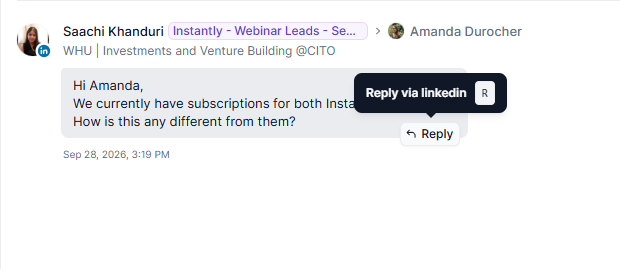
You can reply directly from a message in the conversation thread.
Open the relevant conversation.
Find the message you want to respond to.
Use the reply action associated with that message.
Select the sender you want to use, where applicable.
Compose your response and send it.
Replying directly from a message helps you respond in the appropriate context, particularly when a thread contains multiple messages or channels.
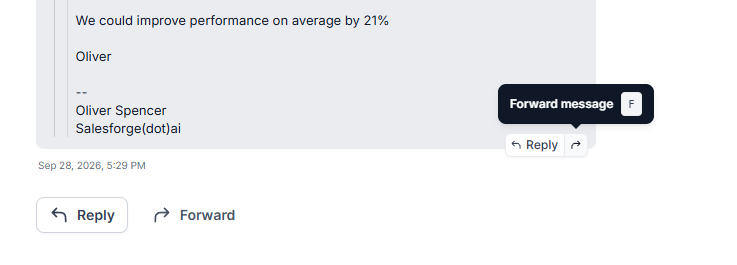
Primebox supports forwarding emails directly from a conversation.
Open the conversation containing the email.
Locate the message you want to forward.
Select the forward action.
Enter the recipient and review the forwarded content.
Send the email when everything is correct.
Forwarding is available for email messages. Do not assume that LinkedIn messages can be forwarded through the same action.
A conversation can include multiple senders or communication channels. Primebox provides filters to help you focus on the messages you need.
Use the channel controls to show or hide messages from supported channels, such as:
For example, you can focus on email messages when reviewing an email reply or switch to LinkedIn messages to review the social outreach history.
Use the sender dropdown to narrow the messages shown in the thread to a particular sender or account.
This is useful when multiple mailboxes or senders are involved in a conversation.
Note: Thread filters change which messages are displayed. They do not delete messages or change the underlying conversation history.
Use the search field at the top of Primebox to locate conversations without manually scrolling through the inbox.
Enter a relevant search term, such as a contact's name or other available identifying information, and review the matching results.
Search helps you find existing conversations; it does not replace lead-list searches, contact database filters, or campaign reporting.
Labels help you categorize conversations according to their status or the action they require. Primebox includes predefined labels and supports custom labels.
Label | Purpose |
|---|---|
Wrong contact | The recipient is not the appropriate person to contact. |
Meeting booked | A meeting has been booked with the contact. |
Meeting completed | The meeting has taken place. |
Closed | The conversation or opportunity has been marked as closed. |
Positive | The response indicates positive interest. |
Negative | The response indicates rejection or lack of interest. |
Follow Up Later | The contact may be worth revisiting at a later time. |
Primebox also supports custom labels, which can help organize conversations according to your team's workflow. Examples include labels for individual team members or specific follow-up categories.
Open Primebox.
Select the relevant conversation.
Use the available labeling controls to assign the appropriate label.
Review the label in the conversation or inbox.
Depending on your workspace configuration, labels may also be applied automatically through the Auto-label feature.
The Auto-label toggle enables automatic labeling for supported conversations. This can help categorize replies without requiring you to label every conversation manually.
Automatic labeling should be treated as a classification aid. Review the conversation when the label is unclear or when the next action has important consequences.
Important: A label is not the same as an operational action. For example, applying Negative does not necessarily mean the contact has been added to the Do Not Contact (DNC) list. Use the dedicated DNC action when you need to prevent further contact.
Primebox includes dedicated navigation for AI agent activity, including conversations and items that require action.
Use these sections to review the conversations handled by your AI agent and identify cases that need manual intervention.
Depending on the conversation and available actions, you may be able to review the message history, inspect the context, and take over the next step.
AI agent labels or status indicators help you understand how a conversation is categorized. They should not be interpreted as proof that every intended action has been completed successfully.
Primebox retains several existing inbox-management features alongside the redesign.
Use the mark-unread action when you want to return to a conversation later. This helps keep important messages visible in your unread workflow.
Use the delete action when a conversation needs to be removed from your inbox view. Review the selected conversation before confirming the action.
Deleting a conversation should not be treated as equivalent to unsubscribing a contact or adding them to the DNC list.
The Do Not Contact action is used to prevent further outreach to a contact where appropriate.
Use this action when a contact should no longer receive outreach. Do not rely on a Negative label alone to achieve this.
Primebox supports keyboard shortcuts for faster inbox navigation and actions. The shortcut hints displayed in the interface can help you identify the available shortcuts.
For example, the search field displays a shortcut hint for opening search. Available shortcuts may depend on the action and the current interface context.
Primebox is a conversation-management interface, not a complete replacement for the other areas of Salesforge.
It is important to distinguish what you can see in the inbox from information managed elsewhere in the platform.
Primebox helps you review conversations and message activity. It is not the primary place to analyze all campaign metrics, such as overall campaign performance, delivery statistics, or sequence-level reporting.
Use the relevant campaign analytics and reporting areas for those metrics.
The inbox list displays a message preview to help you scan conversations quickly. Open the thread to review the full available message content and context.
Labels such as Positive, Negative, Meeting booked, and Closed describe how a conversation is categorized. They do not independently verify every business outcome.
For example, a Positive label does not necessarily mean that a meeting has been scheduled.
Filtering by sender or channel only narrows the messages displayed in the thread. It does not remove messages from the underlying history or change the sender of a message already sent.
Primebox allows you to compose and send replies through supported channels. It is not a deliverability monitoring tool and does not guarantee that an outbound email reaches the recipient's inbox.
For deliverability checks, use the relevant tools and workflows in Warmforge and review the available sending and delivery information.
Primebox provides context about conversations and the outreach that led to them. It is not the primary interface for building lead lists, managing all contact records, or configuring outreach sequences.
Use the relevant Salesforge sections for those tasks.
Categorizing a conversation as Negative or Wrong contact does not necessarily prevent future outreach. Use the dedicated DNC action when required.
Yes. Primebox brings supported email and LinkedIn conversations into a unified inbox, making it easier to review engagement across channels.
Yes. You can reply directly from a message bubble, allowing you to respond in the context of the relevant message.
Yes. Use the available sender selector when replying to choose the intended sender.
The forwarding action is intended for email messages. Do not assume it is available for LinkedIn messages.
Yes. Filtering by sender or channel changes which messages are displayed, not the underlying conversation history.
Yes. Primebox supports custom labels in addition to its predefined labels.
Not necessarily. A Negative label categorizes the conversation. Use the dedicated DNC action when the contact must no longer receive outreach.
Certain message types, such as out-of-office replies, may be separated from the main inbox to keep the primary view focused on more relevant conversations.
No. Primebox is designed for managing conversations and replies. Use the relevant reporting areas for broader campaign performance and analytics.
Review unread conversations regularly so important replies do not get overlooked.
Use labels consistently to keep your team's inbox organized.
Filter by channel or sender when reviewing conversations involving multiple communication methods or accounts.
Check the full thread before replying to understand the lead's context.
Verify the selected sender before sending a reply.
Use reminders for conversations that require a later follow-up.
Apply the DNC action when a contact should no longer receive outreach instead of relying only on labels.
Use campaign analytics and deliverability tools when investigating performance or email placement.
The redesigned Primebox brings conversation history, message-level replies, labels, filters, and AI agent workflows into a cleaner, more accessible inbox, helping you manage outreach responses with greater clarity and less navigation.