Airscale is a B2B lead sourcing and data enrichment platform. It lets you build lead lists from sources like LinkedIn Sales Navigator, LinkedIn post engagement and its own Leads Finder, then find emails and phone numbers with waterfall enrichment across multiple data providers.
With the Airscale x Salesforge integration, you can push leads from an Airscale table directly into a Salesforge sequence. No CSV exports, no manual imports.
Find and enrich leads in Airscale
Push selected rows straight into an existing Salesforge sequence
Map Airscale columns to Salesforge contact fields and custom variables (e.g. icebreaker)
Automatically tag every pushed contact with "Airscale" so you can always tell where it came from
An active Salesforge account with at least one sequence created (the sequence is where your leads will land)
An Airscale account
Leads in an Airscale table with at least a first name and an email address or LinkedIn profile URL
Log in to Salesforge.
Go to Settings > Integrations.
Click Get API key.
Copy the key. You will paste it into Airscale in the next step.
Tip: Your API key gives access to your Salesforge workspace, so treat it like a password and don't share it publicly. The key is tied to the workspace you generate it in, so make sure you're in the workspace that holds the sequence you want to use.
Log in to Airscale and click the Settings (gear) icon in the bottom-left sidebar.
Open the Integrations tab. Under CRM / Sequencers, find the Salesforge card.
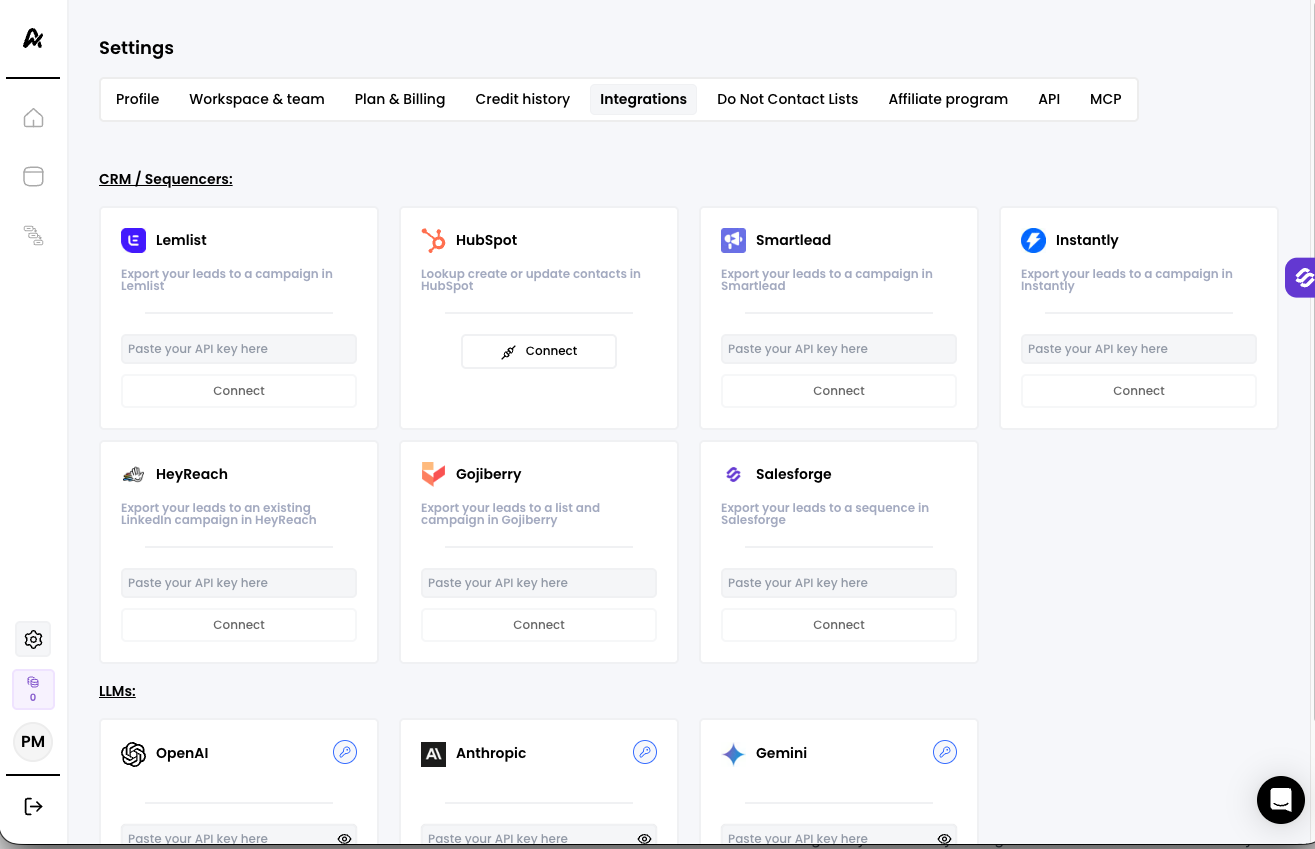
Paste your Salesforge API key into the Paste your API key here field.
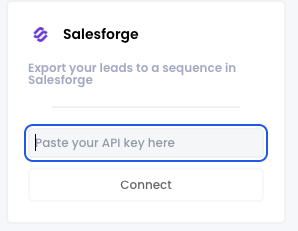
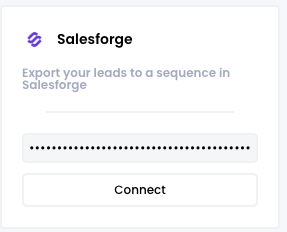
Click Connect. The card will show a green Connected status.
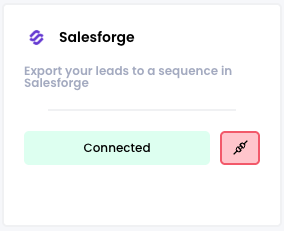
To disconnect or switch to a different Salesforge workspace, click the red unlink icon next to Connected and connect again with the new API key.
From the Airscale home page, create a new table using any of the sourcing options, for example Scrape Sales Navigator search results, Leads finder, Find employees at companies or CSV Import.
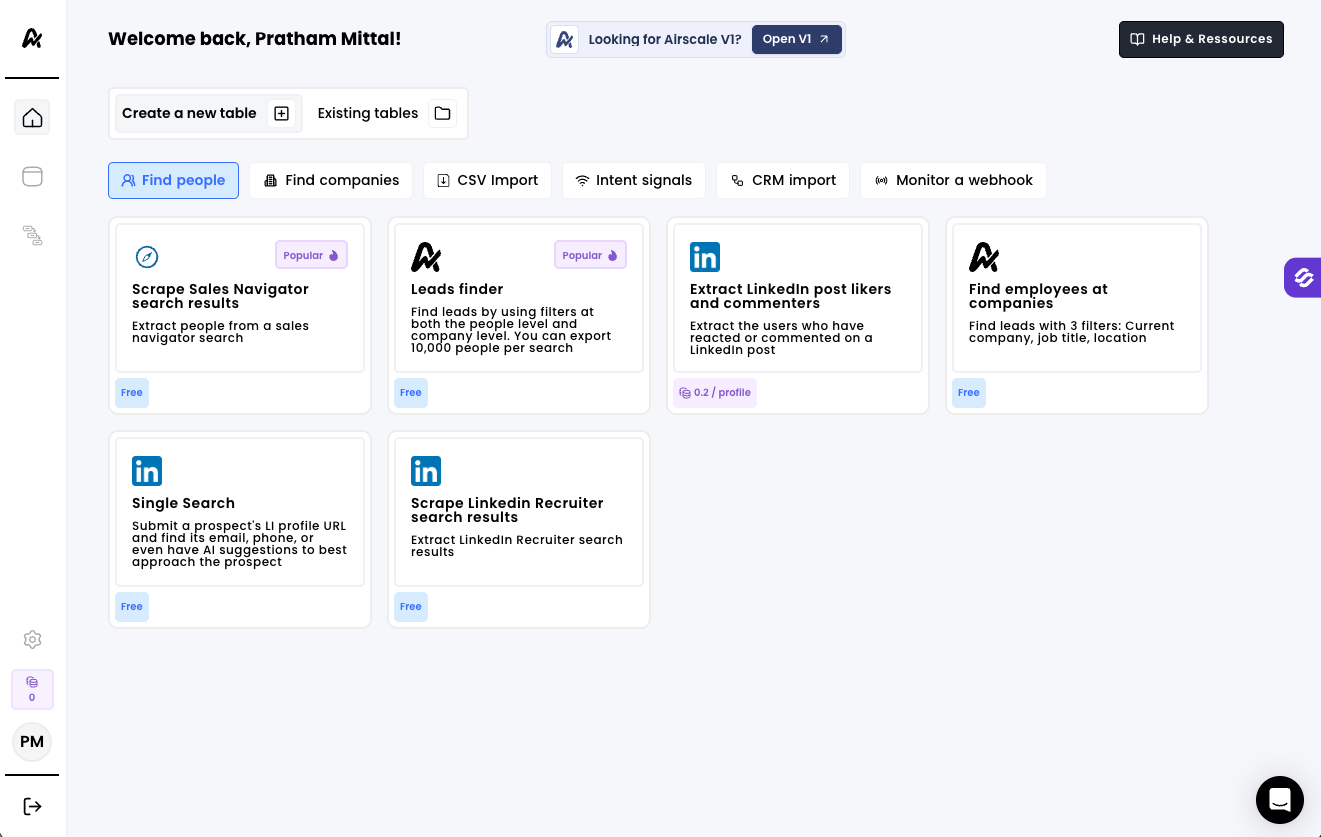
Once your leads are in a table, use Enrich to find email addresses (and any other data you want to use in your sequence). Salesforge needs at least a first name plus an email address or LinkedIn profile URL for each contact.
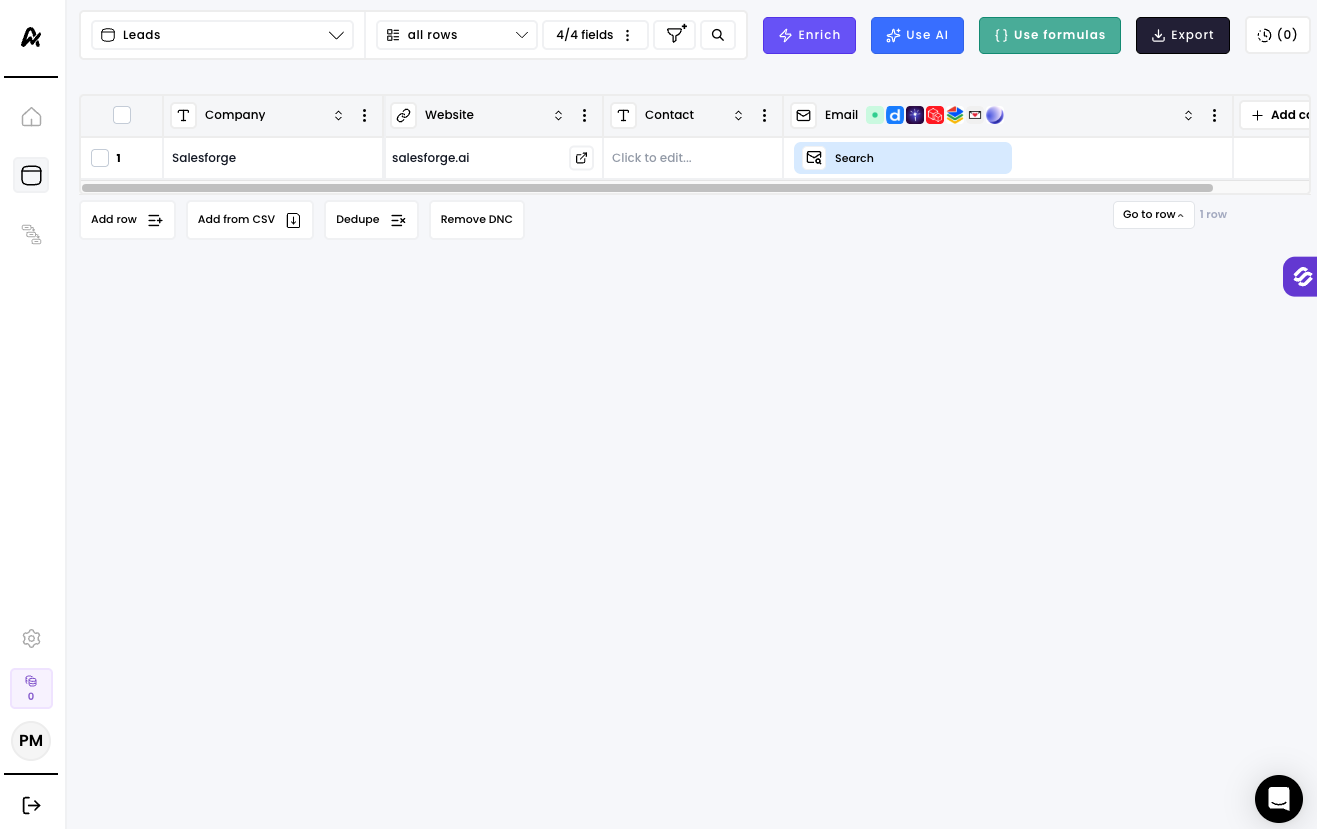
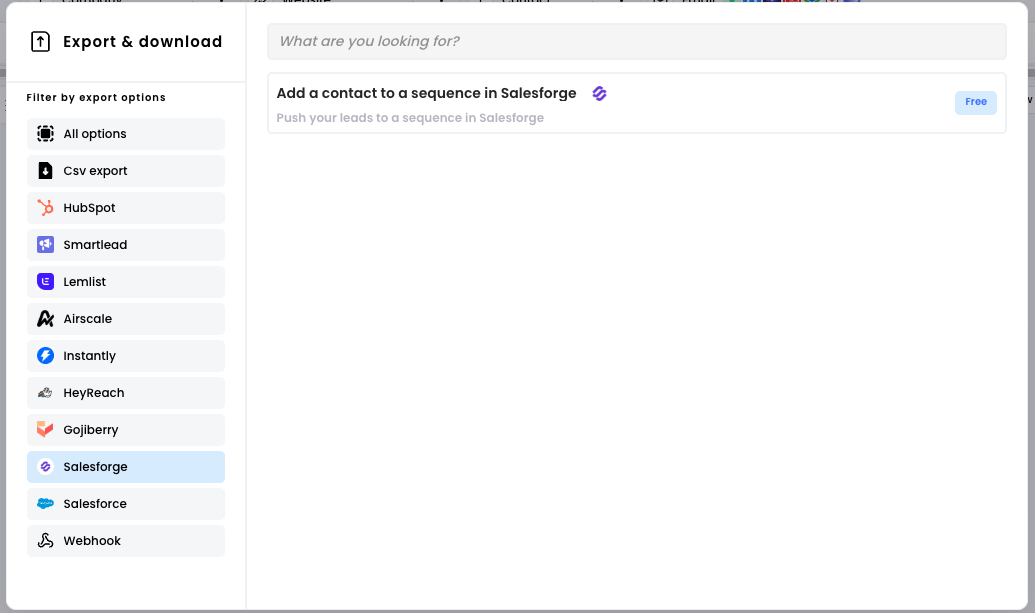
In your Airscale table, click Export (top right).
In the Export & download window, select Salesforge in the left menu, then click Add a contact to a sequence in Salesforge. This export is free in Airscale.
Select the contacts you want to push using the Selected rows dropdown.
Select a sequence. The dropdown lists the sequences from your connected Salesforge workspace.
Map Salesforge fields to your Airscale columns. First Name is required, and you must map either Email or LinkedIn profile URL. Last Name, Company, Position, icebreaker, phone, website, location and company_linkedin_url are optional.
(Optional) Click Add custom property to send extra columns as Salesforge custom variables. Your custom properties are remembered for next time.
(Optional) Add an Extra tag. Every contact is always tagged "Airscale" in Salesforge; an extra tag helps you label a specific batch or campaign.
Run the export. Your contacts will be added to the selected Salesforge sequence.
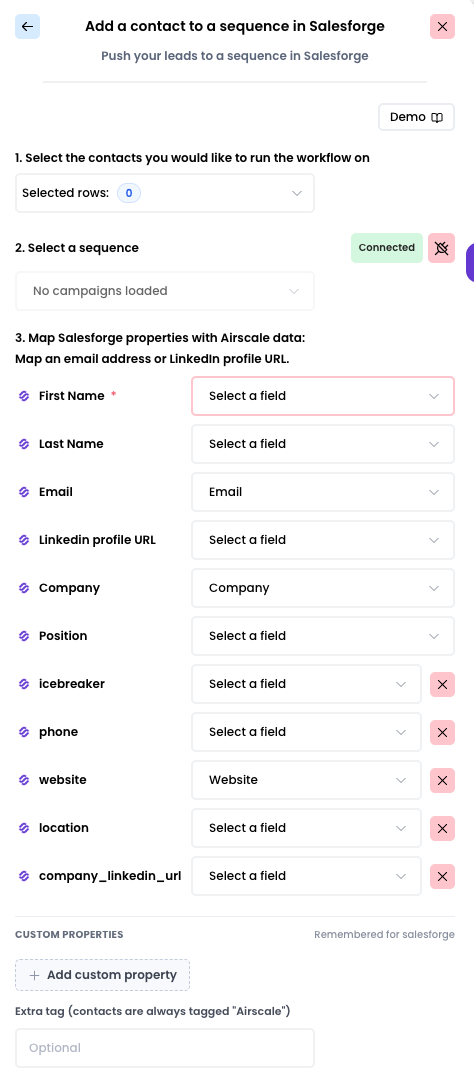
Tip: If you use variables like {{icebreaker}} in your Salesforge emails, make sure the matching Airscale column is mapped here, otherwise the variable will be empty for those contacts.
Open the sequence in Salesforge and check its contacts. You can also find everything pushed from Airscale by filtering contacts by the "Airscale" tag (or your extra tag). Review your sequence and launch it when you're ready.
"No campaigns loaded" in the sequence dropdown: make sure you've created at least one sequence in the Salesforge workspace your API key belongs to. If you still see nothing, disconnect and reconnect Salesforge in Airscale.
Can't connect / invalid key: copy the key again from Salesforge > Settings > Integrations and paste it without extra spaces.
Some contacts didn't arrive: check that those rows have a first name and an email or LinkedIn URL. Rows with empty required fields can't be added.
Contacts landed in the wrong workspace: the API key decides the workspace. Disconnect in Airscale and reconnect with a key from the correct workspace.
Still stuck? Reach out to our support team via the chat and we'll help you get set up.