The Contacts page in Salesforge includes filters that help you segment, organize, and manage your contacts more efficiently.
You can use filters to find specific contacts, organize contacts by company or tags, review sequence activity, exclude previously contacted leads, and analyze replies using Primebox Labels.
Filters are especially useful when preparing contact lists for new sequences, preventing overlapping outreach, and managing your contact database.
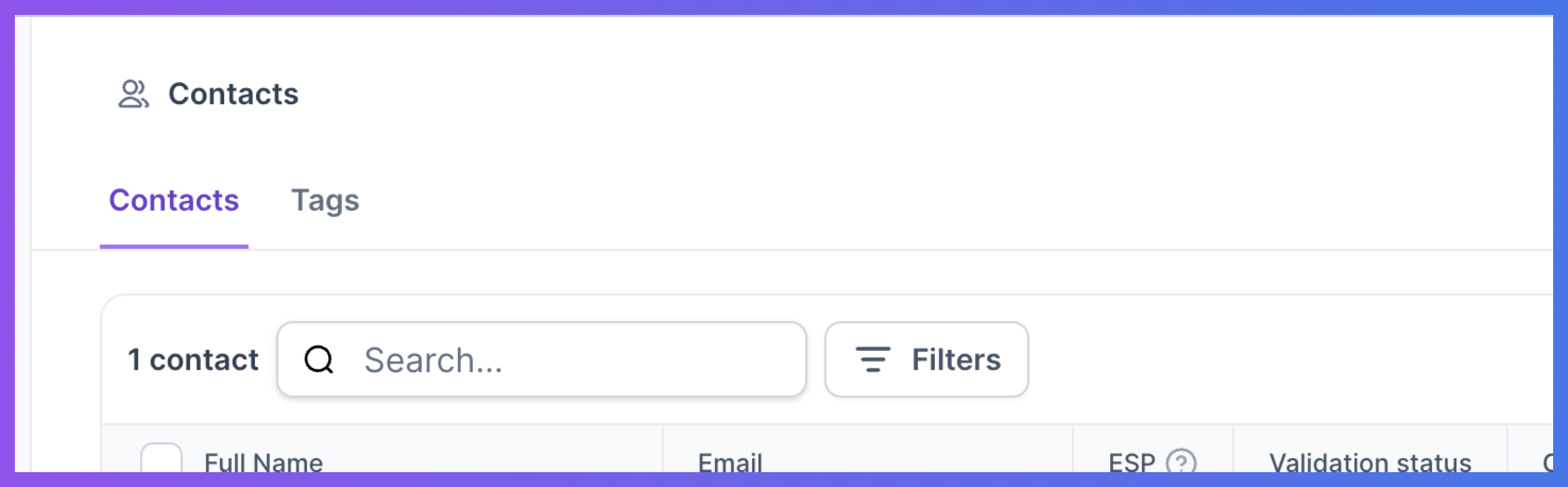
To access filters on the Contacts page:
Log in to Salesforge.
Navigate to Contacts.
Click Filters.
Select the filter you want to use.
Choose the relevant values or conditions.
Review the filtered contacts.
You can apply individual filters or combine multiple filters to narrow down your results.
Use Search to quickly find contacts using available contact information.
This is useful when looking for a particular person, email address, or company.
Common use cases:
Find a contact by name.
Search for a specific email address.
Look up contacts associated with a company.
Locate an existing contact before adding new leads.
The Tags filter helps you find contacts based on tags assigned during import or contact management.
Tags are particularly useful when you import multiple contact lists and want to organize them separately.
Common use cases:
Find contacts from a specific uploaded list.
Segment contacts by source.
Identify contacts for a particular campaign.
Organize different contact groups.
Example: If you uploaded a list of SaaS founders and assigned the tag "SaaS Founders," you can use the Tags filter to display those contacts.
The Company filter allows you to find contacts associated with specific companies.
It includes search functionality, making it easier to locate companies when your workspace contains a large number of contacts.
Common use cases:
View all contacts belonging to a company.
Prepare account-based outreach.
Review contacts from a target organization.
Manage multiple prospects from the same company.
The ESP filter helps you segment contacts based on their email service provider.
This can be useful when reviewing the email infrastructure associated with your contacts or preparing provider-specific outreach segments.
Common use cases:
Group contacts by email service provider.
Review contacts associated with a particular provider.
Prepare contact segments based on email infrastructure.
Refine contact lists using ESP information.
The Status filter allows you to narrow down your contact list using the status options available in the filter.
Open the Status filter to review the available values and select the ones relevant to your contact view.
Important: Status and Sequence Status are separate filters. If you want to filter contacts based on their progress within a particular sequence, use Sequence Status instead.
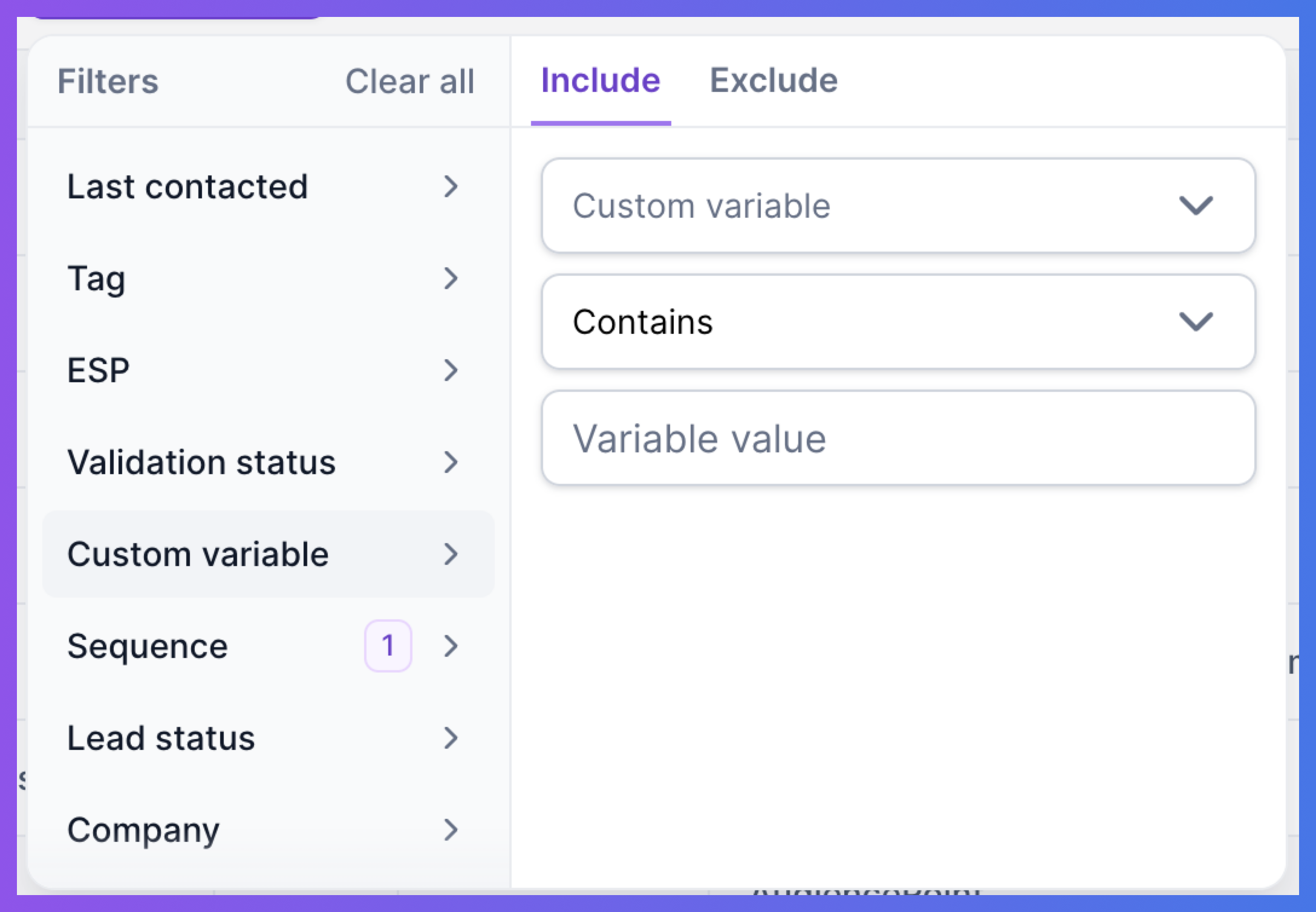
The Custom Variable filter helps you segment contacts using custom information stored in their contact records.
Custom variables can be added when importing contacts and used to personalize your outreach.
Common use cases:
Filter contacts using custom data fields.
Organize leads by imported attributes.
Create more targeted contact segments.
Find contacts matching specific custom information.
For example, if your contacts contain custom variables for industry, lead source, or another business attribute, you can use those fields when filtering your contact database.
The Sequence filter allows you to find contacts associated with one or multiple sequences.
You can select:
A single sequence.
Multiple sequences.
Common use cases:
View contacts enrolled in a specific sequence.
Review contacts across multiple campaigns.
Check whether contacts are already part of an outreach sequence.
Manage contacts by campaign.
The Exclude by Sequence filter removes contacts from your results if they belong to the selected sequences.
This is particularly useful when preparing a new campaign and wanting to avoid contacts who are already enrolled in other sequences.
Common use cases:
Prevent overlap between sequences.
Exclude contacts already enrolled in active campaigns.
Create cleaner contact segments.
Reduce the risk of duplicate outreach.
Example: Before launching a new outbound campaign, select your existing sequences under Exclude by Sequence to remove contacts already enrolled in them from your view.
The Sequence Status filter allows you to find contacts based on their status within a particular sequence.
This filter is available only when a single sequence is selected.
Once you've selected one sequence, you can apply the available Sequence Status values to narrow down your contact list.
Common use cases:
Review active contacts in a sequence.
Find contacts who replied.
Check contacts who completed their sequence.
Review paused or stopped contacts.
Monitor campaign progress.
Important: If multiple sequences are selected, the Sequence Status filter will not be available.
The Primebox Labels filter helps you find replied contacts based on the labels assigned to their conversations in Primebox.
This filter becomes available only when:
One sequence is selected.
Sequence Status is set to Replied.
Once these conditions are met, you can filter contacts using their Primebox Labels.
Common use cases:
Find contacts that has replied.
Review contacts that has unsubscribed.
Identify out-of-office responses.
Analyze failed contacts.
Organize follow-up actions based on reply labels.
The Last Contacted filter allows you to find contacts based on when they were last contacted.
You can use it to identify contacts who haven't received outreach recently or review contact activity within a selected timeframe.
The filter supports Multichannel Sequences, helping you manage activity across your outreach workflow.
Common use cases:
Identify contacts who haven't been contacted recently.
Re-engage older leads.
Review outreach timing.
Avoid contacting prospects too frequently.
Prepare follow-up campaigns.
Example: You can filter contacts who haven't been contacted in the past 30 days to prepare a re-engagement list.
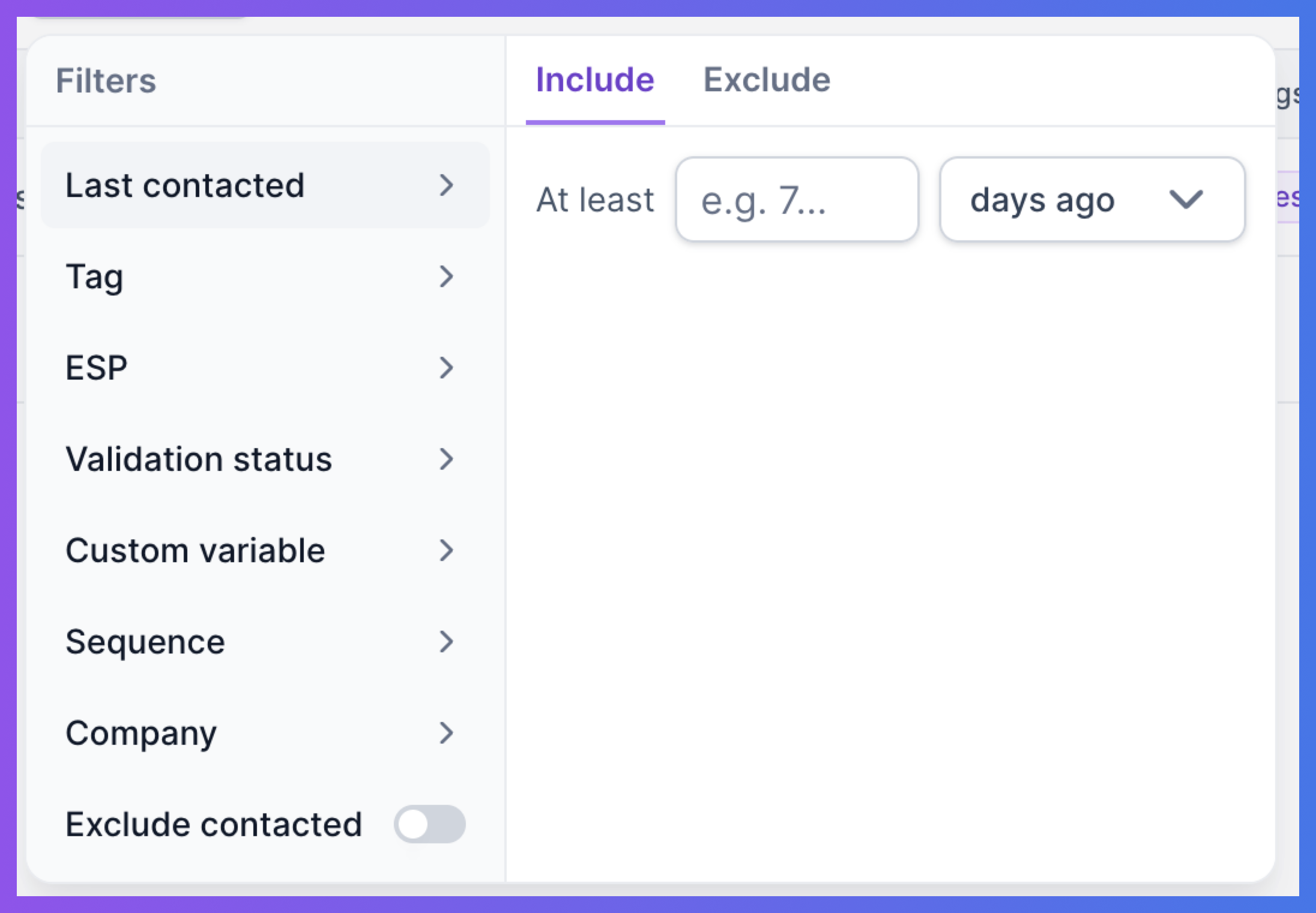
The Exclude Contacted filter helps you remove previously contacted leads from your contact view.
This is useful when creating a fresh contact segment for a new outreach campaign.
The filter also supports Multichannel Sequences.
Common use cases:
Find contacts who haven't been contacted yet.
Build fresh outreach lists.
Prevent repeated outreach to existing prospects.
Keep new campaigns focused on untouched contacts.
Example: Before launching a new sequence, use Exclude Contacted to focus on contacts who haven't already received outreach.
Some filters depend on selections made in other filters.
Sequence Status becomes available only after selecting a single sequence.
If you select multiple sequences, the Sequence Status filter won't be available.
To get the most out of Contacts filters:
Use Search to find individual contacts quickly.
Use Tags to keep imported contact lists organized.
Use Company when preparing account-based outreach.
Use ESP when reviewing contacts by email service provider.
Use Status to filter using the available contact status options.
Use Custom Variable to segment contacts based on additional imported data.
Use Sequence to review contacts enrolled in specific campaigns.
Use Exclude by Sequence to reduce overlap between campaigns.
Use Sequence Status when you need to review contacts at different stages of a selected sequence.
Use Primebox Labels to organize replied contacts based on their reply classification.
Use Last Contacted to manage re-engagement timing.
Use Exclude Contacted when preparing fresh outreach lists.
You can combine filters to build more specific segments based on your outreach needs.
The Contacts page in Salesforge provides filtering options to help you organize contacts, manage outreach activity, and create targeted contact segments.
Available options include:
Search
Tags
Company
ESP
Status
Custom Variable
Sequence
Exclude by Sequence
Sequence Status
Primebox Labels
Last Contacted
Exclude Contacted
Remember that Sequence Status is available only when one sequence is selected, while Primebox Labels requires a single sequence with Sequence Status set to Replied.
Both Last Contacted and Exclude Contacted support Multichannel Sequences, making it easier to manage outreach activity across channels.
By combining these filters, you can maintain cleaner contact lists, reduce campaign overlap, and manage your outreach more effectively.