The Salesforge Chrome Extension allows you to extract contacts directly from LinkedIn People Search and LinkedIn Sales Navigator.
This helps you prospect faster by letting you select, enrich, and push leads from search results without opening each profile one by one.
The Chrome Extension supports contact extraction from:
LinkedIn People Search
LinkedIn Sales Navigator
You can use this when browsing search result pages and want to move selected contacts into your Salesforge workflow.
From supported LinkedIn search result pages, you can:
Select contacts one by one
Select all visible contacts on the page
Enrich selected contacts
Push selected contacts directly into your workflow
This makes it easier to build prospect lists directly from your browser.
When using LinkedIn People Search, the extension pulls the visible contacts from the current search results page.
LinkedIn People Search shows 10 visible contacts per page.
As you move through search result pages, the extension can progressively add another 10 contacts from each new page.
For example:
Open LinkedIn People Search.
Run your search.
Open the Salesforge Chrome Extension.
Select individual contacts or select all visible contacts.
Enrich or push the selected contacts into your workflow.
Move to the next LinkedIn results page to continue adding more contacts.
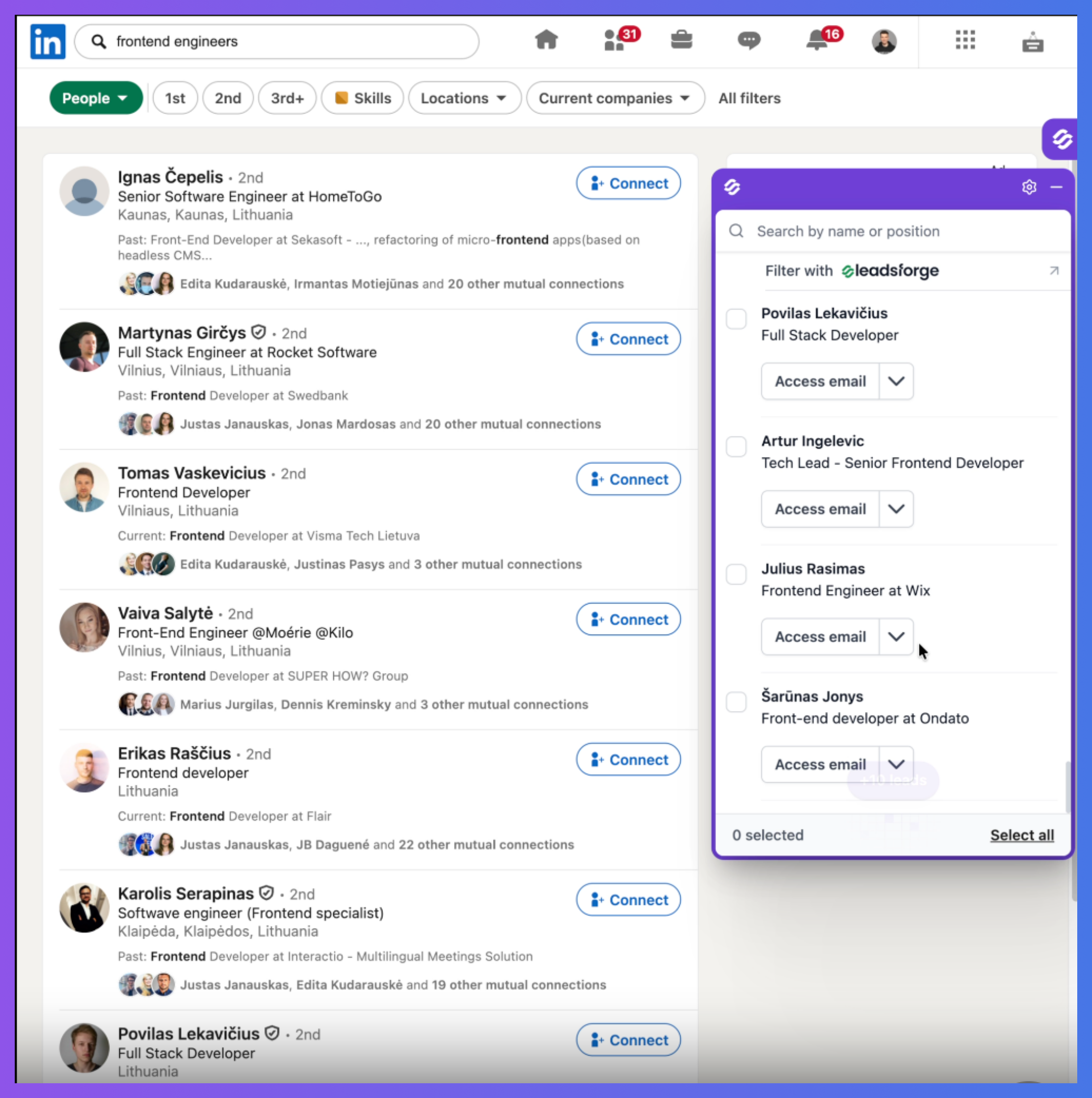
When using LinkedIn Sales Navigator, contacts are pulled as you browse the search results.
Contacts can be collected:
While scrolling through the results
When moving to the next page
This allows you to work through Sales Navigator searches more efficiently and collect contacts without opening each profile individually.
To extract contacts from LinkedIn or Sales Navigator:
Open LinkedIn People Search or LinkedIn Sales Navigator.
Run the search you want to use.
Open the Salesforge Chrome Extension.
Review the contacts available on the page.
Select contacts one by one, or select all contacts on the page.
Choose whether to enrich or push the selected contacts.
Continue scrolling or move to the next page to collect more contacts.
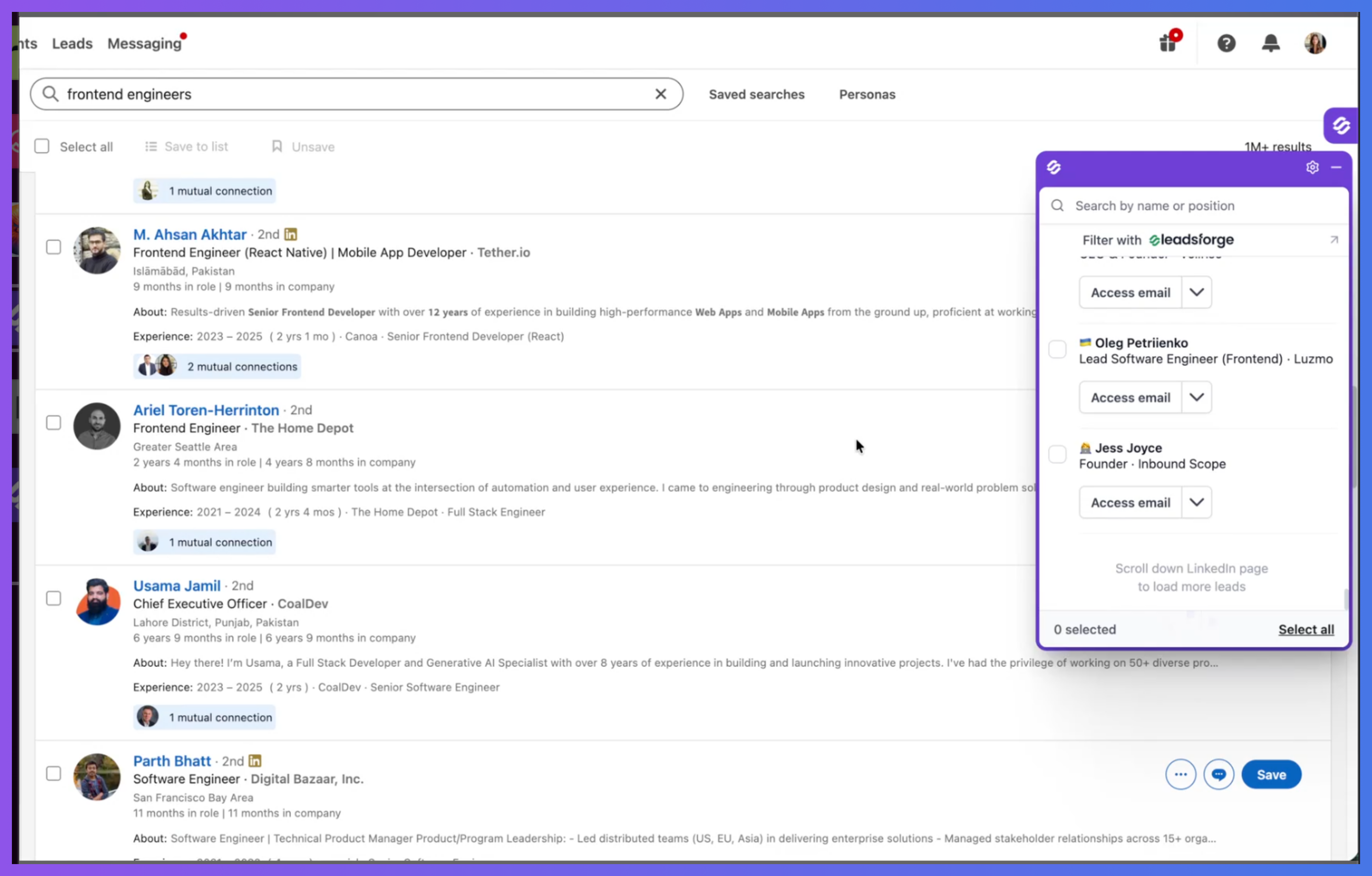
After selecting contacts, you can enrich them directly from the Chrome Extension.
Enrichment helps add more contact information before the lead is pushed into your workflow.
Use this when you want to collect additional lead data before starting outreach.
You can also push selected contacts directly into your workflow from the extension.
This helps reduce manual work because you do not need to open each LinkedIn profile separately or copy contact details one by one.
To get the best results:
Start with a clear LinkedIn or Sales Navigator search
Review selected contacts before pushing them
Use filters in LinkedIn or Sales Navigator to narrow your audience
Enrich contacts before adding them to outreach workflows
Move page by page to avoid missing visible contacts
Use Sales Navigator for more advanced prospecting filters
The Salesforge Chrome Extension supports contact extraction from LinkedIn People Search and LinkedIn Sales Navigator.
You can select contacts individually, select all visible contacts on the page, enrich selected contacts, and push them directly into your workflow.
LinkedIn People Search pulls the 10 visible contacts from each page, while Sales Navigator collects contacts while scrolling and when moving to the next page. This makes LinkedIn prospecting more scalable directly from the browser.