Exclude List is used to tell LeadsForge which leads and companies you already have.
Once added, they will be filtered out of your ICP and Lookalike searches, helping you:
Avoid duplicate leads
Save credits
Keep your search results clean
Go to Settings.
Click Exclude.
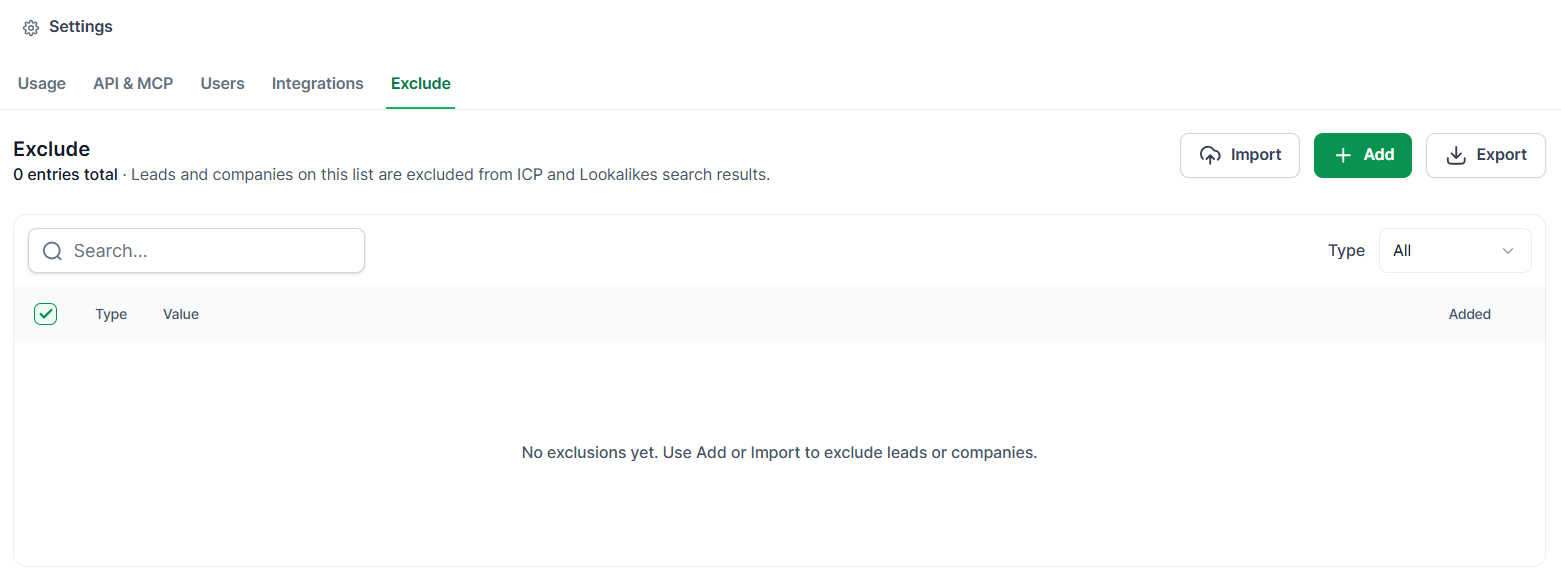
You can add exclusions one at a time.
Open Settings → Exclude.
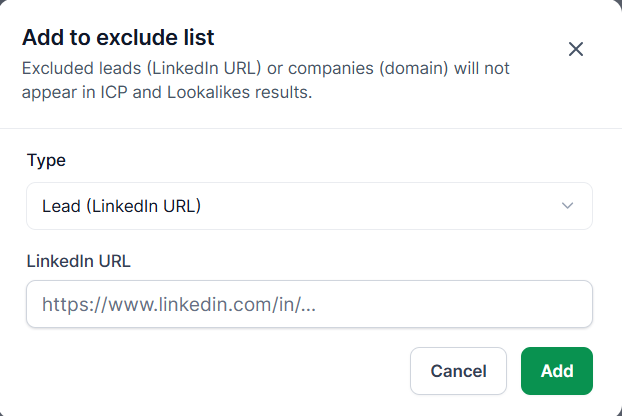
Click + Add.
Select what you want to exclude:
Lead — add the lead's LinkedIn URL
Company — add the company's domain
4. Save the exclusion.
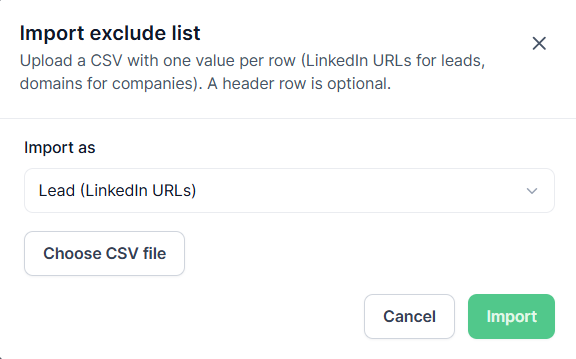
If you already have a list of leads or companies, you can add them in bulk using a CSV file.
Go to Settings → Exclude.
Click Import.
Select what you want to exclude:
Leads — add the lead's LinkedIn URLs in the CSV file
Companies — add the company's domains in the CSV file
Upload your CSV file.
After you add a lead or company to your Exclude List, LeadsForge will automatically filter them out of:
ICP searches
Lookalikes searches
For example, if you already have a company in your database and add its domain to the Exclude List, that company will not appear in future ICP or Lookalikes search results.
This means you can focus on finding new leads instead of checking contacts you already have.
The Exclude List currently does not apply to:
Provider-based bulk lists
CSV enrichment uploads
If you are using a CSV enrichment upload, make sure you manage your exclusions before uploading the file.