API keys let you securely connect Forge products with external tools, scripts, automations, AI assistants, MCP clients, or custom workflows.
You can generate API keys from the product settings of each Forge app you use. Each product has its own API key, so a Salesforge API key is different from a Mailforge, Infraforge, or Primeforge API key.
You may need an API key when you want to:
Connect Salesforge with tools like Clay, Persana, Zapier, or other automation platforms
Build custom workflows using Forge product data
Automate mailbox, domain, contact, campaign, or infrastructure actions
Connect AI assistants such as Claude, Cursor, Windsurf, or similar MCP-compatible tools
Make sure you have:
An active account in the Forge product you want to connect
Access to the correct workspace or product account
API access is enabled on your plan
Permission to manage settings in that product
If you do not see the API section, your account may not have the required permission or API access may not be available on your current plan.
Log in to your account.
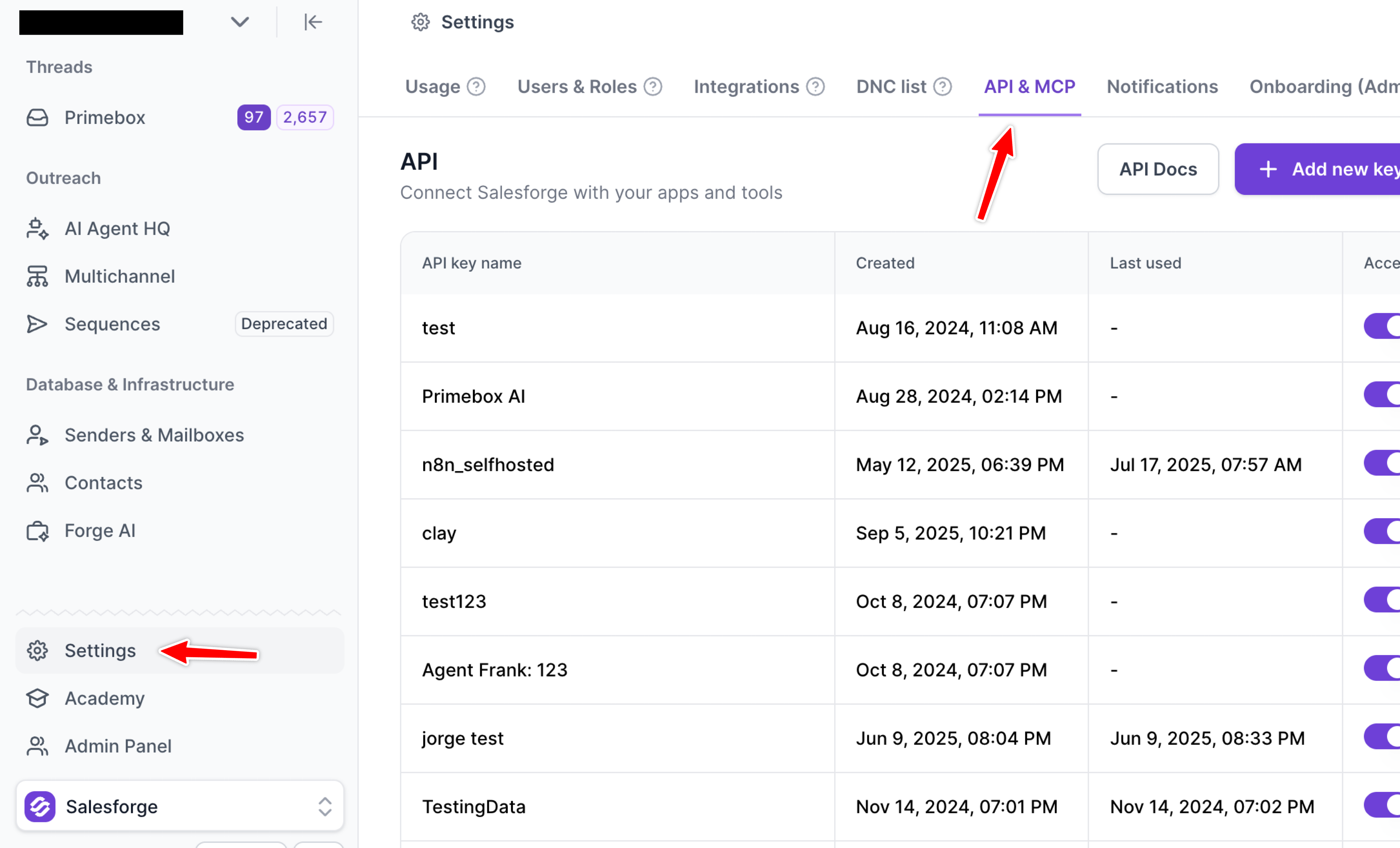
Go to Settings.
Open API or API Keys.
Click Generate API Key.
Copy the API key and store it somewhere safe.
Paste the key into the tool, integration, script, or MCP client you want to connect.
For some integrations, Salesforge may also show API key generation under a specific integration page, such as Settings > Integrations > Clay, Zapier, or another partner integration. Salesforge’s Persana integration docs also mention generating a key from Settings > API Keys.
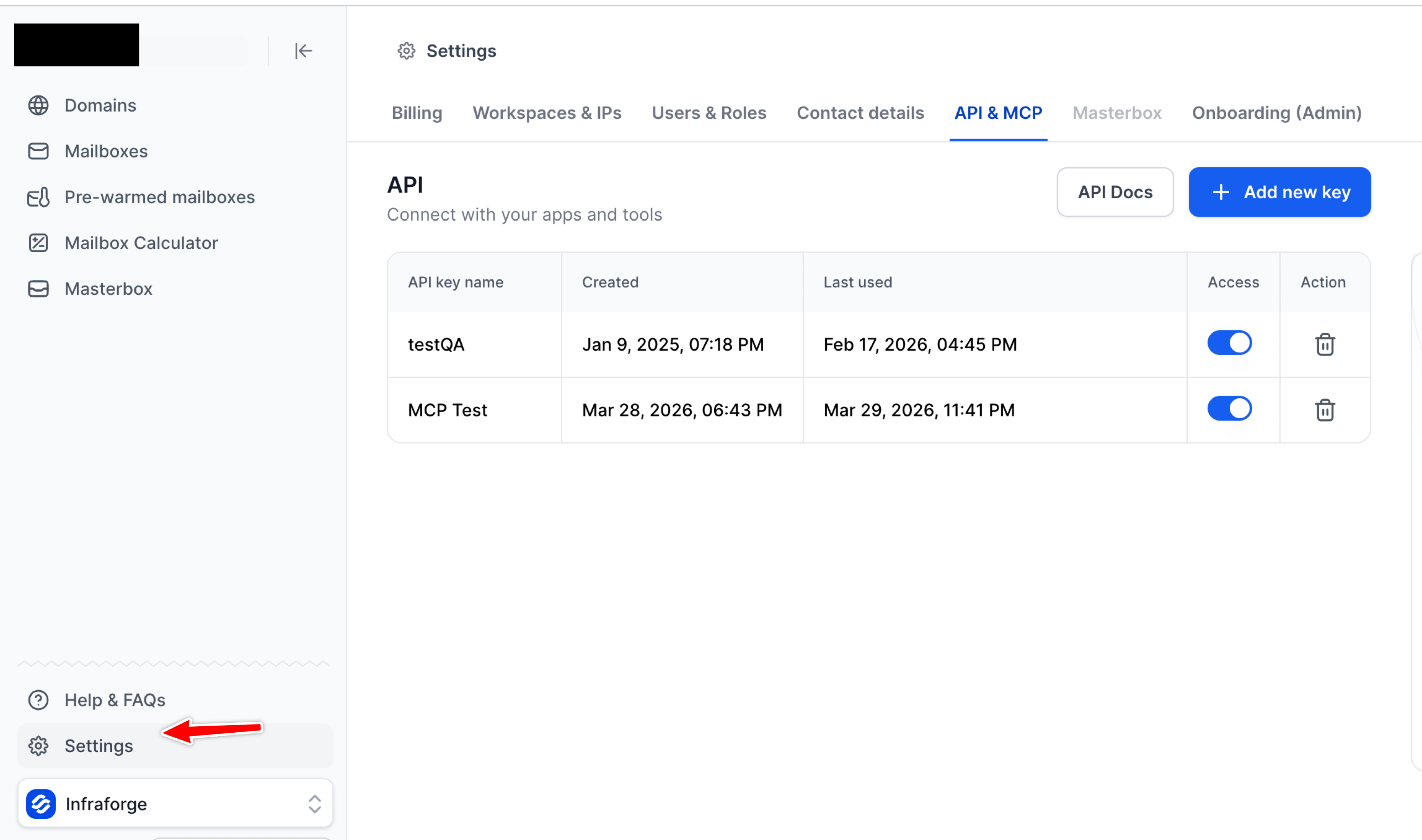
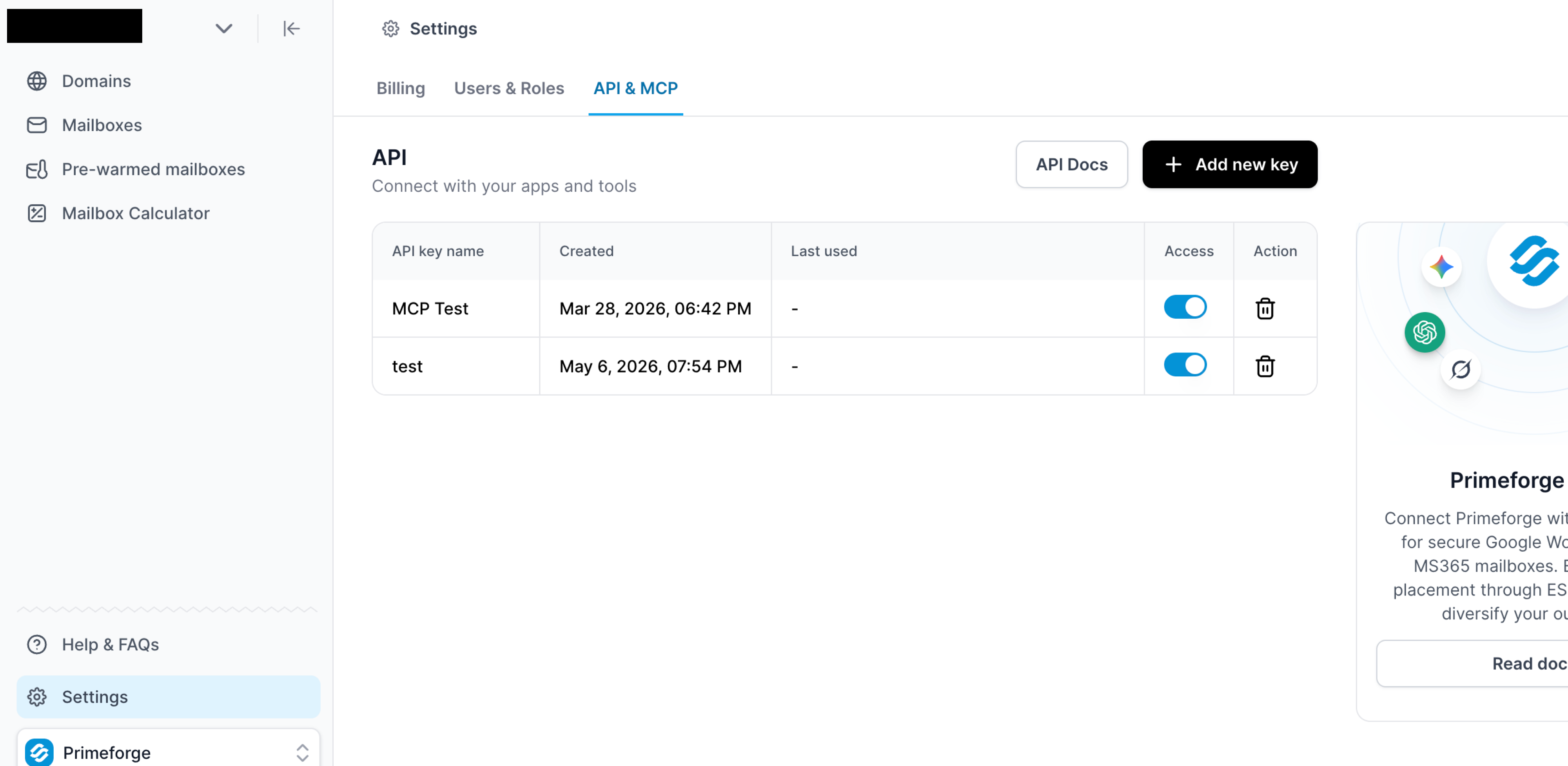
For primeforge, mailforge and Infraforge - UI would be like this
Check that you are logged into the correct product and workspace. If the API section is still missing, your current role or plan may not include API access.
Make sure you are using the correct key for the correct product. Salesforge, Mailforge, Infraforge, and Primeforge each use separate API keys.
Also check for:
Extra spaces before or after the key
Incorrect header name
Expired or revoked key
Using a key from the wrong account
Using a key from the wrong Forge product
If you manage multiple accounts, generate API keys separately for each account. Keep the keys clearly labeled so you do not accidentally connect the wrong client’s workspace.
Example:
CLIENT_A_SALESFORGE_API_KEY="..."
CLIENT_B_SALESFORGE_API_KEY="..."No. Each Forge product has its own API key. Generate a separate key for Salesforge, Mailforge, Infraforge, or Primeforge, depending on what you want to connect.
No. You only need API keys for the products you actually use. For example, if you only use Salesforge and Mailforge, you only need those two API keys. Official Forge MCP documentation also notes that tools for unconfigured products will not appear.
Yes, in most cases you can generate a new key from the API settings page. After generating a new key, update any connected tools or workflows that were using the old key.
Only share sensitive credentials through secure, approved support channels when specifically requested. Never post API keys in public spaces or screenshots.
To create an API key:
Log in to the Forge product you want to connect.
Go to Settings > API.
Click Generate API Key.
Copy and store the key securely.
Use the correct product-specific key in your integration.
Salesforge, Mailforge, Infraforge, and Primeforge each require their own API key, so make sure you generate the key inside the correct product before connecting it to your workflow.