Mailforge now allows you to change the username of an existing mailbox directly from the mailbox view.
The username is the part of the email address before the @ symbol.
For example:
In this email address, john is the mailbox username.
This update makes it easier to rename existing mailboxes without contacting support.
You can only change the mailbox username for mailboxes on V2 domains.
This is not supported for older domain types.
When you change the username, you are not creating a new mailbox. You are renaming the existing one.
Your existing mailbox data stays the same, including:
Emails
Folders
Mailbox settings
Server-side mailbox content
Only the email address before the @ changes.
Open Mailforge.
Go to your mailboxes.
Open the mailbox you want to rename.
Find the Username field.
Edit the username.
Example:
From:
To:
Save the changes.
Wait for the rename process to complete.
The mailbox may show a processing state for some time after saving.
Do not try to rename the mailbox again or save the form repeatedly while the change is still processing.
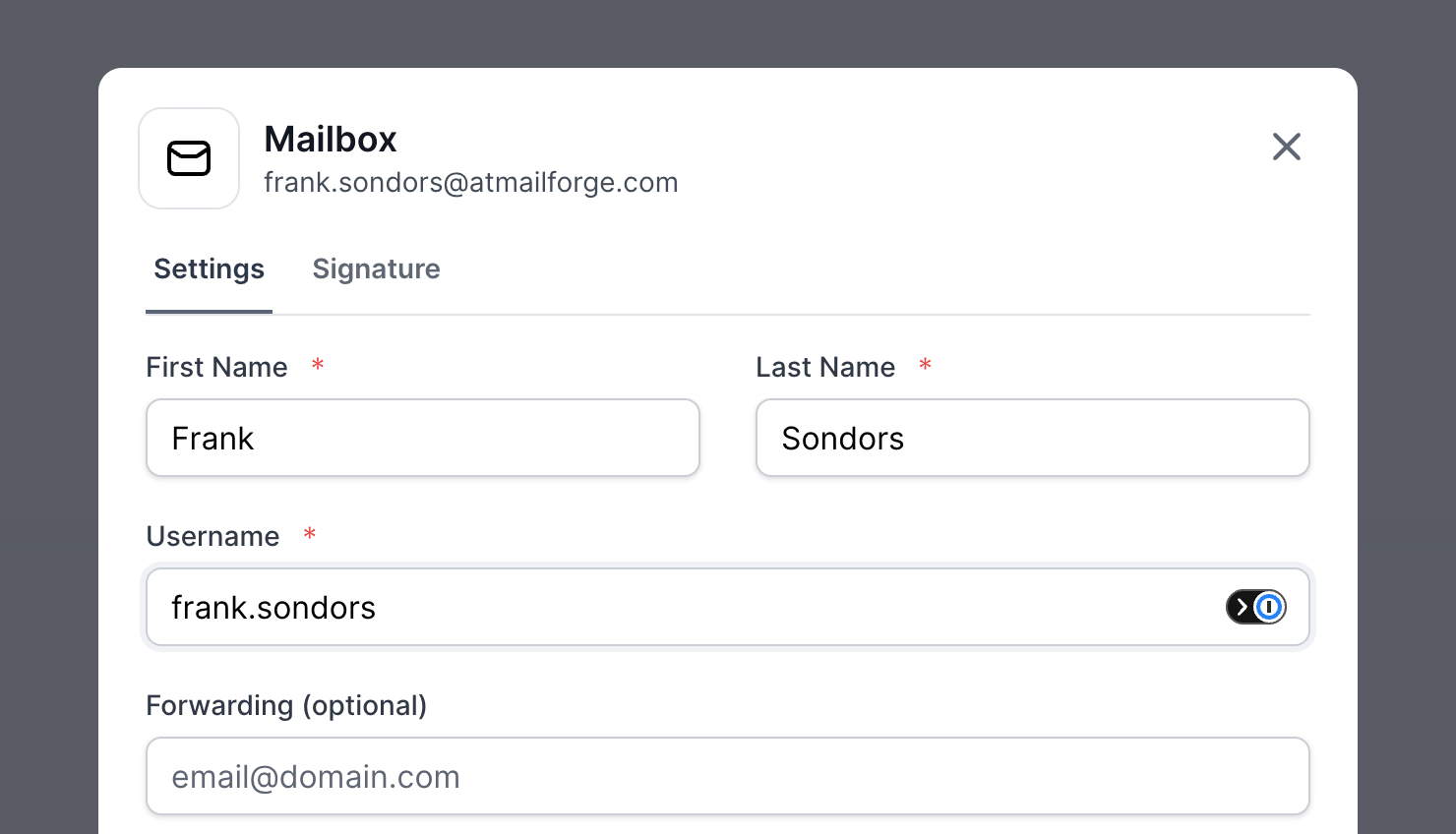
The new username must be available on the same domain.
For example, if you already have:
You cannot rename another mailbox to the same address.
If the username is already taken, the rename will fail. In that case, choose a different username and try again.
After the username is changed, Mailforge creates an alias from the old address to the renamed mailbox.
This means emails sent to the old address will still be delivered to the same mailbox.
Example:
Old address:
New address:
If someone emails [email protected], the message will still arrive in the mailbox now renamed to [email protected].
However, we recommend updating the visible email address wherever it is used, including:
Email signatures
Salesforge campaigns
CRM records
Sender profiles
Reply-to settings
Any external tools connected to the mailbox
This helps people and systems start using the new email address directly.
Changing the username makes mailbox providers treat the address as a new mailbox identity.
Because of this, you should warm up the mailbox again after renaming it.
Recommended warmup guidance:
If the domain has already been warmed for 2+ weeks, warm up the renamed mailbox for at least 1 week.
If the domain is new or has not completed at least 2 weeks of warmup, warm up the mailbox for at least 2 weeks.
After warmup, run placement tests before using the mailbox in active campaigns.
The domain reputation may still help, but mailbox providers mainly see the sending identity as a new address after the username changes.
If you change the mailbox back to the original username, additional warmup is usually not required because mailbox providers have already seen that original address before.
For example:
[email protected] → [email protected] → [email protected]
In this case, the original address is already known to providers.
Before changing a mailbox username:
Make sure the new username is correct.
Confirm the new address is not already being used.
Avoid making multiple username changes in a short period.
Pause active campaigns using that mailbox before renaming it.
Restart warmup after the username change.
Update the email address in your signatures, campaigns, CRM, and connected tools.
No. Your emails, folders, and settings remain unchanged.
You are renaming the existing mailbox, not creating a new one.
No. This feature only changes the username before the @ symbol.
Example:
You can change:
[email protected] To: [email protected]
But not:
[email protected] To: [email protected]
Yes. An alias is created from the old address to the new mailbox, so incoming emails sent to the old address will still be delivered.
Yes. After changing the username, mailbox providers may treat the address as a new sender identity.
Warm up the mailbox again before using it in campaigns.
The rename is not instant. The mailbox may stay in a processing state while the update is being completed.
Wait until processing is finished before making another change.