Salesforge allows you to run multichannel campaigns across email and LinkedIn from one sequence builder. Scheduling controls when your campaign is allowed to send actions, while Salesforge manages the actual execution based on your campaign settings, sender limits, sequence steps, and contact eligibility.
You can learn more about Salesforge’s campaign and sequence setup in the Salesforge Sequence Settings guide.
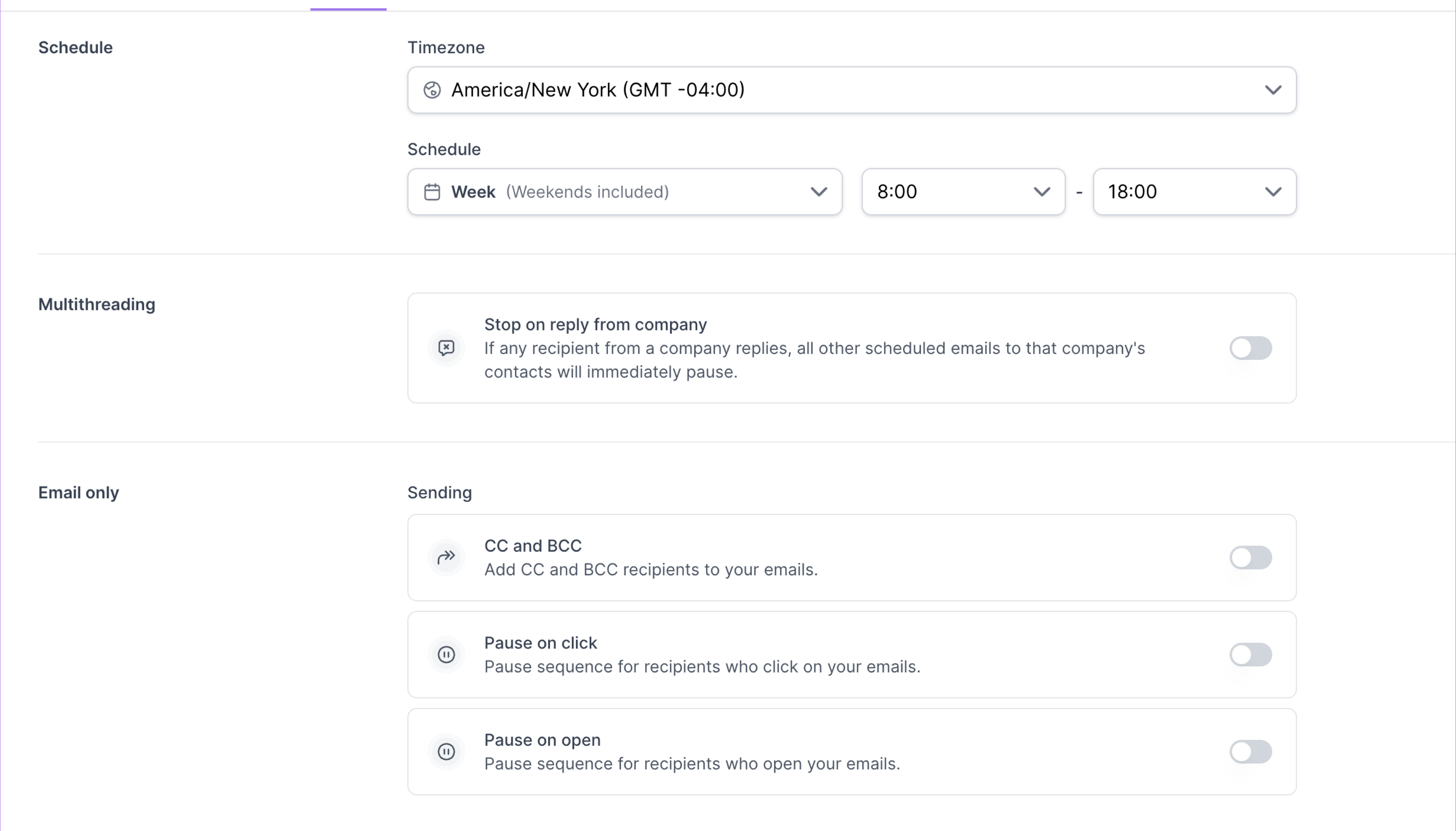
The schedule tells Salesforge which days and times your campaign can send messages or execute steps.
For example, you may configure a campaign to send only:
Monday to Friday
9:00 AM to 5:00 PM
During the recipient’s working hours
Within the limits of your connected mailboxes or LinkedIn senders
This helps prevent campaigns from sending at odd hours and gives you better control over daily outreach volume.
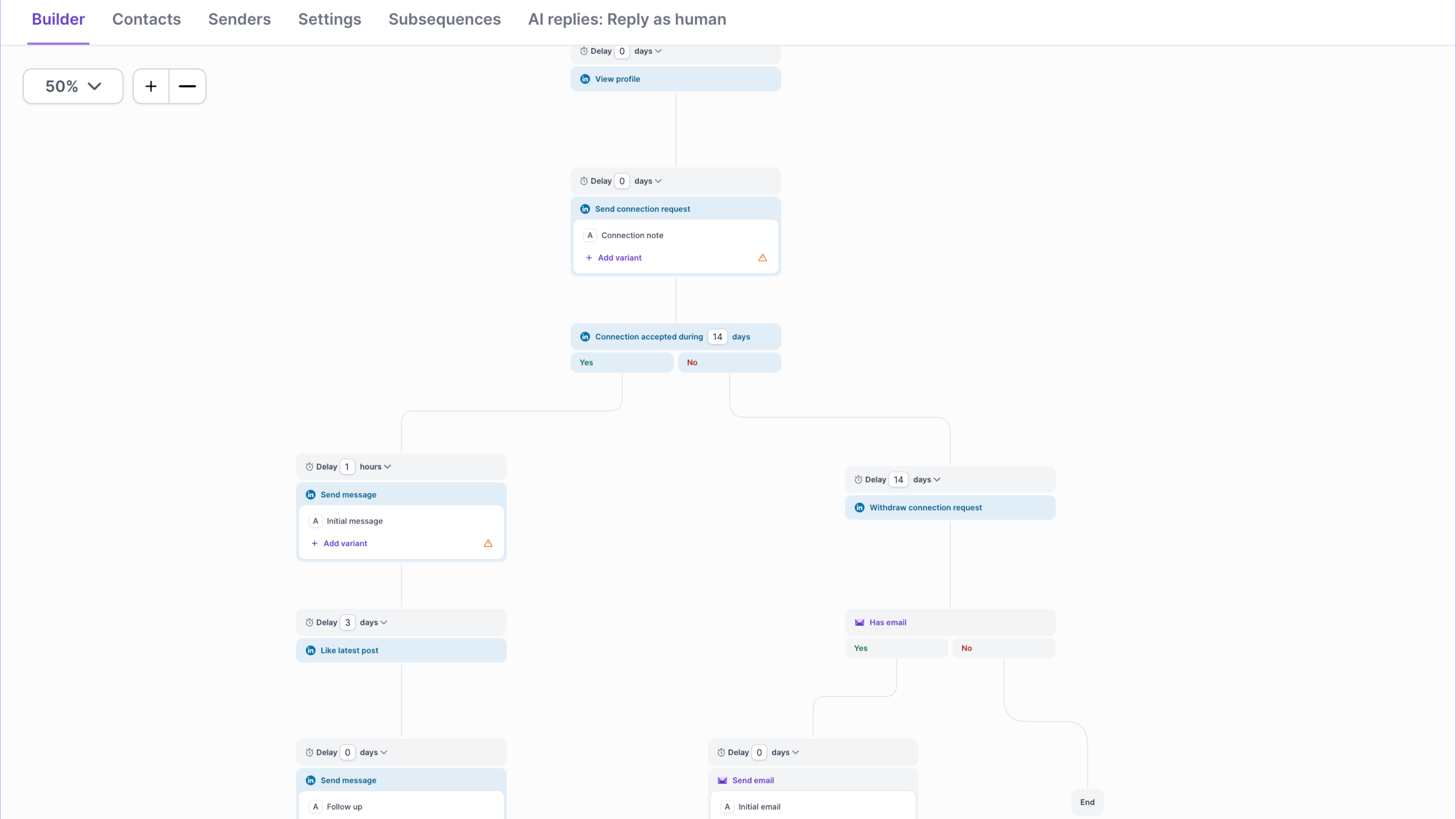
When you launch a Multichannel sequence, Salesforge creates tasks for the leads added to the sequence.
These tasks may include:
Sending an email
Visiting a LinkedIn profile
Sending a LinkedIn connection request
Sending a LinkedIn message
Sending a LinkedIn InMail
Checking a condition
Moving the lead to the next step
After launch, the scheduler regularly checks which tasks are ready to be executed.
A task will only run when:
The sequence is active
The task is ready based on the step timing
The sequence is inside the allowed schedule
The assigned sender profile has available capacity
The lead has not been stopped, removed, bounced, unsubscribed, or moved into another condition path
Not always.
In Multichannel, the schedule acts as an allowed execution window.
This means Salesforge checks for ready tasks during the active schedule and processes them based on available sender capacity. If there is enough capacity available, tasks may be executed faster instead of being evenly distributed across the full schedule window.
For example, if your schedule is 9 AM to 5 PM and your senders have enough capacity, Salesforge may process a large portion of eligible tasks earlier in the schedule window rather than spreading them perfectly until 5 PM.
To control sending volume, you should review:
Sequence schedule
Sender profile limits
Mailbox limits
LinkedIn account limits
Number of connected sender profiles
Lead volume added to the sequence
You can review general sequence settings in the Salesforge Sequence Settings guide.
For LinkedIn tasks, Salesforge uses the sender profiles connected to your Multichannel sequence.
When a LinkedIn task is ready, Salesforge checks the available sender profiles and assigns the task to a sender profile that has remaining capacity.
Each LinkedIn sender profile may have its own daily limits for actions such as:
Connection requests
LinkedIn messages
InMails
Profile visits
Once a lead is assigned to a LinkedIn sender profile, future LinkedIn tasks for that same lead continue from the same sender profile.
This keeps the outreach experience consistent for the prospect.
For example, if Sender A sends the connection request to a lead, Sender A will also be used for the next LinkedIn task for that lead where applicable.
Salesforge distributes LinkedIn tasks based on sender profile capacity.
Sender profiles with more remaining capacity may receive more tasks first. As capacity becomes more balanced, tasks are distributed more evenly across the available sender profiles.
This helps Salesforge:
Use all connected sender profiles more efficiently
Avoid overloading only one sender profile
Respect each sender profile’s daily limits
Maximize the total available LinkedIn sending capacity
Improve task distribution across larger Multichannel sequences
Previously, sender profiles could be selected in a fixed order. This meant the first sender profile could receive tasks before others were used.
With the updated LinkedIn task distribution logic, LinkedIn tasks are no longer assigned only to the first created sender profile. Instead, Salesforge considers remaining capacity so tasks can be spread more fairly across connected sender profiles.
Let’s say your Multichannel sequence has three LinkedIn sender profiles attached:
Sender Profile A has 8 remaining actions available
Sender Profile B has 9 remaining actions available
Sender Profile C has 10 remaining actions available
Salesforge will prioritize the sender profile with higher remaining capacity first.
As tasks are assigned and capacity changes, the scheduler continues balancing task assignment across the available sender profiles.
The expected result is that no single sender profile should dominate LinkedIn task assignment when multiple sender profiles have available capacity.
When checking LinkedIn task distribution, the most important thing to verify is which sender profile was assigned to each lead’s first LinkedIn task.
Only the first LinkedIn task assignment matters. Once a lead is assigned to a sender profile, future LinkedIn tasks for that lead should continue with the same sender profile.
For LinkedIn task distribution, Salesforge should behave like this:
Each sender profile can receive only a limited number of tasks per scheduler run
Sender profiles with higher remaining capacity should receive tasks first
As capacities become equal, tasks should rotate more evenly between sender profiles
Tasks should not all go to the first created sender profile anymore
Yes.
Salesforge always respects the available capacity and daily limits of your sender profiles.
A sender profile with no remaining capacity will not be assigned new LinkedIn tasks.
For example, if a LinkedIn sender profile has reached its daily connection request limit, Salesforge will not assign new connection request tasks to that sender profile until capacity becomes available again.
If you attach multiple sender profiles to a Multichannel sequence, Salesforge is designed to use the available capacity across those sender profiles.
This is important because using only one sender profile while other sender profiles remain unused can reduce the total number of tasks your sequence can complete.
By distributing LinkedIn tasks across available sender profiles, Salesforge helps your campaign process more leads while still respecting sender-level limits.
A Multichannel task may be ready but still not execute immediately.
Common reasons include:
The sequence is outside the allowed schedule
The sender profile has reached its daily limit
The task is waiting for the next scheduler run
The lead is waiting for the next step delay
The assigned sender profile is disconnected
The lead has already replied
The lead bounced, unsubscribed, or was stopped
The task belongs to a condition path that has not been met yet
For LinkedIn tasks specifically, Salesforge also checks whether the assigned sender profile has enough remaining capacity for that action type.
Each step in your Multichannel sequence can have its own delay.
Example:
Step 1: Send LinkedIn connection request
Wait 2 days
Step 2: Send email
Wait 1 day
Step 3: Send LinkedIn message
Wait 3 days
Step 4: Send follow-up email
Salesforge will only execute the next step when the delay has passed and the task is eligible to run.
If the next step becomes ready outside your schedule, Salesforge will wait until the sequence is inside the allowed sending window again.
You can learn more about follow-up behavior in the Salesforge follow-ups guide.
For LinkedIn tasks, only the first LinkedIn task assignment matters.
Once a lead is assigned to a LinkedIn sender profile, Salesforge keeps using the same sender profile for future LinkedIn tasks for that lead.
This avoids situations where one prospect receives LinkedIn actions from multiple different people in the same sequence.
Example:
If John is assigned to Sender Profile A for the first LinkedIn connection request, future LinkedIn messages to John will continue from Sender Profile A.
To get the best results from Multichannel scheduling:
Attach enough sender profiles to support your lead volume
Make sure each sender profile has enough available capacity
Avoid overloading one sender profile with too many tasks
Keep your sequence schedule aligned with your target audience’s working hours
Use realistic daily limits for both email and LinkedIn
Monitor task execution after launching a high-volume sequence
Review sender profile health and connection status regularly
If your sequence has many leads but only one active sender profile, execution may be slower because Salesforge must respect that sender profile’s limits.
Adding more sender profiles can help distribute LinkedIn tasks more effectively.
Scheduling in Salesforge controls when your multichannel campaign is allowed to run.
However, the actual sending order also depends on:
Sequence timing
Sender limits
Campaign limits
Follow-up priority
Contact status
Reply and stop conditions
In simple terms:
Schedule = when Salesforge is allowed to send
Limits = how much Salesforge can send
Sequence logic = what Salesforge should send next
Contact status = whether the contact should continue
Together, these rules help your campaigns run safely, consistently, and in a deliverability-friendly way.