Finding the right leads is not just about having a large list.
It is about narrowing your audience before you spend credits, reviewing the preview results carefully, and only enriching the contacts that actually look relevant.
In Salesforge, you can do most of the filtering work before using any credits. This helps you avoid spending credits on contacts that are not a good fit.
Start by narrowing your lead list using search filters.
This step is free and does not use credits.
You can set filters manually from the Filters tab, or you can describe what you are looking for in chat and let the AI help you build the search.
You can update your filters at any time or start a new chat if you want to create a fresh search.
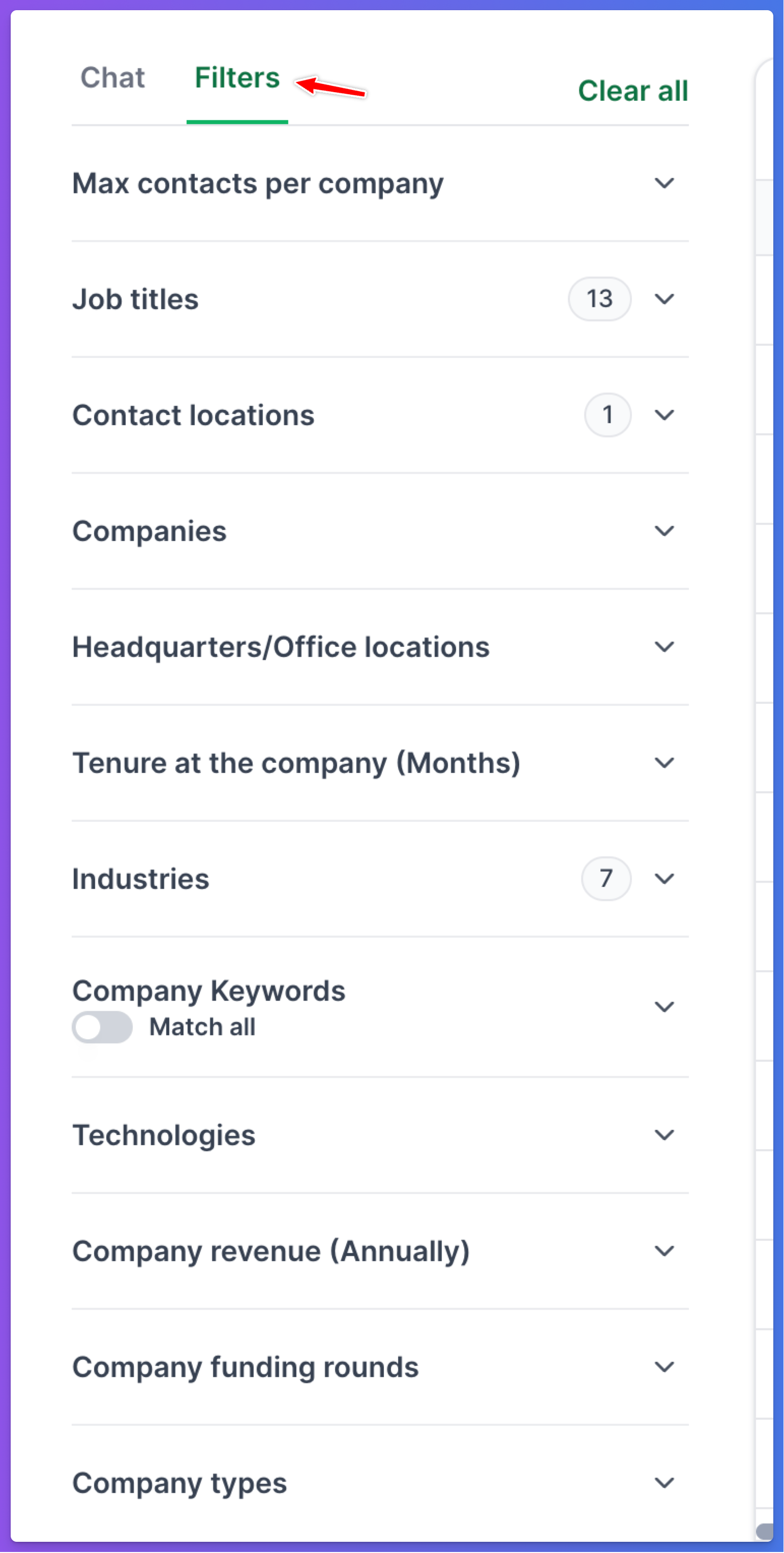
Here is an example of how you could set up filters for finding small business decision-makers in Sweden.
You can include titles such as:
CEO
Owner
Founder
Managing Director
Business Owner
General Manager
VD
Grundare
Ägare
These titles help you focus on people who are more likely to make business decisions.
You can also exclude titles that are not relevant to your target audience, such as:
IT Professional
Software Engineer
Developer
CTO
Other technical roles that do not match your ideal customer profile
This helps reduce irrelevant contacts before you move to enrichment.
Set the location to: United States
This keeps your search focused on the market you want to target.
A useful company size filter could be:
5–50 employees
This is helpful if you are targeting smaller businesses that may still need help with growth, online presence, operations, or lead generation.
You can narrow your search further by selecting relevant industries, such as:
Professional Training and Coaching
Wellness and Fitness Services
Alternative Medicine
Individual and Family Services
Business Consulting and Services
Higher Education
Mental Health Care
The more specific your industry filters are, the better your preview results will usually be.
You can also use technology filters if relevant.
For example:
WordPress
This can be useful if your offer is connected to websites, optimization, lead generation, or online presence.
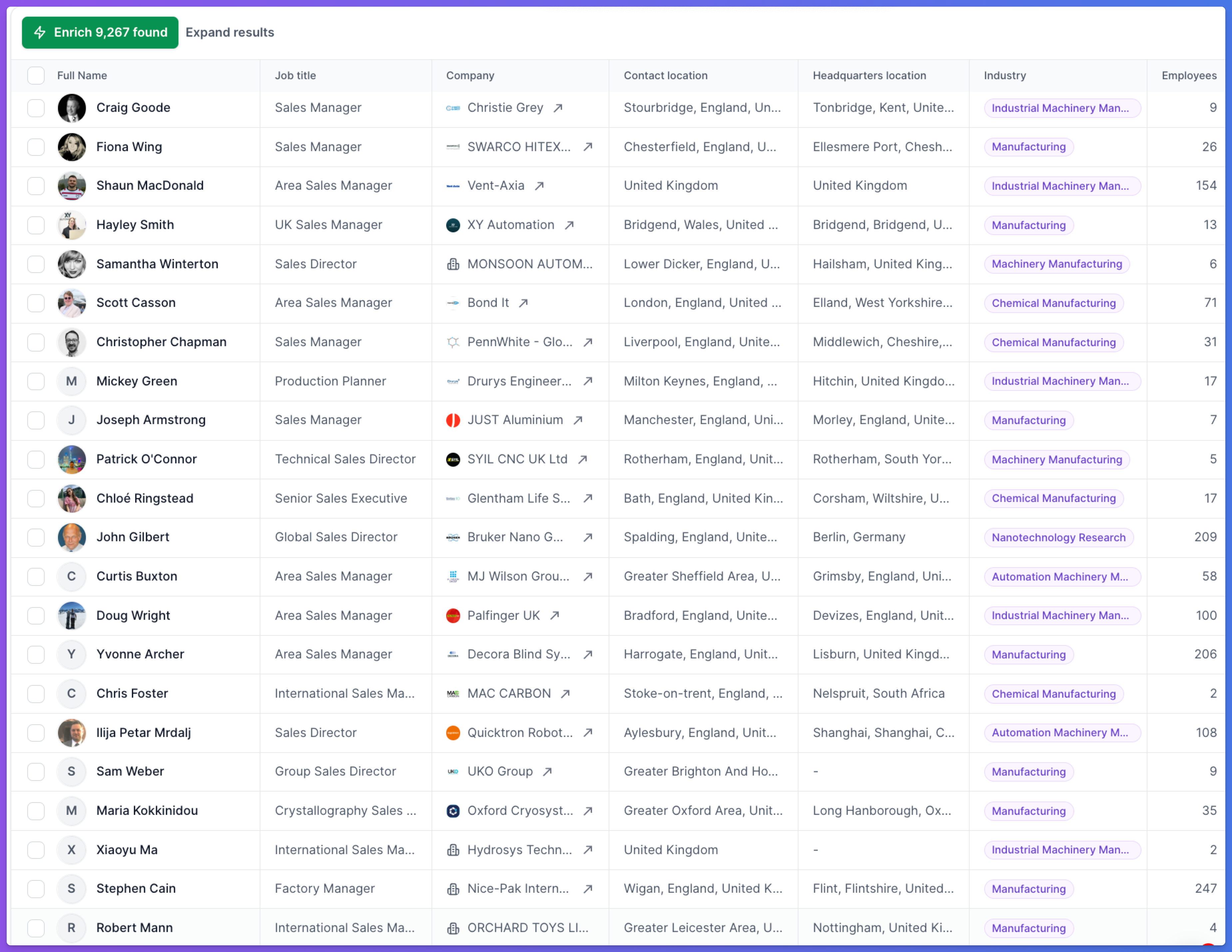
After setting your filters, review the preview contacts carefully.
This is one of the most important parts of the process.
The preview allows you to check whether the contacts match your target audience before you enrich them. This does not cost credits.
Look for signs such as:
Are the job titles relevant?
Are the companies in the right industry?
Is the company size correct?
Does the list match the type of businesses you want to contact?
Are there too many irrelevant contacts showing up?
If the results do not look right, adjust your filters before enriching.
You can change filters as many times as needed before spending credits.
Once the preview list looks relevant, start with a small batch.
Do not enrich hundreds of leads immediately.
A good starting point is:
5–10 contacts
This allows you to test whether the enriched results are useful before scaling.
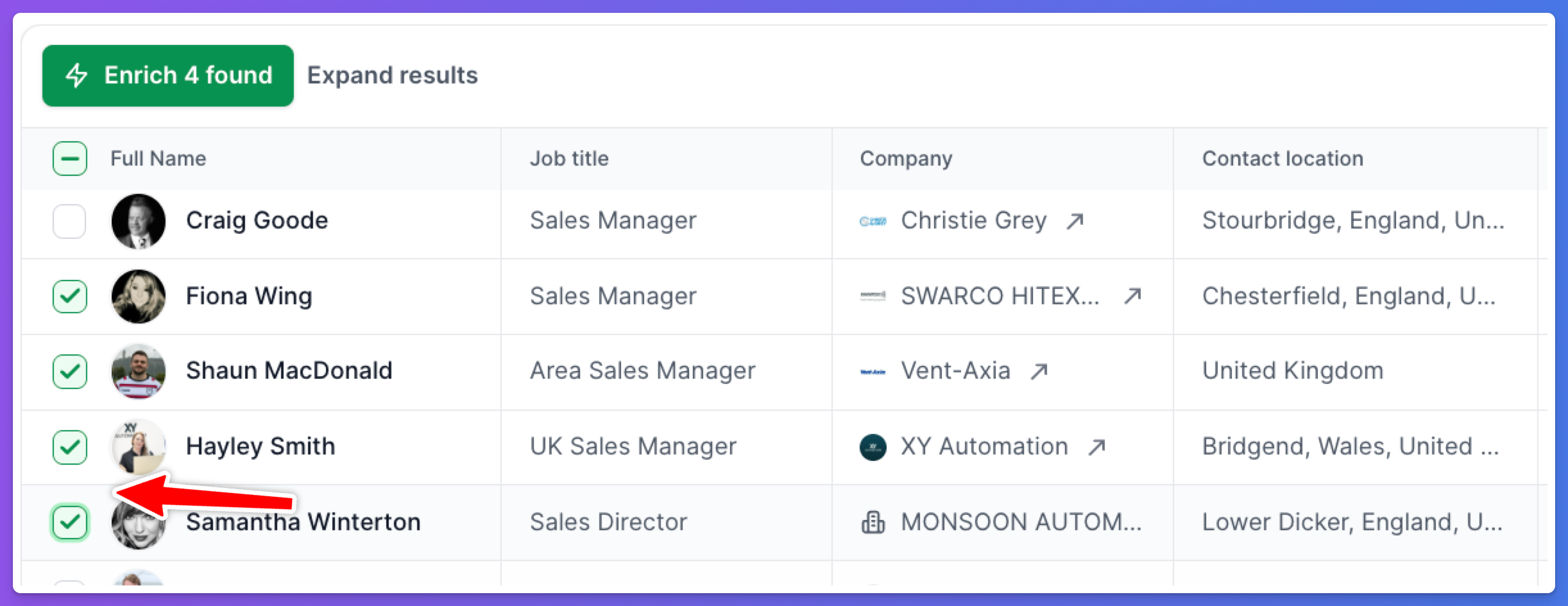
To enrich contacts:
Select the leads you want from the preview list
Click Enrich
Choose what you want to enrich
You can select options such as email addresses, LinkedIn URLs, phone numbers, or intents/signals
Review the results in the Enrich tab
If you are unsure whether your search is strong enough, it is a good idea to test Intent first on a few contacts.
Intent criteria allow you to ask AI to evaluate each selected contact or company based on specific signals.
For example, you could add criteria such as:
Website shows signs of neglect or poor optimization
Company likely needs help with online presence and lead generation
Based on first-name and profile data info, is a female decision maker
Salesforge will analyze each selected contact’s profile and available public company data against your criteria.
The result will show as:
Positive
Negative
Unknown
These results appear as extra columns next to each contact in the Enrichments Table.
This helps you quickly see which leads match your criteria before you export or use them in outreach.
Intent enrichment happens after the preview stage.
That means you first search and review for free, then choose which contacts to enrich.
Intent analysis costs 1 credit per lead.
Because of this, it is best to test intent criteria on a small number of contacts first. Once you confirm the results are useful, you can enrich more contacts.
After enrichment, go to the Enrich tab from the left sidebar.
There, you will see your enriched contacts along with the data you requested.
Depending on what you selected, this may include:
Email addresses
LinkedIn URLs
Phone numbers
Intent or signal results
Positive, negative, or unknown ratings for each custom intent criterion
Review this table before exporting or sending contacts into your outreach workflow.
Yes.
Once contacts are enriched, they are stored permanently in the Enrich tab for that list.
Even if you change your search filters afterward, the contacts you already enriched will remain available in the Enrich tab.
This means you can safely adjust your filters without losing previously enriched contacts.
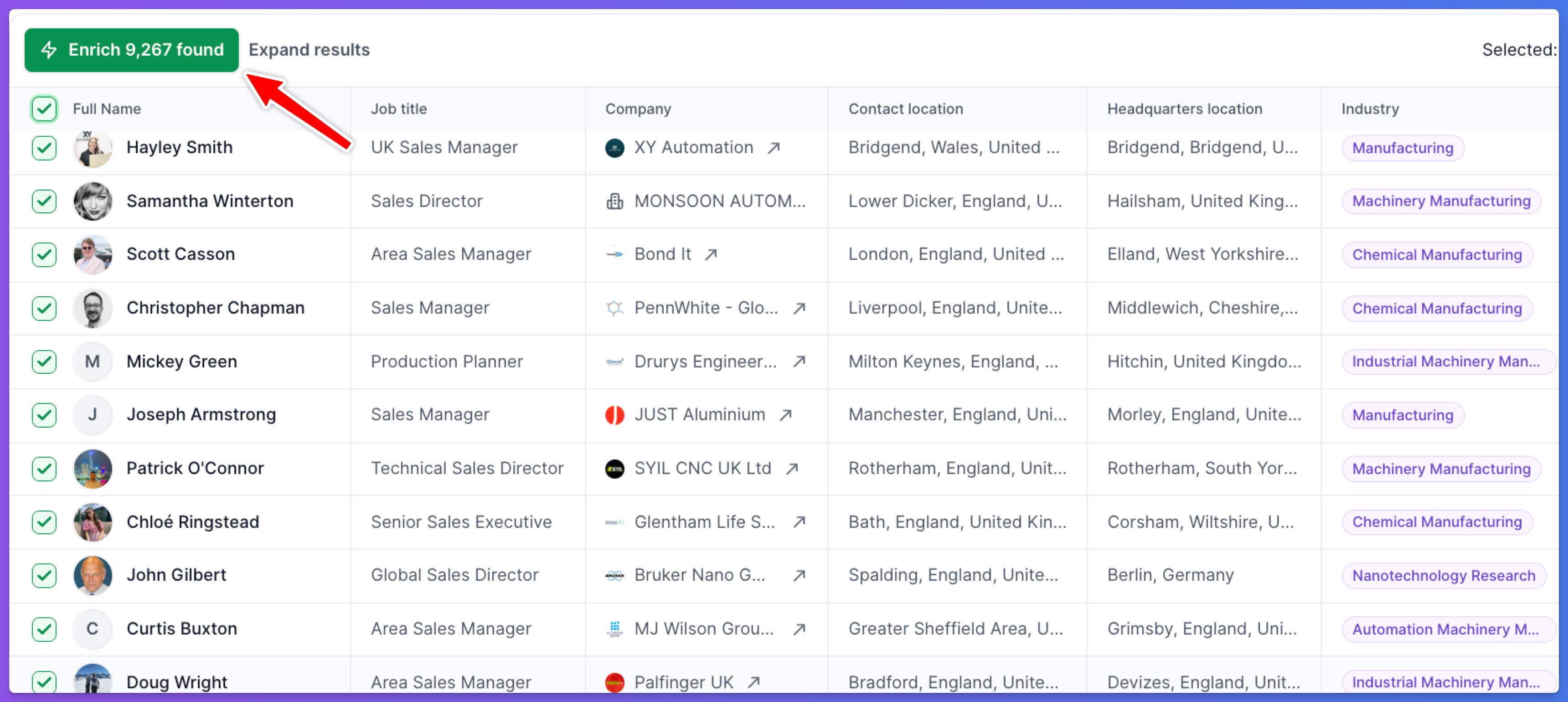
Once you have tested a small batch, review the results.
If the enriched contacts look accurate and useful, you can enrich more.
If the results are not good enough, go back and adjust your filters.
The best workflow is:
Search using chat or manual filters
Review preview contacts for free
Enrich a small batch first
Check results in the Enrich tab
Scale up only when the quality looks right
Export when ready
This approach helps you protect your credits and avoid wasting them on poor-fit leads.
Once you are happy with the enriched results, you can export your contacts from the Enrich tab.
Available export options include:
CSV
Salesforge
HubSpot
Salesforce
This makes it easy to move qualified leads into your outreach, CRM, or sales workflow.
Some filters and criteria are currently limited or handled through enrichment instead of direct filtering.
Gender is not currently available as a direct filter.
However, you can use intent criteria to let AI infer this from public profile data, first name, or available contact information.
Example:
Based on first-name and profile information, is female
This costs 1 credit per lead and may return positive, negative, or unknown.
Age-based filtering, such as targeting people aged 45+, is not currently available.
If this is important for your workflow, you can share feedback with the team.
Revenue filters currently use USD ranges.
For example, if you are targeting companies with around 5M+ SEK in revenue, you may need to use an approximate USD range such as:
$1M–$10M
Financial health data is limited.
You can use filters such as founded year where available, but revenue is currently the more reliable filter.
Website quality is not a direct search filter.
However, you can evaluate website quality using intent criteria.
For example:
Website shows signs of neglect or poor optimization
This lets AI review available public company data and classify the result as positive, negative, or unknown.
A spoken language filter is currently being tested.
Once released, it will help users filter contacts by spoken language.
For now, if your target audience is Swedish-speaking, the best approach is to focus on Sweden first. You can revisit Finland once the language filter is available.
The main rule is simple:
Do not enrich until the preview list looks relevant.
Use free filters first. Review the preview contacts. Tighten the search. Remove irrelevant roles. Adjust industries, locations, company sizes, and technologies.
Only then should you spend credits on enrichment.
This gives you a much better chance of finding high-quality leads without wasting credits.