
📤 How to Export Leads from Leadsforge to Hubspot
You can easily integrate Leadsforge with Hubspot to push your leads directly into your CRM. The process is quick and only requires a one-time setup.
Want your leads to flow straight into Hubspot without manual uploads? Leadsforge makes it simple with a quick, one-time setup. Here’s how you can get it done:
1. Link Your Hubspot Account
Head over to the Integrations section inside Leadsforge.
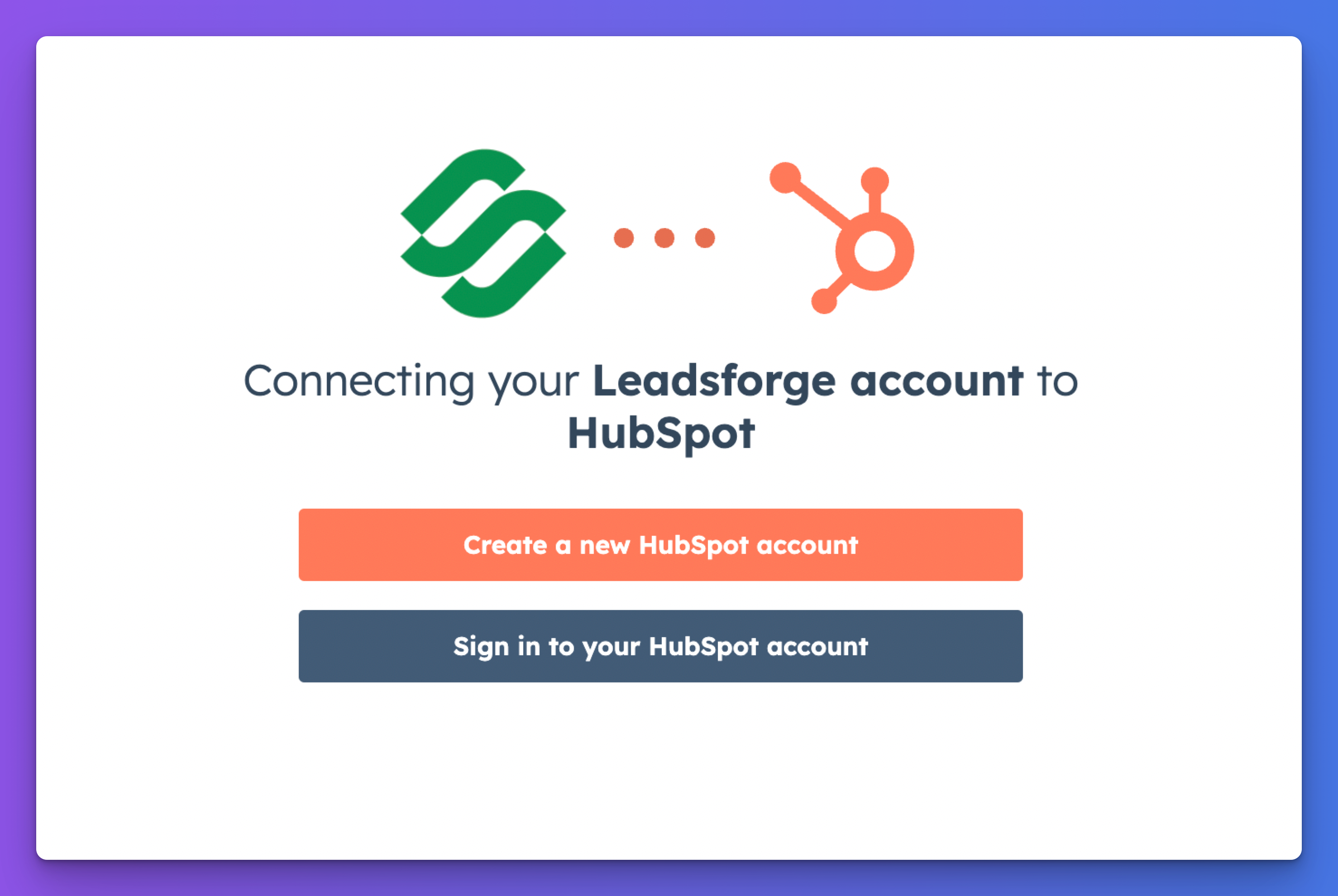
Choose Hubspot and hit Connect.
You’ll be redirected to Hubspot, sign in, give permission, and you’re all set.
👉 The connection is done through secure OAuth, so your login details are never exposed. Once linked, Hubspot shows up as an active integration in your dashboard.
2. Match Up Your Fields
Go to your Hubspot integration settings and open Field Mapping.
Align your Leadsforge fields (like name, company, email) with their counterparts in Hubspot.
Save the setup.
✅ This guarantees your exported data lands in the right spots inside Hubspot.
3. Organize Your Leads
In Leadsforge, navigate to Lists.
Create a fresh list or pick one you’ve already made.
Add in the leads you’re ready to sync.
4. Push the Leads to Hubspot
Open the list you prepared.
Click Export and select Export to Hubspot.
Confirm—and your leads are on their way.
🎯 They’ll appear in Hubspot instantly with your saved field mappings applied.
Handy Things to Remember
You only need to connect Hubspot once.
If Hubspot fields change, just re-map them anytime.
Every export is tracked in Leadsforge for full visibility.