Salesforce is a cloud-based CRM platform that helps businesses manage sales, marketing, customer service, and more. The Salesforge integration with Salesforce syncs Leads and Contacts both ways and logs your outreach on the Salesforce record, so your sales team sees the full conversation history in Salesforce without manual logging or CSV round trips.
Secure OAuth 2.0 connection: log in to Salesforce, authorize, and you're connected.
Two-way sync for Leads and Contacts: updates in Salesforce come into Salesforge, and changes in Salesforge (including custom variables) are pushed to Salesforce. Leads and Contacts each have their own settings.
Full sync (optional): sync every record, not just the ones you've imported. Records are matched by email first, so existing records are updated, not duplicated.
Deletion sync (optional): deletes on either side can carry over to the other.
Field mapping: choose which Salesforce fields map to Salesforge fields and custom variables, separately for Leads and Contacts.
Stage updates from Primebox labels: when you label a reply in Primebox, the mapped field (for example Lead Status) is updated in Salesforce.
Activity sync: emails and LinkedIn activity are logged automatically on the matching Lead or Contact in Salesforce.
Pull Leads to DNC: add Salesforce Leads with chosen statuses to your Do Not Contact list.
Log in to Salesforge and go to Settings → Integrations.
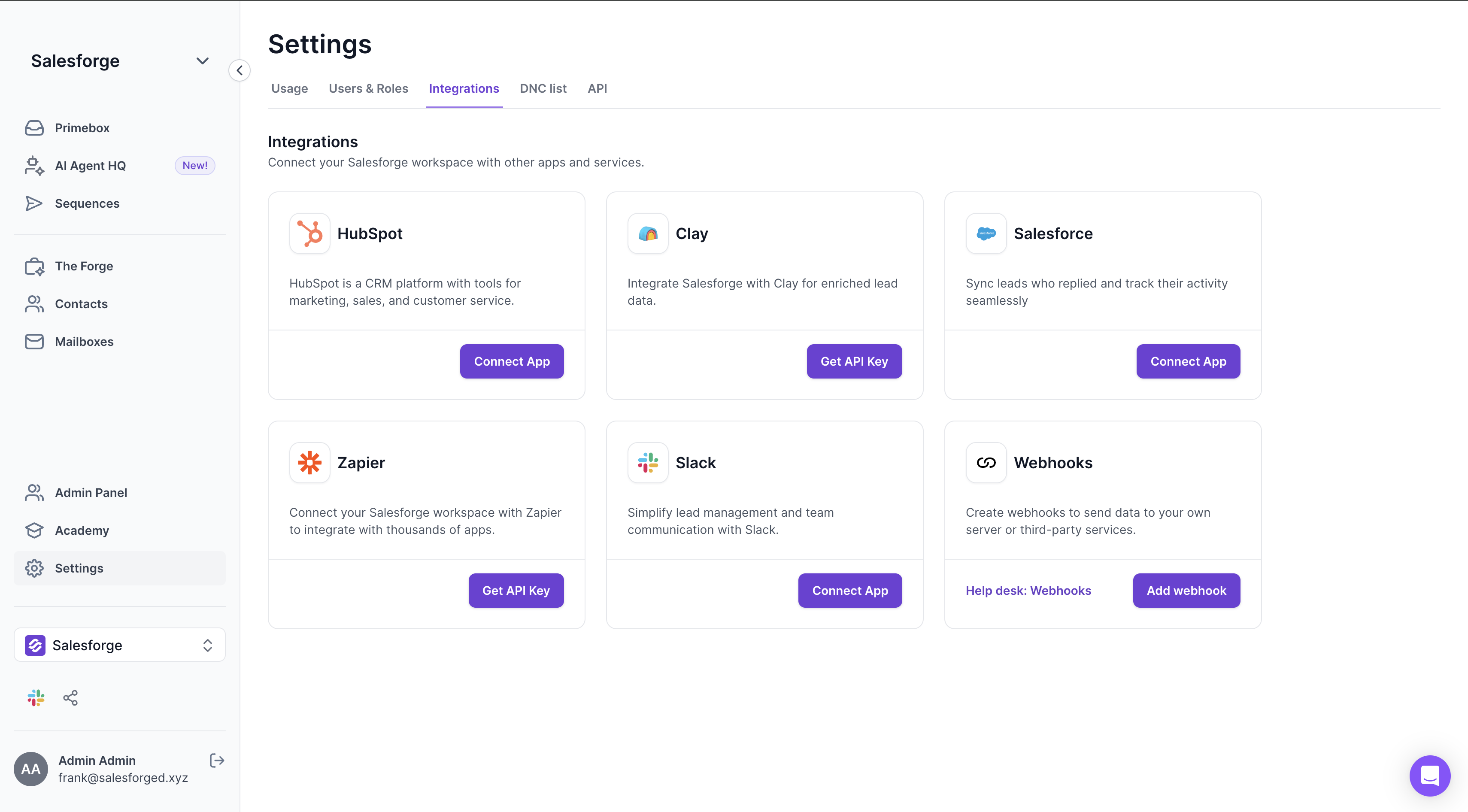
Find Salesforce and click Connect App. You'll be redirected to Salesforce, where you'll be asked to log in if you aren't already.
Once you log in, Salesforce is connected and the Salesforce settings window opens. It has three tabs: Contacts, Leads and Activity. You can reopen it anytime from Settings → Integrations → Salesforce → Settings.
Stage mapping is set separately for Salesforce Contacts and Leads, on their own tabs.
Open the Contacts or Leads tab.
Under Select Salesforce field to map, choose the Salesforce field that holds the stage (for Leads this is usually Status).
For each Primebox label (Wrong contact, Positive, Out of office, Negative, Meeting completed, Meeting booked, Closed), pick the Salesforce stage it should set.
Click Save changes & Close.
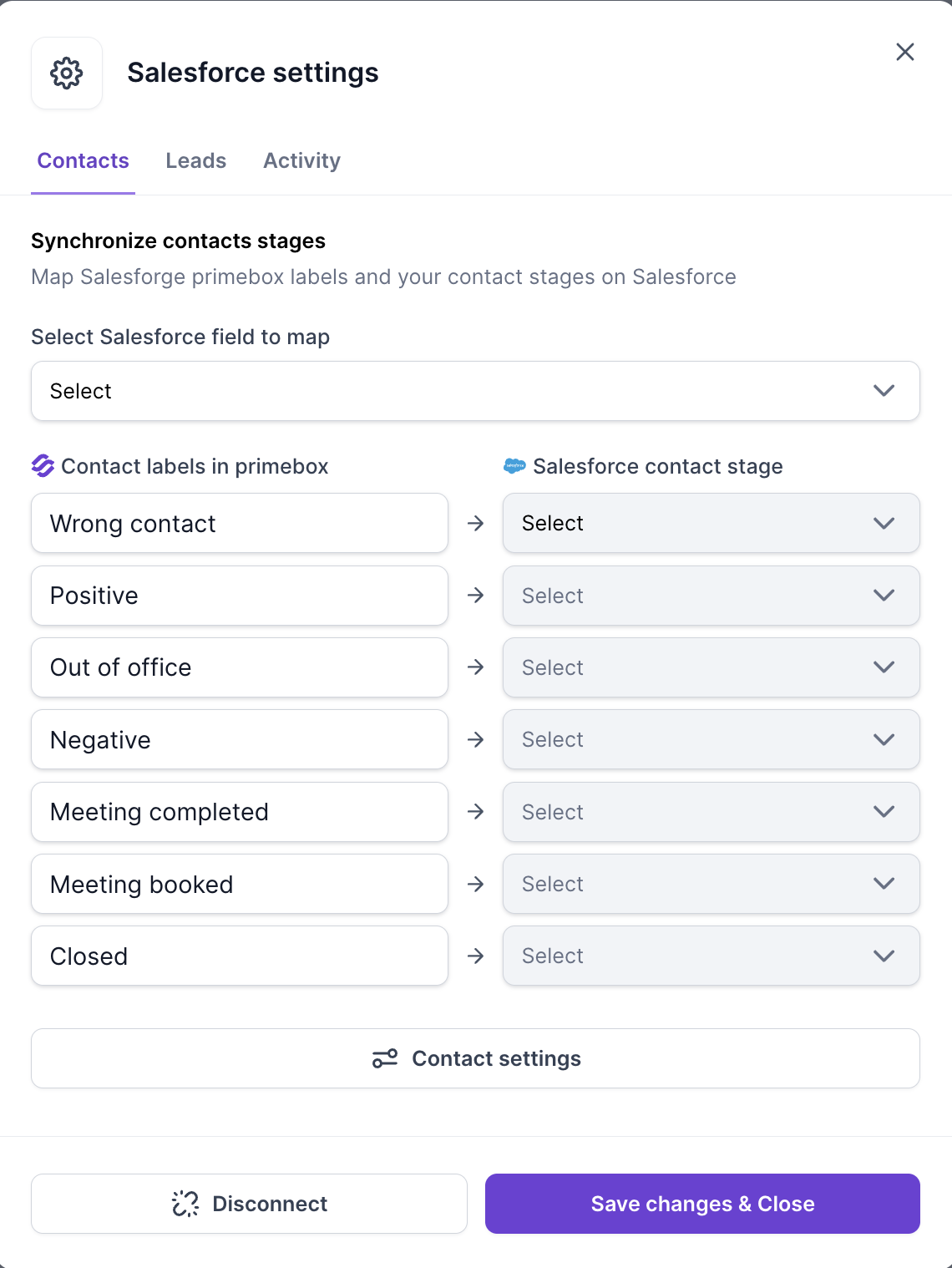
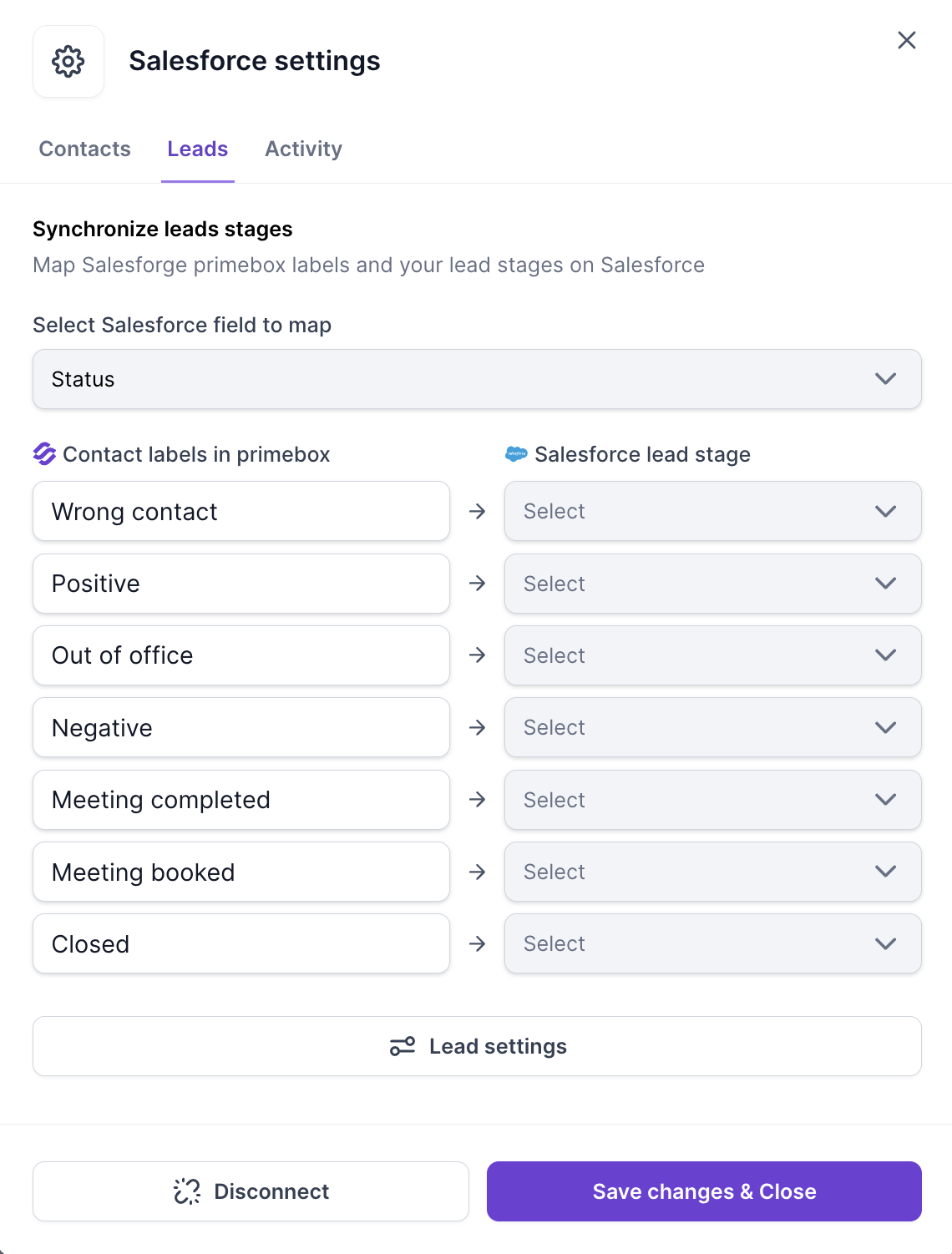
From then on, whenever you label a reply in Primebox, the mapped stage is updated on the linked Lead or Contact in Salesforce.
With activity sync on, outreach is logged automatically on the matching Lead or Contact in Salesforce:
Emails sent from your sequences and from Primebox
Email replies from leads
LinkedIn messages and InMails sent
LinkedIn replies received
LinkedIn connection requests sent
Emails appear as Salesforce Email records, with replies marked as incoming. LinkedIn activity is logged as Tasks.
Go to Settings → Integrations → Salesforce → Settings.
Open the Activity tab.
Under Advanced Sync, enable Salesforge activity synchronization.
Click Save changes & Close.
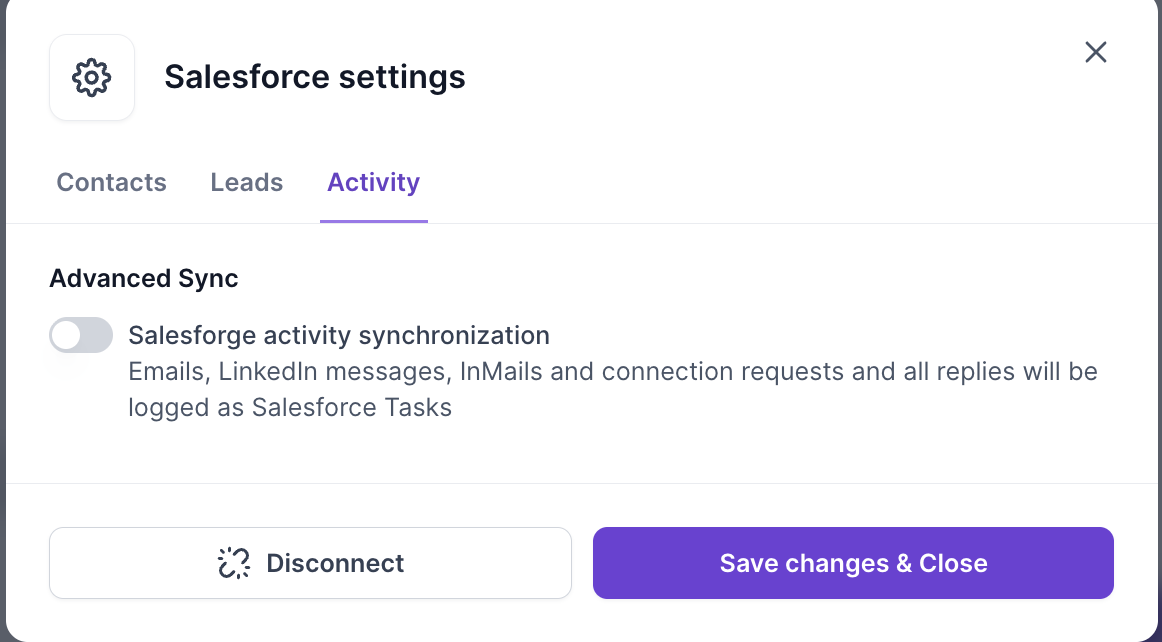
Enhanced Email must be on in Salesforce for emails to be logged. To check, in Salesforce go to Setup → Quick Find → "Enhanced Email" → Enable.
Activity is only logged for contacts that are linked to a Salesforce record (see What "linked" means below).
Only new activity is synced. Activity from before you turned the setting on can't be added to Salesforce.
Sync is set separately for Salesforce Contacts and Leads. Go to Settings → Integrations → Salesforce → Settings, open the Contacts or Leads tab, and click Contact settings or Lead settings at the bottom. The settings window has two tabs: Sync and Field Mappings.
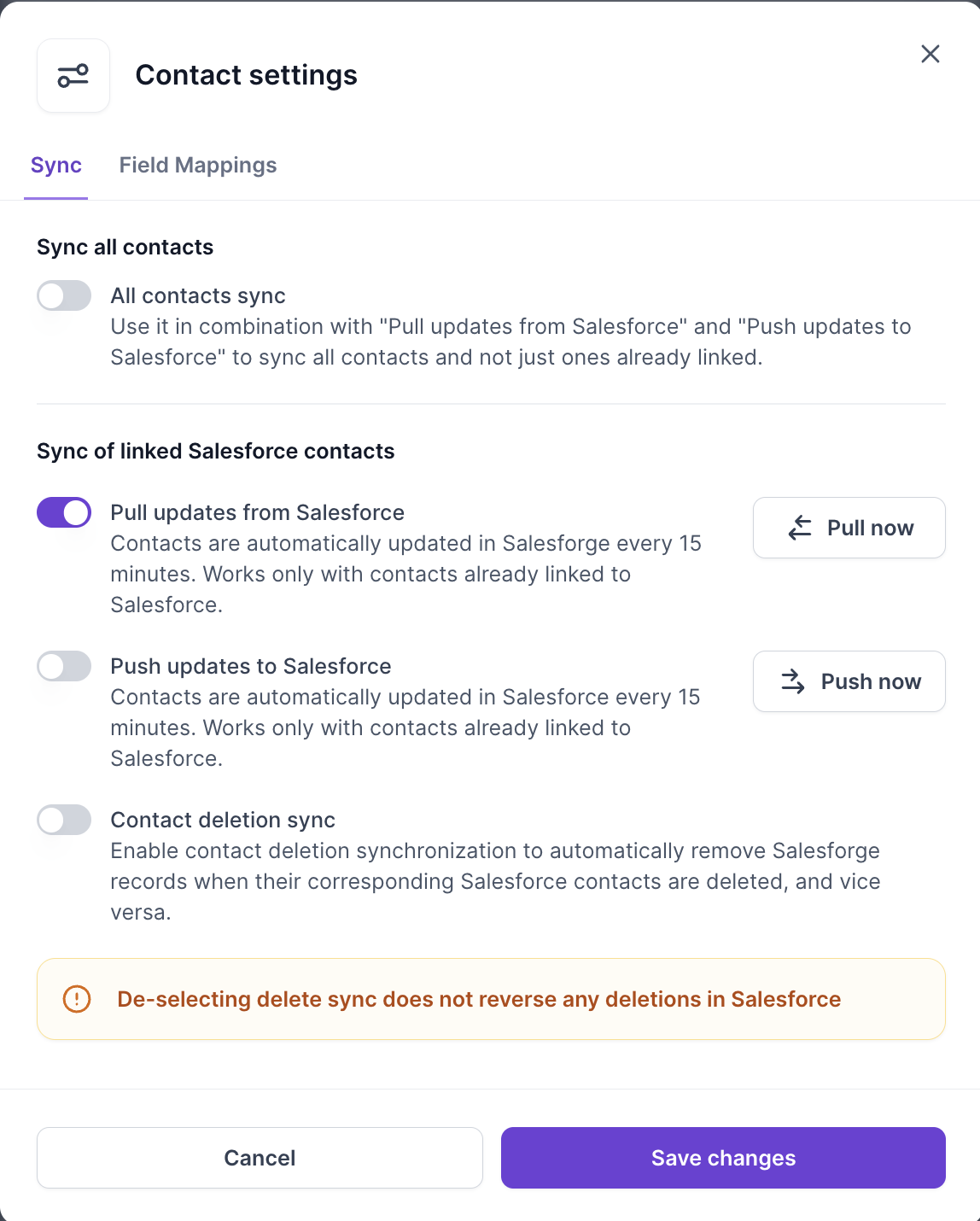
Under Sync of linked Salesforce contacts (or leads):
Pull updates from Salesforce: changes made in Salesforce update the record in Salesforge.
Push updates to Salesforce: changes made in Salesforge, including custom variables, update the record in Salesforce.
Pull now / Push now: run a sync right away instead of waiting for the next scheduled one.
Scheduled Pull and Push run every 15 minutes. For updates from Salesforce within seconds of a change, see Real-time updates from Salesforce below. You can turn each direction on or off at any time.
To sync every record, not just linked ones, turn on All contacts sync (or All leads sync) at the top of the Sync tab. It works together with Pull and Push and follows the direction you've turned on:
With Pull: every Salesforce Contact or Lead is brought into Salesforge.
With Push: every Salesforge contact is sent to Salesforce. Records are matched by email first, so existing Salesforce records are updated, not duplicated. Unmatched Salesforge contacts are created as new records in Salesforce.
⚠️ Important: full sync can pull or push a large number of records, including some you may not want in the other system. Check your settings before you turn it on.
Turn on Contact deletion sync (or Lead deletion sync) to delete a record on one side when its linked record is deleted on the other. This works both ways: deleting in Salesforce removes the Salesforge record, and deleting in Salesforge removes the Salesforce record. Records deleted in Salesforce this way go to the Salesforce Recycle Bin.
⚠️ Note: turning deletion sync off later does not restore anything already deleted in Salesforce.
In Lead settings → Sync, you can add Salesforce Leads with specific statuses to your Salesforge Do Not Contact list. This applies to Salesforce Leads only, not Contacts.
Under Add to DNC as, choose Domains (blocks the lead's whole email domain) or Contacts (blocks the individual email address).
Under Lead status on Salesforce, select one or more statuses.
Click Pull all leads.
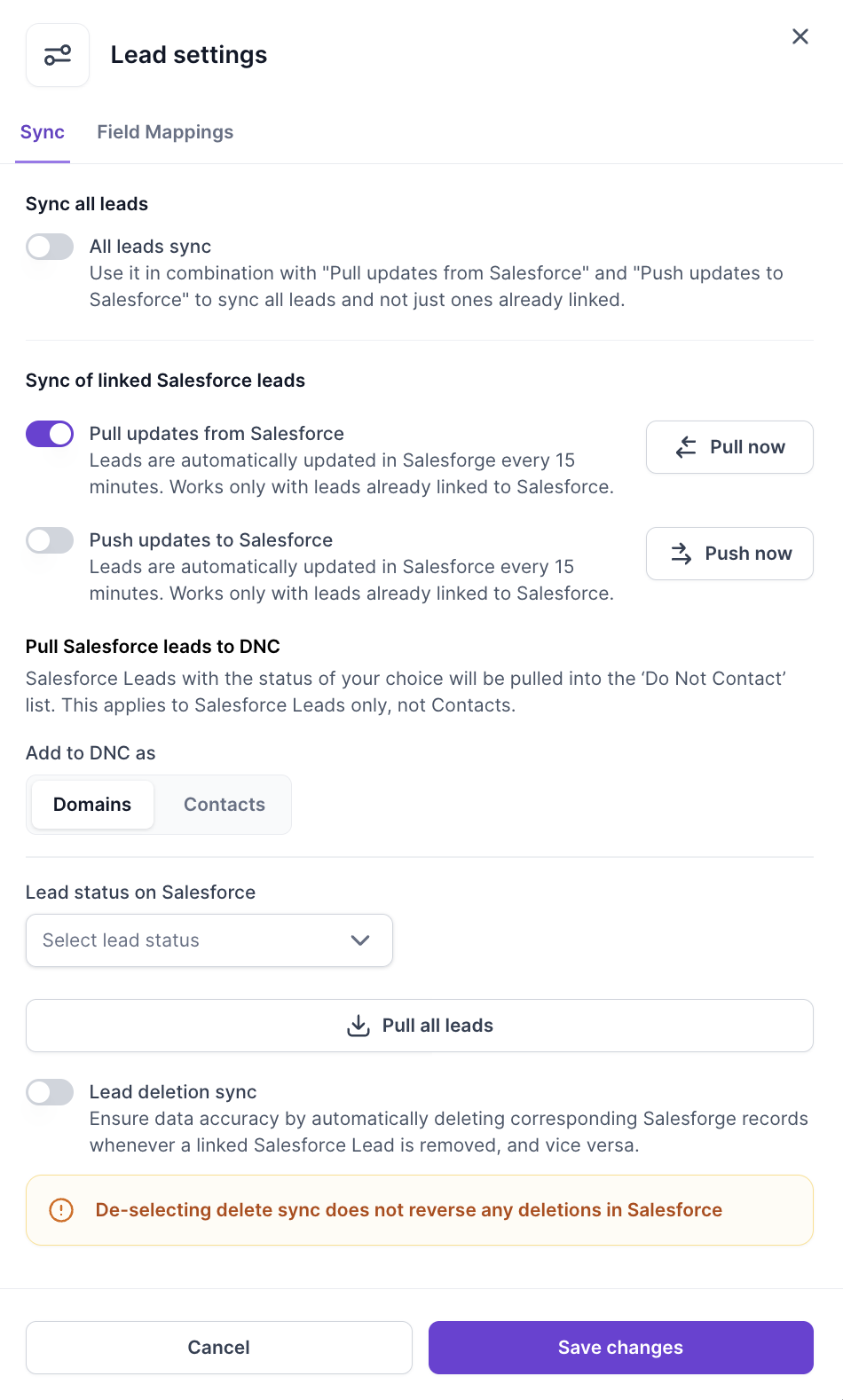
This is an on-demand pull, not a continuous sync. Click Pull all leads again whenever you want to pick up new Leads with those statuses.
If any of these Leads are already in active Salesforge sequences, they're marked DNC and stop receiving emails.
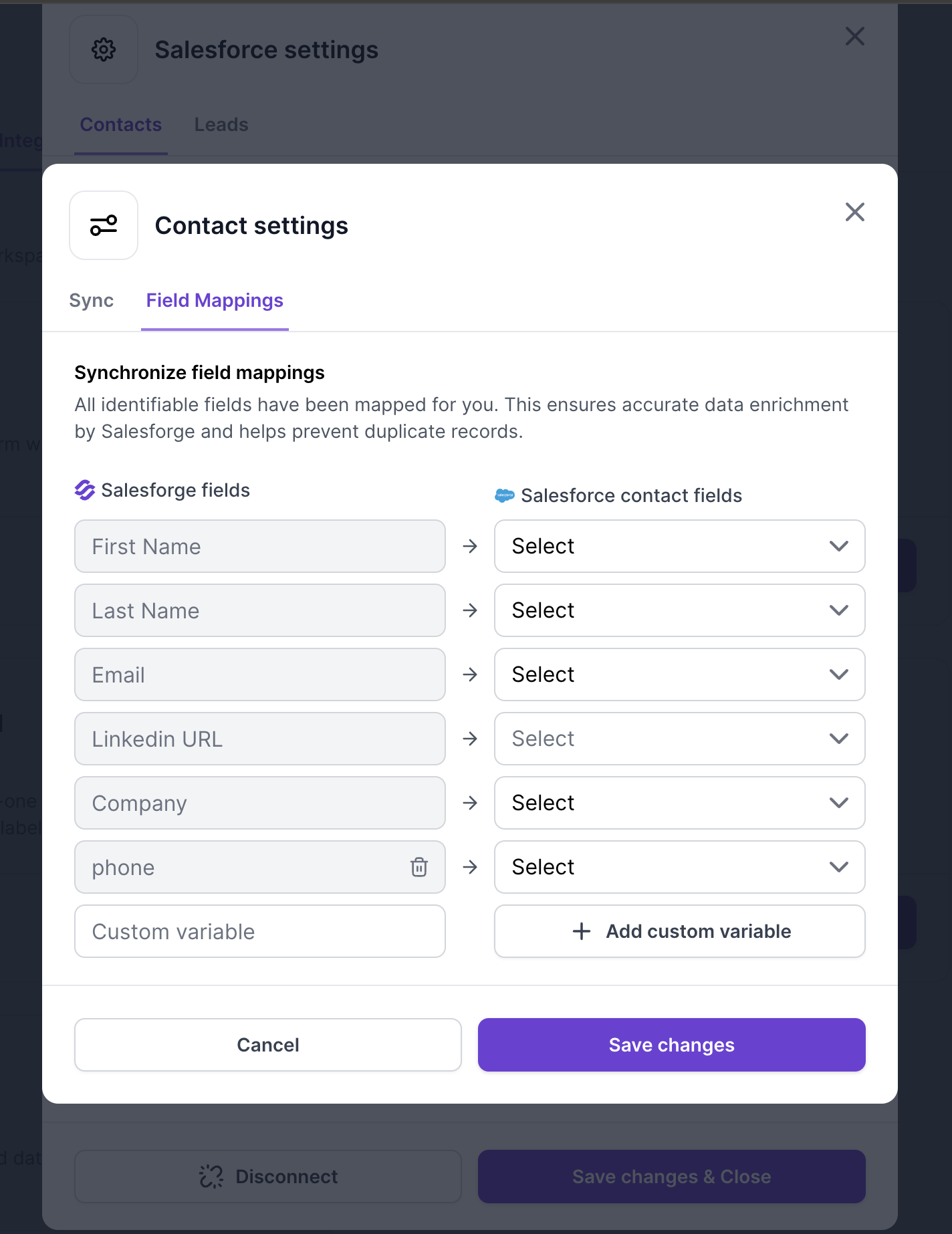
On the Field Mappings tab of Contact settings or Lead settings, choose which Salesforce fields map to Salesforge fields. You can also create custom variables and map Salesforce fields to them.
With real-time updates, new and updated records come into Salesforge within seconds of a change in Salesforce. To turn this on for an existing connection, disconnect and reconnect the integration in Settings → Integrations → Salesforce.
⚠️ Before you reconnect: reconnecting resets your Salesforce settings and field mappings, and unlinks your contacts. After reconnecting, set your options again and re-import your contacts (or turn on full sync) to link them again.
If the same record is edited in both systems at nearly the same moment, the Salesforce version wins.
Contacts without an email can't be matched, so full sync skips them.
Leads without a company are created in Salesforce with Company set to "[not provided]", because Salesforce requires that field.
A linked contact is one that's connected to a Salesforce record. Contacts become linked when you import them from Salesforce (below) or when full sync matches or creates them. Pull/Push without full sync, stage updates and activity sync only work for linked contacts.
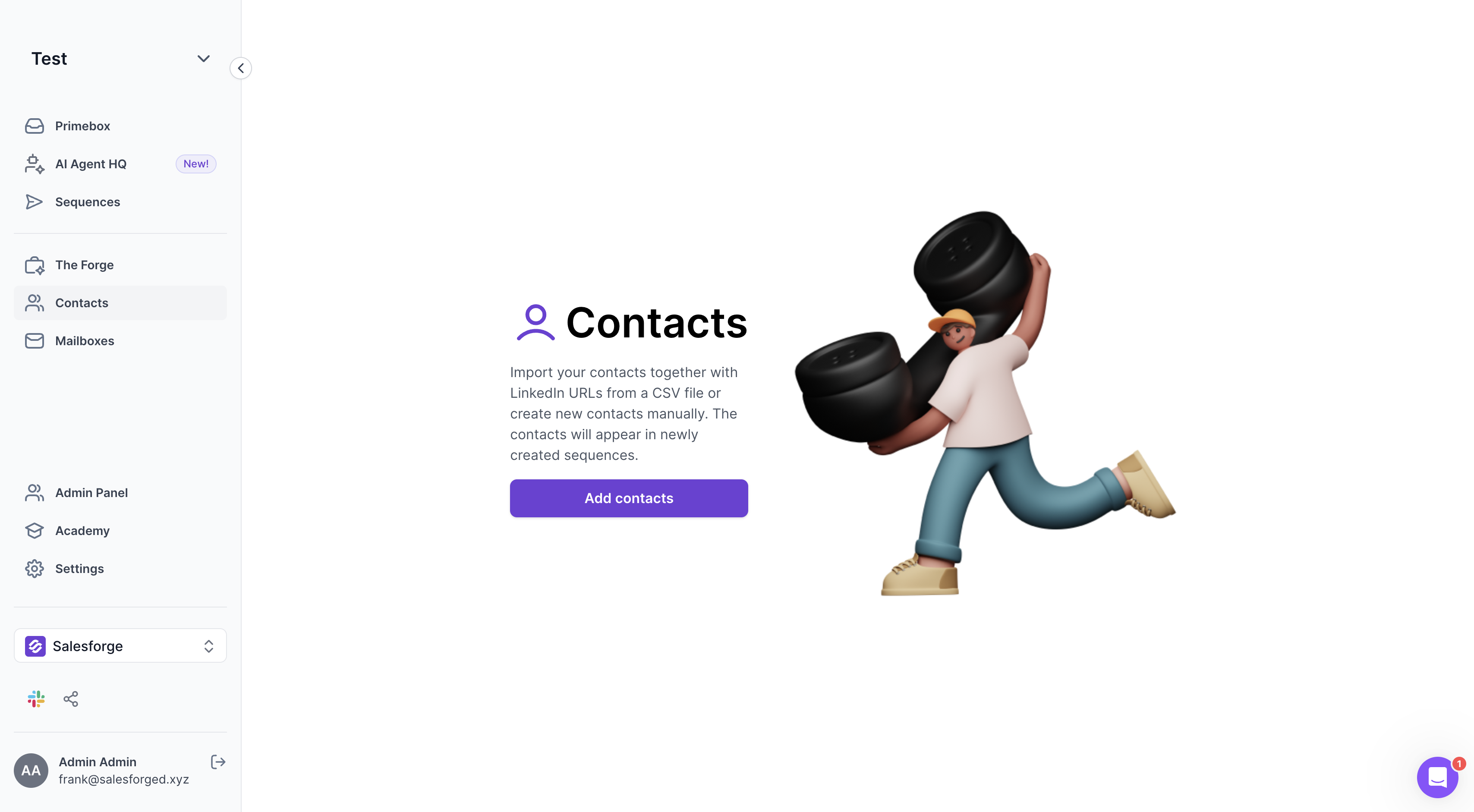
Go to the Contacts tab in Salesforge and click Add contacts.
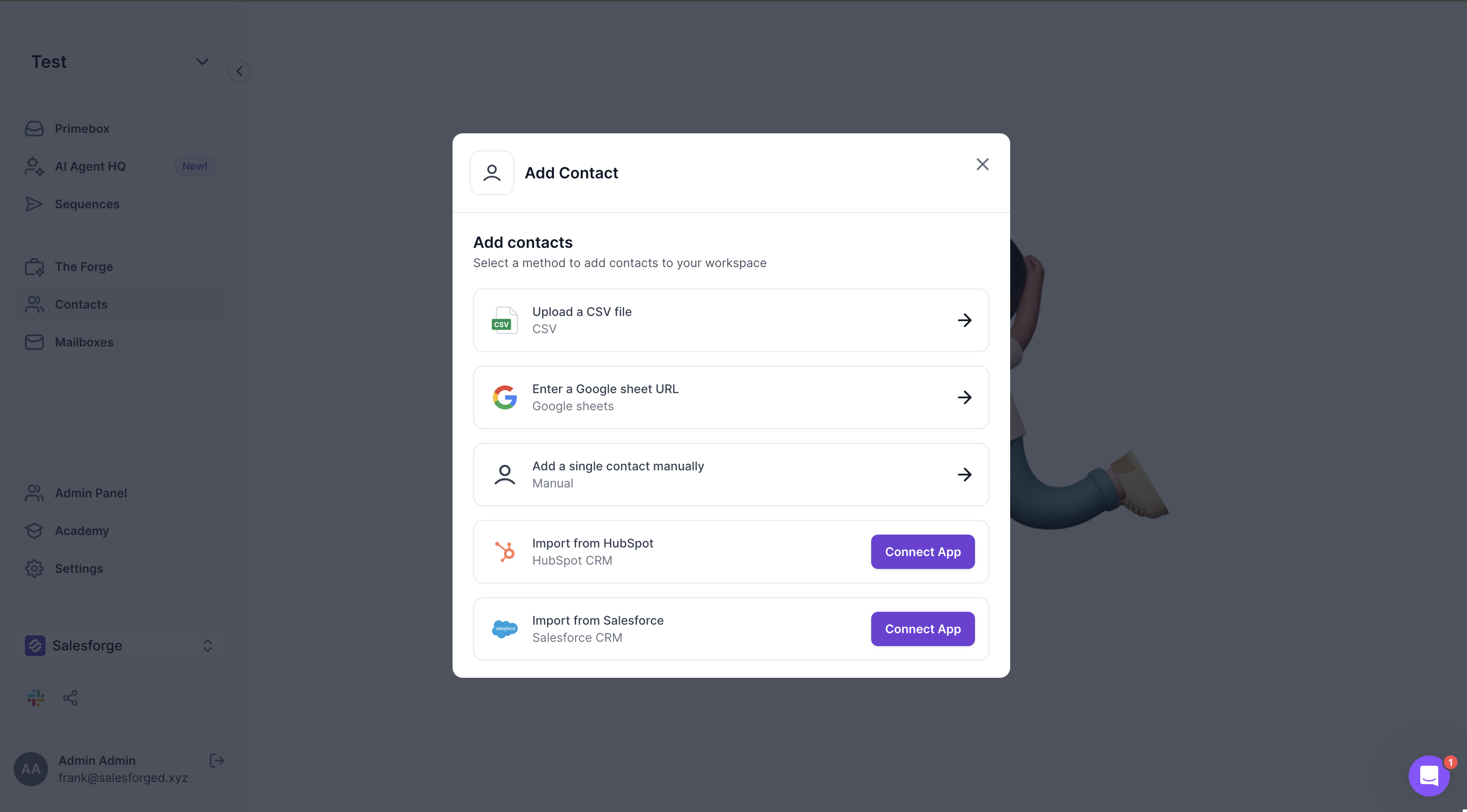
Choose Salesforce from the options. You'll be asked to connect the app if it isn't connected yet.
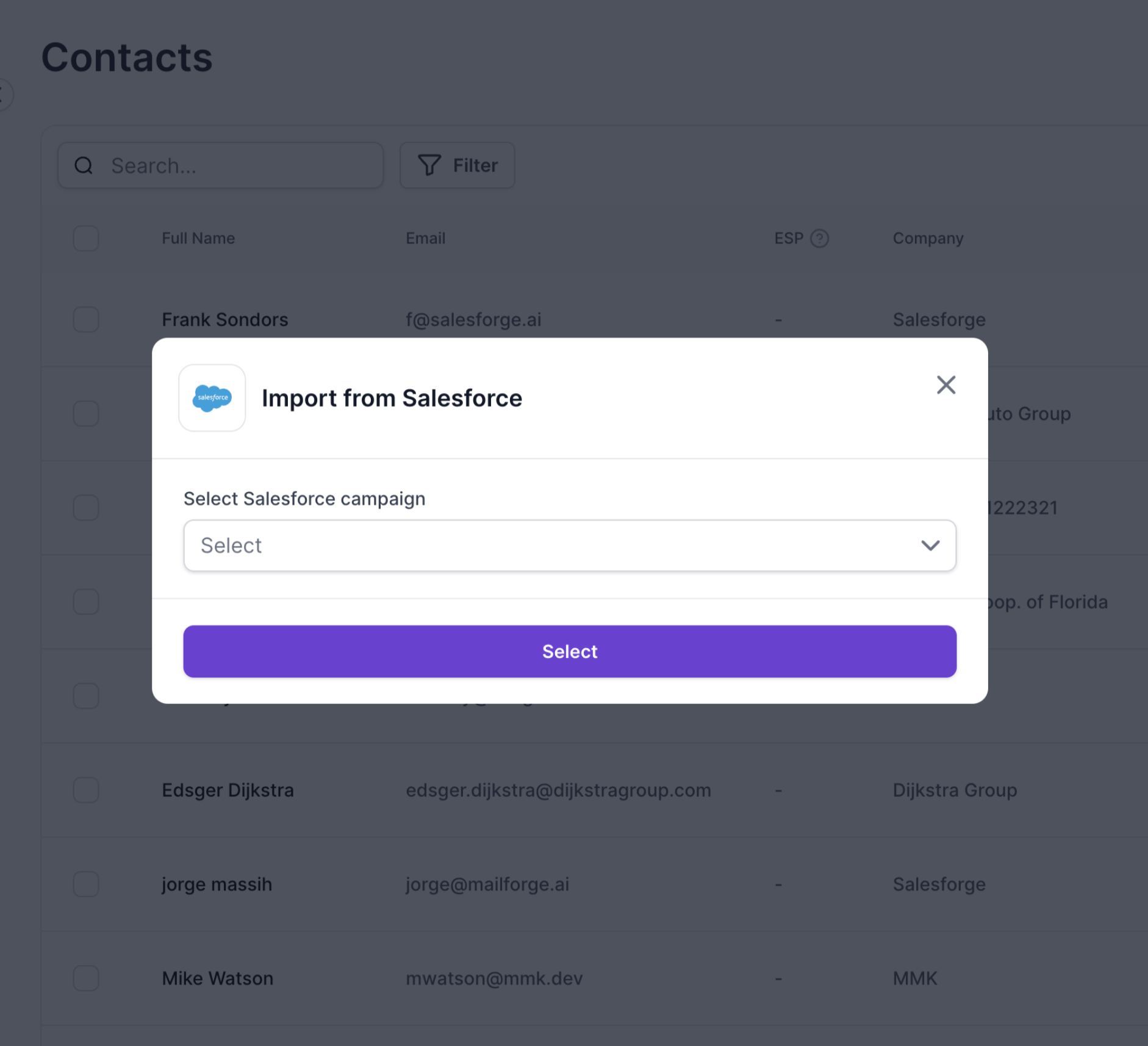
Select the Salesforce Campaign to import contacts from.
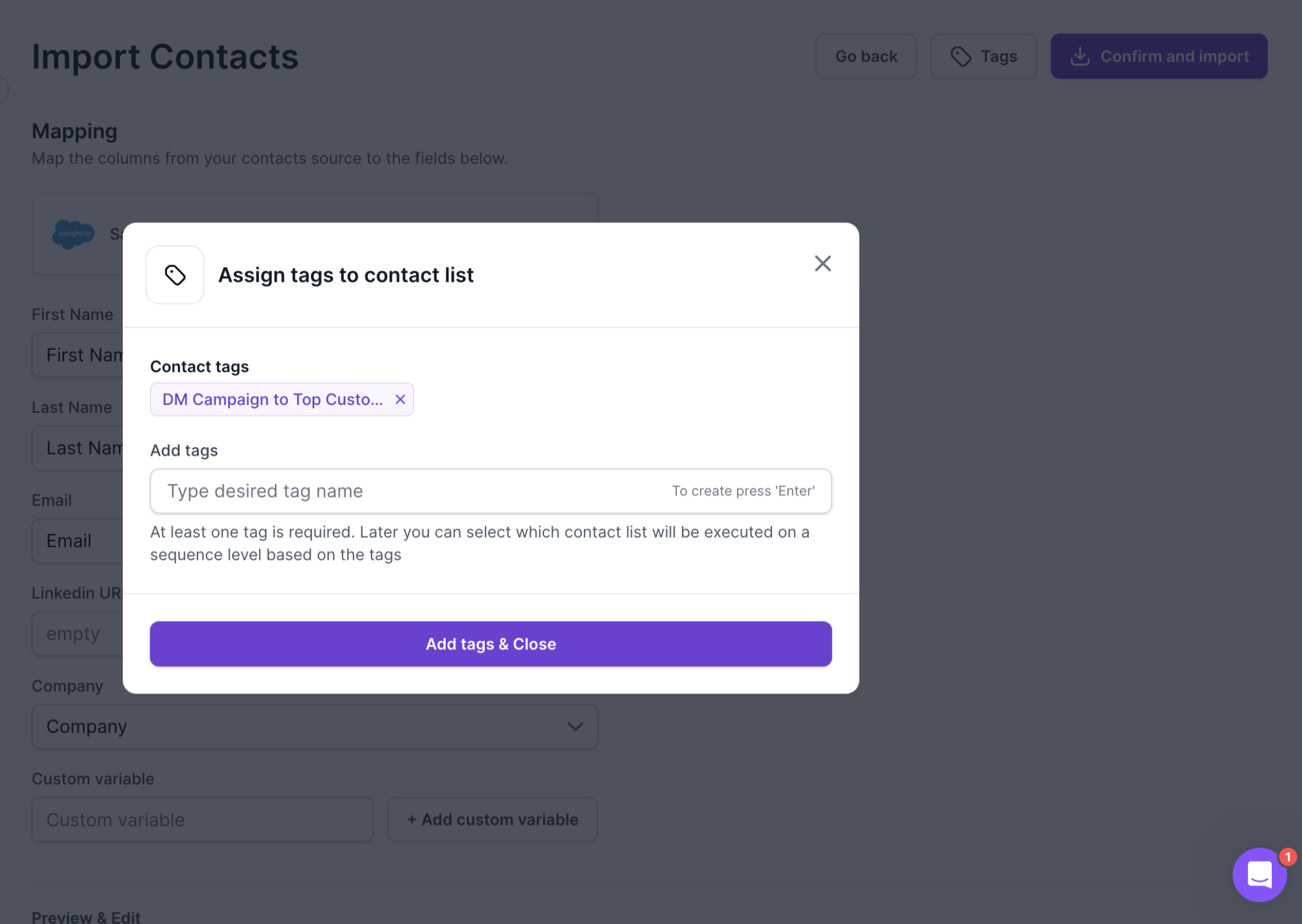
Add a tag for the imported contacts.
Map the fields from Salesforce to Salesforge, adding custom variable mappings if needed.
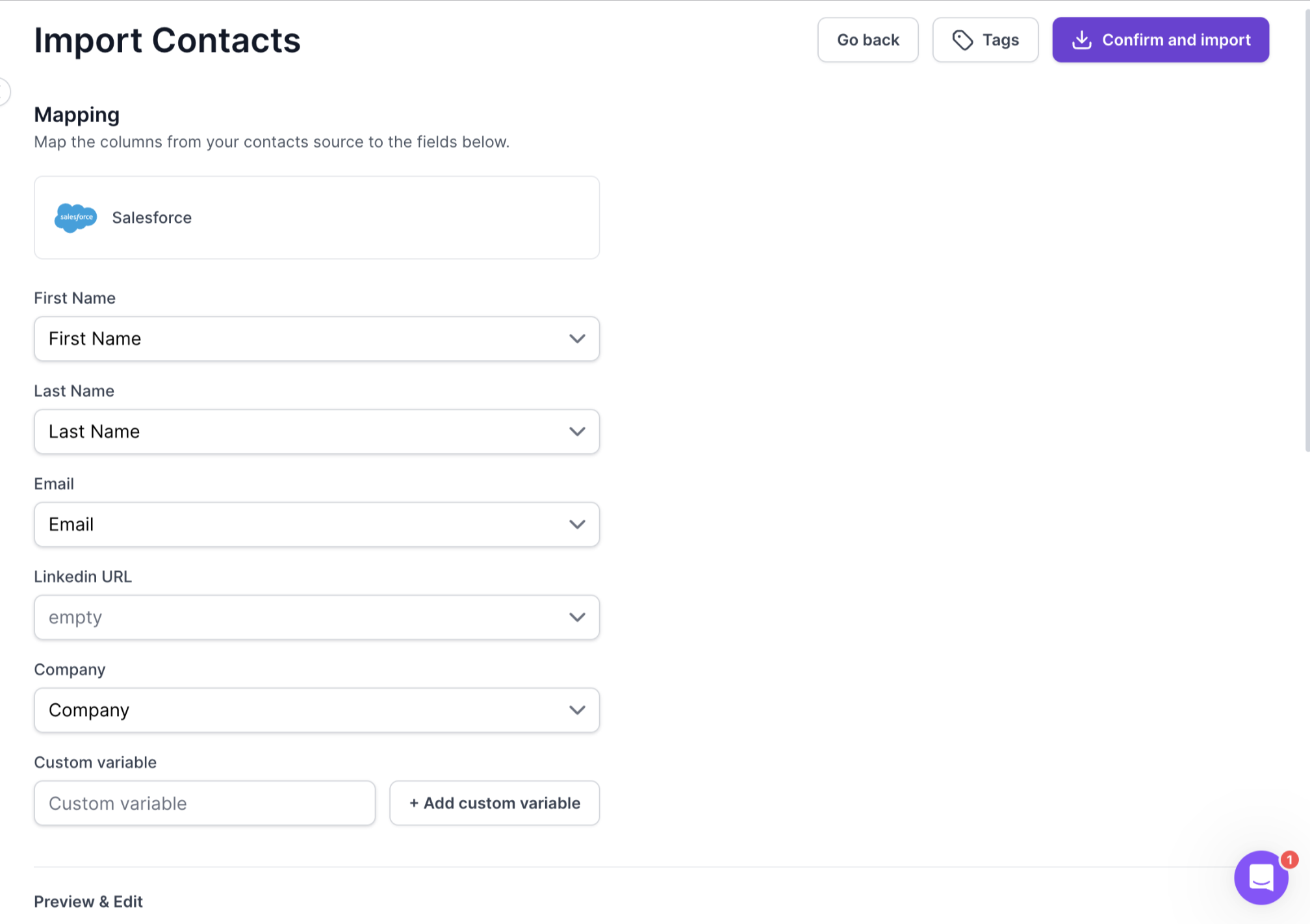
Scroll down to the Preview & Edit section to edit the data if you want, then click Confirm and import.
Can past emails and LinkedIn activity be synced to Salesforce?
No. Only activity that happens after you turn on activity synchronization is logged.
I turned on activity sync but don't see emails in Salesforce. Why?
Check that Enhanced Email is enabled in Salesforce, and that the contact is linked to a Salesforce record.
Will full sync create duplicates?
No. Records are matched by email first, so existing records are updated. Contacts without an email are skipped.
Are LinkedIn connection acceptances logged in Salesforce?
No. Connection requests you send are logged, but acceptances aren't.
I don't see the Sync options in my settings.
Open the Contacts or Leads tab in Salesforce settings and click the Contact settings or Lead settings button at the bottom.
Do Primebox label mappings work for Contacts as well as Leads?
Yes. Each has its own tab with its own mapping, so one label can set a stage on Leads and on Contacts independently.