The HubSpot integration connects Salesforge to your HubSpot account so contacts, labels, email and LinkedIn activity, deals and Do Not Contact rules stay aligned between the two. Each sync direction has its own switch, so you decide what moves, and in which direction.
Plan: integrations are included in the Salesforge Growth plan. The Pro plan does not include them. Salesforge doesn't require a specific HubSpot plan.
Where it lives: Salesforge has a listing in the HubSpot App Marketplace, but you set everything up and manage it in Salesforge, under Settings > Integrations > HubSpot.
Permissions: you need permission to manage integrations in your Salesforge workspace, and the HubSpot user who approves the connection must be allowed to authorize apps in HubSpot. If HubSpot shows a permissions message, ask a HubSpot admin to approve it.
One account, several workspaces: the same HubSpot account can be connected to more than one Salesforge workspace. If you do this, make sure the workspaces don't overwrite each other's contacts.
Import contacts from a HubSpot list (segment) into Salesforge.
Keep contacts up to date: pull changes from HubSpot, push changes from Salesforge, or both.
Sync every lead and every HubSpot contact with All leads sync, instead of only the contacts imported from HubSpot.
Sync contact deletions.
Map Primebox labels to a HubSpot dropdown property.
Add contacts to your Salesforge Do Not Contact list based on their HubSpot lifecycle stage.
Create a HubSpot deal when a lead gets a chosen Primebox label.
Log emails, replies, opens, clicks and LinkedIn activity on the HubSpot contact.
Show Salesforge sequence stats inside the HubSpot contact record with the Salesforge CRM card.
Log in to Salesforge.
Go to Settings > Integrations and select HubSpot.
Click Connect and approve the access request in HubSpot.
After you're redirected back to Salesforge, open HubSpot settings to configure the integration.
HubSpot settings has three tabs: Field mappings, Label mappings and Sync. Click Save changes after you edit the Field mappings or Label mappings tab.
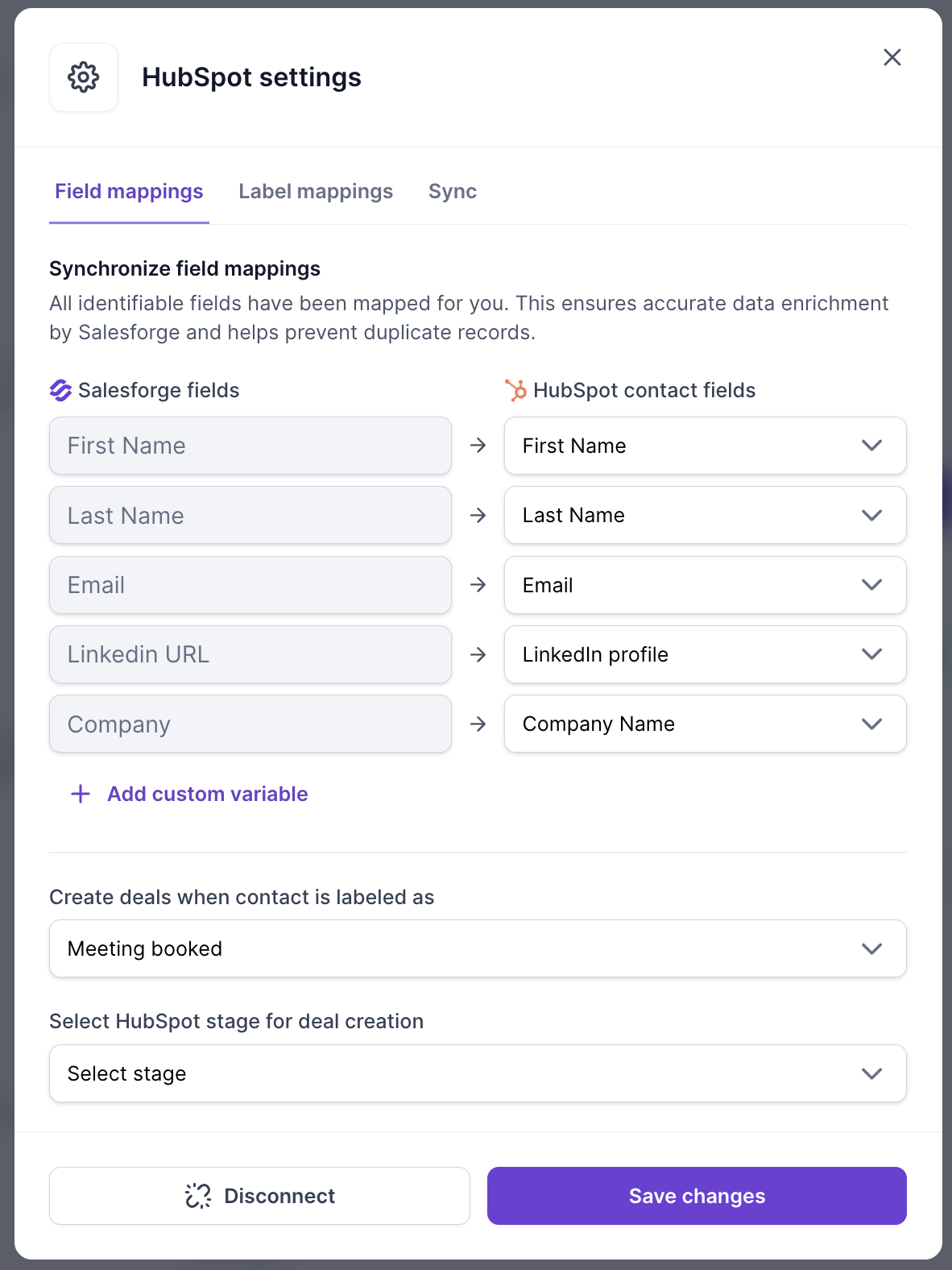
Salesforge maps the main contact fields for you, so you don't need to set them up:
Salesforge field | HubSpot contact field |
First Name | First Name |
Last Name | Last Name |
LinkedIn URL | LinkedIn profile |
Company | Company Name |
You can change the HubSpot field for any row. To sync more data, click Add custom variable and pick an existing HubSpot property. Salesforge never creates properties in HubSpot, so create the property in HubSpot first.
The same mapping is used in both directions. When a pull and a push both change the same field, the sync that runs last wins. There is no source-of-truth setting.
You can only choose properties from the Contact information, Social media information and Sales properties groups in HubSpot. Hidden properties and yes/no (checkbox) properties are not available.
Contacts are matched by email. Contacts that have a LinkedIn URL but no email can be pulled from HubSpot (see "LinkedIn-only contacts" below).
The bottom of the Field mappings tab controls deal creation. Salesforge can create a HubSpot deal when a lead's reply gets one of the labels you choose.
In Create deals when contact is labeled as, select one or more labels, for example Positive or Meeting booked.
In Select HubSpot stage for deal creation, pick the HubSpot stage the new deals should start in. This is required.
Click Save changes.
All the labels you select share the same stage. You can't set a different stage for each label.
The deal name starts with [Salesforge] and includes the lead's name and email.
The deal is associated with the HubSpot contact.
No deal owner is assigned. Assign owners in HubSpot, for example with a workflow.
In these cases Salesforge doesn't show an error. Check them first if a deal is missing:
The lead's label isn't one of the labels selected for deal creation.
The lead doesn't exist as a contact in HubSpot yet. Sync the contact first.
A deal with the same generated name already exists in HubSpot.
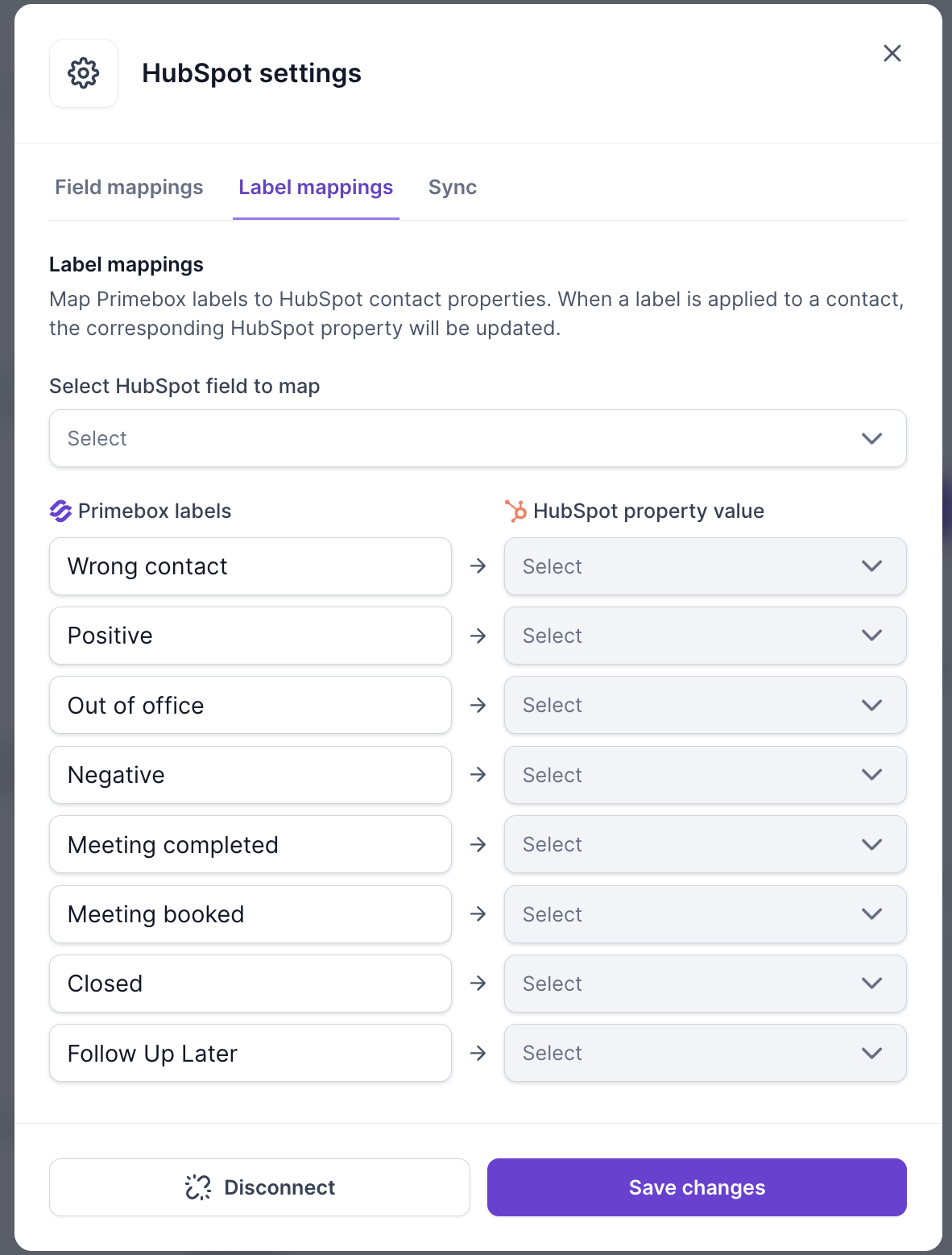
Label mappings write a lead's Primebox label to a HubSpot contact property, so your sales team sees the reply status in HubSpot. All eight labels can be mapped: Wrong contact, Positive, Out of office, Negative, Meeting completed, Meeting booked, Closed and Follow Up Later.
In HubSpot, create a contact property of the type Dropdown select and add an option for each label you want to track. Salesforge doesn't create this property for you.
In Salesforge, open HubSpot settings > Label mappings.
Under Select HubSpot field to map, choose your dropdown property.
For each Primebox label, choose the matching dropdown value.
Click Save changes.
This sync only goes from Salesforge to HubSpot. Changing the dropdown in HubSpot doesn't change the label in Primebox.
A label you leave unmapped is ignored. HubSpot isn't updated for it.
If you rename or delete a dropdown option in HubSpot, update the mapping in Salesforge. A mapped value that no longer exists makes the HubSpot update fail, and the label still changes in Salesforge without any error shown.
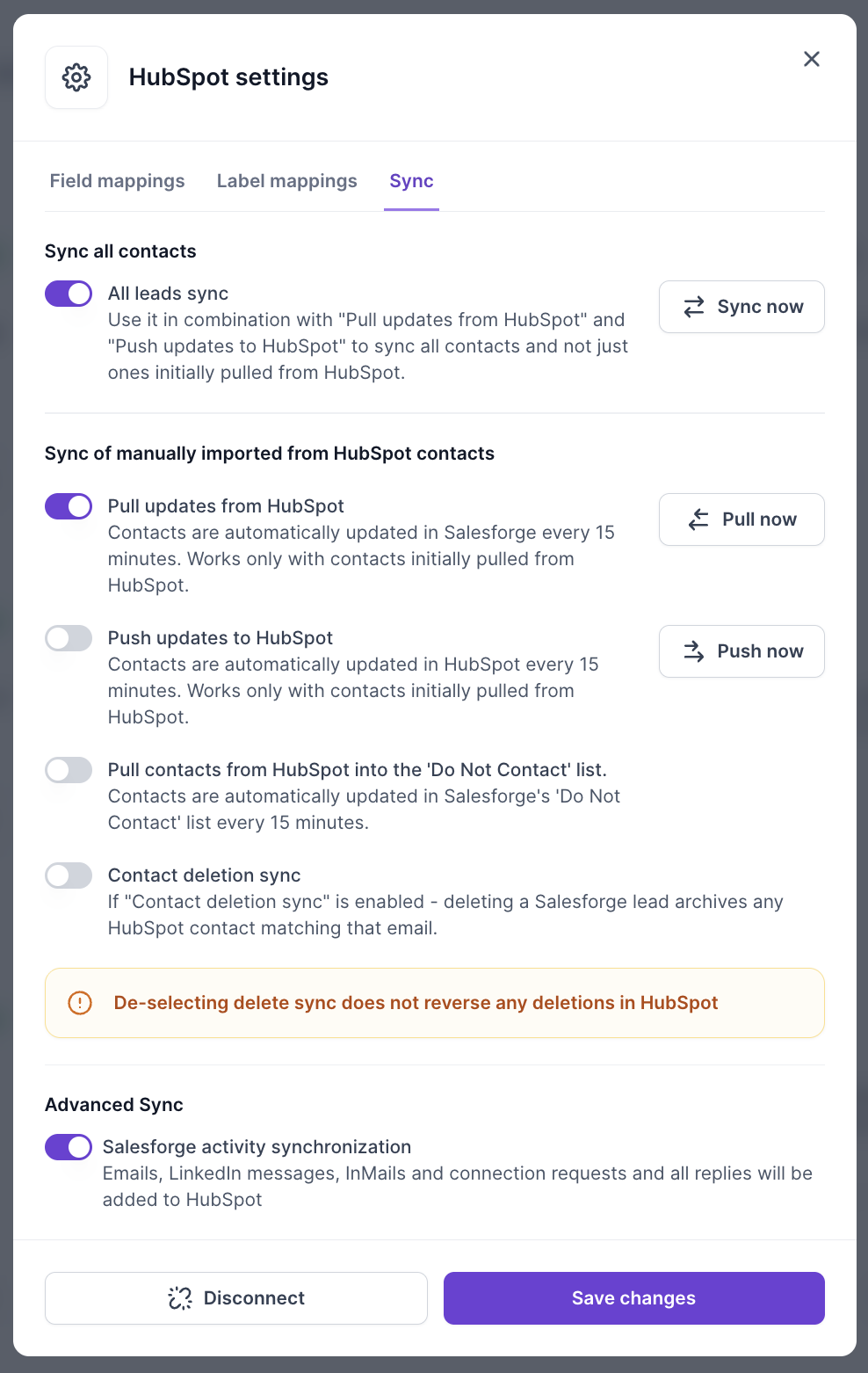
The Sync tab decides which contacts are synced and in which direction. Scheduled syncs run automatically, within about 15 minutes.
Sync all contacts with the All leads sync switch sets the scope of every sync direction. It doesn't choose a direction.
All leads sync | What it covers |
Off (default) | Only contacts you imported from HubSpot with the import. Pull, push and deletion sync only touch those contacts. |
On | Every contact in HubSpot is pulled into Salesforge, and every Salesforge lead is pushed to HubSpot, depending on which directions are on. New HubSpot contacts are picked up automatically. |
Turning All leads sync on starts a sync of your existing contacts straight away, not only of future changes. Review your settings before you turn it on.
Syncing can't be limited to a tag, list or segment. The only way to scope a sync is the one-off list import described below.
Updates made in HubSpot are copied to the matching Salesforge contacts about every 15 minutes. Without All leads sync, this only covers contacts imported from HubSpot. Use Pull now to run it immediately.
Changes made in Salesforge are copied to the matching HubSpot contacts about every 15 minutes. Without All leads sync, this only covers contacts imported from HubSpot. Use Push now to run it immediately.
Sync now runs Pull now and Push now together, for whichever of the two directions is switched on.
Use this to stop outreach to contacts that reach a certain stage in HubSpot.
On the Sync tab, switch on Pull contacts from HubSpot into the "Do Not Contact" list.
Select one or more HubSpot lifecycle stages, for example Customer, Opportunity or Unqualified.
Under Add to DNC as, choose Contacts to block only the contact's email address, or Domains to block the whole company domain.
Use Domains with care. It blocks every contact at that company in Salesforge.
This only adds contacts to the DNC list. If a contact later leaves that lifecycle stage in HubSpot, or you remove them from a HubSpot list, they stay on the Do Not Contact list in Salesforge until you remove them manually.
When this is on, deletions are synced in both directions:
Deleting a lead in Salesforge archives the HubSpot contact with the same email.
Deleting a contact in HubSpot removes the matching lead from Salesforge.
Switching deletion sync off later doesn't restore anything that was already deleted or archived. Turn it on carefully, particularly if your team cleans up contacts in either platform.
When this is on, Salesforge logs activity on the HubSpot contact. The next section lists what is logged.
You can import contacts from HubSpot as a one-off. You choose a HubSpot list (segment) and assign at least one tag to the imported contacts. Only contacts with an email address or a LinkedIn URL are imported; contacts with neither are skipped.
Contacts you import this way are linked to their HubSpot contact. That link is what allows pull, push and deletion sync to work when All leads sync is off. The import runs in the background, so if you import a large list, compare the contact count in Salesforge with the HubSpot list afterwards.
With activity synchronization on, these Salesforge events appear on the HubSpot contact:
In Salesforge | In HubSpot |
Email sent from a sequence | Logged email on the contact |
Reply received | Logged incoming email on the contact |
Email opened | Note: "Email opened by lead from Salesforge sequence" |
Link clicked | Note: "Link clicked" with the link |
LinkedIn message, InMail, InMail reply, connection request | Logged LinkedIn message on the contact |
Other changes use the field, label, DNC and deal settings described above.
Contacts without an email can still be pulled into Salesforge if they have a LinkedIn profile URL in HubSpot, and the LinkedIn profile field is mapped under Field mappings. Pushing to HubSpot always needs an email address, so a lead without an email is never pushed.
The Salesforge CRM card shows sequence results inside the HubSpot contact record, so your sales team can see them without opening Salesforge. It shows:
Sequence name
Emails sent, opened and clicked
Number of replies
The lead's status in the sequence
Email validation status (Unknown if the contact hasn't been validated)
The card isn't added to your HubSpot records automatically. A HubSpot admin adds it from the contact record: open any contact, choose Customize record, and add the Salesforge card.
Companies, tickets and tasks. Salesforge only works with contacts, deals, lists, notes and logged emails and LinkedIn messages.
Contacts with neither an email nor a LinkedIn URL.
Changes in HubSpot to the label dropdown. Labels only go from Salesforge to HubSpot.
Removals from the Do Not Contact list. These are always done manually in Salesforge.
Tag-, list- or segment-based filtering of continuous syncs.
Click Disconnect on the Field mappings tab to remove the connection.
Disconnecting turns off Push and Contact deletion sync.
It also removes the links between your Salesforge leads and their HubSpot contacts.
Your field mappings, label mappings, deal settings, DNC settings and Pull and All leads sync settings are kept.
After you reconnect, nothing is synced again automatically. If All leads sync is off, pull, push and deletion sync have no linked contacts left to work with. Either turn on All leads sync or import your HubSpot list again, then switch Push and Contact deletion sync back on.
When you connect, HubSpot asks you to approve read access to your lists and leads, and read and write access to your contacts and deals. Salesforge does not ask for access to companies, tickets or tasks.
Yes, there is a Salesforge listing in the HubSpot App Marketplace. The settings described in this article are in Salesforge, under Settings > Integrations > HubSpot.
Integrations are part of the Growth plan. Check which Salesforge plan you're on, or upgrade to Growth.
Check the "When no deal is created" list above. The most common causes are a label that isn't selected, a lead that isn't in HubSpot yet, and a missing stage (the stage is required).
Check that Advanced Sync: Salesforge activity synchronization is on, and that the lead exists as a contact in HubSpot with a matching email.
Check that the direction is switched on, and whether All leads sync is on. When it's off, only contacts imported from HubSpot are synced. Contacts you created in Salesforge, or HubSpot contacts you haven't imported, are not part of the sync.
Only properties in the Contact information, Social media information and Sales properties groups are available. Hidden properties and yes/no properties are not.
Check that the label is mapped, that your HubSpot dropdown is a Dropdown select property, and that the mapped option still exists in HubSpot.
Reconnecting doesn't start a sync and doesn't restore the links to your HubSpot contacts. See "Disconnect and reconnect".
Not for continuous sync. You can scope an import to a single HubSpot list. Pull, push and deletion sync then work on those imported contacts when All leads sync is off.
Start with All leads sync off and import one HubSpot list to try the setup before you sync everything.
Pick labels that mean a real opportunity for deal creation, such as Positive and Meeting booked.
Keep the HubSpot dropdown for label mapping in step with your Salesforge labels.
Use Domains for Do Not Contact only when you're sure you want to block whole companies.